
Tag Archives: wifi

Airtame – Display anything… wirelessly

Finally got my hands on my Indiegogo funded Airtame last night, so wanted to put up a few thoughts on it. First impressions – very good. Simple packaging, 3 instructions to get you started and includes;

  • The Airtame
  • AC Power Adapter
  • EU Power Adapter (plug)
  • UK Power Adapter (plug)
  • HDMI Extension Cable
  • MicroUSB cable

Getting started

This was as simple as plugging in the dongle, and installing the app. The Airtame acts as a 5GHz WiFi access point, and sets a random password – displayed on the screen. Once connected directly you can then connect it to your WiFi network. All worked without any issues.

Slow Firmware Update

As I excitedly went to try a basic stream I had my only real disappointment – a lengthy (30 mins) firmware update before I could actually use the thing. At more then one point I thought that it might have stalled out but was dissuaded from killing the power by a warning not to. An ETA or at least some guidance on how long it would take should be considered.

Cool Things

It can use a website as the background/default page – to turn this on, in the app select your Airtame. Go to Manage -> Display -> Custom -> Website
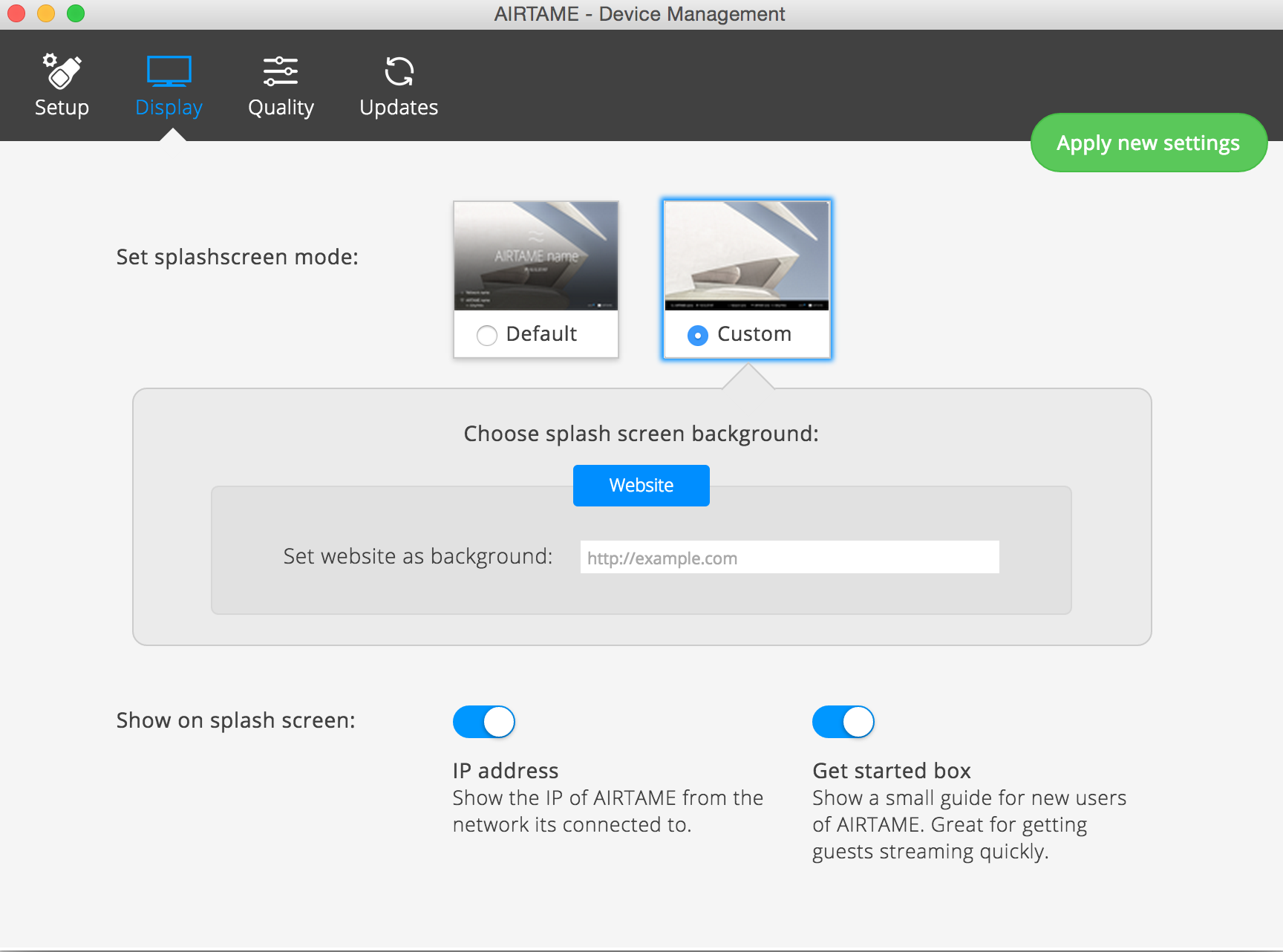
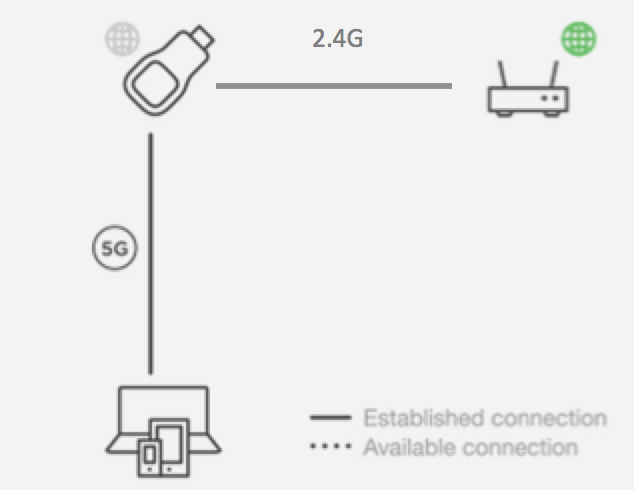
Airtame Custom WallpaperIt will route your internet traffic, so once you connect to the Airtame 5GHz network, and provide it with your WiFi details you can continue to use the interweb while managing/streaming the device.

I found that when I was connecting via the WiFi router I had frequent dropped connections. Not sure if this is the router (fairly crap one) or the Airtame, but found the 5GHz connection via the Airtame to be very stable
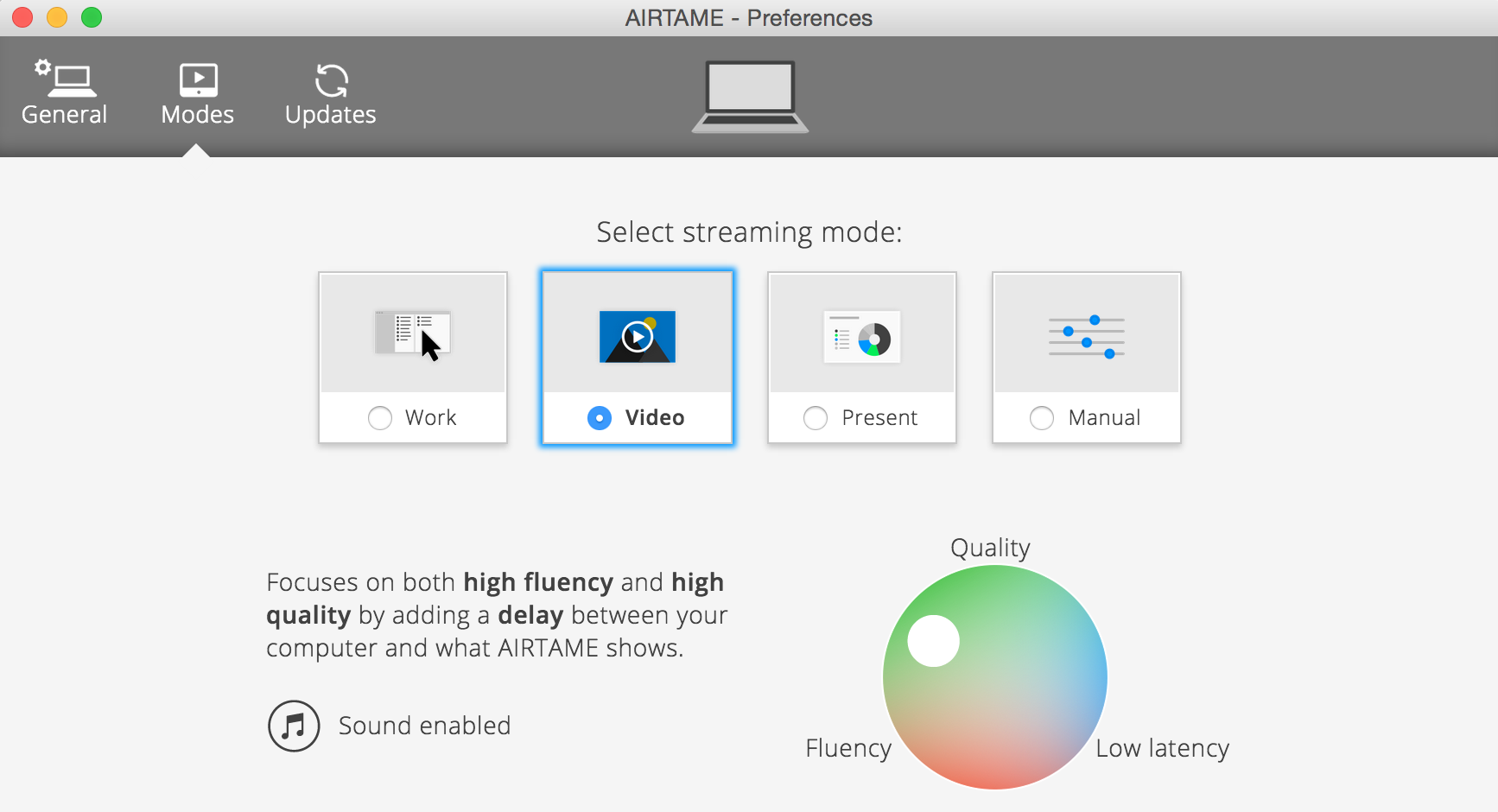
Airtame RoutingAudio streaming – requires a restart in OS X. Then in the Airtame app, under preferences, move the streaming mode to ‘Video’ rather then the default ‘Work’. Note that this will introduce 5sec buffering by default.
Airtame Preferences Mode

Network Configuration with Raspberry Pi – WiFi and Ethernet

I was configuring my Raspberry Pi (B+) on Raspbian via the ethernet port, but also wanted to get the WiFi adapter up and running. I had some issues getting both running at the same time though – don’t know why as the device is running headless, but as soon as I disconnected the ethernet cable the WiFi was working as you would expect.

The workaround for this is a little messy, but I thought I’d share it here. First of all, use either the GUI or the config file to configure the WiFi (GUI is easier). The key point here, as I want to use a static IP when on my home network and DHCP the rest of the time, is to set the ‘id_str’ parameter to something meaningful e.g. home_network. The id_str allows us to match a WiFi access point to an interface configuration.

WiFi Config File

This is stored in /etc/wpa_supplicant/wpa_supplicant.conf

ctrl_interface=DIR=/var/run/wpa_supplicant GROUP=netdev
update_config=1

network={
ssid="network-SSID"
psk="my_network_key"
proto=RSN
key_mgmt=WPA-PSK
pairwise=TKIP
auth_alg=OPEN
id_str="<strong>home_static</strong>"
}

Interfaces File

This is /etc/network/interfaces
Note how the iface name is the same as the id_str for the home network/static IP configuration

auto lo

iface lo inet loopback

allow-hotplug eth0
iface eth0 inet dhcp

allow-hotplug wlan0
iface wlan0 inet manual
wpa-roam /etc/wpa_supplicant/wpa_supplicant.conf

iface <strong>home_static</strong> inet static
address 192.168.1.20
netmask 255.255.255.0
gateway 192.168.1.1

iface default inet dhcp

The Weirdness

For some reason if we hotplug the Ethernet port we disable wlan0 (and it makes a right mess of things as the sshd and other services aren’t bound to the correct interface any more).

So we edit /etc/default/ifplugd

INTERFACES="eth0"
HOTPLUG_INTERFACES="eth0"
ARGS="-q -f -u0 -d10 -w -I"
SUSPEND_ACTION="stop"

And to give the WiFi dongle a kick at startup we add the following to /etc/rc.local.

# Disable the ifplugd eth0
sudo ifplugd eth0 --kill
sudo ifup wlan0