Category Archives: Virtualisation

DHCP, Linux bridges and VMware

I do a lot of testing with eve-ng which is in turn running on a VM within ESXi. Naturally I have a Distributed V-Switch, with multiple uplinks for redundancy.

EVE-NG version: 2.0.3-92
Platform: ESXi 6.5
Security config on hypervisor:

  • Promiscuous mode Accept
  • MAC address changes Accept
  • Forged transmits Accept

Unfortunately this seems to break DHCP for reasons I can’t quite fathom. If we look at the topology we are working with:

The DHCP server is hosted on the same hypervisor/dvSwitch, but for some crazy reason, the DHCP Response never makes it across the bridge within the EVE-NG VM.

brctl show
bridge name     bridge id               STP enabled     interfaces
pnet2           8000.000c2976c6ca       no              eth2
                                                        vunl0_1_0
                                                        vunl0_2_1
                                                        vunl0_3_0
                                                        vunl0_4_0
tcpdump -i vunl0_2_1
tcpdump: verbose output suppressed, use -v or -vv for full protocol decode
listening on vunl0_2_1, link-type EN10MB (Ethernet), capture size 262144 bytes
11:05:32.267298 IP 0.0.0.0.bootpc > 255.255.255.255.bootps: BOOTP/DHCP, Request from 50:00:00:cb:38:c2 (oui Unknown), length 300
11:05:32.267602 IP 0.0.0.0.bootpc > 255.255.255.255.bootps: BOOTP/DHCP, Request from 50:00:00:cb:38:c2 (oui Unknown), length 300
11:05:34.265517 IP 0.0.0.0.bootpc > 255.255.255.255.bootps: BOOTP/DHCP, Request from 50:00:00:01:00:00 (oui Unknown), length 300
11:05:34.265784 IP 0.0.0.0.bootpc > 255.255.255.255.bootps: BOOTP/DHCP, Request from 50:00:00:01:00:00 (oui Unknown), length 300
tcpdump -i pnet2 port bootps -n
tcpdump: verbose output suppressed, use -v or -vv for full protocol decode
listening on pnet2, link-type EN10MB (Ethernet), capture size 262144 bytes
11:07:32.903789 IP 0.0.0.0.68 > 255.255.255.255.67: BOOTP/DHCP, Request from 50:00:00:cb:38:c2, length 300
11:07:32.904151 IP 0.0.0.0.68 > 255.255.255.255.67: BOOTP/DHCP, Request from 50:00:00:cb:38:c2, length 300
11:07:32.944639 IP 172.168.1.3.67 > 172.168.1.243.68: BOOTP/DHCP, Reply, length 308
11:07:32.944679 IP 172.168.1.3.67 > 172.168.1.243.68: BOOTP/DHCP, Reply, length 308
11:07:32.944695 IP 172.168.1.3.67 > 172.168.1.243.68: BOOTP/DHCP, Reply, length 308
11:07:32.944817 IP 172.168.1.3.67 > 172.168.1.243.68: BOOTP/DHCP, Reply, length 308
11:07:34.499852 IP 0.0.0.0.68 > 255.255.255.255.67: BOOTP/DHCP, Request from 50:00:00:01:00:00, length 300
11:07:34.500099 IP 0.0.0.0.68 > 255.255.255.255.67: BOOTP/DHCP, Request from 50:00:00:01:00:00, length 300
11:07:34.500326 IP 172.168.1.3.67 > 172.168.1.240.68: BOOTP/DHCP, Reply, length 308
11:07:34.500409 IP 172.168.1.3.67 > 172.168.1.240.68: BOOTP/DHCP, Reply, length 308
11:07:34.500434 IP 172.168.1.3.67 > 172.168.1.240.68: BOOTP/DHCP, Reply, length 308
11:07:34.500508 IP 172.168.1.3.67 > 172.168.1.240.68: BOOTP/DHCP, Reply, length 308

Seems this issue has been seen before here.

Note that eth0 doing a DHCP request works fine, but the request coming via eth2 dies on the eth2 side of the bridge.

A workaround is to disable the redundant uplinks, which allows the DHCP Response to work as expected.

Updating VCSA

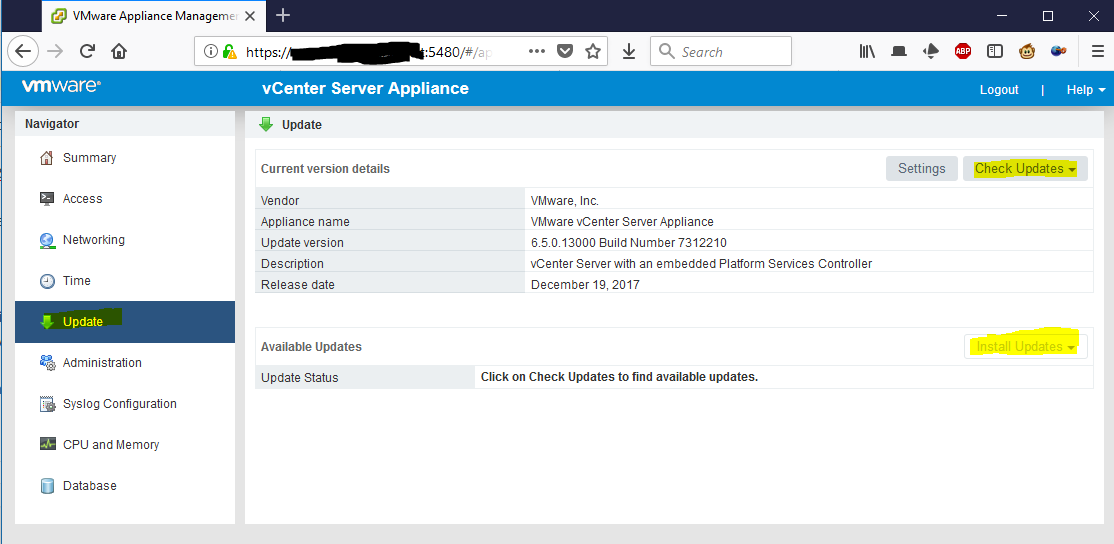
Fairly simple to update the vCenter Server Appliance, but I had a bit of hunting to track it down myself. Main point is to connect to your VCSA on port 5480. Authentication is using your root account not the SSO one.

As always, be sure to take a backup before you do this.

Once signed in, click Update, Check for Updates. Check Repository (note that VCSA will need internet connectivity for this).

Then under available updates, click install updates, install all updates, and reboot when prompted.

Host-Guest Networking with macvtap

I’ve been working with a lot of VMs lately and was using the “new” macvtap + bridge mode for the VM networking as this is supposed to offer great performance, while being simpler to configure. A key point is that each macvtap has its own mac address on the same Ethernet segment – think of this as an Ethernet sub-interface. The physical interface to which the macvlan is attached is often referred to as “the lower device”, with the macvtap itself referred to as the “upper device”.

macvtap has a number of different modes that it can be run in;

  • Bridge: this works almost like a traditional bridge, in that data received on a macvlan in bridge mode and destined for another macvlan of the same lower device is sent directly to the target (if the target macvlan is also in bridge mode), rather than being sent outside. Basically no learning, and no STP – simple and fast
  • VEPA: Virtual Ethernet Port Aggregator is the default mode. If the lower device receives data from a macvlan in VEPA mode, this data is always sent “out” to the upstream switch or bridge, even if it’s destined for another macvlan in the same lower device. The benefit to this is that the traffic between VMs becomes visible externally, the downside being that the external switch must support hair-pin mode (a.k.a reflective relay).
  • Private: this is essentially like VEPA mode, but with the added feature that no macvlans on the same lower device can communicate, regardless of where the packets come from – basically think of it as acting like a private VLAN.
  • Passthrough: No idea yet about this mode

There is one big disadvantage to macvlan though – by design it is not possible for the host to connect directly with the guests.

There is however a workaround – we add a new macvtap interface to the host, and route all VM communications through that bridge. Basic steps are;

Create a new macvlan bridge and bring it up

sudo ip link add link eth0 macvlan0 type macvlan mode bridge
sudo ifconfig macvlan0 up
sudo ifconfig macvlan0
macvlan0  Link encap:Ethernet  HWaddr fa:ab:14:97:fd:ec
inet6 addr: fe80::f8ab:14ff:fe97:fdec/64 Scope:Link
UP BROADCAST RUNNING MULTICAST  MTU:1500  Metric:1
RX packets:0 errors:0 dropped:0 overruns:0 frame:0
TX packets:6 errors:0 dropped:0 overruns:0 carrier:0
collisions:0 txqueuelen:0
RX bytes:0 (0.0 B)  TX bytes:508 (508.0 B)

Assign an IP address to the macvtap interface (192.168.1.3), and add a static host route towards the VM IP (192.168.1.10)

sudo ifconfig macvlan0 192.168.1.3 netmask 255.255.255.0
sudo ip route add 192.168.1.10/32 via 192.168.1.3 dev macvlan0

And there you go – host-guest communications via macvtap interfaces

ping 192.168.1.10
PING 192.168.1.10 (192.168.1.10) 56(84) bytes of data.
64 bytes from 192.168.1.10: icmp_seq=1 ttl=64 time=0.282 ms
64 bytes from 192.168.1.10: icmp_seq=2 ttl=64 time=0.134 ms

The downside to this being;

  1. You lose 1 extra IP address on the host, so it can network to the guest
  2. You have to add a lot of static routes unless you further subnet your network between VM and non-VM hosts, and route the VM subnet through the macvap interface

OpenContrail – Service Chaining

This post is to cover one of the most (to my mind) interesting and powerful features of OpenContrail at the moment which is the service chaining. As part of the NVF approach we are looking to virtualise services (read boxes) that are already part of current networks.

The basic idea is to get away from services as appliances e.g. Firewall, Load Balancer, DPI, etc. are added to the network as boxes/appliances – when more capacity is required you add bigger boxes, and when you hit the largest size of box available from the vendor you either buy more or wait for the ‘next-generation’ platform to be released.

While there are good reasons for the box/appliance approach:

  • Simpler troubleshooting for TAC
  • Tested and verified performance levels – will do X pps for average packet size of Y
  • Easy scoping of scale – we have N Mbps of traffic, what do we need to DPI this at the current levels of growth

if we are going down the SDN/NFV route obviously this approach will not work anymore since you have a virtualised appliance living somewhere in a data center, and ideally there is no contention/undercapacity where that appliance is living. As the demands scale up more appliances are activated to handle the new load, and as demand drops resources can be released back into the pool.

Traditional Service Chains

Standard network deployments consist of service chains, though they are not very flexible or dynamic. Consider the path a typical webserver would take to reach the Internet. From the internet, through a gateway towards a firewall (typically providing NAT services). From there through a Load Balancer and then to the server farm. Typically each link in the chain is a logically separated path e.g. a VLAN.

traditional service chain

Dynamic Service Chaining

The more ideal approach is to have the different services e.g. Firewall, NAT, etc. provided on virtualised appliances that can also be hosted in our data center and scaled as required. These services can be added and removed from the traffic path as required, either by the customer or the hosting provider. Consider the use case of having vCPE [virtualised Customer Premises Equipment] – a simple box is installed on the customer site and all configuration and services and be added and removed in the Data Center.

One potential offer could be of a basic unfiltered connection, with firewall and DPI as a basic services package for €N per month, with other optional services on top of that. A simple web front end could effectively provide an ‘app store’ for network services, with pre-packaged services available for quick and easy deployment.

service chaining - outlineService Chaining in Contrail

Network Policies allow the tenant to define what traffic is allowed to flow between which networks. As part of the policy configuration a set of service instances can also be included, to be applied in the order in which they are configured e.g. svc1, svc2, svc3 will have Network A -> svc1_vm -> svc2_vm -> svc3_vm -> Network B, with the reverse path also created automatically.

This is achieved through manipulation (automatically) of the BGP Next-Hops between the created routing instances (also automatic).

service chaining - using the routing instancesService Instance

The Service Instance is simply a virtual machine that is providing the service. A most basic example would be a linux VM acting as a router between two virtual networks (not required of course since policies can do this for us, but any service that a linux server can provide can be chained). The convention is that there is a Left interface attached to the source network and a right interface attached to the destination network. We typically also include a 3rd interface on a Management interface to allow for the service VMs to be managed out-of-band of the traffic flow.

Configuring Service Chaining

This requires 3 elements:

  1. Service Template
  2. Service Instance
  3. Service Policy

 Service Template

The service templates are defined within the Domain and can be used, and re-used, across Projects as many times as required. Main points for Template configuration are:

Service type – main types are:

  • transparent – used for non-routed L2 services e.g. L2 Firewall
  • In-Network – provides gateway services and the traffic is routed e.g. HTTP Proxy, NAT, LB
  • In-Network NAT – same as In-Network but the return traffic doesn’t need to be routed back to the source network

Image – the GLANCE VM image that is used to provide the service

Service Instance

The service instance is the actual instantiation of the template. The main point is to add the correct virtual networks to the interfaces e.g. VN_source to Left interface and VN_destination to the Right interface.

Service Policy

The service policy allows the traffic between the virtual networks and instructs the system to chain that traffic through the service instances  – in-order.

Checking the current version of Nova

It seems there is nothing along the lines of /etc/release to tell us what version of nova-compute we are actually running, but you can extract the required information. On the compute host:

[root@compute-1 ~]# nova-manage shell python
Python 2.6.6 (r266:84292, Jan 22 2014, 09:42:36)
[GCC 4.4.7 20120313 (Red Hat 4.4.7-4)] on linux2
Type "help", "copyright", "credits" or "license" for more information.
(InteractiveConsole)
>>> from nova import version
>>> version.version_string()
'2013.1'
>>>

Link

An EMC systems engineer has written a blog post about the VMAX FAST VP array. While it’s full of good advice, he unintentionally sums up everything that’s wrong with many applications in IT today: the knobs.

This is a problem I’ve seem more then once – the box has many nerd-knobs and therefore people feel they have to fiddle with them. Once they start to do that, inevitably something goes wrong and the performance drops. Then they start to fiddle some more to try and ‘fix’ it, until there are so many knobs turned it is impossible to maintain/troubleshoot.


Using KVM on top of ESXi

KVM and VMware

I’ve been playing with SDN, VMs etc. in a lab. Given that I don’t have a load of servers lying around I tend to use VMs (so nested virtualisation) on ESXi. As I learned the hard way there are a few little details you have to watch if you want to use the KVM hypervisor.

ESXi5.1 (or later)

Virtualized HV is fully supported for virtual hardware version 9 VMs on hosts that support  Intel VT-x and EPT or AMD-V and RVI.

Virtual Hardware

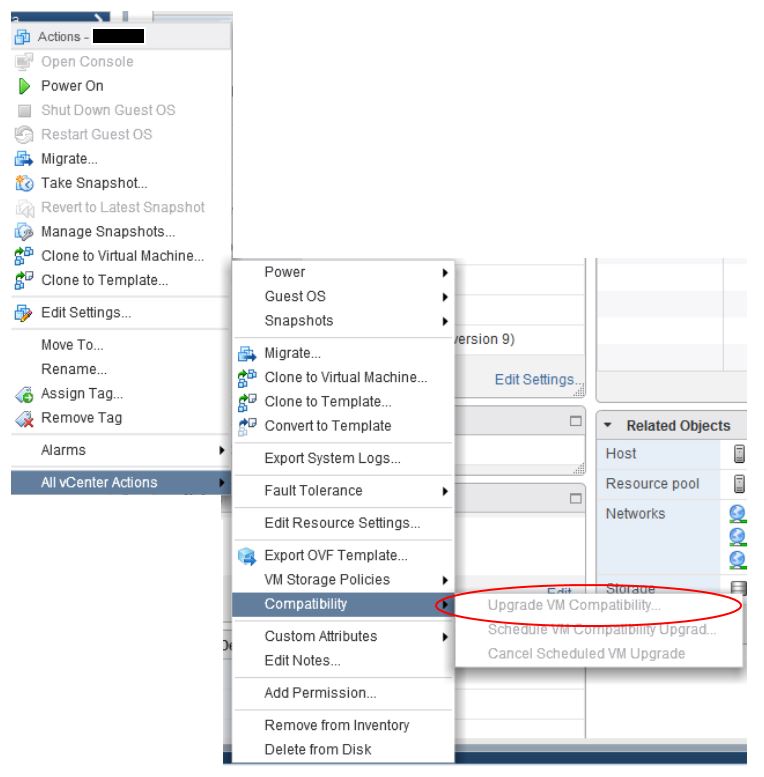
Something I learned the hard way was that the VMs I created have virtual hardware VM version 8 by default. This was the default under ESXi 5.0 and doesn’t support virtualised HVs. Using the Web Client stop the VM and upgrade the hardware to VM Version 9 (or later)

vm-hardware-upgrade

vSphere Web Client – Exposing Hardware Virtualisation

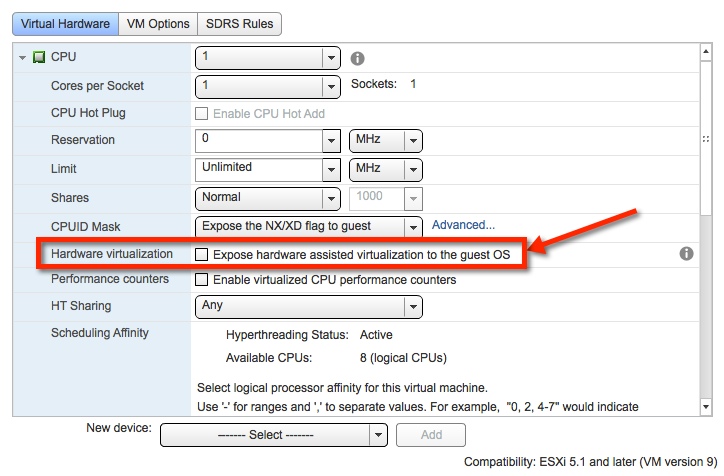
With vSphere 5.1 you cannot create a new VM in the Windows vSphere client and allow the virtualization features of the processor to be presented.  So you will want to use the web client to create the shell not the windows client. This seems to be the way it will stay going forward – only the web client will have all the features shown.

Check the ‘Expose hardware virtualisation to Guest OS’ box under the CPU settings.

webClient_virtual_hardwareAnd that should do it – your Guest OS will now be able to run KVM hypervisor (or any other one of your choice)