Category Archives: Routing

Vodafone Ireland – SIP Ports Blocked

Was working at the parents place for a few days and was appalled to find that, on what is sold as a home broadband connection (LTE-based), they have the SIP ports blocked.

Skype worked just fine, as always, but my work phone was unable to register with the VoIP server. Tunnel everything through the corp VPN (we use split tunnels by default – a much better option) and all worked as expected.

Just need to modify the routing so that traffic to the SIP server also uses the VPN. Minor annoyance, but still, WHY?!

Persistent Reverse-SSH Tunnels with autossh and screen

I’ve been working to manage my place remotely as I tend to have irregular hours. As a pilot I put in a Raspberry Pi and got a Belkin WeMo Switch. I had two problems with this setup;

  1. The internet connection is NAT-ed
  2. The Belkin cloud-y manager thing doesn’t seem to work (neither does IFTTT)

My solution was to use the RPi to manage the WeMo, and to have a reverse-ssh tunnel between the RPi and my public server.

  1. Ensure that passwordless SSH is working between the RPi and the server – plenty of guides online about how to do this.
  2. Open a screen session
  3. Use autossh to open and maintain the tunnel
$ autossh -M 65500 -o ServerAliveInterval=20 -R 11141:localhost:22 [email protected]

Autossh will use ports 65500 and 65501 to send echo data over and back between server and host, and opening an ssh session on the public server to local port 11141 will tunnel back to the SSH port on the RPi

ssh -p 11141 [email protected]

While this works fine, there is a potential issue – if the RPi is rebooted/looses power for any reason, the tunnel will be gone so we need to automate the setup so that it will be fired up upon boot – we will use a crontab entry for this:

@reboot /usr/bin/screen -S reverse-ssh-tunnel -d -m autossh -M 65500 -i /home/pi/.ssh/id_rsa -o "ServerAliveInterval 20" -o "ServerAliveCountMax 3" -R 11141:localhost:22 [email protected]

This cron entry will open a screen on reboot with “reverse-ssh-tunnel” as the title, and issue the autossh command. Reboot the RPi to test and you should be good to go.

Simples 🙂

Airtame – Display anything… wirelessly

Finally got my hands on my Indiegogo funded Airtame last night, so wanted to put up a few thoughts on it. First impressions – very good. Simple packaging, 3 instructions to get you started and includes;

  • The Airtame
  • AC Power Adapter
  • EU Power Adapter (plug)
  • UK Power Adapter (plug)
  • HDMI Extension Cable
  • MicroUSB cable

Getting started

This was as simple as plugging in the dongle, and installing the app. The Airtame acts as a 5GHz WiFi access point, and sets a random password – displayed on the screen. Once connected directly you can then connect it to your WiFi network. All worked without any issues.

Slow Firmware Update

As I excitedly went to try a basic stream I had my only real disappointment – a lengthy (30 mins) firmware update before I could actually use the thing. At more then one point I thought that it might have stalled out but was dissuaded from killing the power by a warning not to. An ETA or at least some guidance on how long it would take should be considered.

Cool Things

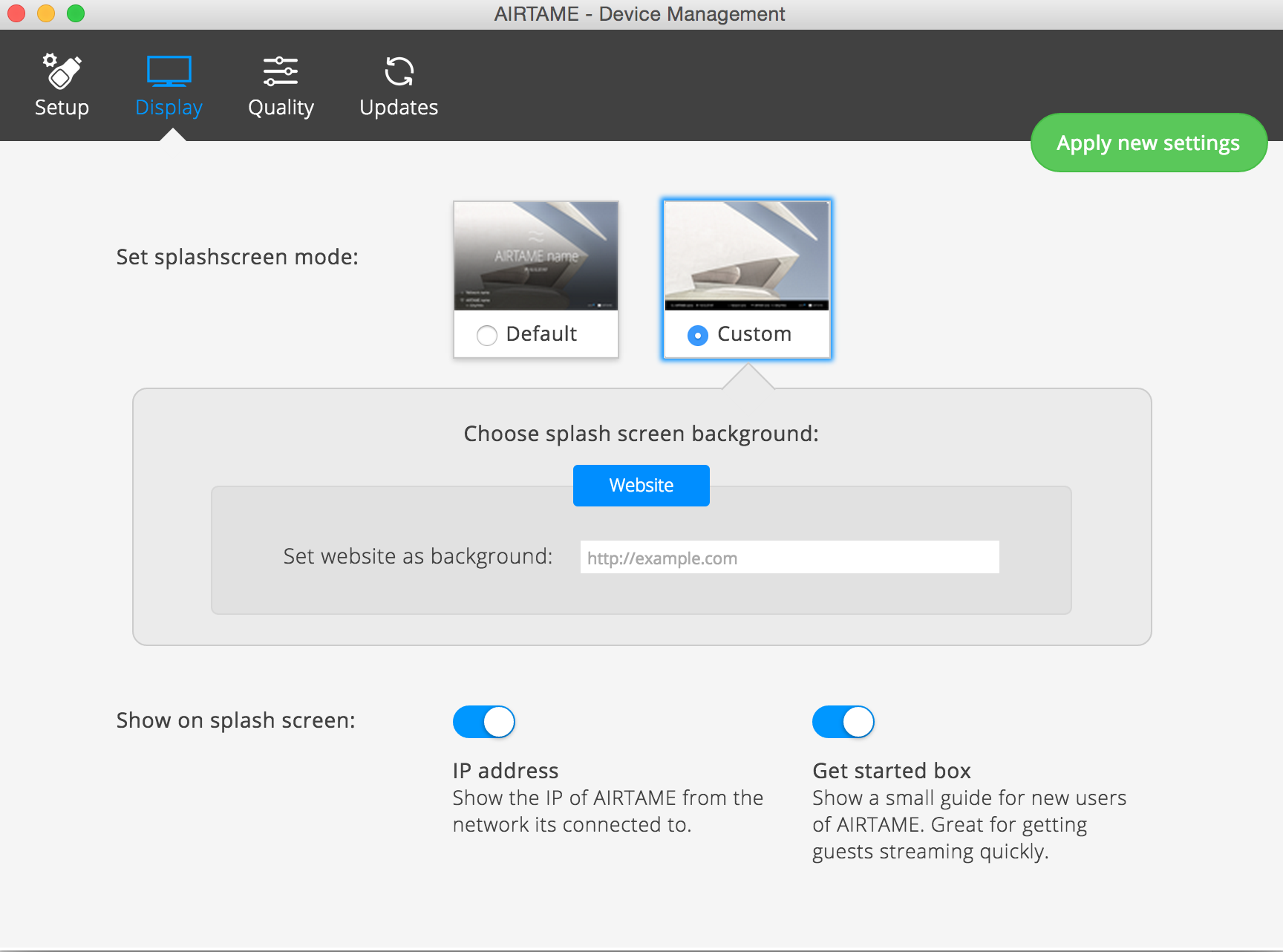
It can use a website as the background/default page – to turn this on, in the app select your Airtame. Go to Manage -> Display -> Custom -> Website

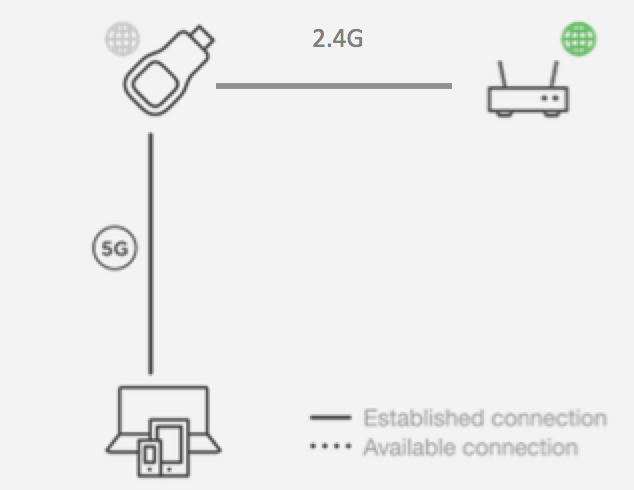
Airtame Custom WallpaperIt will route your internet traffic, so once you connect to the Airtame 5GHz network, and provide it with your WiFi details you can continue to use the interweb while managing/streaming the device.

I found that when I was connecting via the WiFi router I had frequent dropped connections. Not sure if this is the router (fairly crap one) or the Airtame, but found the 5GHz connection via the Airtame to be very stable

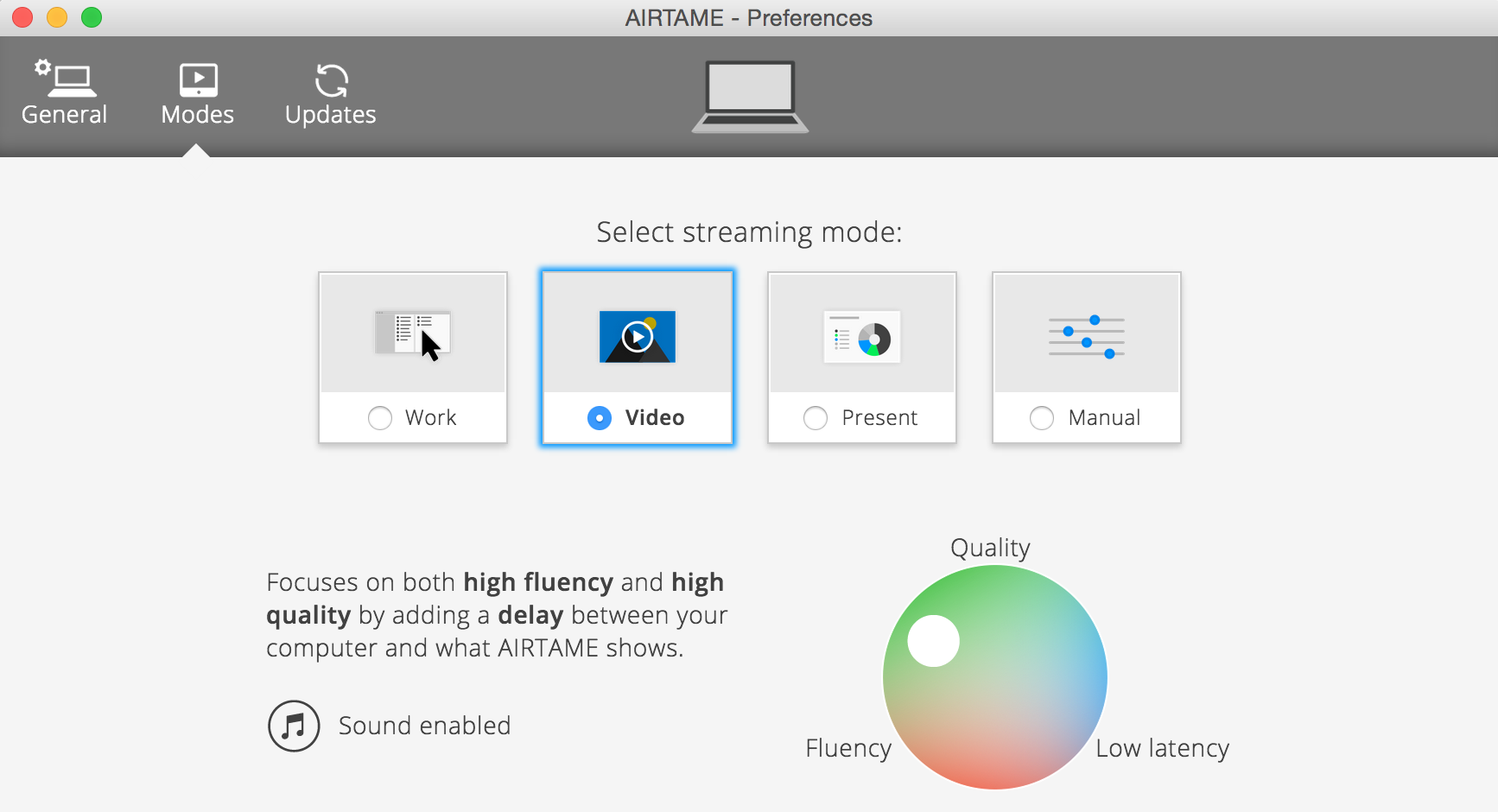
Airtame RoutingAudio streaming – requires a restart in OS X. Then in the Airtame app, under preferences, move the streaming mode to ‘Video’ rather then the default ‘Work’. Note that this will introduce 5sec buffering by default.

Airtame Preferences Mode

Dual Root with different versions – JUNOS

Finally fired up my SRX210 today, and got it going (after a password recovery 🙂 ), but while it was booting I noticed the error:

WARNING: JUNOS versions running on dual partitions are not the same

What this actually means is that the current running version of JUNOS is not the same as the version in the system snapshot i.e. you forgot to create a new snapshot after you upgraded.

Checking this and fixing it is quite trivial:

root@svalinn> show system snapshot media internal
Information for snapshot on       internal (/dev/da0s1a) (backup)
Creation date: Oct 16 19:37:41 2013
JUNOS version on snapshot:
junos  : 12.1X45-D15.5-domestic
Information for snapshot on       internal (/dev/da0s2a) (primary)
Creation date: Jan 31 08:59:22 2014
JUNOS version on snapshot:
  junos  : 12.1X44-D30.4-domestic

root@svalinn> request system snapshot slice alternate
Formatting alternate root (/dev/da0s1a)…
Copying ‘/dev/da0s2a’ to ‘/dev/da0s1a’ .. (this may take a few minutes)
The following filesystems were archived: /

And problem solved 🙂

UPC Ireland – Tiers of Service and NAT

The 120Mbps Tier

As a long time and very happy UPC customer (120Mb unlimited package) I was quite pleased with the service offered – to local speedtest server 10ms RTT, 118Mbps down, 10Mbps up, generous ‘fair-use’ limits and most importantly a public IP address.

Ideally, I’d like to use my own modem/router but instead I’m stuck with the Thompson TWG870, though to be fair it’s not the worst in the world. Not sure when, if ever, the firmware has ever been updated but all the important settings are at least accessible.

The 60Mbps Tier

With a new job I’m based in Limerick at least some of the time so made the decision to put in the basic package (60Mbps, 30Gb cap) and not bother with TV service. Installation was fine but no self-install so ended out having to sit at home for the scheduled installation window… 09:00 – 18:00 – they do make it easy for themselves.

Once installed and the tech out the door I had a poke at the new box. This one seems to be infamous as the Technicolor 7200 – clearly one of the cheapest cable modem/Wireless APs ever built. Prettier interface but fewer configuration options. Also issues with the WiFi connections to a Mac (not the only router to have this problem to be fair – I blame Apple).

Horizon WiFree

Interestingly the default internal IP range for the network is 192.168.1.0/24. When I tried to switch it to the more conventional 192.168.1.0/24 I was told that that address range is already in use. It seems that Horizon Wi-Free is configured to use the 192.168.1.0/24 subnet and that portion of the configuration is hidden away somewhere with the only options being to turn it on or off.

Public IPs

As I stated above something I love about the service I had was the public IP address. Making full use of the options that gives you I have a number of self-hosted ‘cloud’ services running on a Linux box I keep running – file store, VPN, Media Library, Document backup, etc. For the new gaff I have a RaspberryPi B+ that I use to run RASPBMC and a few other small services, but just by default had intended to make that internet accessible – sadly it was not to be.

It seems that the lowest tier of UPC has you running through a NAT system at some point. So while I have the port forwarding setup on the router, nothing reaches the Pi. It also seems to have some very aggressive ageing of flows running – had to set SSH keepalives to <60 seconds or the connections were constantly dropping. Poking at the IP address my connections seem to be originating from I see that there are two different pools in use (not unexpected in any case e.g. Dublin vs. rest of country).

Lowest Tier (60Mbps)


[colinmac@thor][~]=> dig +answer -x 188.141.a.b

; <<>> DiG 9.8.4-rpz2+rl005.12-P1 <<>> +answer -x 188.141.a.b
;; global options: +cmd
;; Got answer:
;; ->>HEADER<<- opcode: QUERY, status: NOERROR, a.bid: 22797
;; flags: qr rd ra; QUERY: 1, ANSWER: 1, AUTHORITY: 0, ADDITIONAL: 0

;; QUESTION SECTION:
;115.82.141.188.in-addr.arpa.   IN      PTR

;; ANSWER SECTION:
115.82.141.188.in-addr.arpa. 86389 IN   PTR     188-141-82-115.dynamic.upc.ie.

;; Query time: 15 msec
;; SERVER: 89.101.160.5#53(89.101.160.5)
;; WHEN: Tue Aug 26 09:04:24 2014
;; MSG SIZE  rcvd: 88

Notice the Pointer Record has the dynamic.upc.ie

Middle Tier (120Mbps)


[colinmac@thor][~]=> dig +answer -x 109.255.x.y

; <<>> DiG 9.8.4-rpz2+rl005.12-P1 <<>> +answer -x 109.255.x.y
;; global options: +cmd
;; Got answer:
;; ->>HEADER<<- opcode: QUERY, status: NXDOMAIN, id: 54912
;; flags: qr rd ra; QUERY: 1, ANSWER: 0, AUTHORITY: 1, ADDITIONAL: 0

;; QUESTION SECTION:
;7.123.255.109.in-addr.arpa.    IN      PTR

;; AUTHORITY SECTION:
255.109.in-addr.arpa.   600     IN      SOA     ns1.upc.biz. hostmaster.chello.at. 2010071503 86400 7200 2592000 7200

;; Query time: 33 msec
;; SERVER: 89.101.160.5#53(89.101.160.5)
;; WHEN: Tue Aug 26 09:05:04 2014
;; MSG SIZE  rcvd: 111

Whereas for the higher tier we have the Start Of Authority record pointing back towards the older chello and our nameserver is sitting within a biz domain.

Will add more to this post later 🙂

Signalware Failing to start – nrplinker failure

I did a controlled shutdown of one of my OMNI/Signalware boxes, but when  fired it back up omni was refusing to run. The message indicated was:

+------+  go.omni  /main/sw9/86
| INFO |  Wed Jun  4 09:00:10 XXX 2014
+------+  OMNI_HOME=/PATH/ulcm
SHM=<User ID>
+------+
| INFO |  Starting nrplinker process.
+------+
nrplinker: Wed Jun  4 09:00:11 2014 Service Started.
nrplinker: Wed Jun  4 09:00:11 2014 Write error in load file /PATH/ulcm/tmp/LoadPoint.nrp
+------+
| INFO |  Starting sam_daemon.
+------+

Waiting for sam_daemon start completion../PATH/ulcm/bin/go.omni: line 467: 26194 Bus error               (core dumped) $OMNI_HOM
E/bin/usam_daemon TRACE_FILE usam_trace


+-------+  Script Aborted!
| ERROR |  SAM daemon terminated unexpectedly.
+-------+

It turns out that the / partition was full.

[siguser@hostname ~]$ /PATH/ulcm/bin/nrplinker
nrplinker: Wed Jun 4 09:15:33 2014 Service Started.
nrplinker: Wed Jun 4 09:15:33 2014 Write error in load file /PATH/ulcm/tmp/LoadPoint.nrp
[siguser@hostname ~]$ echo "" > /PATH/ulcm/tmp/LoadPoint.nrp
-bash: echo: write error: No space left on device
[siguser@hostname ~]$ df -h
Filesystem Size Used Avail Use% Mounted on
/dev/mapper/vg00-lv_root
9.7G 9.7G 0 100% /

Clear up some space (delete old OMNI logs) and we were back in business.


Multiple interfaces in CentOS

I had an issue with CentOS6.4 – two network interfaces were configured eth0 - 10.x.y.z and eth1 - 192.168.x.y. eth0 is being used for SSH access, but as soon as eth1 was brought up the node became unreachable from anything except the local subnet.

Source was 10.x.y.230 and they are on the same switch:

[root@controller etc]# ping 10.x.y.234
PING 10.3.8.234 (10.x.y.234) 56(84) bytes of data.
64 bytes from 10.x.y.234: icmp_seq=1 ttl=64 time=1.33 ms
64 bytes from 10.x.y.234: icmp_seq=2 ttl=64 time=0.298 ms
64 bytes from 10.x.y.234: icmp_seq=3 ttl=64 time=0.277 ms
64 bytes from 10.x.y.234: icmp_seq=4 ttl=64 time=0.270 ms

But ping from any other subnet and nothing… Turns out that you have to be very specific when configuring the default gateway in /etc/sysconfig/network. It seems that both the default gateway and the gateway interface are required, to get the route added properly.

[root@node-2 ~]# cat /etc/sysconfig/network
NETWORKING=yes
HOSTNAME=node-2.fqdn.net
GATEWAY=10.x.y.1
GATEWAYDEV=eth0

And now our route is correctly added

[root@node-2 ~]# route
Kernel IP routing table
Destination     Gateway         Genmask         Flags Metric Ref    Use Iface
10.x.y.0        *               255.255.255.0   U     0      0        0 eth0
192.168.1.0     *               255.255.255.0   U     0      0        0 eth1
link-local      *               255.255.0.0     U     1002   0        0 eth0
link-local      *               255.255.0.0     U     1003   0        0 eth1
default         10.x.y.1        0.0.0.0         UG    0      0        0 eth0