Tag Archives: raspberry pi

Getting OpenALPR Working on RPi

As yet another side project I wanted to make use of my RPi camera + ANPR software to try and track down whoever is fly-tipping in my local estate. Since they dump their rubbish basically in full view of my living room, I’m looking to catch them in the act.

Attempt 1 – using the Raspbian packages (spoiler alert, it didn’t work)

Boring package install

sudo apt install openalpr openalpr-daemon openalpr-utils libopenalpr-dev
pip3 install openalpr picamera numpy
sudo apt-get install libatlas-base-dev

Get a test image wget http://plates.openalpr.com/ea7the.jpg

alpr -c us ea7the.jpg
Error opening data file /usr/share/openalpr/runtime_data/ocr/lus.traineddata
Please make sure the TESSDATA_PREFIX environment variable is set to your "tessdata" directory.
Failed loading language 'lus'
Tesseract couldn't load any languages!
Segmentation fault

Not good – so this is based on tesseract in the background. Looking around I see that the training data lives in tessdata, which is a subdirectory of ocr

/usr/share/openalpr/runtime_data/ocr/tessdata $ ls
lau.traineddata leu.traineddata lgb.traineddata lkr2.traineddata lkr.traineddata lsg.traineddata lus.traineddata
pi@raspberrypi:/usr/share/openalpr/runtime_data/ocr/tessdata $ mv ./* ../
pi@raspberrypi:/usr/share/openalpr/runtime_data $ tesseract --tessdata-dir /usr/share/openalpr/runtime_data/ocr/ --list-langs
Please make sure the TESSDATA_PREFIX environment variable is set to your "tessdata" directory.
List of available languages (7):
lau
leu
lgb
lkr
lkr2
lsg
lus

Ok, still not really making sense. Lets assume that OpenALPR is putting wrappers around the language so “us” becomes “lus” when fed to tesseract

pi@raspberrypi:/usr/share/openalpr/runtime_data/ocr $ tesseract -l lus ~/ea7the.jpg ./openalpr/runtime_data/config/us.conf
Error, could not create TXT output file: No such file or directory

Now that is more promising

alpr -c us ea7the.jpg
plate0: 10 results
- EA7THE confidence: 91.0578
- EA7TBE confidence: 84.133
- EA7T8E confidence: 83.0083
- EA7TRE confidence: 82.7869
- EA7TE confidence: 82.5961
- EA7TME confidence: 80.2908
- EA7TH6 confidence: 77.0045
- EA7THB confidence: 75.5779
- EA7TH confidence: 74.6576
- EA7TB6 confidence: 70.0797

Now lets take our python bindings for a spin

Python 3.7.3 (default, Dec 20 2019, 18:57:59)
[GCC 8.3.0] on linux
Type "help", "copyright", "credits" or "license" for more information.
import json
from openalpr import Alpr
alpr = Alpr("us", "/etc/openalpr/openalpr.conf", "/usr/share/openalpr/runtimedata")
Traceback (most recent call last):
File "", line 1, in
File "/home/pi/.local/lib/python3.7/site-packages/openalpr/openalpr.py", line 91, in init
self._initialize_func = self._openalprpy_lib.openalpr_init
File "/usr/lib/python3.7/ctypes/init.py", line 369, in getattr
func = self.getitem(name)
File "/usr/lib/python3.7/ctypes/init.py", line 374, in getitem
func = self._FuncPtr((name_or_ordinal, self))
AttributeError: /usr/lib/libopenalpr.so.2: undefined symbol: openalpr_init

Much Google time later and it seems that this is down to the pre-build python bindings not matching the version of the package that I’ve installed. Fsck it anyway

pi@raspberrypi:~/.local/lib/python3.7/site-packages $ pip3 show openalpr
Name: openalpr
Version: 1.1.0
Summary: OpenALPR Python Bindings
Home-page: http://www.openalpr.com/
Author: Matt Hill
Author-email: [email protected]
License: UNKNOWN
Location: /home/pi/.local/lib/python3.7/site-packages
Requires:
Required-by:

Attempt 2 – Build from master

Use git to clone from the master

Install the required packages

sudo apt-get install build-essential
sudo apt-get install cmake git libgtk2.0-dev pkg-config libavcodec-dev libavformat-dev libswscale-dev
sudo apt-get install libopencv-dev libtesseract-dev git cmake build-essential libleptonica-dev
sudo apt-get install libcurl4-openssl-dev
sudo apt-get install liblog4cplus-dev

Build and install OpenAPNR and the python bindings

cd openalpr/src
mkdir build
cd build
cmake -DCMAKE_INSTALL_PREFIX:PATH=/usr -DCMAKE_INSTALL_SYSCONFDIR:PATH=/etc ..
make
sudo make install
cd ../bindings/python
sudo python3 setup.py install

Now we can make progress

pi@raspberrypi:~ $ python3
Python 3.7.3 (default, Dec 20 2019, 18:57:59)
[GCC 8.3.0] on linux
Type "help", "copyright", "credits" or "license" for more information.
>>> import locale
>>> locale.setlocale(locale.LC_ALL, 'C')
'C'
>>> from openalpr import Alpr
>>> alpr = Alpr("us", "/etc/openalpr/openalpr.conf", "/usr/share/openalpr/runtime_data")
>>> import json
>>>
>>> results = alpr.recognize_file("/home/pi/ea7the.jpg")
>>>
>>> print(json.dumps(results, indent=4))
{
    "version": 2,
    "data_type": "alpr_results",
    "epoch_time": 1589218326623,
    "img_width": 636,
    "img_height": 358,
    "processing_time_ms": 234.429916,
    "regions_of_interest": [
        {
            "x": 0,
            "y": 0,
            "width": 636,
            "height": 358
        }
    ],
    "results": [
        {
            "plate": "EA7THE",
            "confidence": 91.05777,
            "matches_template": 0,
            "plate_index": 0,
            "region": "",
            "region_confidence": 0,
            "processing_time_ms": 59.747936,
            "requested_topn": 25,
            "coordinates": [
                {
                    "x": 208,
                    "y": 157
                },
                {
                    "x": 393,
                    "y": 157
                },
                {
                    "x": 393,
                    "y": 245
                },
                {
                    "x": 208,
                    "y": 245
                }
            ],
            "candidates": [
                {
                    "plate": "EA7THE",
                    "confidence": 91.05777,
                    "matches_template": 0
                },
                {
                    "plate": "EA7TBE",
                    "confidence": 84.132973,
                    "matches_template": 0
                },

WordPress Migration Complete

I’ve just migrated the blog from the Raspberry Pi to a VM hosted on my linux server. Migration went smoothly enough through the use of Duplicator and Search & Replace. Mails work as do all the usual plugins.

Don’t think there are any broken links adn I haven’t spotted anything obviously wrong, but let me know if you spot something that looks like it isn’t working.

OpenELEC on RPi 3 – buffering

Upgraded my media player from Raspmc running on a B+ to OpenELEC on RPi3.

Much better UI and database performance, and handles 1080 content much smoother.

One tweak that was needed to prevent interruptions/buffering problems to content coming over Samba was in advancedsettings.xml where I upped the buffer size and readbufferfactor

<advancedsettings>
  <network>
    <buffermode>1</buffermode>
    <cachemembuffersize>314572800</cachemembuffersize>
    <readbufferfactor>20</readbufferfactor>
  </network>
</advancedsettings>

Silky smooth playback of all media I tried so far.

Horizon Wi-Free Access on Linux

Horizon Wi-Free is an 802.1x authenticated network service intended to allow UPC customers to use WiFi Offload via UPC broadband routers. Essentially almost all UPC modems are broadcasting a “Horizon Wi-Free” SSID, and authenticating via 802.1x in the backend.

Note: You cannot connect to Horizon Wi-Free through your own router, so you will have to test against another customer’s one! I believe the idea behind this is to prevent you using the ‘roaming’ network while at home.

Configuring wpa_supplicant.conf

Main points here are:

  • SSID: this should be “Horizon Wi-Free”
  • parwise and group = CCMP
  • EAP: This needs to be PEAP as a username and password are required
  • identity: this is your UPC Wi-Free username
  • password: the Wi-Free password, not your web account password
  • ca_cert: This cert is to verify that we are actually connecting to a network belonging to UPC (see below)
  • phase2: This must be MSCHAPV2
network={
   ssid="Horizon Wi-Free"
   key_mgmt=WPA-EAP
   pairwise=CCMP
   group=CCMP
   eap=PEAP
   identity="username"
   password="my_secret_password"
   ca_cert="/etc/cert/liberty_global.pem"
   phase1="peapver=0"
   phase2="MSCHAPV2"
   id_str="horizon-free-wifi"
}


Getting the CA Cert for Network Verification

This step was a little more work then expected, as I had to track down a copy of the CA cert. The easiest way is to download the .mobileconfig file intended for iOS and extract the required cert chain:

wget http://www.upc.ie/horizonwifreedevicesetup/applesecurity/

[user.local][~/Downloads]=&gt; openssl pkcs7 -inform DER -print_certs -in ./HorizonWi-Freev1.mobileconfig
&nbsp;
subject=/O=AlphaSSL/CN=AlphaSSL CA - G2
issuer=/C=BE/O=GlobalSign nv-sa/OU=Root CA/CN=GlobalSign Root CA
-----BEGIN CERTIFICATE-----
MIIELzCCAxegAwIBAgILBAAAAAABL07hNwIwDQYJKoZIhvcNAQEFBQAwVzELMAkG
A1UEBhMCQkUxGTAXBgNVBAoTEEdsb2JhbFNpZ24gbnYtc2ExEDAOBgNVBAsTB1Jv
b3QgQ0ExGzAZBgNVBAMTEkdsb2JhbFNpZ24gUm9vdCBDQTAeFw0xMTA0MTMxMDAw
MDBaFw0yMjA0MTMxMDAwMDBaMC4xETAPBgNVBAoTCEFscGhhU1NMMRkwFwYDVQQD
ExBBbHBoYVNTTCBDQSAtIEcyMIIBIjANBgkqhkiG9w0BAQEFAAOCAQ8AMIIBCgKC
AQEAw/BliN8b3caChy/JC7pUxmM/RnWsSxQfmHKLHBD/CalSbi9l32WEP1+Bstjx
T9fwWrvJr9Ax3SZGKpme2KmjtrgHxMlx95WE79LqH1Sg5b7kQSFWMRBkfR5jjpxx
XDygLt5n3MiaIPB1yLC2J4Hrlw3uIkWlwi80J+zgWRJRsx4F5Tgg0mlZelkXvhpL
OQgSeTObZGj+WIHdiAxqulm0ryRPYeDK/Bda0jxyq6dMt7nqLeP0P5miTcgdWPh/
UzWO1yKIt2F2CBMTaWawV1kTMQpwgiuT1/biQBXQHQFyxxNYalrsGYkWPODIjYYq
+jfwNTLd7OX+gI73BWe0i0J1NQIDAQABo4IBIzCCAR8wDgYDVR0PAQH/BAQDAgEG
MBIGA1UdEwEB/wQIMAYBAf8CAQAwHQYDVR0OBBYEFBTqGVXwDg0yxh90M7eOZhpM
EjEeMEUGA1UdIAQ+MDwwOgYEVR0gADAyMDAGCCsGAQUFBwIBFiRodHRwczovL3d3
dy5hbHBoYXNzbC5jb20vcmVwb3NpdG9yeS8wMwYDVR0fBCwwKjAooCagJIYiaHR0
cDovL2NybC5nbG9iYWxzaWduLm5ldC9yb290LmNybDA9BggrBgEFBQcBAQQxMC8w
LQYIKwYBBQUHMAGGIWh0dHA6Ly9vY3NwLmdsb2JhbHNpZ24uY29tL3Jvb3RyMTAf
BgNVHSMEGDAWgBRge2YaRQ2XyolQL30EzTSo//z9SzANBgkqhkiG9w0BAQUFAAOC
AQEABjBCm89JAn6J6fWDWj0C87yyRt5KUO65mpBz2qBcJsqCrA6ts5T6KC6y5kk/
UHcOlS9o82U8nxTyaGCStvwEDfakGKFpYA3jnWhbvJ4LOFmNIdoj+pmKCbkfpy61
VWxH50Hs5uJ/r1VEOeCsdO5l0/qrUUgw8T53be3kD0CY7kd/jbZYJ82Sb2AjzAKb
WSh4olGd0Eqc5ZNemI/L7z/K/uCvpMlbbkBYpZItvV1lVcW/fARB2aS1gOmUYAIQ
OGoICNdTHC2Tr8kTe9RsxDrE+4CsuzpOVHrNTrM+7fH8EU6f9fMUvLmxMc72qi+l
+MPpZqmyIJ3E+LgDYqeF0RhjWw==
-----END CERTIFICATE-----

subject=/OU=Domain Control Validated/CN=*.upcbroadband.com
issuer=/O=AlphaSSL/CN=AlphaSSL CA - G2
-----BEGIN CERTIFICATE-----
MIIEtzCCA5+gAwIBAgISESEulCUW/1LPLh5Wj7dtRUYSMA0GCSqGSIb3DQEBBQUA
MC4xETAPBgNVBAoTCEFscGhhU1NMMRkwFwYDVQQDExBBbHBoYVNTTCBDQSAtIEcy
MB4XDTEzMDExNjEyMzY0M1oXDTE1MDExNzEyMzY0M1owQDEhMB8GA1UECxMYRG9t
YWluIENvbnRyb2wgVmFsaWRhdGVkMRswGQYDVQQDDBIqLnVwY2Jyb2FkYmFuZC5j
b20wggEiMA0GCSqGSIb3DQEBAQUAA4IBDwAwggEKAoIBAQCh0AMi+hy7flw92BCL
dXuXeFVFGSE9nXnzhspXIPVTkMMGHfZrkbxw3DzTrLD490X3o3UcQ8gxwU80jf7I
71wpxaXLdUxAFk2IpgSb6hAtOiBGtioTx8/5ZxlGW+c1JPb6ompslyY4fe4f9y3k
9u6cIKAzttnTNLCOe1IUIfy1HjjDm3/lzVuuV4N7eu/bYtPE6RB8xpm/3lK2cRCB
T8ueRokeU3Wiq3mZSKenT54rw+3kWBFfAAKVjyNHctQHlrtzSal28JQJ/tVLhhOM
sDO0kss0y+U0wbzjc/sfjBHDaNxboTc4C9MwzEScNrn9WH8qj/xT+nHTFBITiqSh
1EF5AgMBAAGjggG7MIIBtzAOBgNVHQ8BAf8EBAMCBaAwTQYDVR0gBEYwRDBCBgor
BgEEAaAyAQoKMDQwMgYIKwYBBQUHAgEWJmh0dHBzOi8vd3d3Lmdsb2JhbHNpZ24u
Y29tL3JlcG9zaXRvcnkvMC8GA1UdEQQoMCaCEioudXBjYnJvYWRiYW5kLmNvbYIQ
dXBjYnJvYWRiYW5kLmNvbTAJBgNVHRMEAjAAMB0GA1UdJQQWMBQGCCsGAQUFBwMB
BggrBgEFBQcDAjA6BgNVHR8EMzAxMC+gLaArhilodHRwOi8vY3JsMi5hbHBoYXNz
bC5jb20vZ3MvZ3NhbHBoYWcyLmNybDB/BggrBgEFBQcBAQRzMHEwPAYIKwYBBQUH
MAKGMGh0dHA6Ly9zZWN1cmUyLmFscGhhc3NsLmNvbS9jYWNlcnQvZ3NhbHBoYWcy
LmNydDAxBggrBgEFBQcwAYYlaHR0cDovL29jc3AyLmdsb2JhbHNpZ24uY29tL2dz
YWxwaGFnMjAdBgNVHQ4EFgQUidh6RCyiMnWkZqNJ+NrOP9APjIswHwYDVR0jBBgw
FoAUFOoZVfAODTLGH3Qzt45mGkwSMR4wDQYJKoZIhvcNAQEFBQADggEBABMneGO7
KOzZ7pEB4NN9rHDizfz+3fauF68WQz9V3+byP53mwZWgfpX80nxi1uD3qGzgaNUB
mgenNxrsvziw1aiDAgMiwc+uhN8BYh/cezfp+pe2qBnyeu2CJBQ9tLIyyBp7cCl3
PGNSBhXr4xBxsfVV+4xqk7aLkG9aVelPIrQWokwPZ5VWBxjSAmrWipvPRfzb7IeA
DVM9W1ZhxyDY1D7d6F56Q0WTTNAsV/nWv9sNOlkME9lpF4ytpvxNHLHgO7cKvgr/
lTZMhfRdQB9Djn3OJ22O5AratklkkxJquvIAOYHvg6GEhWk+IFbg2Lkrn6tuPwB5
W24J6nCgFx/jzvc=
-----END CERTIFICATE-----

Throw these into a file and get openssl to verify:

[user@machine][~]=&gt; openssl verify liberty_global.pem
liberty_global.pem: OK

While the theory behind this is sound, unfortunately there was an issue when I attempted to test the connection:

SSL: SSL_connect:SSLv3 read server hello A
TLS: Certificate verification failed, error 19 (self signed certificate in certificate chain) depth 2 for '/C=NL/O=Liberty Global Operations B.V./OU=Root CA0001/CN=Liberty Global Root Certification Authority'
wlan1: CTRL-EVENT-EAP-TLS-CERT-ERROR reason=1 depth=2 subject='/C=NL/O=Liberty Global Operations B.V./OU=Root CA0001/CN=Liberty Global Root Certification Authority' err='self signed certificate in certificate chain'
SSL: (where=0x4008 ret=0x230)
SSL: SSL3 alert: write (local SSL3 detected an error):fatal:unknown CA
SSL: (where=0x1002 ret=0xffffffff)
SSL: SSL_connect:error in SSLv3 read server certificate B
OpenSSL: openssl_handshake - SSL_connect error:14090086:SSL routines:SSL3_GET_SERVER_CERTIFICATE:certificate verify failed
SSL: 7 bytes pending from ssl_out
SSL: Failed - tls_out available to report error
SSL: 7 bytes left to be sent out (of total 7 bytes)

Apparently OpenSSL blows a fuse when pointed at the CA cert, as it seemingly tries to authenticate the CA cert against a higher authority – since this is a root cert that is not possible. Apparently I’m not the first to see this little problem.

Quick workaround is to disable the CA Cert setting in the wpa_supplicants file and we are in business:

SSL: SSL_connect:SSLv3 read server hello A
TLS: tls_verify_cb - preverify_ok=1 err=19 (self signed certificate in certificate chain) ca_cert_verify=0 depth=2 buf='/C=NL/O=Liberty Global Operations B.V./OU=Root CA0001/CN=Liberty Global Root Certification Authority'
wlan1: CTRL-EVENT-EAP-PEER-CERT depth=2 subject='/C=NL/O=Liberty Global Operations B.V./OU=Root CA0001/CN=Liberty Global Root Certification Authority'
TLS: tls_verify_cb - preverify_ok=1 err=19 (self signed certificate in certificate chain) ca_cert_verify=0 depth=2 buf='/C=NL/O=Liberty Global Operations B.V./OU=Root CA0001/CN=Liberty Global Root Certification Authority'
wlan1: CTRL-EVENT-EAP-PEER-CERT depth=2 subject='/C=NL/O=Liberty Global Operations B.V./OU=Root CA0001/CN=Liberty Global Root Certification Authority'
TLS: tls_verify_cb - preverify_ok=1 err=19 (self signed certificate in certificate chain) ca_cert_verify=0 depth=1 buf='/C=NL/O=Liberty Global Operations B.V./OU=HORIZON Service Operator CA0001/CN=Liberty Global HORIZON Service Operator Certification Authority'
wlan1: CTRL-EVENT-EAP-PEER-CERT depth=1 subject='/C=NL/O=Liberty Global Operations B.V./OU=HORIZON Service Operator CA0001/CN=Liberty Global HORIZON Service Operator Certification Authority'
TLS: tls_verify_cb - preverify_ok=1 err=19 (self signed certificate in certificate chain) ca_cert_verify=0 depth=0 buf='/CN=Liberty Global WiFi/OU=HORIZON/O=Liberty Global Operations B.V./C=NL'
wlan1: CTRL-EVENT-EAP-PEER-CERT depth=0 subject='/CN=Liberty Global WiFi/OU=HORIZON/O=Liberty Global Operations B.V./C=NL'
SSL: (where=0x1001 ret=0x1)
SSL: SSL_connect:SSLv3 read server certificate A
SSL: (where=0x1001 ret=0x1)
SSL: SSL_connect:SSLv3 read server done A
SSL: (where=0x1001 ret=0x1)
SSL: SSL_connect:SSLv3 write client key exchange A
SSL: (where=0x1001 ret=0x1)
SSL: SSL_connect:SSLv3 write change cipher spec A
SSL: (where=0x1001 ret=0x1)
SSL: SSL_connect:SSLv3 write finished A
SSL: (where=0x1001 ret=0x1)
SSL: SSL_connect:SSLv3 flush data
SSL: (where=0x1002 ret=0xffffffff)
SSL: SSL_connect:error in SSLv3 read finished A
SSL: SSL_connect - want more data
SSL: 318 bytes pending from ssl_out
SSL: 318 bytes left to be sent out (of total 318 bytes)
EAP: method process -&gt; ignore=FALSE methodState=MAY_CONT decision=FAIL
EAP: EAP entering state SEND_RESPONSE
EAP: EAP entering state IDLE
EAPOL: SUPP_BE entering state RESPONSE
EAPOL: txSuppRsp
TX EAPOL: dst=54:88:0e:b8:5d:79
TX EAPOL - hexdump(len=332): 01 00 01 48 02 07 01 48 19 80 00 00 01 3e 16 03 01 01 06 10 00 01 02 01 00 75 1a fa 59 f4 52 82 d3 c2 c4 da 8e 12 6b 25 ab bd 77 93 3c a4 0f bb a0 34 bf f9 63 d0 4c 8a 2d 5d 71 11 24 a6 33 71 8e 8f b9 87 36 18 21 b8 c0 09 11 3a 59 6a 6a 77 65 b3 75 69 24 75 8f be ef 2b 07 2c 20 78 89 84 6e 54 dd f0 34 80 d8 39 cf 6b 5c 10 cb cf 99 90 d5 12 7f 5d 08 17 49 79 28 d1 23 11 c5 dc 2f a7 19 2c e2 c4 5d 4b 35 18 93 dc c5 e9 6d 82 40 ff 13 a6 19 79 dd fb c6 20 e6 0a 02 4f 24 90 3b 5c ea 6a 1b 80 16 85 9e ab 04 51 b4 ac dd dd a5 59 b1 84 12 89 65 a9 64 82 f7 7f f2 6c 48 5d 0f e7 7d c8 5b 60 ee 8a 41 98 55 4e c2 92 55 8e b1 0a dd 55 d5 4f 7b 2d 0a 4a 8b df 1a e1 cf 12 0d cd c5 3e 45 18 e9 69 cb 96 5a 9e 69 cd 4d 72 63 07 ab ab c0 c4 a1 04 e1 2f ad 12 a9 c9 82 9c 1b fe 8e a1 d7 48 6c 6e dd 90 08 5d 8a 5f 0b 54 eb b0 4e e8 17 04 45 64 2e 67 6d 14 03 01 00 01 01 16 03 01 00 28 11 ea 76 36 ea 35 2f 95 eb f3 ff 22 9e 41 31 17 08 f9 e5 53 48 b1 96 c9 f7 6d a3 9b 25 f7 7a cb b3 a9 5d 8f f2 9e 9e 02
EAPOL: SUPP_BE entering state RECEIVE
wlan1: RX EAPOL from 54:88:0e:b8:5d:79
RX EAPOL - hexdump(len=63): 01 00 00 39 01 08 00 39 19 00 14 03 01 00 01 01 16 03 01 00 28 03 7e 2e d8 7e ce 49 a8 3e 53 d3 90 47 40 b3 c7 00 f2 00 7d d0 23 ae ba 9a 27 2d cd aa 0b 7f 68 52 48 f6 4a 58 f6 11 89 00 00
EAPOL: Received EAP-Packet frame
EAPOL: SUPP_BE entering state REQUEST
EAPOL: getSuppRsp
EAP: EAP entering state RECEIVED
EAP: Received EAP-Request id=8 method=25 vendor=0 vendorMethod=0
EAP: EAP entering state METHOD
SSL: Received packet(len=57) - Flags 0x00
SSL: (where=0x1001 ret=0x1)
SSL: SSL_connect:SSLv3 read finished A
SSL: (where=0x20 ret=0x1)
SSL: (where=0x1002 ret=0x1)
SSL: 0 bytes pending from ssl_out
SSL: No Application Data included
SSL: No data to be sent out
EAP-PEAP: TLS done, proceed to Phase 2
EAP-PEAP: using label 'client EAP encryption' in key derivation
EAP-PEAP: Derived key - hexdump(len=64): [REMOVED]
SSL: Building ACK (type=25 id=8 ver=0)
EAP: method process -&gt; ignore=FALSE methodState=MAY_CONT decision=FAIL
EAP: EAP entering state SEND_RESPONSE
EAP: EAP entering state IDLE
EAPOL: SUPP_BE entering state RESPONSE
EAPOL: txSuppRsp
TX EAPOL: dst=54:88:0e:b8:5d:79
TX EAPOL - hexdump(len=10): 01 00 00 06 02 08 00 06 19 00
EAPOL: SUPP_BE entering state RECEIVE
wlan1: RX EAPOL from 54:88:0e:b8:5d:79
RX EAPOL - hexdump(len=41): 01 00 00 23 01 09 00 23 19 00 17 03 01 00 18 ee f5 c3 a9 be 73 08 05 92 fd e0 52 73 8b 2a 53 a5 d9 64 8d cc 3c 20 f6 00 00
EAPOL: Received EAP-Packet frame
EAPOL: SUPP_BE entering state REQUEST
EAPOL: getSuppRsp
EAP: EAP entering state RECEIVED
EAP: Received EAP-Request id=9 method=25 vendor=0 vendorMethod=0
EAP: EAP entering state METHOD
SSL: Received packet(len=35) - Flags 0x00
EAP-PEAP: received 29 bytes encrypted data for Phase 2
EAP-PEAP: Decrypted Phase 2 EAP - hexdump(len=1): 01
EAP-PEAP: received Phase 2: code=1 identifier=9 length=5
EAP-PEAP: Phase 2 Request: type=1
EAP: using real identity - hexdump_ascii(len=8):
63 6f 6c 69 6e 6d 61 63                           colinmac
EAP-PEAP: Encrypting Phase 2 data - hexdump(len=13): [REMOVED]
SSL: 66 bytes left to be sent out (of total 66 bytes)
EAP: method process -&gt; ignore=FALSE methodState=MAY_CONT decision=FAIL
EAP: EAP entering state SEND_RESPONSE
EAP: EAP entering state IDLE
EAPOL: SUPP_BE entering state RESPONSE
EAPOL: txSuppRsp
TX EAPOL: dst=54:88:0e:b8:5d:79
TX EAPOL - hexdump(len=76): 01 00 00 48 02 09 00 48 19 00 17 03 01 00 18 0c 6d 84 e3 05 5a ed 21 51 24 0a f4 f3 c6 c7 49 df 39 c5 27 ad 3e cd 8d 17 03 01 00 20 46 a2 79 7f 71 23 e0 91 8a b0 24 11 c8 0f 48 44 09 78 ba ec 81 29 c8 dd 61 9e f1 42 87 92 ec b1
EAPOL: SUPP_BE entering state RECEIVE
EAPOL: startWhen --&gt; 0
wlan1: RX EAPOL from 54:88:0e:b8:5d:79
RX EAPOL - hexdump(len=65): 01 00 00 3b 01 0a 00 3b 19 00 17 03 01 00 30 26 88 61 ea ad c4 b0 dd 63 c9 18 29 ee 80 d1 0a 69 ab f4 b1 e9 2a 1e 26 26 37 22 4c 2e 3a 4a 15 43 43 62 3f 11 f9 4e df a3 f3 a8 d2 c4 71 68 bc 00 00
EAPOL: Received EAP-Packet frame
EAPOL: SUPP_BE entering state REQUEST
EAPOL: getSuppRsp
EAP: EAP entering state RECEIVED
EAP: Received EAP-Request id=10 method=25 vendor=0 vendorMethod=0
EAP: EAP entering state METHOD
SSL: Received packet(len=59) - Flags 0x00
EAP-PEAP: received 53 bytes encrypted data for Phase 2
EAP-PEAP: Decrypted Phase 2 EAP - hexdump(len=25): 1a 01 0a 00 18 10 ef 8b 8c 7b 1e 81 00 f8 0c c9 af 89 fd f6 2e 38 46 45 31
EAP-PEAP: received Phase 2: code=1 identifier=10 length=29
EAP-PEAP: Phase 2 Request: type=26
EAP-PEAP: Selected Phase 2 EAP vendor 0 method 26
EAP-MSCHAPV2: RX identifier 10 mschapv2_id 10
EAP-MSCHAPV2: Received challenge
EAP-MSCHAPV2: Authentication Servername - hexdump_ascii(len=3):
46 45 31                                          FE1
EAP-MSCHAPV2: Generating Challenge Response
Get randomness: len=16 entropy=21
MSCHAPV2: Identity - hexdump_ascii(len=8):
63 6f 6c 69 6e 6d 61 63                           colinmac
MSCHAPV2: Username - hexdump_ascii(len=8):
63 6f 6c 69 6e 6d 61 63                           colinmac
MSCHAPV2: auth_challenge - hexdump(len=16): ef 8b 8c 7b 1e 81 00 f8 0c c9 af 89 fd f6 2e 38
MSCHAPV2: peer_challenge - hexdump(len=16): 67 d4 8e 8e e8 48 22 57 9d be b7 2e 73 83 49 44
MSCHAPV2: username - hexdump_ascii(len=8):
63 6f 6c 69 6e 6d 61 63                           colinmac
MSCHAPV2: password - hexdump_ascii(len=16): [REMOVED]
MSCHAPV2: NT Response - hexdump(len=24): 10 79 02 a5 f2 bf eb 3e 3a 61 f8 2f 8d 32 35 56 4e 35 78 61 8a ef f7 95
MSCHAPV2: Auth Response - hexdump(len=20): 32 2c 46 ee 9d 2d c6 75 34 e7 df ca fa 35 2b 76 8a 5a 42 d9
MSCHAPV2: Master Key - hexdump(len=16): [REMOVED]
EAP-MSCHAPV2: TX identifier 10 mschapv2_id 10 (response)
EAP-PEAP: Encrypting Phase 2 data - hexdump(len=67): [REMOVED]
SSL: 122 bytes left to be sent out (of total 122 bytes)
EAP: method process -&gt; ignore=FALSE methodState=MAY_CONT decision=FAIL
EAP: EAP entering state SEND_RESPONSE
EAP: EAP entering state IDLE
EAPOL: SUPP_BE entering state RESPONSE
EAPOL: txSuppRsp
TX EAPOL: dst=54:88:0e:b8:5d:79
TX EAPOL - hexdump(len=132): 01 00 00 80 02 0a 00 80 19 00 17 03 01 00 18 55 ca 7a 1f a1 5d 3a 0a fc 0d db 15 36 2c 6b af 4b 79 39 4c 40 45 62 83 17 03 01 00 58 c1 08 63 3f a0 5e 42 9a 7f 41 9f bf a3 c7 ae 76 50 17 67 6e 94 ea 41 d8 91 70 04 90 b2 8d dd 8d 18 7f 4b f5 67 7a 4f 1a b3 da 86 4d 24 b6 bf 87 ac 0b 31 05 56 39 2e ec 7a 67 65 8f 3a 99 6c 6e d1 53 02 49 02 d6 19 20 cf 19 33 6a c1 05 5e 75 76 b7 c0 e2 dc fb 49 04
EAPOL: SUPP_BE entering state RECEIVE
wlan1: RX EAPOL from 54:88:0e:b8:5d:79
RX EAPOL - hexdump(len=89): 01 00 00 53 01 0b 00 53 19 00 17 03 01 00 48 6b ee 0f 37 d5 50 c5 65 30 01 05 78 12 a5 e5 e1 81 80 dd c4 ee 6c f3 d6 7c ab fd 1b 92 42 5c 8b fb 5d 8d 0d 2f 7b 82 86 2b 72 71 f8 8d 91 ae ef e0 4a d2 17 d1 c4 4b e2 6d 36 ae d2 fd 88 a7 96 b8 45 b5 69 e4 54 5f 12 00 00
EAPOL: Received EAP-Packet frame
EAPOL: SUPP_BE entering state REQUEST
EAPOL: getSuppRsp
EAP: EAP entering state RECEIVED
EAP: Received EAP-Request id=11 method=25 vendor=0 vendorMethod=0
EAP: EAP entering state METHOD
SSL: Received packet(len=83) - Flags 0x00
EAP-PEAP: received 77 bytes encrypted data for Phase 2
EAP-PEAP: Decrypted Phase 2 EAP - hexdump(len=47): 1a 03 0a 00 2e 53 3d 33 32 32 43 34 36 45 45 39 44 32 44 43 36 37 35 33 34 45 37 44 46 43 41 46 41 33 35 32 42 37 36 38 41 35 41 34 32 44 39
EAP-PEAP: received Phase 2: code=1 identifier=11 length=51
EAP-PEAP: Phase 2 Request: type=26
EAP-MSCHAPV2: RX identifier 11 mschapv2_id 10
EAP-MSCHAPV2: Received success
EAP-MSCHAPV2: Success message - hexdump_ascii(len=0):
EAP-MSCHAPV2: Authentication succeeded
EAP-PEAP: Encrypting Phase 2 data - hexdump(len=6): [REMOVED]
SSL: 58 bytes left to be sent out (of total 58 bytes)
EAP: method process -&gt; ignore=FALSE methodState=MAY_CONT decision=FAIL
EAP: EAP entering state SEND_RESPONSE
EAP: EAP entering state IDLE
EAPOL: SUPP_BE entering state RESPONSE
EAPOL: txSuppRsp
TX EAPOL: dst=54:88:0e:b8:5d:79
TX EAPOL - hexdump(len=68): 01 00 00 40 02 0b 00 40 19 00 17 03 01 00 18 39 d5 bf 6d ab 16 a3 06 c3 c3 25 b2 73 e5 67 a7 67 d9 d7 aa a8 8e 23 51 17 03 01 00 18 79 03 52 49 f6 02 7e 4d a5 7f 9d 2c 1b b5 29 b5 aa 31 8a 1e 5b ed a5 d9
EAPOL: SUPP_BE entering state RECEIVE
wlan1: RX EAPOL from 54:88:0e:b8:5d:79
RX EAPOL - hexdump(len=49): 01 00 00 2b 01 0c 00 2b 19 00 17 03 01 00 20 13 ba 7a c4 11 66 26 d0 30 0c 03 18 f1 b7 de 1e 21 22 6e 19 0a ff e9 46 de 42 dc bf d7 81 11 24 00 00
EAPOL: Received EAP-Packet frame
EAPOL: SUPP_BE entering state REQUEST
EAPOL: getSuppRsp
EAP: EAP entering state RECEIVED
EAP: Received EAP-Request id=12 method=25 vendor=0 vendorMethod=0
EAP: EAP entering state METHOD
SSL: Received packet(len=43) - Flags 0x00
EAP-PEAP: received 37 bytes encrypted data for Phase 2
EAP-PEAP: Decrypted Phase 2 EAP - hexdump(len=11): 01 0c 00 0b 21 80 03 00 02 00 01
EAP-PEAP: received Phase 2: code=1 identifier=12 length=11
EAP-PEAP: Phase 2 Request: type=33
EAP-TLV: Received TLVs - hexdump(len=6): 80 03 00 02 00 01
EAP-TLV: Result TLV - hexdump(len=2): 00 01
EAP-TLV: TLV Result - Success - EAP-TLV/Phase2 Completed
EAP-PEAP: Encrypting Phase 2 data - hexdump(len=11): [REMOVED]
SSL: 66 bytes left to be sent out (of total 66 bytes)
EAP: method process -&gt; ignore=FALSE methodState=DONE decision=UNCOND_SUCC
EAP: EAP entering state SEND_RESPONSE
EAP: EAP entering state IDLE
EAPOL: SUPP_BE entering state RESPONSE
EAPOL: txSuppRsp
TX EAPOL: dst=54:88:0e:b8:5d:79
TX EAPOL - hexdump(len=76): 01 00 00 48 02 0c 00 48 19 00 17 03 01 00 18 73 64 46 7d 38 e3 b0 07 de 23 4c 48 10 ac 96 c0 39 23 61 d5 34 03 14 af 17 03 01 00 20 01 9c d7 1c 26 ff f6 77 cf c0 d5 42 f3 56 b4 d0 9d b5 09 d5 77 b2 37 dc 40 41 c5 4c 09 fa 0c 4f
EAPOL: SUPP_BE entering state RECEIVE
wlan1: RX EAPOL from 54:88:0e:b8:5d:79
RX EAPOL - hexdump(len=10): 01 00 00 04 03 0c 00 04 00 00
EAPOL: Received EAP-Packet frame
EAPOL: SUPP_BE entering state REQUEST
EAPOL: getSuppRsp
EAP: EAP entering state RECEIVED
EAP: Received EAP-Success
EAP: EAP entering state SUCCESS
wlan1: CTRL-EVENT-EAP-SUCCESS EAP authentication completed successfully

Otherwise, the proper way is to install the cert into the system


Raspberry Pi’s Hardware Random Number Generator

Given all the OpenSSH/Diffie-Hellman issues seen lately, I was regenerating all my certs to  longer ones, which on the RPi is a bit of a job. Afterwards I discovered that the RPi actually has a hardware RNG. To make use if this awesome tool:

Install the kernel module

sudo modprobe bcm2708-rng

Make sure it is always available by adding it to /etc/modules

bcm2708-rng

Install some cool RNG tools.

sudo apt-get install rng-tools

The hardware device should now be available to root as /dev/hwrng

Testing how random is random

We have the basic rngtest available to use courtesy of rng-tools – there are far harsher ones e.g. dieharder but they take a while to run. Testing for true randomness is quite hard – you need a vast number of tests, and even then we would expect a few failed tests for truly random input.

In this case I had 2 failed tests out of 1000, which is reasonable.

sudo cat /dev/hwrng | rngtest -c 1000
rngtest 2-unofficial-mt.14
Copyright (c) 2004 by Henrique de Moraes Holschuh
This is free software; see the source for copying conditions.  There is NO warranty; not even for MERCHANTABILITY or FITNESS FOR A PARTICULAR PURPOSE.

rngtest: starting FIPS tests...
rngtest: bits received from input: 20000032
rngtest: FIPS 140-2 successes: 998
rngtest: FIPS 140-2 failures: 2
rngtest: FIPS 140-2(2001-10-10) Monobit: 0
rngtest: FIPS 140-2(2001-10-10) Poker: 0
rngtest: FIPS 140-2(2001-10-10) Runs: 1
rngtest: FIPS 140-2(2001-10-10) Long run: 1
rngtest: FIPS 140-2(2001-10-10) Continuous run: 0
rngtest: input channel speed: (min=35.153; avg=859.670; max=1627604.167)Kibits/s
rngtest: FIPS tests speed: (min=401.935; avg=3276.347; max=7317.816)Kibits/s
rngtest: Program run time: 29046630 microseconds

In comparison with the linux /dev/random number generator it’s not bad at all. The linux /dev/random passed all the tests but took far longer – look at the difference between the input channel speed 233.256kibits/s vs. 859.670kibits/s.

sudo cat /dev/random | rngtest -c 1000
rngtest 2-unofficial-mt.14
Copyright (c) 2004 by Henrique de Moraes Holschuh
This is free software; see the source for copying conditions.  There is NO warranty; not even for MERCHANTABILITY or FITNESS FOR A PARTICULAR PURPOSE.

rngtest: starting FIPS tests...
rngtest: bits received from input: 20000032
rngtest: FIPS 140-2 successes: 1000
rngtest: FIPS 140-2 failures: 0
rngtest: FIPS 140-2(2001-10-10) Monobit: 0
rngtest: FIPS 140-2(2001-10-10) Poker: 0
rngtest: FIPS 140-2(2001-10-10) Runs: 0
rngtest: FIPS 140-2(2001-10-10) Long run: 0
rngtest: FIPS 140-2(2001-10-10) Continuous run: 0
rngtest: input channel speed: (min=97.034; avg=233.256; max=428.947)Kibits/s
rngtest: FIPS tests speed: (min=836.349; avg=5252.286; max=7274.209)Kibits/s
rngtest: Program run time: 87562313 microseconds

Persistent Reverse-SSH Tunnels with autossh and screen

I’ve been working to manage my place remotely as I tend to have irregular hours. As a pilot I put in a Raspberry Pi and got a Belkin WeMo Switch. I had two problems with this setup;

  1. The internet connection is NAT-ed
  2. The Belkin cloud-y manager thing doesn’t seem to work (neither does IFTTT)

My solution was to use the RPi to manage the WeMo, and to have a reverse-ssh tunnel between the RPi and my public server.

  1. Ensure that passwordless SSH is working between the RPi and the server – plenty of guides online about how to do this.
  2. Open a screen session
  3. Use autossh to open and maintain the tunnel
$ autossh -M 65500 -o ServerAliveInterval=20 -R 11141:localhost:22 [email protected]

Autossh will use ports 65500 and 65501 to send echo data over and back between server and host, and opening an ssh session on the public server to local port 11141 will tunnel back to the SSH port on the RPi

ssh -p 11141 [email protected]

While this works fine, there is a potential issue – if the RPi is rebooted/looses power for any reason, the tunnel will be gone so we need to automate the setup so that it will be fired up upon boot – we will use a crontab entry for this:

@reboot /usr/bin/screen -S reverse-ssh-tunnel -d -m autossh -M 65500 -i /home/pi/.ssh/id_rsa -o "ServerAliveInterval 20" -o "ServerAliveCountMax 3" -R 11141:localhost:22 [email protected]

This cron entry will open a screen on reboot with “reverse-ssh-tunnel” as the title, and issue the autossh command. Reboot the RPi to test and you should be good to go.

Simples 🙂

3 Ireland SMTP Access Blocked

Having put some time and effort into getting my mail server setup, and configuring my Android phone to use IMAPS for receiving and SMTP over TLS for sending emails, and testing it, I was quite annoyed while out in the town to find that I could receive mails but not send any.

It turns out that 3 Ireland, when on the 3ireland.ie APN block all outgoing connections on TCP port 25 e.g. the SMTP port. They do have a mail relay that is permitted available, though documentation for that is hard to find. The mail relay is located at:

mail-relay.3ireland.ie

However, using their relay would defeat the purpose of having the secure SMTP service available. Simple workaround is to change the port forwarding on the router to direct TCP port 587 externally to port 25 internally – no config changes on the server required.

E-Mail Server Setup and Configuration

Having your own mail server is very useful, though surprisingly hard to configure. Generally speaking there are actually two components in a standard linux mail server install. There is the Mail Transfer Agent [MTA] and the Mail Delivery Agent [MDA]. For this install I’ll be using Postfix as the MTA and Dovecot as the MDA

The MTA handles relaying mail between different servers. It decides what to do with email from the outside world, and whether a particular user is allowed to send email using your server. It handles both incoming and outgoing SMTP. Postfix hands off local delivery (that is, the actual saving of the mail files on the server) to Dovecot’s Local Mail Transfer Protocol service (LMTP). Postfix also lets Dovecot take care of authentication before users are allowed to send email from the server.

The MDA is the part that end-users interact with. There are two main protocols in use by the MDA, POP3 and/or IMAP (each have a secure variant, and have different pros/cons). For this setup I’m ignoring the options and just configuring IMAPS – this is basically IMAP over an SSL/TLS connection (and won’t be using SSL). The IMAP/POP3 server handles requests from users who want to log in and check their email. Dovecot’s LMTP service functions as the Mail Delivery Agent (MDA) by saving mail files on the server. Dovecot also handles all authorization.

Basic Requirements

  • A domain name – in this case flat-planet.net
  • A hostname for the server e.g. mail.flat-planet.net
  • An SSL certificate for the server hostname – see this post on the process for this

DNS Configuration

A specific type of DNS record is used for e-mail. This is known as the Mail Exchange [MX] record. The characteristic payload information of an MX record is the fully qualified domain name of a mail host and a preference value. The host name must map directly to one or more address record (A, or AAAA) in the DNS, and must not point to any CNAME records.

Section 10.3 of RFC 2181 states:

10.3. MX and NS records

The domain name used as the value of a NS resource record, or part of the value of a MX resource record must not be an alias. Not only is the specification clear on this point, but using an alias in either of these positions neither works as well as might be hoped, nor well fulfills the ambition that may have led to this approach. This domain name must have as its value one or more address records. Currently those will be A records, however in the future other record types giving addressing information may be acceptable. It can also have other RRs, but never a CNAME RR.

Searching for either NS or MX records causes “additional section processing” in which address records associated with the value of the record sought are appended to the answer. This helps avoid needless extra queries that are easily anticipated when the first was made.

Additional section processing does not include CNAME records, let alone the address records that may be associated with the canonical name derived from the alias. Thus, if an alias is used as the value of an NS or MX record, no address will be returned with the NS or MX value. This can cause extra queries, and extra network burden, on every query.

But since I’m hosting on a residential connection I don’t have a static IP, and so I’m using a CNAME record (not an uncommon practice, even among people who have static IPs and should know better).

Colin:~ $ dig flat-planet.net MX

; <<>> DiG 9.8.3-P1 <<>> flat-planet.net MX
;; global options: +cmd
;; Got answer:
;; ->>HEADER<<- opcode: QUERY, status: NOERROR, id: 32916
;; flags: qr rd ra; QUERY: 1, ANSWER: 1, AUTHORITY: 0, ADDITIONAL: 0

;; QUESTION SECTION:
;flat-planet.net.        IN    MX

;; ANSWER SECTION:
flat-planet.net.    1799    IN    MX    10 mail.flat-planet.net.

;; Query time: 68 msec
;; SERVER: 192.168.1.1#53(192.168.1.1)
;; WHEN: Sat Dec 27 12:05:18 2014
;; MSG SIZE  rcvd: 54

Colin:~ $ dig mail.flat-planet.net MX

; <<>> DiG 9.8.3-P1 <<>> mail.flat-planet.net MX
;; global options: +cmd
;; Got answer:
;; ->>HEADER<<- opcode: QUERY, status: NOERROR, id: 16794
;; flags: qr rd ra; QUERY: 1, ANSWER: 1, AUTHORITY: 1, ADDITIONAL: 0

;; QUESTION SECTION:
;mail.flat-planet.net.        IN    MX

;; ANSWER SECTION:
mail.flat-planet.net.    1402    IN    CNAME    colinmacg.no-ip.info.

;; AUTHORITY SECTION:
no-ip.info.        59    IN    SOA    nf1.no-ip.com. hostmaster.no-ip.com. 2107200777 600 300 604800 600

;; Query time: 117 msec
;; SERVER: 192.168.1.1#53(192.168.1.1)
;; WHEN: Sat Dec 27 12:05:39 2014
;; MSG SIZE  rcvd: 132

At this point a 3rd query is required to resolve the no-ip.info domain to the actual IP address.

It should be noted that the mail will be considered more likely to be spam (by spamassassin, amongst others) as the reverse DNS lookup on the IP address will show it as belonging to your ISP rather then your domain, but that alone is generally not enough.

Postfix

Postfix has two main config files: main.cf, which specifies what you would think of as config options, and master.cf, which specifies the services postfix should run.

master.cf

Here we have the smtp daemon enabled, and we are directing it through SpamAssassin as our content filter

# ==========================================================================
# service type private unpriv chroot wakeup maxproc command + args
# (yes) (yes) (yes) (never) (100)
# ==========================================================================
smtp inet n - - - - smtpd
      -o content_filter=spamassassin

...

spamassassin unix - n n - - pipe user=debian-spamd argv=/usr/bin/spamc -f -e /usr/sbin/sendmail -oi -f ${sender} ${recipient}

main.cf

Main points here are:

  • Add in our cert and key for TLS
  • Enable TLS
  • Disable SSLv2 and SSLv3 – these are deprecated anyway, and with POODLE (CVE-2014-3566) we should explicitly disable these.
  • The use of Mail Directories rather then the default
  • Configuring the use of SASL
  • Locking down smtpd and the HELO command
# TLS parameters
smtpd_tls_cert_file=/etc/ssl/certs/mail-cert.crt
smtpd_tls_key_file=/etc/ssl/private/mail-key.key
smtpd_use_tls=yes
smtpd_tls_session_cache_database = btree:${data_directory}/smtpd_scache
smtp_tls_session_cache_database = btree:${data_directory}/smtp_scache
smtpd_tls_protocols = !SSLv2, !SSLv3

home_mailbox = Maildir/
mailbox_transport = lmtp:unix:private/dovecot-lmtp

# SASL  begins here
smtpd_sasl_type = dovecot
smtpd_sasl_path = private/auth
smtpd_sasl_auth_enable = yes
broken_sasl_auth_clients = yes
smtpd_sasl_security_options = noanonymous
smtpd_sasl_local_domain = flat-planet.net
smtpd_tls_auth_only = yes

smtpd_recipient_restrictions =
     permit_sasl_authenticated,
     permit_mynetworks,
     reject_unauth_destination

smtpd_helo_required = yes
smtpd_helo_restrictions =
     permit_mynetworks,
     permit_sasl_authenticated,
     reject_invalid_helo_hostname,
     reject_non_fqdn_helo_hostname,
     reject_unknown_helo_hostname
check_helo_access hash:/etc/postfix/helo_access

Dovecot

Dovecot allows users to log in and check their email using POP3 and IMAP. In this section, you’ll configure Dovecot to force users to use SSL when they connect so that their passwords are never sent to the server in plain text. Users will have to connect using the standard SSL ports – 993 for IMAP and 995 for POP3 – and only those ports. Dovecot’s LMTP service will function as the MDA and store incoming messages in the proper locations on the server. Dovecot will also be handling all user authentication for mail. In this case I’m only worried about IMAP over SSL/TLS.

Dovecot 2 uses a number of different configuration files. The primary configuration file contains a few directives, and then several inclusions of other configuration files. This helps to separate different configuration parameters logically so they’re not all grouped together in one file. This is a major change from Dovecot 1, where virtually everything was configured in the same file.

For my setup the following files are modified (in /etc/config/dovecot/conf.d):

  • 10-auth.conf
  • 10-mail.conf
  • 10-master.conf
  • 10-ssl.conf
  • 20-lmtp.conf
  • 90-sieve.conf

10-auth.conf

Some configuration for Sieve and LMTP later on. We need it to strip the domain from the username and look that part up:

auth_username_format = %Ln

10-mail.conf

Rather then using mbox, I prefer the Maildir approach so modify the file like so:

#mail_location = mbox:~/mail:INBOX=/var/mail/%u
mail_location = maildir:~/Maildir

10-master.conf

Set Dovecot to listen to authentication requests from Postfix over unix sockets rather then network ports, and enable the imaps listener. I’m not opening IMAP to external networks so I’ll leave it enabled for now and disable once I’m sure all is working:

service imap-login {
  inet_listener imap {
    port = 143
  } 
  inet_listener imaps {
    port = 993
    ssl = yes
  }

service auth { 
        unix_listener /var/spool/postfix/private/auth { 
                    mode = 0660 
                    user = postfix 
                    group = postfix 
        } 
}
service lmtp {
        unix_listener /var/spool/postfix/private/dovecot-lmtp {
                    mode = 0666
 }
}

10-ssl.conf

Here I enable SSL, point it towards the keys (the < is not a typo) and disable the ciphers and protocols I don’t want running (SSLv2 and v3).

# SSL/TLS support: yes, no, required. <doc/wiki/SSL.txt>
ssl = yes
...
ssl_cert = </etc/ssl/certs/mail-cert.crt
ssl_key = </etc/ssl/private/mail-key.key

...

# SSL protocols to use
ssl_protocols = !SSLv3
...
# SSL ciphers to use
ssl_cipher_list = ALL:!LOW:!SSLv2:!SSLv3:!EXP:!aNULL

20-lmtp.conf

Configure LMTP to allow the recipient address to include the detail of the mail folder you want to put it in, and to enable the sieve plugin (more on that later).

# When recipient address includes the detail (e.g. user+detail), try to save
# the mail to the detail mailbox. See also recipient_delimiter and
# lda_mailbox_autocreate settings.
lmtp_save_to_detail_mailbox = yes

protocol lmtp {
# Space separated list of plugins to load (default is global mail_plugins).
     mail_plugins = $mail_plugins sieve
     postmaster_address = [email protected]
}

90-sieve.conf

Configuration for sieve to allow sorting of the SpamAssassin tagged mails.

plugin {
# The path to the user's main active script. If ManageSieve is used, this the
# location of the symbolic link controlled by ManageSieve.
     sieve = ~/.dovecot.sieve

...
     recipient_delimiter = +

SpamAssassin

SpamAssassin is a perl based e-mail filtering solution. It  uses a variety of spam-detection techniques, that includes DNS-based and fuzzy-checksum-based spam detection, Bayesian filtering, external programs, blacklists and online databases.

As usual, install with:

sudo apt-get update
sudo apt-get install spamassassin

The configure with the file /etc/spamassassin/local.cf and restart. Main configurations is:

  • Rewrite the subject line to include the SPAM score
  • Modify the headers only – don’t change the body
  • Set the required score for something to be marked as SPAM (default is 5)
  • Tell it to use Bayesian statistical analysis and enable auto-learning
rewrite_header Subject [***** SPAM _SCORE_ *****]
report_safe 0
required_score 3.0
use_bayes 1
bayes_auto_learn 1

And set ENABLED to 1 in /etc/defaults/spamassassin and restart:

sudo service spamassassin start

 Filtering and Sieve

Install lmtp and sieve

sudo apt-get update
sudo apt-get install dovecot-sieve dovecot-lmtp

Restart Postfix and Dovecot

sudo service postfix reload
sudo service dovecot reload

Add the filter to your home folder in ~/.dovecot.sieve

require ["fileinto"];
# Move spam to spam folder
if header :contains "X-Spam-Flag" "YES" {
         fileinto "Spam";
         # Stop here so that we do not reply on spams
         stop;
}

When SpamAssassin marks emails as Spam it adds X-Spam-Flag: YES to the headers. This rule checks the headers and sends mail to the spam folder if that flag exists.

Does it work?

Apparently so – a fake FedEX mail was intercepted and placed in the SPAM folder. From looking at the mail header I can see the SpamAssassin analysis:

X-Spam-Flag: YES
X-Spam-Level: **********
X-Spam-Status: Yes, score=10.3 required=3.0 tests=HTML_FONT_SIZE_LARGE,
HTML_MESSAGE,KB_DATE_CONTAINS_TAB,MIME_HTML_ONLY,MISSING_MID,     RCVD_IN_BL_SPAMCOP_NET,RCVD_IN_BRBL_LASTEXT,RCVD_IN_XBL,RDNS_NONE,TAB_IN_FROM
autolearn=no version=3.3.2
X-Spam-Report:
* 1.2 RCVD_IN_BL_SPAMCOP_NET RBL: Received via a relay in bl.spamcop.net
* [Blocked - see <http://www.spamcop.net/bl.shtml?211.54.17.252>]
* 1.6 RCVD_IN_BRBL_LASTEXT RBL: RCVD_IN_BRBL_LASTEXT
* [211.54.17.252 listed in bb.barracudacentral.org]
* 0.7 RCVD_IN_XBL RBL: Received via a relay in Spamhaus XBL
* [211.54.17.252 listed in zen.spamhaus.org]
* 3.8 KB_DATE_CONTAINS_TAB KB_DATE_CONTAINS_TAB
* 0.4 TAB_IN_FROM From starts with a tab
* 0.0 HTML_MESSAGE BODY: HTML included in message
* 0.0 HTML_FONT_SIZE_LARGE BODY: HTML font size is large
* 1.1 MIME_HTML_ONLY BODY: Message only has text/html MIME parts
* 0.1 MISSING_MID Missing Message-Id: header
* 1.3 RDNS_NONE Delivered to internal network by a host with no rDNS

Using RPi-Monitor with your own webserver (Nginx)

As I recently moved this site to a RPI for hosting purposes, I though it would be a good idea to have a nice web page to monitor the current status of the box. Some googling later and I found the excellent RPi-Monitor.

By default it has it’s own webserver, and it is not recommended to use anything other then that, but running a second webserver seemed a little bit untidy to my thinking so I set it to run on Nginx instead.

The actual changes were quite simple, with one or two gotcha’s.

RPi-Monitor stores the webpage in /usr/share/rpimonitor/web by default. Rather then play with that I just created a symbolic link between the root of the webserver and that point:

ln -s /usr/share/rpimonitor/web /var/www/rpimonitor

and that is sorted.

Next up is the configuration change to the rpimonitor daemon – config file located in /etc/rpimonitor/daemon.conf. We need to set it into no-server mode and also change the user, as I’ve disabled the default ‘pi’ account on this box.

# daemon.noserver=1
# Define that rpimonitor shouldn't start web server (default:0)
# Note: A symbolic link from /var/lib/rpimonitor/stat to
# /usr/share/rpimonitor/stat may be required
daemon.noserver=1

# Define user used to run the server process (default:pi)
# Note: If user is not existing, process will run with uid=1000
daemon.user=rpi-monitor
#
# daemon.group=pi
# Define group used to run the server process (default:pi)
# Note: If group is not existing, process will run with gid=1000
daemon.group=rpi-monitor
#

Restart the service, and you should be able to access it from http://my-website.com/rpi-monitor

$ sudo service rpimonitor restart

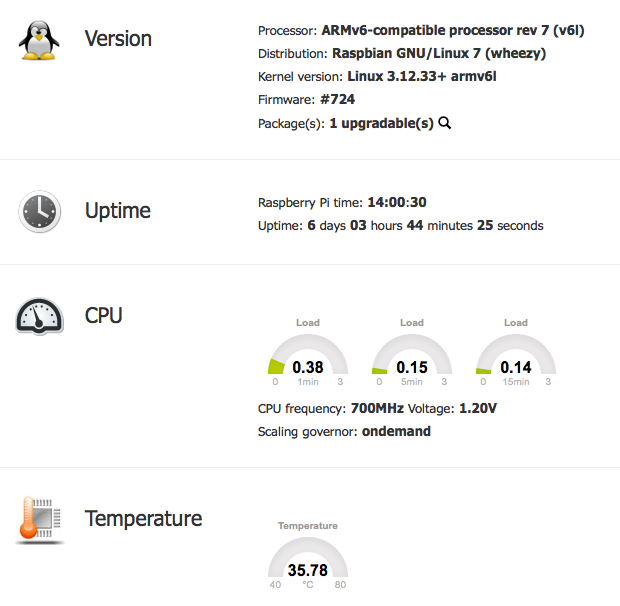
RPI-Monitor StatusHowever there is a slight issue in that the datastore is inaccessible to the webserver, so statistics are unavailable with error “File stat/uptime.rrd is not a valid RRD archive”. To resolve this we need to go back to the daemon.conf file and move the datastore to somewhere under the root directory of the website

# daemon.datastore=/var/lib/rpimonitor
# Define the data storage directory (Default:/var/lib/rpimonitor)
daemon.datastore=/var/www/rpimonitor

Restart the service again and all is worky.

$ sudo service rpimonitor restart

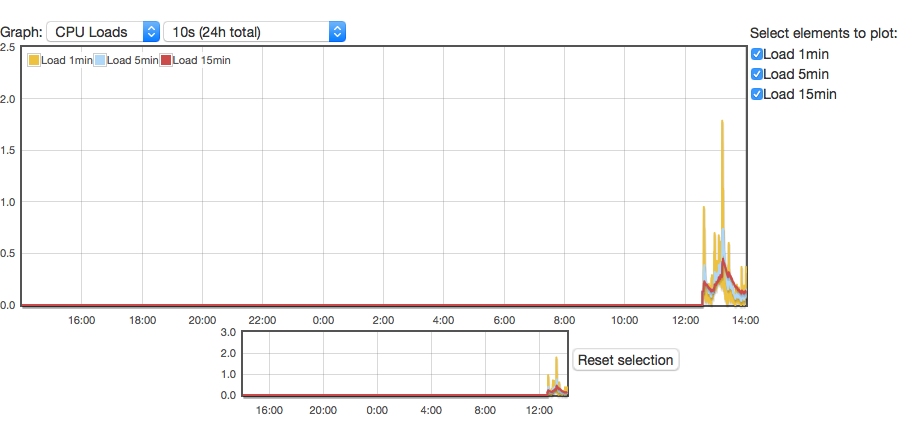
RPI-Monitor StatisticsNote: you could also just move the webroot in the same way, rather then using the symbolic link.

Migrating WordPress Tiny EC2 Instance to Raspberry Pi

Having hosted this blog on a tiny AWS EC2 instance for some time, mostly to gain exposure to EC2, I decided to migrate it to a spare Raspberry Pi and use my home network connection. For the most part this was a fairly seamless transition.

Raspberry Pi Preparation

Basic setup was updating and locking down the RPI. The next step was to install a webserver. Rather then Apache2, I decided to install nginx instead as it is supposed to be a little lighter on resources.

sudo apt-get install nginx php5-fpm
sudo service nginx restart

Try to connect to http://$SERVER_IP and you should see a “Welcome to NGINX” page. If not then something has gone wrong and you need to look at /var/log/nginx/error.log

Next up is to install MySQL and the PHP connection API

sudo apt-get install mysql-server php5-mysql

Be sure to set a strong MySQL root password

At this point I suggest switching your MySQL config with the my-small.cnf as we are working on a relatively low memory device

sudo cp /usr/share/doc/mysql-server-5.5/examples/my-small.cnf /etc/mysql/my.cnf
sudo service mysql restart

Prepare the WordPress MySQL Account

mysql -u root -p
CREATE DATABASE `wordpressdb`;
GRANT ALL PRIVILEGES ON `wordpressdb`.* TO 'wordpress'@'localhost' IDENTIFIED BY 'long_complicated_wordpress_password';
FLUSH PRIVILEGES;
EXIT

At this point I configured nginx to allow PHP to be executed by editing /etc/nginx/sites-enabled/default in two areas:

server {
listen 80; ## listen for ipv4; this line is default and implied
#listen [::]:80 default_server ipv6only=on; ## listen for ipv6

root /var/www;
index index.html index.htm index.php;

...

# pass the PHP scripts to FastCGI server listening on 127.0.0.1:9000
#
location ~ \.php$ {
fastcgi_split_path_info ^(.+\.php)(/.+)$;
# # NOTE: You should have "cgi.fix_pathinfo = 0;" in php.ini
#
# # With php5-cgi alone:
# fastcgi_pass 127.0.0.1:9000;
# # With php5-fpm:
fastcgi_pass unix:/var/run/php5-fpm.sock;
fastcgi_index index.php;
include fastcgi_params;
}

WordPress Migration

For this I made use of the excellent XCloner Plugin to backup my existing server, then used the manual method to restore the entire wordpress installation on the new server. No issues…

Some Performance Improvements

First some caching helpers:

sudo apt-get install memcached php5-memcache php-apc
sudo /etc/init.d/php5-fpm restart

To take advantage in WordPress install the following plugins:

  • nginx Compatibility
  • W3 Total Cache

From the W3 Total Cache settings page

  • enable Page Cache with memcached
  • enable Object Cache with APC

Moving the RRD

First up, install rrdtool on the RPI:

sudo apt-get install rrdtool

Then dump the old RRD from the original server. This is required as the database itself is very platform specific, and cannot be just copied between architectures.

rrdtool dump ./database.rrd &gt; database.xml

On the new server, import it into a shiny new RRD:

rrdtool restore ./database.xml ./database.rrd

DNS Changes

Since this is hosted on a home connection, which has a public IP, we cannot guarantee that the IP address will stay the same. Like most tech-savy people I use Dynamic DNS to ensure I can access my home network.

In this case, I make a CNAME record for flat-planet.net, pointing towards my dynamic DNS record, and we are done.