Tag Archives: config

Migrating from OpenELEC 6.0.3 to 7.0.1

More of a note to myself but I was doing a major version upgrade of OpenELEC for the first time and hit a few snags, so wanted to note these is case anyone else hits the same issues.

Basic setup, and potential issues;

  1. OpenELEC 6.0.3 running on a RPi3
  2. Media server is accessible via SMB
  3. Video database is on the MySQL server rather then locally
  4. Using TV Headend as a PVR client

OpenELEC 6.0.3 running on a RPi3

OpenELEC will not automatically upgrade to a major new release for fear of breaking things. You are expected to trigger this yourself. The process is fairly straightforward to be honest.

To upgrade, copy the update file (.tar) for the platform you are using into the /storage/.update/ directory and reboot, then when it is up and running, reboot a second time.

Note: I’m assuming you have a backup before you start this 🙂

Media server is accessible via SMB

No problems with this part actually. The SMB configuration was done through OpenELEC (and stored in /storage/.kodi/userdata/sources.xml) so this was preserved through the upgrade.

Video database is on the MySQL server rather then locally

This part caused some problems, as I’d forgotten that I had the permissions for kodi locked down. When starting up the ‘Film’ and ‘TV Shows’ categories weren’t visible.
/storage/.kodi/userdata/advancedsettings.xml was unchanged, so didn’t expect any problems in terms of client config:

  <videodatabase>
    <type>mysql</type>
    <host>192.168.1.x</host>
    <port>3306</port>
    <user>kodi</user>
    <pass>MySecretPassword</pass>
  </videodatabase>

Taking a look at the kodi log file (stored in /storage/.kodi/temp/kodi.log) I could see where things were going wrong.

18:42:19   9.573155 T:1963802624   ERROR: Unable to open database: MyVideos99 [1044](Access denied for user 'kodi'@'192.168.1.%' to database 'MyVideos99')
18:42:19   9.591171 T:1963802624   ERROR: Unable to open database: MyVideos98 [1044](Access denied for user 'kodi'@'192.168.1.%' to database 'MyVideos98')
18:42:19   9.611773 T:1963802624   ERROR: Unable to open database: MyVideos97 [1044](Access denied for user 'kodi'@'192.168.1.%' to database 'MyVideos97')
18:42:19   9.636495 T:1963802624   ERROR: Unable to open database: MyVideos96 [1044](Access denied for user 'kodi'@'192.168.1.%' to database 'MyVideos96')
18:42:19   9.657456 T:1963802624   ERROR: Unable to open database: MyVideos95 [1044](Access denied for user 'kodi'@'192.168.1.%' to database 'MyVideos95')
18:42:19   9.676188 T:1963802624   ERROR: Unable to open database: MyVideos94 [1044](Access denied for user 'kodi'@'192.168.1.%' to database 'MyVideos94')
18:42:19   9.705974 T:1963802624  NOTICE: Old database found - updating from version 93 to 99
18:42:19   9.711560 T:1963802624   ERROR: SQL: Can't create database for copy: 'MyVideos93' (1044)
18:42:19   9.716779 T:1963802624   ERROR: Unable to copy old database MyVideos93 to new version MyVideos99

The number that Kodi tags to the end of the database name e.g. MyVideos93, 93 indicates the database version. Part of the upgrade involves upgrading the database to whatever revision we are now on. Kodi will do this for you, but creates it as a new database which means that it has to have permissions to do so.

The base permissions I granted by default weren’t sufficient for this:

mysql> show grants for 'kodi'@'192.168.1.%' ;
+-----------------------------------------------------------------------------------------------------+
| Grants for [email protected].%                                                                                   |
+-----------------------------------------------------------------------------------------------------+
| GRANT USAGE ON *.* TO 'kodi'@'%' IDENTIFIED BY PASSWORD '*xxxx' |
| GRANT ALL PRIVILEGES ON `MyVideos93`.* TO 'kodi'@'192.168.1.%'                                                 |
+-----------------------------------------------------------------------------------------------------+

Granted full permissions to Kodi.

mysql> GRANT ALL PRIVILEGES ON *.*  TO 'kodi'@'192.168.1.%' ;
Query OK, 0 rows affected (0.00 sec)
mysql> flush privileges;
Query OK, 0 rows affected (0.00 sec)

mysql> show grants for 'kodi'@'192.168.1.%';
+------------------------------------------------------------------------------------------------------------------------+
| Grants for [email protected].%                                                                                            |
+------------------------------------------------------------------------------------------------------------------------+
| GRANT ALL PRIVILEGES ON *.* TO 'kodi'@'192.168.1.%' IDENTIFIED BY PASSWORD '*xxxx' |
| GRANT ALL PRIVILEGES ON `MyVideos93`.* TO 'kodi'@'192.168.1.%'                                                         |
+------------------------------------------------------------------------------------------------------------------------+
2 rows in set (0.00 sec)

Now restart the RPi, and the new database was created and the data migrated across.

...
18:51:37   9.850684 T:1963544576   ERROR: Unable to open database: MyVideos99 [1049](Unknown database 'MyVideos99')
18:51:37   9.869744 T:1963544576   ERROR: Unable to open database: MyVideos98 [1049](Unknown database 'MyVideos98')
18:51:37   9.899451 T:1963544576   ERROR: Unable to open database: MyVideos97 [1049](Unknown database 'MyVideos97')
18:51:37   9.926645 T:1963544576   ERROR: Unable to open database: MyVideos96 [1049](Unknown database 'MyVideos96')
18:51:37   9.944409 T:1963544576   ERROR: Unable to open database: MyVideos95 [1049](Unknown database 'MyVideos95')
18:51:37   9.971253 T:1963544576   ERROR: Unable to open database: MyVideos94 [1049](Unknown database 'MyVideos94')
18:51:37   9.997427 T:1963544576  NOTICE: Old database found - updating from version 93 to 99
18:51:52  25.252617 T:1963544576  NOTICE: Attempting to update the database MyVideos99 from version 93 to 99
18:52:26  59.282043 T:1963544576  NOTICE: Running database version TV29
18:52:26  59.287502 T:1963544576  NOTICE: Running database version Epg11
...

Then I locked it back down again, but with a slight improvement, as Kodi doesn’t seem to delete the older DB by default.

mysql> REVOKE ALL PRIVILEGES, GRANT OPTION FROM 'kodi'@'192.168.1.%';
Query OK, 0 rows affected (0.02 sec)

mysql> flush privileges;
Query OK, 0 rows affected (0.00 sec)

mysql> show grants for 'kodi'@'192.168.1.%';
+-----------------------------------------------------------------------------------------------------+
| Grants for [email protected].%                                                                            |
+-----------------------------------------------------------------------------------------------------+
| GRANT USAGE ON *.* TO 'kodi'@'192.168.1.%' IDENTIFIED BY PASSWORD '*xxxx' |
+-----------------------------------------------------------------------------------------------------+

mysql> GRANT ALL ON `MyVideos%`.* TO 'kodi'@'192.168.1.%' IDENTIFIED BY 'kodi';
Query OK, 0 rows affected (0.02 sec)

mysql> flush privileges;
Query OK, 0 rows affected (0.02 sec)

mysql> show grants for 'kodi'@'192.168.1.%';
+---------------------------------------------------------------------------------------------------------------+
| Grants for [email protected].%                                                                                   |
+---------------------------------------------------------------------------------------------------------------+
| GRANT USAGE ON *.* TO 'kodi'@'192.168.1.%' IDENTIFIED BY PASSWORD '*xxxx' |
| GRANT ALL PRIVILEGES ON `MyVideos%`.* TO 'kodi'@'192.168.1.%'                                                 |
+---------------------------------------------------------------------------------------------------------------+

And that was that.

Using TV Headend as a PVR client

Minor problem here. The automatic update to a newer client version was failing, and the older client was crashing. Uninstalled the old one, did an install of the newer release, and it was back up and running (existing config was preserved).


Realtek RTL2832U on Linux (Debian)

So, now that I’d dipped my toe in the water with the RTL2832U on Win10, I actually planned on permanently integrating it into my media setup with is based on a RPI3 running OpenElec and a Debian server providing backend storage.

This turned out to be one of those good news bad news situations. The good news is that the dongle has kernel support, the bad news was that Wheezy was still on 3.2 which was lacking this support. After a failed attempt to compile the driver, followed by a failed attempt to compile the kernel (stupid linux-headers not found!) I just went ahead and upgraded the box to Jessie (Linux 3.16.0-4-amd64 #1 SMP Debian 3.16.7-ckt25-1 (2016-03-06) x86_64 GNU/Linux).

A long update, upgrade, dist-upgrade later and the dongle was in and recognised

[    1.196017] usb 8-1: Manufacturer: Realtek
[   19.650428] usb 8-1: dvb_usb_v2: found a 'Realtek RTL2832U reference design' in warm state
[   19.717623] usb 8-1: dvb_usb_v2: will pass the complete MPEG2 transport stream to the software demuxer
[   19.717658] DVB: registering new adapter (Realtek RTL2832U reference design)
[   19.721246] usb 8-1: DVB: registering adapter 0 frontend 0 (Realtek RTL2832 (DVB-T))...
[   20.007861] i2c i2c-9: rtl2832_sdr: Realtek RTL2832 SDR attached
[   20.015340] input: Realtek RTL2832U reference design as /devices/pci0000:00/0000:00:1d.7/usb8/8-1/rc/rc0/input6
[   20.015348] rc0: Realtek RTL2832U reference design as /devices/pci0000:00/0000:00:1d.7/usb8/8-1/rc/rc0
[   20.104268] input: MCE IR Keyboard/Mouse (dvb_usb_rtl28xxu) as /devices/virtual/input/input7
[   20.104356] usb 8-1: dvb_usb_v2: schedule remote query interval to 400 msecs
[   20.117509] usb 8-1: dvb_usb_v2: 'Realtek RTL2832U reference design' successfully initialized and connected
[   20.117602] usbcore: registered new interface driver dvb_usb_rtl28xxu
[   20.160507] rc rc0: lirc_dev: driver ir-lirc-codec (dvb_usb_rtl28xxu) registered at minor = 0

Next step…

Installing tvheadend

My original plan was to just have the dongle running directly connected to the RPI but power was a concern (no powered hub) and since my linux server is always running anyway, why not install the backend software there and have the tvheadend client running on the RPI/OpenELEC side of things?

Installation isn’t actually that straightforward but can be broken down into a few steps

  1. Install the package
    This involves adding the tvheadend repository to your sources list and you will add a user account/password as part of the install process

    sudo apt-key adv --keyserver hkp://keyserver.ubuntu.com:80 --recv-keys 379CE192D401AB61
    echo "deb https://dl.bintray.com/tvheadend/deb <strong>jessie stable</strong>" | sudo tee -a /etc/apt/sources.list
    sudo apt-get update
    sudo apt-get install tvheadend
  2. Configure via the web interface at <IP Address>:9981
    1. Check that your dongle shows up under Configuration -> DVB Inputs -> TV Adapters
    2. Under Configuration -> DVB Inputs -> Networks, add a DVB-T network (for Ireland) and select from the list of Pre-defined MUXs (Ireland-WoodcockHill for me)
      create-dvbT-network
    3. Back under Configuration -> DVB Inputs -> Networks, map the newly created network to the dongle
      hardware-network-mapping-DVB-T
    4. Under Muxes, the scan status for the added muxes will start at ‘Idle’ then eventually start scanning and find your channels
    5. You should see the Services start to be listed as they are discovered, and at this point under Configuration -> Channel, you can map the service to a channel
      channel-config-DVB-T
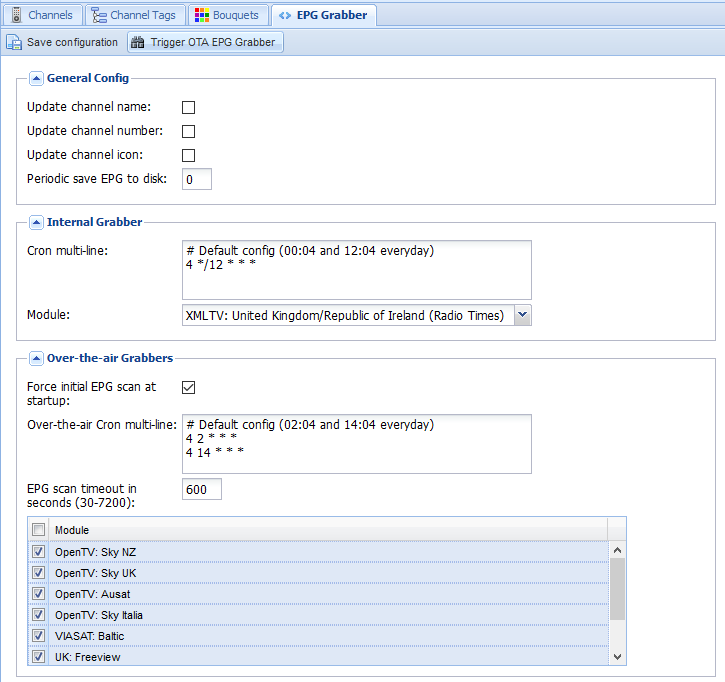
    6. Last step on the backend side is to enable the EPG. I have both the OTA grabber and the Radio Times for UK/Ireland enabled and we are doneEPG-grabber-DVB-T
      EPG-DVB-T

On the OpenELEC frontend, much simpler.

Install the add-on from under PVR, configure it with the hostname, username, and password, and under Settings -> TV, Enable live TV. Sorted!

OpenELEC on RPi 3 – buffering

Upgraded my media player from Raspmc running on a B+ to OpenELEC on RPi3.

Much better UI and database performance, and handles 1080 content much smoother.

One tweak that was needed to prevent interruptions/buffering problems to content coming over Samba was in advancedsettings.xml where I upped the buffer size and readbufferfactor

<advancedsettings>
  <network>
    <buffermode>1</buffermode>
    <cachemembuffersize>314572800</cachemembuffersize>
    <readbufferfactor>20</readbufferfactor>
  </network>
</advancedsettings>

Silky smooth playback of all media I tried so far.

Supporting Multiple Subnets from a single DHCP Server

This took a bit of google work to piece together how it works, so just posting it here so others can benefit. The basic scenario is as follows:

  1. I have a number of subnets that I need to assign addresses to
  2. I have a single server with only one interface and it lives on my management network

DHCP Relay SetupSince the server isn’t on each of the subnets I’m going to make user of the UDP Helper functionality built into most routers/L3 switches today. If a DHCP client outside the DHCP server’s subnet broadcasts an address request, it is the helper that forwards the message to the DHCP server. The server then chooses an address and sends the client a unicast message, using the helper to send the message back to the client’s subnet.

The address is reserved for a limited time while the DHCP server waits for a response. If the client responds with another broadcast message, the DHCP server distributes the address.

Router config

This is incredibly simple. On each SVI, simply add the ip helper-address:

interface vlan 10
ip address 10.0.10.1/24
ip helper-address 10.10.10.200
interface vlan 20
ip address 10.0.20.1/24
ip helper-address 10.10.10.200
interface vlan 30
ip address 10.0.30.1/24
ip helper-address 10.10.10.200

Of course, your router should be able to reach the helper address.

DHCP Server Config

This was actually the harder part to hunt down. Basically we just define our subnets without using the “shared-network” statement

authoritative;

# this is the most important line. It specifies the method
# to use to connect to the DNS server and update it.
ddns-update-style none;
ddns-domainname "example.com";
ignore client-updates;


option domain-name              "example.com";
option domain-name-servers      8.8.8.8,8.8.4.4;
option time-offset              0;
option ntp-servers              10.10.10.200;
one-lease-per-client off;
default-lease-time 86400;
max-lease-time 604800;
option ip-forwarding off;


# Subnet for internal hosts
    subnet 10.0.10.0 netmask 255.255.255.0 {
        range 10.0.10.2 10.0.10.254;
        option routers                  10.0.10.1;
        option subnet-mask              255.255.255.0;
    }

subnet 10.0.20.0 netmask 255.255.255.0 {
        range 10.0.20.2 10.0.20.254;
        option routers                  10.0.20.1;
        option subnet-mask              255.255.255.0;
    }
subnet 10.0.30.0 netmask 255.255.255.0 {
        range 10.0.30.2 10.0.30.254;
        option routers                  10.0.30.1;
        option subnet-mask              255.255.255.0;
    }

The server will select the correct subnet, based on the GIADDR (Gateway IP Address) contained in the request e.g. the DHCP Request reaching the server from vlan10 will have GIADDR = 10.0.10.1

Cinder Authentication Failures

I’ve been building a new OpenStack lab (Kilo) manually to get a feel for the changes – last time I did much with OpenStack it was on Grizzly. Most of the components are broadly similar, with improvements generally speaking, but getting Cinder proved to be a lot more work then anticipated.

Basically it just wouldn’t work – due to authentication failures. I checked and rechecked the passwords, followed the guide to the letter, and nothing:

2015-06-29 17:03:04.394 4639 DEBUG keystone.middleware.core [-] Auth token not in the request header. Will not build auth context. process_request /usr/lib/python2.7/dist-packages/keystone/middleware/core.py:229
2015-06-29 17:03:04.395 4639 INFO keystone.common.wsgi [-] GET /?
2015-06-29 17:03:04.396 4639 INFO eventlet.wsgi.server [-] 10.68.3.29 - - [29/Jun/2015 17:03:04] "GET /v2.0/ HTTP/1.1" 200 579 0.002657
2015-06-29 17:03:04.399 4639 DEBUG keystone.middleware.core [-] Auth token not in the request header. Will not build auth context. process_request /usr/lib/python2.7/dist-packages/keystone/middleware/core.py:229
2015-06-29 17:03:04.400 4639 INFO keystone.common.wsgi [-] POST /tokens?
2015-06-29 17:03:04.507 4639 INFO eventlet.wsgi.server [-] 10.68.3.29 - - [29/Jun/2015 17:03:04] "POST /v2.0/tokens HTTP/1.1" 200 2764 0.108216
2015-06-29 17:03:04.513 4634 DEBUG keystone.middleware.core [-] Auth token not in the request header. Will not build auth context. process_request /usr/lib/python2.7/dist-packages/keystone/middleware/core.py:229
2015-06-29 17:03:04.515 4634 INFO keystone.common.wsgi [-] POST /tokens?
2015-06-29 17:03:04.523 4634 WARNING keystone.common.wsgi [-] Authorization failed. Invalid user / password (Disable debug mode to suppress these details.) (Disable debug mode to suppress these details.) from 10.68.3.29

Eventually, more in hope then expectation, I used the keystone_authtoken config block from glance, rather then the config guide, and we were in business – very frustrating day but got there in the end.

[keystone_authtoken]
identity_uri = http://openstack-mgmt:35357
admin_tenant_name = Services
admin_user = cinder
admin_password = notcinder

If I had the auth_uri parameter configured it just wouldn’t work, and I’m beyond caring why at this point!

3 Ireland SMTP Access Blocked

Having put some time and effort into getting my mail server setup, and configuring my Android phone to use IMAPS for receiving and SMTP over TLS for sending emails, and testing it, I was quite annoyed while out in the town to find that I could receive mails but not send any.

It turns out that 3 Ireland, when on the 3ireland.ie APN block all outgoing connections on TCP port 25 e.g. the SMTP port. They do have a mail relay that is permitted available, though documentation for that is hard to find. The mail relay is located at:

mail-relay.3ireland.ie

However, using their relay would defeat the purpose of having the secure SMTP service available. Simple workaround is to change the port forwarding on the router to direct TCP port 587 externally to port 25 internally – no config changes on the server required.

E-Mail Server Setup and Configuration

Having your own mail server is very useful, though surprisingly hard to configure. Generally speaking there are actually two components in a standard linux mail server install. There is the Mail Transfer Agent [MTA] and the Mail Delivery Agent [MDA]. For this install I’ll be using Postfix as the MTA and Dovecot as the MDA

The MTA handles relaying mail between different servers. It decides what to do with email from the outside world, and whether a particular user is allowed to send email using your server. It handles both incoming and outgoing SMTP. Postfix hands off local delivery (that is, the actual saving of the mail files on the server) to Dovecot’s Local Mail Transfer Protocol service (LMTP). Postfix also lets Dovecot take care of authentication before users are allowed to send email from the server.

The MDA is the part that end-users interact with. There are two main protocols in use by the MDA, POP3 and/or IMAP (each have a secure variant, and have different pros/cons). For this setup I’m ignoring the options and just configuring IMAPS – this is basically IMAP over an SSL/TLS connection (and won’t be using SSL). The IMAP/POP3 server handles requests from users who want to log in and check their email. Dovecot’s LMTP service functions as the Mail Delivery Agent (MDA) by saving mail files on the server. Dovecot also handles all authorization.

Basic Requirements

  • A domain name – in this case flat-planet.net
  • A hostname for the server e.g. mail.flat-planet.net
  • An SSL certificate for the server hostname – see this post on the process for this

DNS Configuration

A specific type of DNS record is used for e-mail. This is known as the Mail Exchange [MX] record. The characteristic payload information of an MX record is the fully qualified domain name of a mail host and a preference value. The host name must map directly to one or more address record (A, or AAAA) in the DNS, and must not point to any CNAME records.

Section 10.3 of RFC 2181 states:

10.3. MX and NS records

The domain name used as the value of a NS resource record, or part of the value of a MX resource record must not be an alias. Not only is the specification clear on this point, but using an alias in either of these positions neither works as well as might be hoped, nor well fulfills the ambition that may have led to this approach. This domain name must have as its value one or more address records. Currently those will be A records, however in the future other record types giving addressing information may be acceptable. It can also have other RRs, but never a CNAME RR.

Searching for either NS or MX records causes “additional section processing” in which address records associated with the value of the record sought are appended to the answer. This helps avoid needless extra queries that are easily anticipated when the first was made.

Additional section processing does not include CNAME records, let alone the address records that may be associated with the canonical name derived from the alias. Thus, if an alias is used as the value of an NS or MX record, no address will be returned with the NS or MX value. This can cause extra queries, and extra network burden, on every query.

But since I’m hosting on a residential connection I don’t have a static IP, and so I’m using a CNAME record (not an uncommon practice, even among people who have static IPs and should know better).

Colin:~ $ dig flat-planet.net MX

; <<>> DiG 9.8.3-P1 <<>> flat-planet.net MX
;; global options: +cmd
;; Got answer:
;; ->>HEADER<<- opcode: QUERY, status: NOERROR, id: 32916
;; flags: qr rd ra; QUERY: 1, ANSWER: 1, AUTHORITY: 0, ADDITIONAL: 0

;; QUESTION SECTION:
;flat-planet.net.        IN    MX

;; ANSWER SECTION:
flat-planet.net.    1799    IN    MX    10 mail.flat-planet.net.

;; Query time: 68 msec
;; SERVER: 192.168.1.1#53(192.168.1.1)
;; WHEN: Sat Dec 27 12:05:18 2014
;; MSG SIZE  rcvd: 54

Colin:~ $ dig mail.flat-planet.net MX

; <<>> DiG 9.8.3-P1 <<>> mail.flat-planet.net MX
;; global options: +cmd
;; Got answer:
;; ->>HEADER<<- opcode: QUERY, status: NOERROR, id: 16794
;; flags: qr rd ra; QUERY: 1, ANSWER: 1, AUTHORITY: 1, ADDITIONAL: 0

;; QUESTION SECTION:
;mail.flat-planet.net.        IN    MX

;; ANSWER SECTION:
mail.flat-planet.net.    1402    IN    CNAME    colinmacg.no-ip.info.

;; AUTHORITY SECTION:
no-ip.info.        59    IN    SOA    nf1.no-ip.com. hostmaster.no-ip.com. 2107200777 600 300 604800 600

;; Query time: 117 msec
;; SERVER: 192.168.1.1#53(192.168.1.1)
;; WHEN: Sat Dec 27 12:05:39 2014
;; MSG SIZE  rcvd: 132

At this point a 3rd query is required to resolve the no-ip.info domain to the actual IP address.

It should be noted that the mail will be considered more likely to be spam (by spamassassin, amongst others) as the reverse DNS lookup on the IP address will show it as belonging to your ISP rather then your domain, but that alone is generally not enough.

Postfix

Postfix has two main config files: main.cf, which specifies what you would think of as config options, and master.cf, which specifies the services postfix should run.

master.cf

Here we have the smtp daemon enabled, and we are directing it through SpamAssassin as our content filter

# ==========================================================================
# service type private unpriv chroot wakeup maxproc command + args
# (yes) (yes) (yes) (never) (100)
# ==========================================================================
smtp inet n - - - - smtpd
      -o content_filter=spamassassin

...

spamassassin unix - n n - - pipe user=debian-spamd argv=/usr/bin/spamc -f -e /usr/sbin/sendmail -oi -f ${sender} ${recipient}

main.cf

Main points here are:

  • Add in our cert and key for TLS
  • Enable TLS
  • Disable SSLv2 and SSLv3 – these are deprecated anyway, and with POODLE (CVE-2014-3566) we should explicitly disable these.
  • The use of Mail Directories rather then the default
  • Configuring the use of SASL
  • Locking down smtpd and the HELO command
# TLS parameters
smtpd_tls_cert_file=/etc/ssl/certs/mail-cert.crt
smtpd_tls_key_file=/etc/ssl/private/mail-key.key
smtpd_use_tls=yes
smtpd_tls_session_cache_database = btree:${data_directory}/smtpd_scache
smtp_tls_session_cache_database = btree:${data_directory}/smtp_scache
smtpd_tls_protocols = !SSLv2, !SSLv3

home_mailbox = Maildir/
mailbox_transport = lmtp:unix:private/dovecot-lmtp

# SASL  begins here
smtpd_sasl_type = dovecot
smtpd_sasl_path = private/auth
smtpd_sasl_auth_enable = yes
broken_sasl_auth_clients = yes
smtpd_sasl_security_options = noanonymous
smtpd_sasl_local_domain = flat-planet.net
smtpd_tls_auth_only = yes

smtpd_recipient_restrictions =
     permit_sasl_authenticated,
     permit_mynetworks,
     reject_unauth_destination

smtpd_helo_required = yes
smtpd_helo_restrictions =
     permit_mynetworks,
     permit_sasl_authenticated,
     reject_invalid_helo_hostname,
     reject_non_fqdn_helo_hostname,
     reject_unknown_helo_hostname
check_helo_access hash:/etc/postfix/helo_access

Dovecot

Dovecot allows users to log in and check their email using POP3 and IMAP. In this section, you’ll configure Dovecot to force users to use SSL when they connect so that their passwords are never sent to the server in plain text. Users will have to connect using the standard SSL ports – 993 for IMAP and 995 for POP3 – and only those ports. Dovecot’s LMTP service will function as the MDA and store incoming messages in the proper locations on the server. Dovecot will also be handling all user authentication for mail. In this case I’m only worried about IMAP over SSL/TLS.

Dovecot 2 uses a number of different configuration files. The primary configuration file contains a few directives, and then several inclusions of other configuration files. This helps to separate different configuration parameters logically so they’re not all grouped together in one file. This is a major change from Dovecot 1, where virtually everything was configured in the same file.

For my setup the following files are modified (in /etc/config/dovecot/conf.d):

  • 10-auth.conf
  • 10-mail.conf
  • 10-master.conf
  • 10-ssl.conf
  • 20-lmtp.conf
  • 90-sieve.conf

10-auth.conf

Some configuration for Sieve and LMTP later on. We need it to strip the domain from the username and look that part up:

auth_username_format = %Ln

10-mail.conf

Rather then using mbox, I prefer the Maildir approach so modify the file like so:

#mail_location = mbox:~/mail:INBOX=/var/mail/%u
mail_location = maildir:~/Maildir

10-master.conf

Set Dovecot to listen to authentication requests from Postfix over unix sockets rather then network ports, and enable the imaps listener. I’m not opening IMAP to external networks so I’ll leave it enabled for now and disable once I’m sure all is working:

service imap-login {
  inet_listener imap {
    port = 143
  } 
  inet_listener imaps {
    port = 993
    ssl = yes
  }

service auth { 
        unix_listener /var/spool/postfix/private/auth { 
                    mode = 0660 
                    user = postfix 
                    group = postfix 
        } 
}
service lmtp {
        unix_listener /var/spool/postfix/private/dovecot-lmtp {
                    mode = 0666
 }
}

10-ssl.conf

Here I enable SSL, point it towards the keys (the < is not a typo) and disable the ciphers and protocols I don’t want running (SSLv2 and v3).

# SSL/TLS support: yes, no, required. <doc/wiki/SSL.txt>
ssl = yes
...
ssl_cert = </etc/ssl/certs/mail-cert.crt
ssl_key = </etc/ssl/private/mail-key.key

...

# SSL protocols to use
ssl_protocols = !SSLv3
...
# SSL ciphers to use
ssl_cipher_list = ALL:!LOW:!SSLv2:!SSLv3:!EXP:!aNULL

20-lmtp.conf

Configure LMTP to allow the recipient address to include the detail of the mail folder you want to put it in, and to enable the sieve plugin (more on that later).

# When recipient address includes the detail (e.g. user+detail), try to save
# the mail to the detail mailbox. See also recipient_delimiter and
# lda_mailbox_autocreate settings.
lmtp_save_to_detail_mailbox = yes

protocol lmtp {
# Space separated list of plugins to load (default is global mail_plugins).
     mail_plugins = $mail_plugins sieve
     postmaster_address = [email protected]
}

90-sieve.conf

Configuration for sieve to allow sorting of the SpamAssassin tagged mails.

plugin {
# The path to the user's main active script. If ManageSieve is used, this the
# location of the symbolic link controlled by ManageSieve.
     sieve = ~/.dovecot.sieve

...
     recipient_delimiter = +

SpamAssassin

SpamAssassin is a perl based e-mail filtering solution. It  uses a variety of spam-detection techniques, that includes DNS-based and fuzzy-checksum-based spam detection, Bayesian filtering, external programs, blacklists and online databases.

As usual, install with:

sudo apt-get update
sudo apt-get install spamassassin

The configure with the file /etc/spamassassin/local.cf and restart. Main configurations is:

  • Rewrite the subject line to include the SPAM score
  • Modify the headers only – don’t change the body
  • Set the required score for something to be marked as SPAM (default is 5)
  • Tell it to use Bayesian statistical analysis and enable auto-learning
rewrite_header Subject [***** SPAM _SCORE_ *****]
report_safe 0
required_score 3.0
use_bayes 1
bayes_auto_learn 1

And set ENABLED to 1 in /etc/defaults/spamassassin and restart:

sudo service spamassassin start

 Filtering and Sieve

Install lmtp and sieve

sudo apt-get update
sudo apt-get install dovecot-sieve dovecot-lmtp

Restart Postfix and Dovecot

sudo service postfix reload
sudo service dovecot reload

Add the filter to your home folder in ~/.dovecot.sieve

require ["fileinto"];
# Move spam to spam folder
if header :contains "X-Spam-Flag" "YES" {
         fileinto "Spam";
         # Stop here so that we do not reply on spams
         stop;
}

When SpamAssassin marks emails as Spam it adds X-Spam-Flag: YES to the headers. This rule checks the headers and sends mail to the spam folder if that flag exists.

Does it work?

Apparently so – a fake FedEX mail was intercepted and placed in the SPAM folder. From looking at the mail header I can see the SpamAssassin analysis:

X-Spam-Flag: YES
X-Spam-Level: **********
X-Spam-Status: Yes, score=10.3 required=3.0 tests=HTML_FONT_SIZE_LARGE,
HTML_MESSAGE,KB_DATE_CONTAINS_TAB,MIME_HTML_ONLY,MISSING_MID,     RCVD_IN_BL_SPAMCOP_NET,RCVD_IN_BRBL_LASTEXT,RCVD_IN_XBL,RDNS_NONE,TAB_IN_FROM
autolearn=no version=3.3.2
X-Spam-Report:
* 1.2 RCVD_IN_BL_SPAMCOP_NET RBL: Received via a relay in bl.spamcop.net
* [Blocked - see <http://www.spamcop.net/bl.shtml?211.54.17.252>]
* 1.6 RCVD_IN_BRBL_LASTEXT RBL: RCVD_IN_BRBL_LASTEXT
* [211.54.17.252 listed in bb.barracudacentral.org]
* 0.7 RCVD_IN_XBL RBL: Received via a relay in Spamhaus XBL
* [211.54.17.252 listed in zen.spamhaus.org]
* 3.8 KB_DATE_CONTAINS_TAB KB_DATE_CONTAINS_TAB
* 0.4 TAB_IN_FROM From starts with a tab
* 0.0 HTML_MESSAGE BODY: HTML included in message
* 0.0 HTML_FONT_SIZE_LARGE BODY: HTML font size is large
* 1.1 MIME_HTML_ONLY BODY: Message only has text/html MIME parts
* 0.1 MISSING_MID Missing Message-Id: header
* 1.3 RDNS_NONE Delivered to internal network by a host with no rDNS

Enable LLDP on JUNOS

By default LLDP is not running on JUNOS, but it is trivially easy to enable. To activate LLDP on all interfaces:

[edit]
root@svalinn# set protocols lldp interface all

And to get information on both the local lldp status, and the neighbours:

root@svalinn# run show lldp local-information

LLDP Local Information details

Chassis ID   : 78:19:f7:aa:5e:40
System name  : svalinn
System descr : Juniper Networks, Inc. srx210b , version 12.1X44-D30.4 Build date: 2014-01-11 05:25:31 UTC

System Capabilities
Supported       : Bridge Router
Enabled         : Bridge Router

Interface name    Parent Interface  SNMP Index      Interface description    Status    Tunneling
fe-0/0/7.0        -                 527             fe-0/0/7.0               Up        Disabled

root@svalinn# run show lldp detail

LLDP                   : Enabled
Advertisement interval : 30 seconds
Transmit delay         : 2 seconds
Hold timer             : 4 seconds
Notification interval  : 0 Second(s)
Config Trap Interval   : 0 seconds
Connection Hold timer  : 300 seconds

LLDP MED               : Disabled

Interface      Parent Interface    LLDP        LLDP-MED    Neighbor count
all            -                   Enabled     -           1

Interface      Parent Interface    Vlan-id     Vlan-name
fe-0/0/7.0     -                   5           vlan-oam
LLDP basic TLVs supported:
Chassis identifier, Port identifier, Port description, System name, System
description, System capabilities, Management address.

Supported LLDP 802 TLVs:
MAC/PHY configuration/status, Power via MDI, Link aggregation, Maximum frame
size, Port VLAN tag, Port VLAN name.

root@svalinn# run show lldp neighbors
Local Interface    Parent Interface    Chassis Id          Port info          System Name
fe-0/0/7.0         -                   00:1c:73:61:ae:d7   Ethernet47         tm214.ire.aristanetworks.com

[edit]

Raspberry Pi as a Cheap Security Camera

One thing I wanted to look into was the use of the Raspberry Pi as a low-cost, linux based security camera. Key goals were:

  • Recording of HD Video
  • Live stream via web browser

This sets out the steps I did to get it up and running – consider some of the previous posts on the Raspberry to lock it down before opening it to the big bad interweb.

Raspberry Pi Configuration

Disable the camera led – lets not make it too obvious if we are, or aren’t recording. Add the following line to /boot/config.txt

disable_camera_led=1

There is a free, open-source motion detection/surveillance software package that we can use, called motion. Unfortunately it doesn’t yet support the Raspberry Pi Camera Module natively yet, so a special build is required.

sudo apt-get install motion
sudo apt-get remove motion

This is a little odd, but the main goal is that the APT package manager will install all the dependencies, add the service account, etc.

Then we get the customised motion package and install it:

wget https://www.dropbox.com/s/xdfcxm5hu71s97d/motion-mmal.tar.gz
tar zxvf motion-mmal.tar.gz
sudo mv motion /usr/bin/motion
sudo mv motion-mmalcam.conf /etc/motion.conf

We then need to enable motion to run as a daemon by editing /etc/default/motion to include

start_motion_daemon=yes

The main motion configuration file is /etc/motion.conf, but lets make sure that the permissions are sufficient for the motion user to modify them

sudo chmod 664 /etc/motion.conf
sudo chmod 755 /usr/bin/motion
sudo touch /tmp/motion.log
sudo chmod 775 /tmp/motion.log

At this point I tried to run it from the CLI, but was missing a library:

pi@watcher ~ $ motion
motion: error while loading shared libraries: libjpeg.so.62: cannot open shared object file: No such file or directory

Easily solved:

sudo apt-get install libjpeg62

motion.conf – some key changes

daemon on
process_id_file /tmp/motion.pid

logfile /home/pi/motion.log

width 1280
height 720

framerate 2

pre_capture 2
post_capture 2

max_movie_time 600

ffmpeg_video_codec msmpeg4

stream_localhost off

stream_auth_method 2
stream_authentication USERNAME:PASSWORD

There are many configuration options, all of which are detailed in the motion config documentation

If we are running it as a daemon on boot we also need to update /etc/init.d/motion with the log and PID variables e.g.

PIDFILE=/tmp/$NAME.pid

So far the streaming works fine is Firefox and Safari, but not Chrome.

Network Configuration with Raspberry Pi – WiFi and Ethernet

I was configuring my Raspberry Pi (B+) on Raspbian via the ethernet port, but also wanted to get the WiFi adapter up and running. I had some issues getting both running at the same time though – don’t know why as the device is running headless, but as soon as I disconnected the ethernet cable the WiFi was working as you would expect.

The workaround for this is a little messy, but I thought I’d share it here. First of all, use either the GUI or the config file to configure the WiFi (GUI is easier). The key point here, as I want to use a static IP when on my home network and DHCP the rest of the time, is to set the ‘id_str’ parameter to something meaningful e.g. home_network. The id_str allows us to match a WiFi access point to an interface configuration.

WiFi Config File

This is stored in /etc/wpa_supplicant/wpa_supplicant.conf

ctrl_interface=DIR=/var/run/wpa_supplicant GROUP=netdev
update_config=1

network={
ssid="network-SSID"
psk="my_network_key"
proto=RSN
key_mgmt=WPA-PSK
pairwise=TKIP
auth_alg=OPEN
id_str="<strong>home_static</strong>"
}

Interfaces File

This is /etc/network/interfaces
Note how the iface name is the same as the id_str for the home network/static IP configuration

auto lo

iface lo inet loopback

allow-hotplug eth0
iface eth0 inet dhcp

allow-hotplug wlan0
iface wlan0 inet manual
wpa-roam /etc/wpa_supplicant/wpa_supplicant.conf

iface <strong>home_static</strong> inet static
address 192.168.1.20
netmask 255.255.255.0
gateway 192.168.1.1

iface default inet dhcp

The Weirdness

For some reason if we hotplug the Ethernet port we disable wlan0 (and it makes a right mess of things as the sshd and other services aren’t bound to the correct interface any more).

So we edit /etc/default/ifplugd

INTERFACES="eth0"
HOTPLUG_INTERFACES="eth0"
ARGS="-q -f -u0 -d10 -w -I"
SUSPEND_ACTION="stop"

And to give the WiFi dongle a kick at startup we add the following to /etc/rc.local.

# Disable the ifplugd eth0
sudo ifplugd eth0 --kill
sudo ifup wlan0