I’ve recently had multiple issues with the official Dexcom G7 app on my phone, and after they broke the BYOD version of the app, I decided to move in another direction.
xDrip
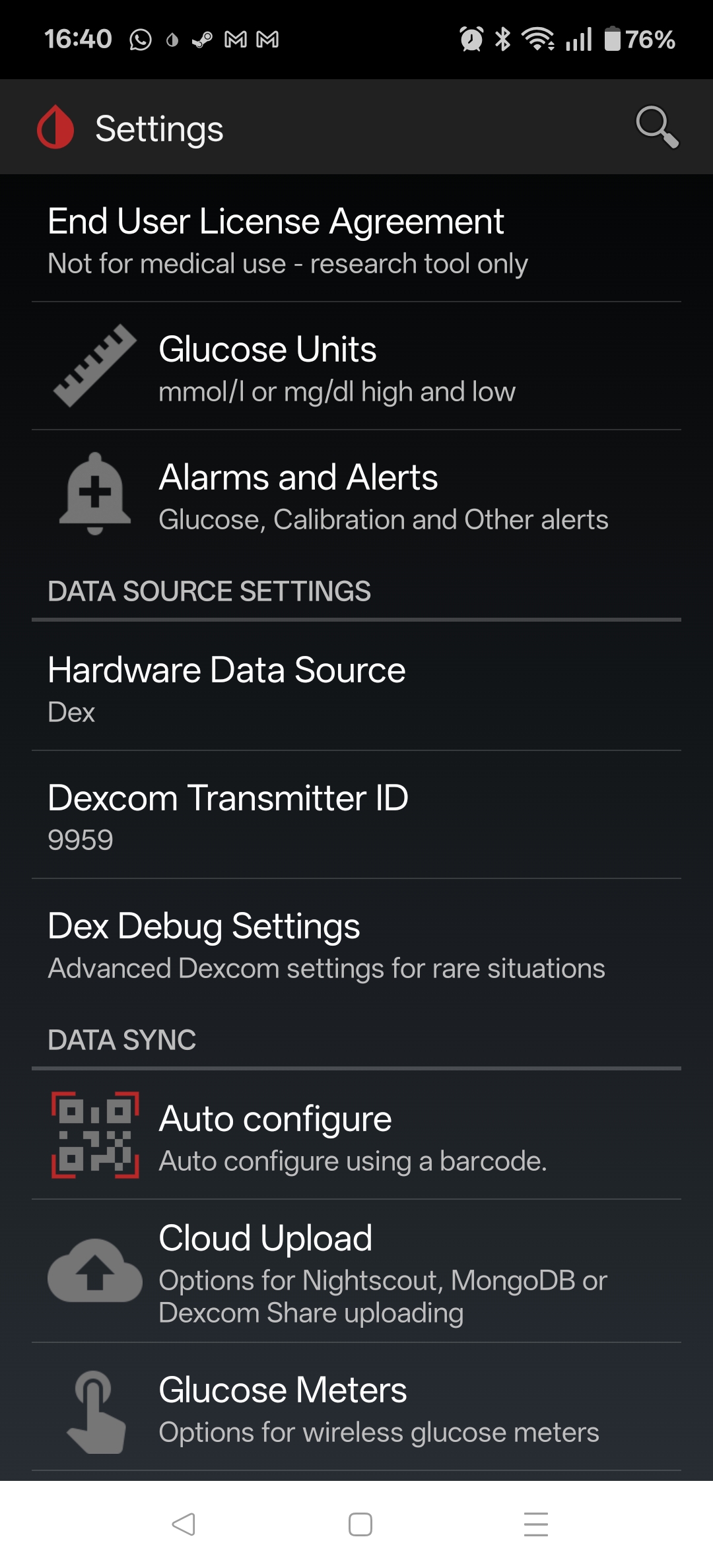
As of 2025.08.08, xDrip now supports the G7 directly. Just two notes here. Follow the instructions to the letter, and ignore the screenshots – the options to select are Dex, and use the 4 digit bluetooth pairing code as the Transmitter ID.
With xDrip working well, I then decided to get Nightscout up and running to act as a replacement for the Clarity reports.
Nightscout
Nightscout depends on MongoDB as the backend storage, so my docker-compose.yml file starts a nightscout-mongodb service. The main change here from other examples is that the bitnami containers are now under bitnamilegacy, since its no longer being maintained – not a huge concern since its completely internal to the nightscout docker network.
  nightscout-mongodb:                                   # SERVICE_NAME - used by the "depends_on:" to make sure the database it running before things try to use it
    image: bitnamilegacy/mongodb:latest                       # Other options "image: mongo:latest" will need adjustments in other places such as "volumes:" mounts
    container_name: nightscout-mongodb                  # called in Nightscout's MONGODB_URI. General good practice to be the same as SERVICE_NAME but not required
    environment:
      - PUID=1000                                               # Not necessary, but sets the USER who runs the container as not root
      - PGID=1000                                               # Not necessary, but sets the USER who runs the container as not root
      - TZ=Europe/Dublin                                       # Refer to {nightscout-app}
      - MONGO_INITDB_ROOT_USERNAME=mongodbpoweruser             # May be necessry if importing from another database or doing management on the database
      - MONGO_INITDB_DATABASE=auth                              # May be optional, hard to find documaentation about it
      - MONGO_INITDB_ROOT_PASSWORD=mongoRootPassword03          # Will probably never be needed, I set it the same as MONGODB_ROOT_PASSWORD
      - MONGODB_ROOT_USER=mongodbpoweruser                      # I'm not sure what the differences are but is usually set the same as MONGO_INITDB_ROOT_USERNAME
      - MONGODB_ROOT_PASSWORD=mongoaRootPassword02              # I'm not sure what the differences are but is usually set the same as MONGO_INITDB_ROOT_PASSWORD
      - MONGODB_USERNAME=nightscout01                           # Username called in Nightscout's MONGODB_URI - I set to just "Nightscout"
      - MONGODB_PASSWORD=mongoPassword01                        # Password called in Nightscout's MONGODB_URI
      - MONGODB_DATABASE=nightscout02                           # Database called in Nightscout's MONGODB_URI - I set to just "Nightscout"
      - MONGODB_PORT_NUMBER=27017                               # DEFAULT[27017] - Port each MongoDB will use inernally 27017:<<MONGODB_PORT_NUMBER>>
    #ports:                                                  # Only needed to access database externally. If all parts are in the same stack/network removal or # suggested
    #  - 27017:27017                                             # DEFAULT[27017:27017] - <<EXTERNAL PORT>>:<<MONGODB_PORT_NUMBER>>
    volumes:
      - ./database:/bitnami/mongodb:rw        # /LOCATION/ON/YOUR/SYSTEM:/CONTAINER/LOCATION - for "mongo:latest" use ":/data/db"
      - ./log:/var/log:rw                         # Refer to {nightscout-app}
      - /etc/localtime:/etc/localtime:ro                        # Refer to {nightscout-app}
    restart: always                                             # Refer to {nightscout-app}
    networks:
      - nightscout
    healthcheck:                                                # OPTIONAL: This adds a Healthcheck to the container. Instead of just saying `[Running]` it will say `[Healthy]` if it is unhealthy it should restart
      test: ["CMD", "sh", "-c", "mongosh --eval 'db.runCommand(\"ping\")' || exit 1", "||", "bash", "-c", "kill -s 15 1 && sleep 10 && kill -s 9 1"]
      interval: 10s
      timeout: 10s
      retries: 3
      start_period: 20s
Nightscout itself is can be completely configured from the docker-compose file, but the most important parameters are below. Be sure to update (and keep secret) the API_SECRET. I’ve set it to use unsecured/HTTP, as I’ll terminate the HTTPS using trafik (more on this later).
      - TZ=Europe/Dublin                                        # Use your Time Zone from https://wikipedia.org/wiki/List_of_tz_database_time_zones
      - API_SECRET=myAPIsecret123                               # In xDrip: REST-API > Base URL= "<<API_SECRET>>@<<BASE_URL>>/api/v1/"
      - MONGODB_URI=mongodb://nightscout01:mongoPassword01@nightscout-mongodb:27017/nightscout02
      - INSECURE_USE_HTTP=true                                  # DEFAULT[false] - Set this to "true", unless you have your own SSL provided internally, if you wish to access without reverse Proxy
      - BASE_URL=https://nightscout.my.domain               #URL of your Nightscout site accessed outside the local network
      - DISPLAY_UNITS=mmol/L                                    # DEFAULT[mg/dl] - CHOICES: "=mg/dl" | "=mmol" "=mmol/L" (same thing either works)
      - AUTH_DEFAULT_ROLES=denied                               # DEFAULT[readable] - CHOICES: "readable" | "denied" | <<Or any valid role name>>
That is enough to get the local service up, running and reachable, but I also wanted it to be accessible via the interwebs. I could just tailscale it, but since I have a public IP and self-host other services, I decided to open it up.
Traefik
I’m using Trafeik to do two things – (1) SSL Termination, and (2) Rate-Limiting connections to the service.
SSL Termination
Its worth taking a look at the Traefik configuration in detail, as I found most of the online examples a bit obscure, or not quite covering my use case, which is that I have wildcard certs for my domain already, and wanted to use those.
  traefik:
    image: traefik:latest
    container_name: traefik
    restart: always
    command:
      - --providers.docker.network=nightscout
      - --entryPoints.https1337.address=:1337
      - --providers.docker=true
      - --providers.file.directory=/etc/traefik/dynamic
      - --providers.file.watch=true
    ports:
      - "1337:1337"
    volumes:
      - /var/run/docker.sock:/var/run/docker.sock:ro
      - ./traefik/dynamic/tls.yml:/etc/traefik/dynamic/tls.yml
      - ./traefik/certs:/certs           # Your wildcard certs here
    labels:
      - "traefik.enable=true"
    networks:
      - nightscout
So to begin with we are creating a service called traefik, using the latest image, and allowing it to alwas restart. Then in the commands we are doing the following;
- Setting the provider network to be our defined
nightscoutnetwork - Creating a https entry point on port 1337 (default nightscout port)
- Setting docker as a provider of config
- Setting it watching the directory /etc/traefik/dynamic for what is known as “dynamic config” – this contains a tls,yml file were we actually point it at our certificate and key
Then we are exposing port 1337 to the outside world, mounting the volumes – specifically the tls.yml file, and the certs directory where our certificate and key are located. The rest is just the required label, and the mapping to the nightscout network that the whole service is running on.
The tls.yml file is fairly straightforward – any issues with this file or the certs themselves and traefik will default to using a self-signed cert.
tls:
  stores:
    default:
      defaultCertificate:
        certFile: /certs/fullchain.cer
        keyFile: /certs/certificate.key
Finally we need to label our nightscout service to put traefik in front of it, as follows;
    labels:
      - "traefik.enable=true"
      - "traefik.http.routers.netscout.rule=Host(`nightscout.my.domain`)"
      - "traefik.http.routers.netscout.entrypoints=https1337"
      - "traefik.http.routers.netscout.tls=true"
      - "traefik.http.services.netscout.loadbalancer.server.port=1337"
Main points are to create a http router called nightscout, enable TLS, give the domain, and map the entrypoint defined earlier. This is all you need to provide HTTPS connectivity on port 1337, terminated by traefik, and then forwarded to the nightscout-app service.
Rate Limiting
Given that I’m planning on exposing this port to the bad bad internet, it makes sense to rate limit it. Thankfully this is just a few extra lines in the labels assigned to the nightscout-app service.
      - "traefik.http.middlewares.netscout-ratelimit.ratelimit.average=10"
      - "traefik.http.middlewares.netscout-ratelimit.ratelimit.burst=5"
      - "traefik.http.routers.netscout.middlewares=netscout-ratelimit@docker"
CloudFlare
Interestingly, even after opening up the ports on my router, I was unable to connect. After trying a few things, it eventually came to mind that possibly CloudFlare was doing something funny, since it sits between my public domain name, and my dynamic domain.
It turns out that CloudFlare will proxy/inspect all HTTP/HTTPS traffic (orange-clouded) but only for a limited set of ports, (443, 2053, 2083, 2087,2096,8443) unless you have CloudFlare Spectrum or setup Cloudflare Tunnel / Argo Tunnel to create a secure tunnel between your origin server and the CloudFlare proxy.
Alternatively, if you want to serve HTTPS on a non-standard port but do not want to use Spectrum or Tunnel, you must set the DNS record (subdomain) to “grey cloud” (DNS only), which disables the proxy, so Cloudflare does not interfere with that traffic.
TODO
Try moving the external port to one of those listed above and see if I can keep CF between me and the rest of the world.