Tag Archives: simple things

iperf Testing on Arista EOS

One of the many useful tools included with Arista EOS is iperf(2.0.5) which allows the switch to generate test TCP or UDP traffic. Something to note is that the total generated traffic is limited by the both the CPU capacity and the link between the CPU and the forwarding hardware, so do not expect this to be capable of linerate testing. This is useful for functional testing only.

For the client side, just drop to the bash shell, and point it towards the iperf server

L1#bash
Arista Networks EOS shell
[admin@L1 ~]$ iperf
Usage: iperf [-s|-c host] [options]
Try `iperf --help' for more information.
[admin@L1 ~]$ iperf  -c 172.16.0.4
------------------------------------------------------------
Client connecting to 172.16.0.4, TCP port 5001
TCP window size: 22.5 KByte (default)
------------------------------------------------------------
[  3] local 172.16.12.1 port 51455 connected with 172.16.0.4 port 5001
[ ID] Interval       Transfer     Bandwidth
[  3]  0.0-28.6 sec   384 KBytes   110 Kbits/sec

Running the IPerf server (traffic is from client to server) on the switch requires a little more work. By default iperf uses the port TCP/5001 in server mode for inbound connections. But Arista blocks this port by default as part of the Control Plane Policer. Therefore you have to temporarily add an iptables rule in the EOS shell to allow access to port TCP/5001.

[admin@L1 ~]$ sudo iptables -I INPUT -p tcp -m tcp --dport 5001 -j ACCEPT

This can later be undone by

[admin@L1 ~]$ sudo iptables -D INPUT -p tcp -m tcp --dport 5001 -j ACCEPT

Once you have the port open, start iperf in server mode and you will see reports of the incoming connections.

[admin@L2 ~]$ iperf -s -i 5
------------------------------------------------------------
Server listening on TCP port 5001
TCP window size: 85.3 KByte (default)
------------------------------------------------------------
[  4] local 172.16.0.4 port 5001 connected with 172.16.12.1 port 51455
[ ID] Interval       Transfer     Bandwidth
[  4]  0.0- 5.0 sec  55.1 KBytes  90.4 Kbits/sec
[  4]  5.0-10.0 sec  59.4 KBytes  97.3 Kbits/sec
[  4] 10.0-15.0 sec  58.0 KBytes  95.0 Kbits/sec
[  4] 15.0-20.0 sec  67.9 KBytes   111 Kbits/sec
[  4] 20.0-25.0 sec  65.0 KBytes   107 Kbits/sec
[  4] 25.0-30.0 sec  18.4 KBytes  30.1 Kbits/sec
[  4]  0.0-31.7 sec   384 KBytes  99.3 Kbits/sec

Note that these results are in a virtualized, simulated environment. The amount of traffic that a real switch can generate is much higher.

Proper lock screen behaviour on OS X

I’ve been working with a MacBook for some time now, but had a constant irritation that there didn’t seem to be a way to lock the screen out of the box. Many point to ‘Sleep’ as an option, but that takes down all my SSH sessions. Likewise having a passworded screen saver is not great simply because for it to be effective e.g. when I step away, then the timer needs to be short, which is very annoying when you are working on something without moving the keyboard or mouse.

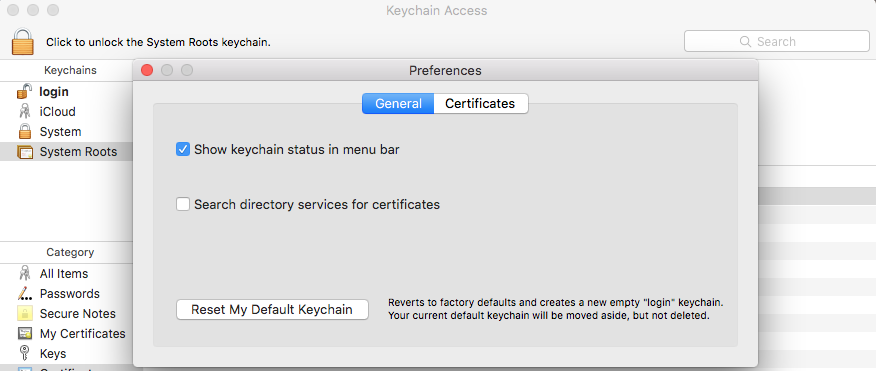
Thankfully I now found the solution, which is surprisingly well hidden. In the Keychain Access preferences, we have an interesting box we can tick:

Keychain Access PreferencesTick the box ‘Show keychain status in the menu bar’. This now gives us a handy little menu with the option ‘Lock screen’.

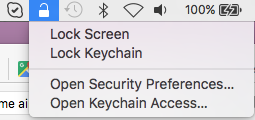
OS X - Lock ScreenSo there you have it, the laptop is locked but the network sessions stay up. Windows + L would be even better, but you can’t have everything.

Playing TVHeadend Streams in VLC

Just a quick note on the URLs for doing this (File -> Open Network…);

Channel playlist:

http://<TV Headend IP>:9981/playlist/channels
http://<username>:<password>@<TV Headend IP>:9981/playlist/channels

Channel Number:

http://<TV Headend IP>:9981/stream/channelid/<channel number>
http://<username>:<password>@<TV Headend IP>:9981/stream/channelid/<channel number>

Handling bad RAM in Linux

After some recent hardware upgrades, I was getting some strange crashes (different to the freeze that accompanies the intermittently-failing HDD that I’m trying to hunt down), specifically referring to Bad swap offsets and Bad page maps.

Given that I fired up memtest86+ and let it do it’s thing… and  it turns out that I have a few chunks of dodgy RAM. RMA time – though be sure to try swapping the RAM around and make sure the problem follows the stick and not the slot.!

Memtest86But to keep everything up and running in the meantime I decided to use memmap to block off that chunk of memory while linux is booting. To do this modify /etc/default/grub:

GRUB_DEFAULT=0
GRUB_TIMEOUT=5
GRUB_DISTRIBUTOR=`lsb_release -i -s 2&amp;gt; /dev/null || echo Debian`
GRUB_CMDLINE_LINUX_DEFAULT="quiet memmap=1440M\\\$2048M"
GRUB_CMDLINE_LINUX=""

Basically what we are doing here is telling linux to block off 1440M of RAM, starting at 2048M. Then run sudo update-grub, reload and you will see your ‘free -m’ memory drop to about 6.5G.

This should tide you over, and prevent some random crashes until replacement RAM arrives

Realtek RTL2832U TV USB Dongle and Windows 10

I recently got RTL2832U+R820T USB2.0 Digital DVB-T SDR+DAB+FM HDTV TV Tuner Receiver Stick from eBay. For about €6 it was worth a punt.

Had an interesting problem with windows 10 and the drivers though. Microsoft insist on installing an out-of-date driver (version 64.0001.0220.2009) which looks like it is working, but when scanning for DVB channels, it finds nothing.

The correct version should be 64.1.801.2012 and this is what is provided on the included CD. The problem is that Windows 10, in its wisdom decides to ‘update’ to the older driver as soon as it can.

The current (nasty) workaround is to;

  1. Uninstall the device and delete the driver (Device Manager)
  2. Block device driver updates (System -> System Properties -> Hardware -> Device Installation Settings
  3. Set ‘Never install driver software from Windows Update
  4. Install the driver from the CD
  5. Insert the dongle and scan

All channels were found and working perfectly (FM, and DAB also appeared as devices now).

Editing MKV flags to stop subtitles

When viewing some mkv files you end to find in some cases that the soft subtitles are enabled by default. To disable, follow this

Check the current  file info:

mkvinfo <filename>.mkv
+ EBML head
|+ EBML version: 1
|+ EBML read version: 1
|+ EBML maximum ID length: 4
|+ EBML maximum size length: 8
|+ Doc type: matroska
|+ Doc type version: 2
|+ Doc type read version: 2
+ Segment, size 4687414538
|+ Seek head (subentries will be skipped)
|+ Segment tracks
| + A track
|  + Track number: 1 (track ID for mkvmerge & mkvextract: 0)
|  + Track UID: 1280263319
|  + Track type: video
|  + Forced flag: 1
|  + Lacing flag: 0
|  + MinCache: 1
|  + Codec ID: V_MPEG4/ISO/AVC
|  + CodecPrivate, length 40 (h.264 profile: High @L4.1)
|  + Default duration: 41.708ms (23.976 frames/fields per second for a video track)
|  + Video track
|   + Pixel width: 1280
|   + Pixel height: 688
|   + Display width: 1280
|   + Display height: 688
|   + Interlaced: 0
|  + Enabled: 1
|  + Default flag: 1
|  + Timecode scale: 1
|  + Max BlockAddition ID: 0
|  + Codec decode all: 1
| + A track
|  + Track number: 2 (track ID for mkvmerge & mkvextract: 1)
|  + Track UID: 1577341855
|  + Track type: audio
|  + Forced flag: 1
|  + Codec ID: A_DTS
|  + Audio track
|   + Sampling frequency: 48000
|   + Channels: 2
|  + Content encodings
|   + Content encoding
|    + Content compression
|     + Algorithm: 3 (header removal)
|     + Settings: length 4, data: 0x7f 0xfe 0x80 0x01
|    + Order: 0
|    + Scope: 1 (1: all frames)
|    + Type: 0 (compression)
|  + Enabled: 1
|  + Default flag: 1
|  + Lacing flag: 1
|  + MinCache: 0
|  + Timecode scale: 1
|  + Max BlockAddition ID: 0
|  + Codec decode all: 1
| + A track
|  + Track number: 3 (track ID for mkvmerge & mkvextract: 2)
|  + Track UID: 957802682
|  + Track type: subtitles
|  + Forced flag: 1
|  + Lacing flag: 0
|  + Codec ID: S_TEXT/UTF8
|  + Language: rum
|  + Enabled: 1
|  + Default flag: 1
|  + MinCache: 0
|  + Timecode scale: 1
|  + Max BlockAddition ID: 0
|  + Codec decode all: 1
|+ EbmlVoid (size: 3734)
|+ Segment information
| + Timecode scale: 1000000
| + Muxing application: libebml v1.0.0 + libmatroska v1.0.0
| + Writing application: mkvmerge v4.1.1 ('Bouncin' Back') built on Jul  3 2010 22:54:08
| + Duration: 5985.440s (01:39:45.440)
| + Date: Tue Feb  8 11:55:23 2011 UTC
| + Segment UID: 0xb4 0xc9 0x7c 0x1f 0x34 0xa2 0x1a 0x42 0xae 0x1c 0x29 0x97 0xe3 0x7d 0xc3 0xb3
|+ EbmlVoid (size: 1351)
|+ Cluster

So we want to disable, and remove the default flag, as well as the forced one

mkvpropedit <filename>.mkv --edit track:3 --set flag-default=0
mkvpropedit <filename>.mkv --edit track:3 --set flag-forced=0
mkvpropedit <filename>.mkv --edit track:3 --set flag-enabled=0
mkvinfo <filename>.mkv
+ EBML head
|+ EBML version: 1
...
| + A track
|  + Track number: 3 (track ID for mkvmerge & mkvextract: 2)
|  + Track UID: 957802682
|  + Track type: subtitles
|  + Forced flag: 0
|  + Lacing flag: 0
|  + Codec ID: S_TEXT/UTF8
|  + Language: rum
|  + Enabled: 0
|  + Default flag: 0

Persistent Reverse-SSH Tunnels with autossh and screen

I’ve been working to manage my place remotely as I tend to have irregular hours. As a pilot I put in a Raspberry Pi and got a Belkin WeMo Switch. I had two problems with this setup;

  1. The internet connection is NAT-ed
  2. The Belkin cloud-y manager thing doesn’t seem to work (neither does IFTTT)

My solution was to use the RPi to manage the WeMo, and to have a reverse-ssh tunnel between the RPi and my public server.

  1. Ensure that passwordless SSH is working between the RPi and the server – plenty of guides online about how to do this.
  2. Open a screen session
  3. Use autossh to open and maintain the tunnel
$ autossh -M 65500 -o ServerAliveInterval=20 -R 11141:localhost:22 [email protected]

Autossh will use ports 65500 and 65501 to send echo data over and back between server and host, and opening an ssh session on the public server to local port 11141 will tunnel back to the SSH port on the RPi

ssh -p 11141 [email protected]

While this works fine, there is a potential issue – if the RPi is rebooted/looses power for any reason, the tunnel will be gone so we need to automate the setup so that it will be fired up upon boot – we will use a crontab entry for this:

@reboot /usr/bin/screen -S reverse-ssh-tunnel -d -m autossh -M 65500 -i /home/pi/.ssh/id_rsa -o "ServerAliveInterval 20" -o "ServerAliveCountMax 3" -R 11141:localhost:22 [email protected]

This cron entry will open a screen on reboot with “reverse-ssh-tunnel” as the title, and issue the autossh command. Reboot the RPi to test and you should be good to go.

Simples 🙂

Airtame – Display anything… wirelessly

Finally got my hands on my Indiegogo funded Airtame last night, so wanted to put up a few thoughts on it. First impressions – very good. Simple packaging, 3 instructions to get you started and includes;

  • The Airtame
  • AC Power Adapter
  • EU Power Adapter (plug)
  • UK Power Adapter (plug)
  • HDMI Extension Cable
  • MicroUSB cable

Getting started

This was as simple as plugging in the dongle, and installing the app. The Airtame acts as a 5GHz WiFi access point, and sets a random password – displayed on the screen. Once connected directly you can then connect it to your WiFi network. All worked without any issues.

Slow Firmware Update

As I excitedly went to try a basic stream I had my only real disappointment – a lengthy (30 mins) firmware update before I could actually use the thing. At more then one point I thought that it might have stalled out but was dissuaded from killing the power by a warning not to. An ETA or at least some guidance on how long it would take should be considered.

Cool Things

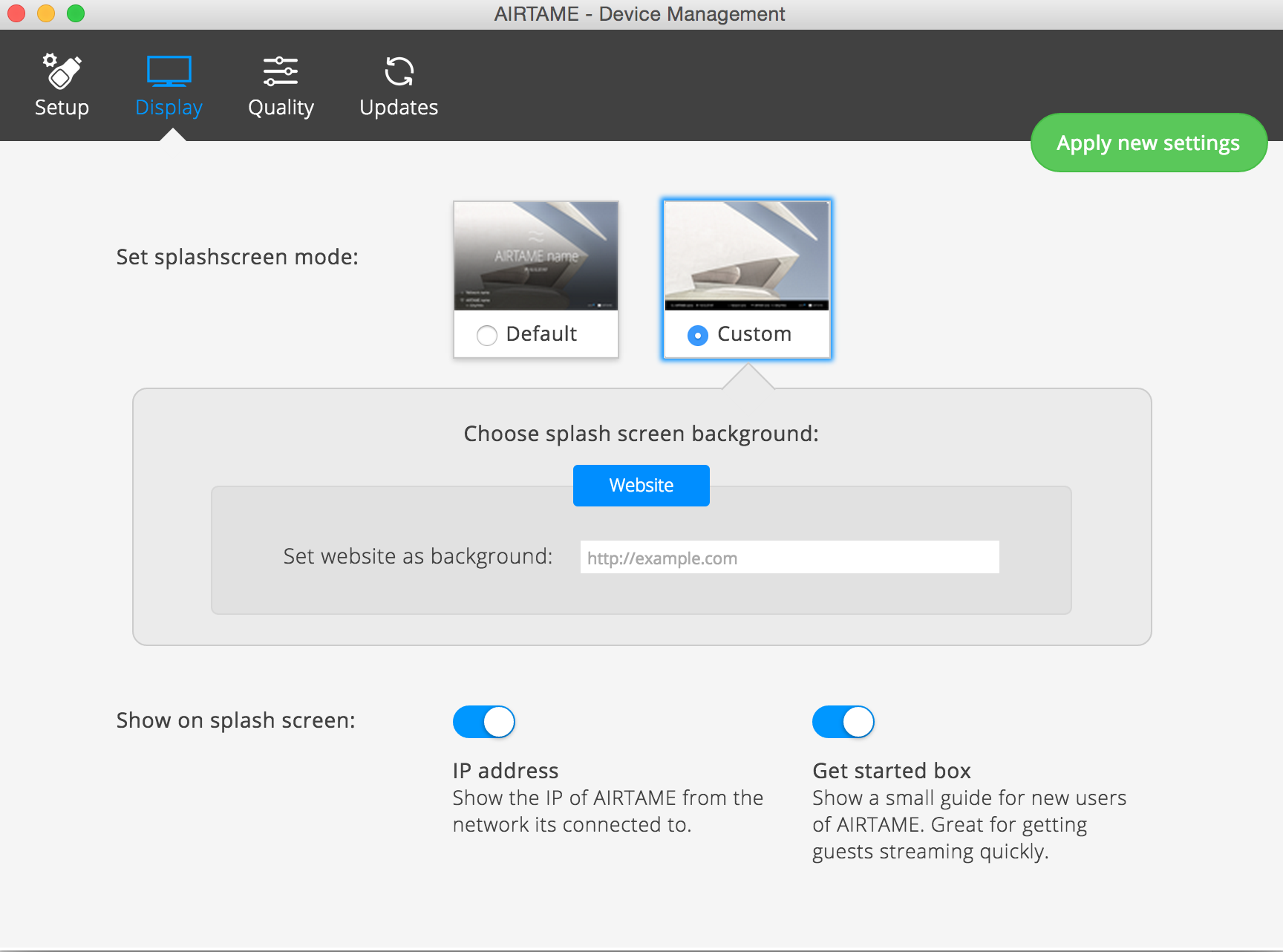
It can use a website as the background/default page – to turn this on, in the app select your Airtame. Go to Manage -> Display -> Custom -> Website

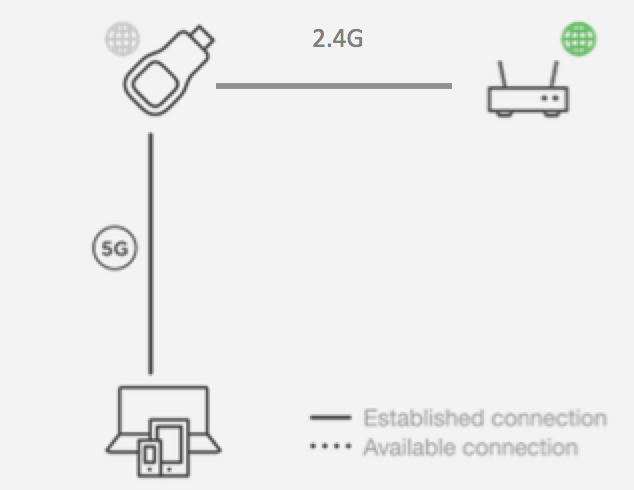
Airtame Custom WallpaperIt will route your internet traffic, so once you connect to the Airtame 5GHz network, and provide it with your WiFi details you can continue to use the interweb while managing/streaming the device.

I found that when I was connecting via the WiFi router I had frequent dropped connections. Not sure if this is the router (fairly crap one) or the Airtame, but found the 5GHz connection via the Airtame to be very stable

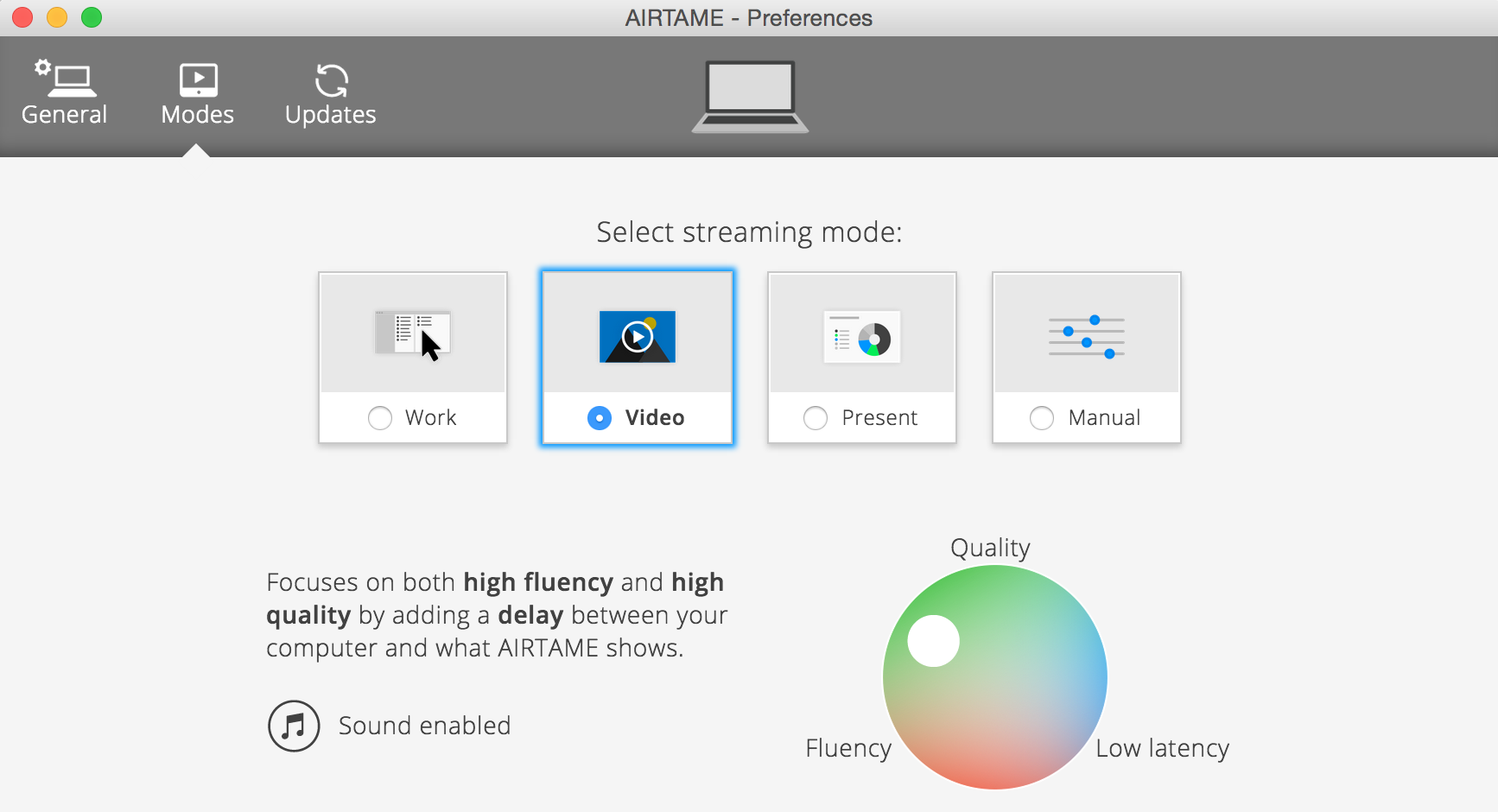
Airtame RoutingAudio streaming – requires a restart in OS X. Then in the Airtame app, under preferences, move the streaming mode to ‘Video’ rather then the default ‘Work’. Note that this will introduce 5sec buffering by default.

Airtame Preferences Mode

Updating Raspberry Pi

Recently expanded my collection of Raspberry Pi devices to 3 (1 Model B and 2 B+) and had to go ferreting around to find how to fully update them.

First up, make sure there is a network connection. Then update the package list:

sudo apt-get update

Then upgrade all the packages:

sudo apt-get upgrade

Finally upgrade the kernel and firmware:

sudo rpi-update
*** Raspberry Pi firmware updater by Hexxeh, enhanced by AndrewS and Dom
*** Performing self-update
% Total % Received % Xferd Average Speed Time Time Time Current
Dload Upload Total Spent Left Speed
100 7635 100 7635 0 0 21720 0 --:--:-- --:--:-- --:--:-- 26978
*** Relaunching after update
*** Raspberry Pi firmware updater by Hexxeh, enhanced by AndrewS and Dom
*** We're running for the first time
*** Backing up files (this will take a few minutes)
*** Backing up firmware
*** Backing up modules 3.12.28+
*** Downloading specific firmware revision (this will take a few minutes)
% Total % Received % Xferd Average Speed Time Time Time Current
Dload Upload Total Spent Left Speed
100 168 0 168 0 0 267 0 --:--:-- --:--:-- --:--:-- 359
100 23.0M 100 23.0M 0 0 1061k 0 0:00:22 0:00:22 --:--:-- 1412k
*** Updating firmware
*** Updating kernel modules
*** depmod 3.12.33+
*** Updating VideoCore libraries
*** Using HardFP libraries
*** Updating SDK
*** Running ldconfig
*** Storing current firmware revision
*** Deleting downloaded files
*** Syncing changes to disk
*** If no errors appeared, your firmware was successfully updated to 7c60d6b268cbc7a2ac6b652cb0ecb3495c636ad8
*** A reboot is needed to activate the new firmware
pi@raspberry-watcher ~ $

And reboot

sudo reboot