
I’ve been working with a MacBook for some time now, but had a constant irritation that there didn’t seem to be a way to lock the screen out of the box. Many point to ‘Sleep’ as an option, but that takes down all my SSH sessions. Likewise having a passworded screen saver is not great simply because for it to be effective e.g. when I step away, then the timer needs to be short, which is very annoying when you are working on something without moving the keyboard or mouse.
Thankfully I now found the solution, which is surprisingly well hidden. In the Keychain Access preferences, we have an interesting box we can tick:
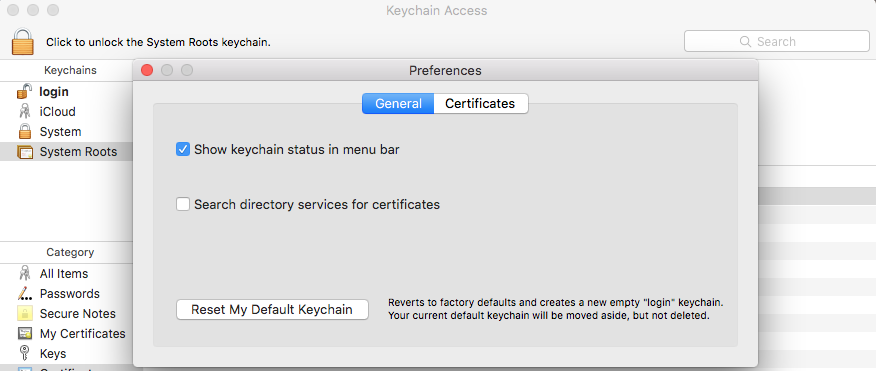 Tick the box ‘Show keychain status in the menu bar’. This now gives us a handy little menu with the option ‘Lock screen’.
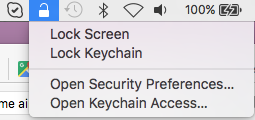 So there you have it, the laptop is locked but the network sessions stay up. Windows + L would be even better, but you can’t have everything.


My solution for this is setting a bottom “Hot Corner” to start screen saver, plus Require password 5 seconds after sleep or screen saver. Used to have some app that added a keyboard shortcut but found this much nicer. The delay before requiring password means instant unlock if activated by accident, and the hot corners mean minimal effort to activate just a diagonal swipe on the trackpad when leaving my machine.