Monthly Archives: December 2014

3 Ireland SMTP Access Blocked

Having put some time and effort into getting my mail server setup, and configuring my Android phone to use IMAPS for receiving and SMTP over TLS for sending emails, and testing it, I was quite annoyed while out in the town to find that I could receive mails but not send any.

It turns out that 3 Ireland, when on the 3ireland.ie APN block all outgoing connections on TCP port 25 e.g. the SMTP port. They do have a mail relay that is permitted available, though documentation for that is hard to find. The mail relay is located at:

mail-relay.3ireland.ie

However, using their relay would defeat the purpose of having the secure SMTP service available. Simple workaround is to change the port forwarding on the router to direct TCP port 587 externally to port 25 internally – no config changes on the server required.

E-Mail Server Setup and Configuration

Having your own mail server is very useful, though surprisingly hard to configure. Generally speaking there are actually two components in a standard linux mail server install. There is the Mail Transfer Agent [MTA] and the Mail Delivery Agent [MDA]. For this install I’ll be using Postfix as the MTA and Dovecot as the MDA

The MTA handles relaying mail between different servers. It decides what to do with email from the outside world, and whether a particular user is allowed to send email using your server. It handles both incoming and outgoing SMTP. Postfix hands off local delivery (that is, the actual saving of the mail files on the server) to Dovecot’s Local Mail Transfer Protocol service (LMTP). Postfix also lets Dovecot take care of authentication before users are allowed to send email from the server.

The MDA is the part that end-users interact with. There are two main protocols in use by the MDA, POP3 and/or IMAP (each have a secure variant, and have different pros/cons). For this setup I’m ignoring the options and just configuring IMAPS – this is basically IMAP over an SSL/TLS connection (and won’t be using SSL). The IMAP/POP3 server handles requests from users who want to log in and check their email. Dovecot’s LMTP service functions as the Mail Delivery Agent (MDA) by saving mail files on the server. Dovecot also handles all authorization.

Basic Requirements

  • A domain name – in this case flat-planet.net
  • A hostname for the server e.g. mail.flat-planet.net
  • An SSL certificate for the server hostname – see this post on the process for this

DNS Configuration

A specific type of DNS record is used for e-mail. This is known as the Mail Exchange [MX] record. The characteristic payload information of an MX record is the fully qualified domain name of a mail host and a preference value. The host name must map directly to one or more address record (A, or AAAA) in the DNS, and must not point to any CNAME records.

Section 10.3 of RFC 2181 states:

10.3. MX and NS records

The domain name used as the value of a NS resource record, or part of the value of a MX resource record must not be an alias. Not only is the specification clear on this point, but using an alias in either of these positions neither works as well as might be hoped, nor well fulfills the ambition that may have led to this approach. This domain name must have as its value one or more address records. Currently those will be A records, however in the future other record types giving addressing information may be acceptable. It can also have other RRs, but never a CNAME RR.

Searching for either NS or MX records causes “additional section processing” in which address records associated with the value of the record sought are appended to the answer. This helps avoid needless extra queries that are easily anticipated when the first was made.

Additional section processing does not include CNAME records, let alone the address records that may be associated with the canonical name derived from the alias. Thus, if an alias is used as the value of an NS or MX record, no address will be returned with the NS or MX value. This can cause extra queries, and extra network burden, on every query.

But since I’m hosting on a residential connection I don’t have a static IP, and so I’m using a CNAME record (not an uncommon practice, even among people who have static IPs and should know better).

Colin:~ $ dig flat-planet.net MX

; <<>> DiG 9.8.3-P1 <<>> flat-planet.net MX
;; global options: +cmd
;; Got answer:
;; ->>HEADER<<- opcode: QUERY, status: NOERROR, id: 32916
;; flags: qr rd ra; QUERY: 1, ANSWER: 1, AUTHORITY: 0, ADDITIONAL: 0

;; QUESTION SECTION:
;flat-planet.net.        IN    MX

;; ANSWER SECTION:
flat-planet.net.    1799    IN    MX    10 mail.flat-planet.net.

;; Query time: 68 msec
;; SERVER: 192.168.1.1#53(192.168.1.1)
;; WHEN: Sat Dec 27 12:05:18 2014
;; MSG SIZE  rcvd: 54

Colin:~ $ dig mail.flat-planet.net MX

; <<>> DiG 9.8.3-P1 <<>> mail.flat-planet.net MX
;; global options: +cmd
;; Got answer:
;; ->>HEADER<<- opcode: QUERY, status: NOERROR, id: 16794
;; flags: qr rd ra; QUERY: 1, ANSWER: 1, AUTHORITY: 1, ADDITIONAL: 0

;; QUESTION SECTION:
;mail.flat-planet.net.        IN    MX

;; ANSWER SECTION:
mail.flat-planet.net.    1402    IN    CNAME    colinmacg.no-ip.info.

;; AUTHORITY SECTION:
no-ip.info.        59    IN    SOA    nf1.no-ip.com. hostmaster.no-ip.com. 2107200777 600 300 604800 600

;; Query time: 117 msec
;; SERVER: 192.168.1.1#53(192.168.1.1)
;; WHEN: Sat Dec 27 12:05:39 2014
;; MSG SIZE  rcvd: 132

At this point a 3rd query is required to resolve the no-ip.info domain to the actual IP address.

It should be noted that the mail will be considered more likely to be spam (by spamassassin, amongst others) as the reverse DNS lookup on the IP address will show it as belonging to your ISP rather then your domain, but that alone is generally not enough.

Postfix

Postfix has two main config files: main.cf, which specifies what you would think of as config options, and master.cf, which specifies the services postfix should run.

master.cf

Here we have the smtp daemon enabled, and we are directing it through SpamAssassin as our content filter

# ==========================================================================
# service type private unpriv chroot wakeup maxproc command + args
# (yes) (yes) (yes) (never) (100)
# ==========================================================================
smtp inet n - - - - smtpd
      -o content_filter=spamassassin

...

spamassassin unix - n n - - pipe user=debian-spamd argv=/usr/bin/spamc -f -e /usr/sbin/sendmail -oi -f ${sender} ${recipient}

main.cf

Main points here are:

  • Add in our cert and key for TLS
  • Enable TLS
  • Disable SSLv2 and SSLv3 – these are deprecated anyway, and with POODLE (CVE-2014-3566) we should explicitly disable these.
  • The use of Mail Directories rather then the default
  • Configuring the use of SASL
  • Locking down smtpd and the HELO command
# TLS parameters
smtpd_tls_cert_file=/etc/ssl/certs/mail-cert.crt
smtpd_tls_key_file=/etc/ssl/private/mail-key.key
smtpd_use_tls=yes
smtpd_tls_session_cache_database = btree:${data_directory}/smtpd_scache
smtp_tls_session_cache_database = btree:${data_directory}/smtp_scache
smtpd_tls_protocols = !SSLv2, !SSLv3

home_mailbox = Maildir/
mailbox_transport = lmtp:unix:private/dovecot-lmtp

# SASL  begins here
smtpd_sasl_type = dovecot
smtpd_sasl_path = private/auth
smtpd_sasl_auth_enable = yes
broken_sasl_auth_clients = yes
smtpd_sasl_security_options = noanonymous
smtpd_sasl_local_domain = flat-planet.net
smtpd_tls_auth_only = yes

smtpd_recipient_restrictions =
     permit_sasl_authenticated,
     permit_mynetworks,
     reject_unauth_destination

smtpd_helo_required = yes
smtpd_helo_restrictions =
     permit_mynetworks,
     permit_sasl_authenticated,
     reject_invalid_helo_hostname,
     reject_non_fqdn_helo_hostname,
     reject_unknown_helo_hostname
check_helo_access hash:/etc/postfix/helo_access

Dovecot

Dovecot allows users to log in and check their email using POP3 and IMAP. In this section, you’ll configure Dovecot to force users to use SSL when they connect so that their passwords are never sent to the server in plain text. Users will have to connect using the standard SSL ports – 993 for IMAP and 995 for POP3 – and only those ports. Dovecot’s LMTP service will function as the MDA and store incoming messages in the proper locations on the server. Dovecot will also be handling all user authentication for mail. In this case I’m only worried about IMAP over SSL/TLS.

Dovecot 2 uses a number of different configuration files. The primary configuration file contains a few directives, and then several inclusions of other configuration files. This helps to separate different configuration parameters logically so they’re not all grouped together in one file. This is a major change from Dovecot 1, where virtually everything was configured in the same file.

For my setup the following files are modified (in /etc/config/dovecot/conf.d):

  • 10-auth.conf
  • 10-mail.conf
  • 10-master.conf
  • 10-ssl.conf
  • 20-lmtp.conf
  • 90-sieve.conf

10-auth.conf

Some configuration for Sieve and LMTP later on. We need it to strip the domain from the username and look that part up:

auth_username_format = %Ln

10-mail.conf

Rather then using mbox, I prefer the Maildir approach so modify the file like so:

#mail_location = mbox:~/mail:INBOX=/var/mail/%u
mail_location = maildir:~/Maildir

10-master.conf

Set Dovecot to listen to authentication requests from Postfix over unix sockets rather then network ports, and enable the imaps listener. I’m not opening IMAP to external networks so I’ll leave it enabled for now and disable once I’m sure all is working:

service imap-login {
  inet_listener imap {
    port = 143
  } 
  inet_listener imaps {
    port = 993
    ssl = yes
  }

service auth { 
        unix_listener /var/spool/postfix/private/auth { 
                    mode = 0660 
                    user = postfix 
                    group = postfix 
        } 
}
service lmtp {
        unix_listener /var/spool/postfix/private/dovecot-lmtp {
                    mode = 0666
 }
}

10-ssl.conf

Here I enable SSL, point it towards the keys (the < is not a typo) and disable the ciphers and protocols I don’t want running (SSLv2 and v3).

# SSL/TLS support: yes, no, required. <doc/wiki/SSL.txt>
ssl = yes
...
ssl_cert = </etc/ssl/certs/mail-cert.crt
ssl_key = </etc/ssl/private/mail-key.key

...

# SSL protocols to use
ssl_protocols = !SSLv3
...
# SSL ciphers to use
ssl_cipher_list = ALL:!LOW:!SSLv2:!SSLv3:!EXP:!aNULL

20-lmtp.conf

Configure LMTP to allow the recipient address to include the detail of the mail folder you want to put it in, and to enable the sieve plugin (more on that later).

# When recipient address includes the detail (e.g. user+detail), try to save
# the mail to the detail mailbox. See also recipient_delimiter and
# lda_mailbox_autocreate settings.
lmtp_save_to_detail_mailbox = yes

protocol lmtp {
# Space separated list of plugins to load (default is global mail_plugins).
     mail_plugins = $mail_plugins sieve
     postmaster_address = [email protected]
}

90-sieve.conf

Configuration for sieve to allow sorting of the SpamAssassin tagged mails.

plugin {
# The path to the user's main active script. If ManageSieve is used, this the
# location of the symbolic link controlled by ManageSieve.
     sieve = ~/.dovecot.sieve

...
     recipient_delimiter = +

SpamAssassin

SpamAssassin is a perl based e-mail filtering solution. It  uses a variety of spam-detection techniques, that includes DNS-based and fuzzy-checksum-based spam detection, Bayesian filtering, external programs, blacklists and online databases.

As usual, install with:

sudo apt-get update
sudo apt-get install spamassassin

The configure with the file /etc/spamassassin/local.cf and restart. Main configurations is:

  • Rewrite the subject line to include the SPAM score
  • Modify the headers only – don’t change the body
  • Set the required score for something to be marked as SPAM (default is 5)
  • Tell it to use Bayesian statistical analysis and enable auto-learning
rewrite_header Subject [***** SPAM _SCORE_ *****]
report_safe 0
required_score 3.0
use_bayes 1
bayes_auto_learn 1

And set ENABLED to 1 in /etc/defaults/spamassassin and restart:

sudo service spamassassin start

 Filtering and Sieve

Install lmtp and sieve

sudo apt-get update
sudo apt-get install dovecot-sieve dovecot-lmtp

Restart Postfix and Dovecot

sudo service postfix reload
sudo service dovecot reload

Add the filter to your home folder in ~/.dovecot.sieve

require ["fileinto"];
# Move spam to spam folder
if header :contains "X-Spam-Flag" "YES" {
         fileinto "Spam";
         # Stop here so that we do not reply on spams
         stop;
}

When SpamAssassin marks emails as Spam it adds X-Spam-Flag: YES to the headers. This rule checks the headers and sends mail to the spam folder if that flag exists.

Does it work?

Apparently so – a fake FedEX mail was intercepted and placed in the SPAM folder. From looking at the mail header I can see the SpamAssassin analysis:

X-Spam-Flag: YES
X-Spam-Level: **********
X-Spam-Status: Yes, score=10.3 required=3.0 tests=HTML_FONT_SIZE_LARGE,
HTML_MESSAGE,KB_DATE_CONTAINS_TAB,MIME_HTML_ONLY,MISSING_MID,     RCVD_IN_BL_SPAMCOP_NET,RCVD_IN_BRBL_LASTEXT,RCVD_IN_XBL,RDNS_NONE,TAB_IN_FROM
autolearn=no version=3.3.2
X-Spam-Report:
* 1.2 RCVD_IN_BL_SPAMCOP_NET RBL: Received via a relay in bl.spamcop.net
* [Blocked - see <http://www.spamcop.net/bl.shtml?211.54.17.252>]
* 1.6 RCVD_IN_BRBL_LASTEXT RBL: RCVD_IN_BRBL_LASTEXT
* [211.54.17.252 listed in bb.barracudacentral.org]
* 0.7 RCVD_IN_XBL RBL: Received via a relay in Spamhaus XBL
* [211.54.17.252 listed in zen.spamhaus.org]
* 3.8 KB_DATE_CONTAINS_TAB KB_DATE_CONTAINS_TAB
* 0.4 TAB_IN_FROM From starts with a tab
* 0.0 HTML_MESSAGE BODY: HTML included in message
* 0.0 HTML_FONT_SIZE_LARGE BODY: HTML font size is large
* 1.1 MIME_HTML_ONLY BODY: Message only has text/html MIME parts
* 0.1 MISSING_MID Missing Message-Id: header
* 1.3 RDNS_NONE Delivered to internal network by a host with no rDNS

SSL Certificate Signing for Free with SAN/UCC

If you run your own website, email server or other services  at home then you should make use of a SSL certificate. When you install most webservers (Apache, NGINX, etc.), they generates a self-signed “snakeoil” certificate that can be used to encrypt your session. This is really only intended for testing, and has a few issues:

  1. The common name on the certificate probably doesn’t match your domain name. Scary warning from most browsers (though this can happen occasionally due to configuration error).
  2. The snakeoil certificate has not been signed by an authority that your browser trusts, so your browser will throw another error when you connect.
  3. Short of manually inspecting the certificate’s checksum, you have no guarantee that you are communicating with your own server – bit like how you usually ignore the SSH fingerprint when you are connecting to a new server, you just assume it to be correct but pay attention if it ever changes.

I’ve chosen to go the budget route and create an SSL cert request and get it signed by the community driven SSL certificate signing authority CAcert. Once you have imported the certificate into your browser or into your operating system’s root filesystem, your computer will automatically verify the identity of the server and you will enjoy error-free secure communications. Oh, and CAcert is free of charge!

The one caveat to this, is not all browsers have CAcert’s root certificate installed.

Filename Extensions

Just to note that while linux doesn’t care what you have as an extension, Windows does very much. Since this is for Debian, your milage may vary. For my own peace of mind I’m making use of 3 extensions.

  • .key – this is for the private key. This file should be kept secret and protected
  • .crt – This is the server certificate
  • .csr – This is the server certificate request, and what is signed by the Certificate Authority [CA].

Generating The Certificate

Create a private key

This command uses openssl to generate a 4096-bit RSA key

openssl genrsa -out <filename for your private key>.key 4096

Generating the Certificate Request

The key piece of information here is the common name. This is the name that the cert is bound to e.g. www.flat-planet.net. However, for example, if the common name provided is flat-planet.net then there will be an error in all browsers stating that the site name does not match the common name. There are two ways to work around this:

  1. Generate a wildcard cert that will allow you to sign all subdomains e.g. common name = *.flat-planet.net, which will cover us for all future subdomains we might want to use.
  2. Generate a SubjectAltName CSR with a list of all the subdomains we are planning on using.

The second is the more interesting, so that is what I’ll use here.

Create a SAN/UCC CSR

SAN certificates (or as Microsoft and others have taken to calling them, Unified Communications Certificates) are rapidly becoming a popular option for securing multiple domains. In fact, Exchange 2007, OCS 2007, and several other products now require UCC to function. However, this certificate type can proffer some advantages beyond that of a wildcard certificate as well. One such advantage is the ability to secure “domain.com”, “www.domain.com”, “domain.net”, and “someotherdomain.com” all within a single certificate.

The catch is that OpenSSL will not allow you to add SANs interactively, so we need a config file to make the magic happen. We create a new .conf file for OpenSSL. Most of this file is just over-riding the default prompts, the interesting piece is the [alt_names] section. Each subdomain we want to certify is listed here. To add another just add in DNS.5, DNS.6, etc.

[ req ]
default_bits        = 4096
default_keyfile     = privkey.pem
distinguished_name  = req_distinguished_name
req_extensions     = req_ext # The extentions to add to the self signed cert

[ req_distinguished_name ]
countryName           = Country Name (2 letter code)
countryName_default   = IE
stateOrProvinceName   = State or Province Name (full name)
stateOrProvinceName_default = Co. Dublin
localityName          = Locality Name (eg, city)
localityName_default  = Dublin
organizationName          = Organization Name (eg, company)
organizationName_default  = FlatPlanet Networks Ltd.
commonName            = Common Name (eg, YOUR name)
commonName_max        = 64

[ req_ext ]
subjectAltName          = @alt_names

[alt_names]
DNS.1   = www.flat-planet.net
DNS.2   = mail.flat-planet.net
DNS.3   = im.flat-planet.net
DNS.4   = comms.flat-planet.net

Once we have this file created, we use it in common with our private key to create the certificate request (CSR). In this case I used flat-planet.net as the common name.

openssl req -out CSR.csr -key flat-planet-private.key -config ./openssl_req.conf -new
You are about to be asked to enter information that will be incorporated
into your certificate request.
What you are about to enter is what is called a Distinguished Name or a DN.
There are quite a few fields but you can leave some blank
For some fields there will be a default value,
If you enter '.', the field will be left blank.
-----
Country Name (2 letter code) [IE]:
State or Province Name (full name) [Co. Dublin]:
Locality Name (eg, city) [Dublin]:
Organization Name (eg, company) [FlatPlanet Networks Ltd.]:
Common Name (eg, YOUR name) []:flat-planet.net

Don’t set a password – leave it blank when asked.

Install the CA Root Certificate (optional)

This is not really required on the server side, but since we are using CAcert to sign our cert we should accept their signing of others.

cd ~
wget http://www.cacert.org/certs/root.txt
sudo cp root.txt /etc/ssl/certs/cacert-root.crt
sudo c_rehash /etc/ssl/certs

The last command regenerates the hashes of all the certs – some applications use these for a fast lookup.

Required E-Mail Addresses

To prove that you have control over the domain that you are generating the cert for CAcert will send you confirmation mails to one of the following addresses:

NOTE: Replace flat-planet.net with the domain you are trying to get signed. If these accounts don’t exist, just add them as entries to the /etc/aliases file and regenerate the database (postfix).

vi /etc/aliases
...
postmaster: yourusername
webmaster: yourusername
root: yourusername
sudo newaliases
sudo service postfix reload

Submitting the CSR

First things first, you will need to go to the CAcert website and create an account. Once the account is created, log in and go to Server Certificates -> New, and submit the contents of CSR.csr (that you created earlier, include the BEGIN and END blocks). The cert will be displayed, and a link e-mailed to you. Simply copy the text shown, and save them in a .crt file.

Congrats – you now have a signed cert.

File locations and permissions

This is a key step, as we didn’t set a password so are relying on file permissions to enforce security.

  • The key file should be stored in /etc/ssl/private/flat-planet-private.key
  • Key should be owned by root:root with 600 permissions
  • The certificate should be stored in /etc/ssl/certs/flat-planet.crt
  • Certificate should be owned by root:root with 644 permissions

Using the Certs

The exact configuration will vary depending on the application e.g. Apache, Nginx, postfix, dovecot. See other guides for more details on these, but generally you will have to point them towards both the cert and the key.

Winter is here – getting the heating just right…

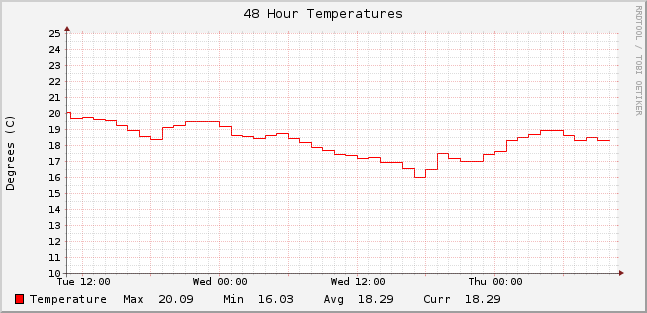
Got home yesterday evening and found the living room on the chilly side! Fortunately I can tell if it is just me 🙂 or if the room is actually getting colder (maybe the lads living in the apartment below turned off the heat).

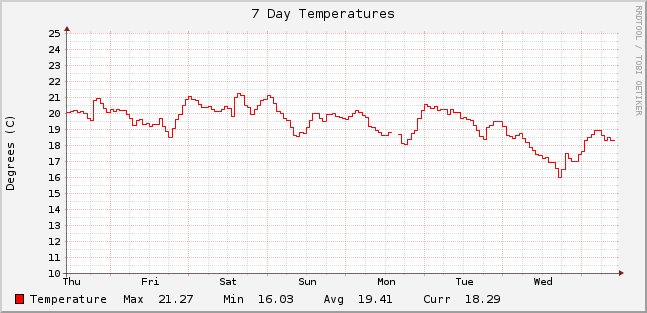
Over the last two days, a definite drop in the average temperature:
temp-48-201411107 day chart shows it a bit cleaner so time to dial the storage heaters up a notch or two!

temp-168-20141211

Enable LLDP on JUNOS

By default LLDP is not running on JUNOS, but it is trivially easy to enable. To activate LLDP on all interfaces:

[edit]
root@svalinn# set protocols lldp interface all

And to get information on both the local lldp status, and the neighbours:

root@svalinn# run show lldp local-information

LLDP Local Information details

Chassis ID   : 78:19:f7:aa:5e:40
System name  : svalinn
System descr : Juniper Networks, Inc. srx210b , version 12.1X44-D30.4 Build date: 2014-01-11 05:25:31 UTC

System Capabilities
Supported       : Bridge Router
Enabled         : Bridge Router

Interface name    Parent Interface  SNMP Index      Interface description    Status    Tunneling
fe-0/0/7.0        -                 527             fe-0/0/7.0               Up        Disabled

root@svalinn# run show lldp detail

LLDP                   : Enabled
Advertisement interval : 30 seconds
Transmit delay         : 2 seconds
Hold timer             : 4 seconds
Notification interval  : 0 Second(s)
Config Trap Interval   : 0 seconds
Connection Hold timer  : 300 seconds

LLDP MED               : Disabled

Interface      Parent Interface    LLDP        LLDP-MED    Neighbor count
all            -                   Enabled     -           1

Interface      Parent Interface    Vlan-id     Vlan-name
fe-0/0/7.0     -                   5           vlan-oam
LLDP basic TLVs supported:
Chassis identifier, Port identifier, Port description, System name, System
description, System capabilities, Management address.

Supported LLDP 802 TLVs:
MAC/PHY configuration/status, Power via MDI, Link aggregation, Maximum frame
size, Port VLAN tag, Port VLAN name.

root@svalinn# run show lldp neighbors
Local Interface    Parent Interface    Chassis Id          Port info          System Name
fe-0/0/7.0         -                   00:1c:73:61:ae:d7   Ethernet47         tm214.ire.aristanetworks.com

[edit]

Dual Root with different versions – JUNOS

Finally fired up my SRX210 today, and got it going (after a password recovery 🙂 ), but while it was booting I noticed the error:

WARNING: JUNOS versions running on dual partitions are not the same

What this actually means is that the current running version of JUNOS is not the same as the version in the system snapshot i.e. you forgot to create a new snapshot after you upgraded.

Checking this and fixing it is quite trivial:

root@svalinn> show system snapshot media internal
Information for snapshot on       internal (/dev/da0s1a) (backup)
Creation date: Oct 16 19:37:41 2013
JUNOS version on snapshot:
junos  : 12.1X45-D15.5-domestic
Information for snapshot on       internal (/dev/da0s2a) (primary)
Creation date: Jan 31 08:59:22 2014
JUNOS version on snapshot:
  junos  : 12.1X44-D30.4-domestic

root@svalinn> request system snapshot slice alternate
Formatting alternate root (/dev/da0s1a)…
Copying ‘/dev/da0s2a’ to ‘/dev/da0s1a’ .. (this may take a few minutes)
The following filesystems were archived: /

And problem solved 🙂

Using RPi-Monitor with your own webserver (Nginx)

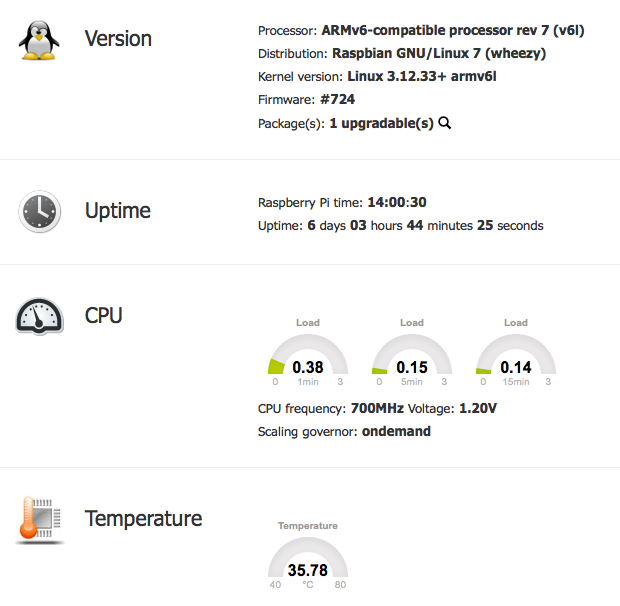
As I recently moved this site to a RPI for hosting purposes, I though it would be a good idea to have a nice web page to monitor the current status of the box. Some googling later and I found the excellent RPi-Monitor.

By default it has it’s own webserver, and it is not recommended to use anything other then that, but running a second webserver seemed a little bit untidy to my thinking so I set it to run on Nginx instead.

The actual changes were quite simple, with one or two gotcha’s.

RPi-Monitor stores the webpage in /usr/share/rpimonitor/web by default. Rather then play with that I just created a symbolic link between the root of the webserver and that point:

ln -s /usr/share/rpimonitor/web /var/www/rpimonitor

and that is sorted.

Next up is the configuration change to the rpimonitor daemon – config file located in /etc/rpimonitor/daemon.conf. We need to set it into no-server mode and also change the user, as I’ve disabled the default ‘pi’ account on this box.

# daemon.noserver=1
# Define that rpimonitor shouldn't start web server (default:0)
# Note: A symbolic link from /var/lib/rpimonitor/stat to
# /usr/share/rpimonitor/stat may be required
daemon.noserver=1

# Define user used to run the server process (default:pi)
# Note: If user is not existing, process will run with uid=1000
daemon.user=rpi-monitor
#
# daemon.group=pi
# Define group used to run the server process (default:pi)
# Note: If group is not existing, process will run with gid=1000
daemon.group=rpi-monitor
#

Restart the service, and you should be able to access it from http://my-website.com/rpi-monitor

$ sudo service rpimonitor restart

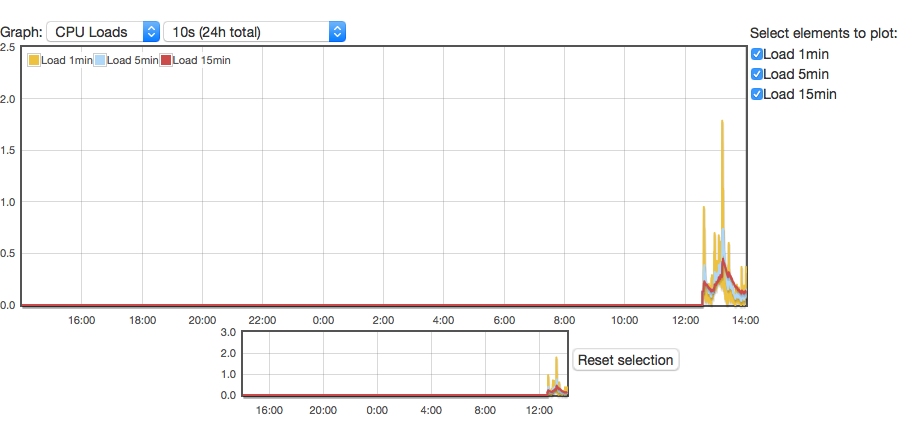
RPI-Monitor StatusHowever there is a slight issue in that the datastore is inaccessible to the webserver, so statistics are unavailable with error “File stat/uptime.rrd is not a valid RRD archive”. To resolve this we need to go back to the daemon.conf file and move the datastore to somewhere under the root directory of the website

# daemon.datastore=/var/lib/rpimonitor
# Define the data storage directory (Default:/var/lib/rpimonitor)
daemon.datastore=/var/www/rpimonitor

Restart the service again and all is worky.

$ sudo service rpimonitor restart

RPI-Monitor StatisticsNote: you could also just move the webroot in the same way, rather then using the symbolic link.

Migrating WordPress Tiny EC2 Instance to Raspberry Pi

Having hosted this blog on a tiny AWS EC2 instance for some time, mostly to gain exposure to EC2, I decided to migrate it to a spare Raspberry Pi and use my home network connection. For the most part this was a fairly seamless transition.

Raspberry Pi Preparation

Basic setup was updating and locking down the RPI. The next step was to install a webserver. Rather then Apache2, I decided to install nginx instead as it is supposed to be a little lighter on resources.

sudo apt-get install nginx php5-fpm
sudo service nginx restart

Try to connect to http://$SERVER_IP and you should see a “Welcome to NGINX” page. If not then something has gone wrong and you need to look at /var/log/nginx/error.log

Next up is to install MySQL and the PHP connection API

sudo apt-get install mysql-server php5-mysql

Be sure to set a strong MySQL root password

At this point I suggest switching your MySQL config with the my-small.cnf as we are working on a relatively low memory device

sudo cp /usr/share/doc/mysql-server-5.5/examples/my-small.cnf /etc/mysql/my.cnf
sudo service mysql restart

Prepare the WordPress MySQL Account

mysql -u root -p
CREATE DATABASE `wordpressdb`;
GRANT ALL PRIVILEGES ON `wordpressdb`.* TO 'wordpress'@'localhost' IDENTIFIED BY 'long_complicated_wordpress_password';
FLUSH PRIVILEGES;
EXIT

At this point I configured nginx to allow PHP to be executed by editing /etc/nginx/sites-enabled/default in two areas:

server {
listen 80; ## listen for ipv4; this line is default and implied
#listen [::]:80 default_server ipv6only=on; ## listen for ipv6

root /var/www;
index index.html index.htm index.php;

...

# pass the PHP scripts to FastCGI server listening on 127.0.0.1:9000
#
location ~ \.php$ {
fastcgi_split_path_info ^(.+\.php)(/.+)$;
# # NOTE: You should have "cgi.fix_pathinfo = 0;" in php.ini
#
# # With php5-cgi alone:
# fastcgi_pass 127.0.0.1:9000;
# # With php5-fpm:
fastcgi_pass unix:/var/run/php5-fpm.sock;
fastcgi_index index.php;
include fastcgi_params;
}

WordPress Migration

For this I made use of the excellent XCloner Plugin to backup my existing server, then used the manual method to restore the entire wordpress installation on the new server. No issues…

Some Performance Improvements

First some caching helpers:

sudo apt-get install memcached php5-memcache php-apc
sudo /etc/init.d/php5-fpm restart

To take advantage in WordPress install the following plugins:

  • nginx Compatibility
  • W3 Total Cache

From the W3 Total Cache settings page

  • enable Page Cache with memcached
  • enable Object Cache with APC

Moving the RRD

First up, install rrdtool on the RPI:

sudo apt-get install rrdtool

Then dump the old RRD from the original server. This is required as the database itself is very platform specific, and cannot be just copied between architectures.

rrdtool dump ./database.rrd &gt; database.xml

On the new server, import it into a shiny new RRD:

rrdtool restore ./database.xml ./database.rrd

DNS Changes

Since this is hosted on a home connection, which has a public IP, we cannot guarantee that the IP address will stay the same. Like most tech-savy people I use Dynamic DNS to ensure I can access my home network.

In this case, I make a CNAME record for flat-planet.net, pointing towards my dynamic DNS record, and we are done.

Raspberry Pi as a Cheap Security Camera

One thing I wanted to look into was the use of the Raspberry Pi as a low-cost, linux based security camera. Key goals were:

  • Recording of HD Video
  • Live stream via web browser

This sets out the steps I did to get it up and running – consider some of the previous posts on the Raspberry to lock it down before opening it to the big bad interweb.

Raspberry Pi Configuration

Disable the camera led – lets not make it too obvious if we are, or aren’t recording. Add the following line to /boot/config.txt

disable_camera_led=1

There is a free, open-source motion detection/surveillance software package that we can use, called motion. Unfortunately it doesn’t yet support the Raspberry Pi Camera Module natively yet, so a special build is required.

sudo apt-get install motion
sudo apt-get remove motion

This is a little odd, but the main goal is that the APT package manager will install all the dependencies, add the service account, etc.

Then we get the customised motion package and install it:

wget https://www.dropbox.com/s/xdfcxm5hu71s97d/motion-mmal.tar.gz
tar zxvf motion-mmal.tar.gz
sudo mv motion /usr/bin/motion
sudo mv motion-mmalcam.conf /etc/motion.conf

We then need to enable motion to run as a daemon by editing /etc/default/motion to include

start_motion_daemon=yes

The main motion configuration file is /etc/motion.conf, but lets make sure that the permissions are sufficient for the motion user to modify them

sudo chmod 664 /etc/motion.conf
sudo chmod 755 /usr/bin/motion
sudo touch /tmp/motion.log
sudo chmod 775 /tmp/motion.log

At this point I tried to run it from the CLI, but was missing a library:

pi@watcher ~ $ motion
motion: error while loading shared libraries: libjpeg.so.62: cannot open shared object file: No such file or directory

Easily solved:

sudo apt-get install libjpeg62

motion.conf – some key changes

daemon on
process_id_file /tmp/motion.pid

logfile /home/pi/motion.log

width 1280
height 720

framerate 2

pre_capture 2
post_capture 2

max_movie_time 600

ffmpeg_video_codec msmpeg4

stream_localhost off

stream_auth_method 2
stream_authentication USERNAME:PASSWORD

There are many configuration options, all of which are detailed in the motion config documentation

If we are running it as a daemon on boot we also need to update /etc/init.d/motion with the log and PID variables e.g.

PIDFILE=/tmp/$NAME.pid

So far the streaming works fine is Firefox and Safari, but not Chrome.

Network Configuration with Raspberry Pi – WiFi and Ethernet

I was configuring my Raspberry Pi (B+) on Raspbian via the ethernet port, but also wanted to get the WiFi adapter up and running. I had some issues getting both running at the same time though – don’t know why as the device is running headless, but as soon as I disconnected the ethernet cable the WiFi was working as you would expect.

The workaround for this is a little messy, but I thought I’d share it here. First of all, use either the GUI or the config file to configure the WiFi (GUI is easier). The key point here, as I want to use a static IP when on my home network and DHCP the rest of the time, is to set the ‘id_str’ parameter to something meaningful e.g. home_network. The id_str allows us to match a WiFi access point to an interface configuration.

WiFi Config File

This is stored in /etc/wpa_supplicant/wpa_supplicant.conf

ctrl_interface=DIR=/var/run/wpa_supplicant GROUP=netdev
update_config=1

network={
ssid="network-SSID"
psk="my_network_key"
proto=RSN
key_mgmt=WPA-PSK
pairwise=TKIP
auth_alg=OPEN
id_str="<strong>home_static</strong>"
}

Interfaces File

This is /etc/network/interfaces
Note how the iface name is the same as the id_str for the home network/static IP configuration

auto lo

iface lo inet loopback

allow-hotplug eth0
iface eth0 inet dhcp

allow-hotplug wlan0
iface wlan0 inet manual
wpa-roam /etc/wpa_supplicant/wpa_supplicant.conf

iface <strong>home_static</strong> inet static
address 192.168.1.20
netmask 255.255.255.0
gateway 192.168.1.1

iface default inet dhcp

The Weirdness

For some reason if we hotplug the Ethernet port we disable wlan0 (and it makes a right mess of things as the sshd and other services aren’t bound to the correct interface any more).

So we edit /etc/default/ifplugd

INTERFACES="eth0"
HOTPLUG_INTERFACES="eth0"
ARGS="-q -f -u0 -d10 -w -I"
SUSPEND_ACTION="stop"

And to give the WiFi dongle a kick at startup we add the following to /etc/rc.local.

# Disable the ifplugd eth0
sudo ifplugd eth0 --kill
sudo ifup wlan0