Tag Archives: projects

Self-Hosted Nightscout & xDrip

I’ve recently had multiple issues with the official Dexcom G7 app on my phone, and after they broke the BYOD version of the app, I decided to move in another direction.

xDrip

As of 2025.08.08, xDrip now supports the G7 directly. Just two notes here. Follow the instructions to the letter, and ignore the screenshots – the options to select are Dex, and use the 4 digit bluetooth pairing code as the Transmitter ID.
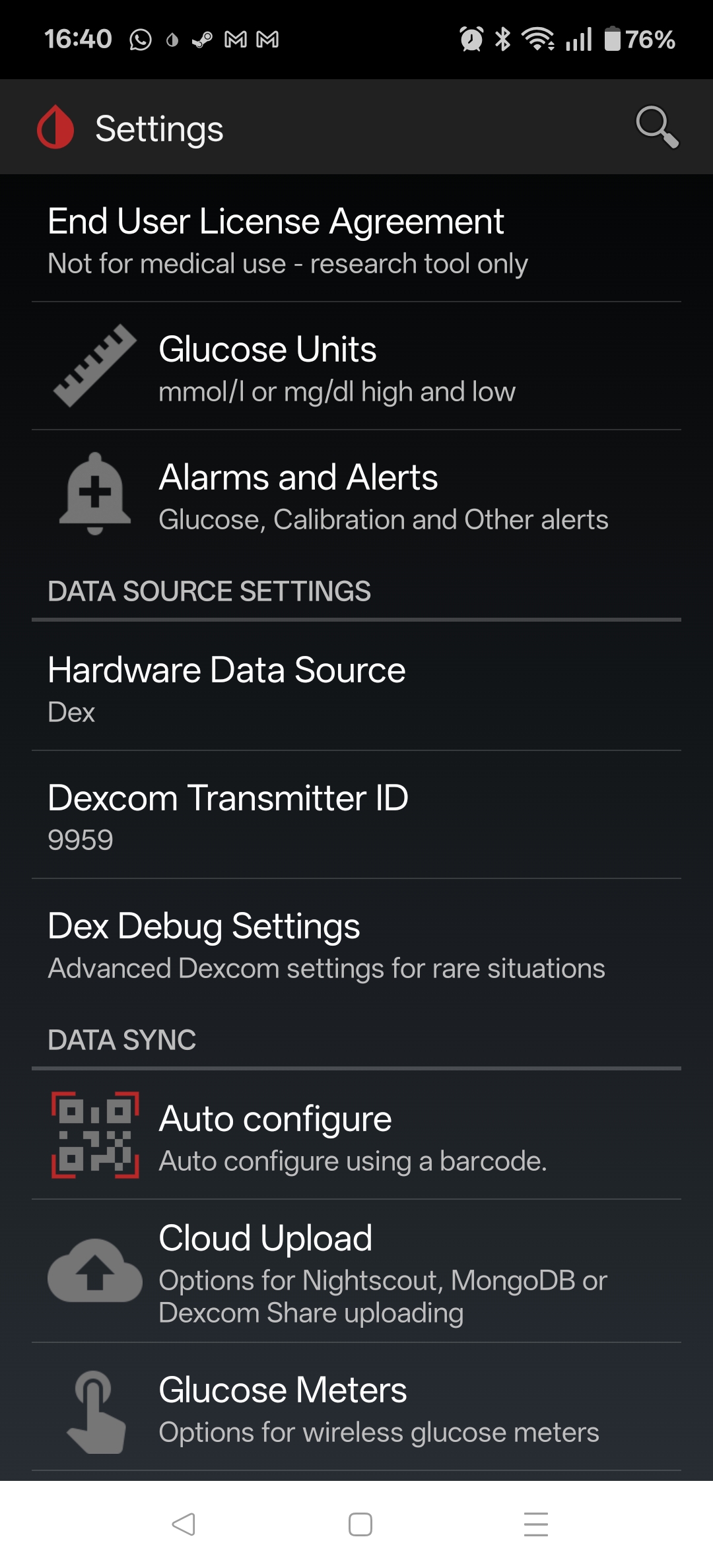
With xDrip working well, I then decided to get Nightscout up and running to act as a replacement for the Clarity reports.

Nightscout

Nightscout depends on MongoDB as the backend storage, so my docker-compose.yml file starts a nightscout-mongodb service. The main change here from other examples is that the bitnami containers are now under bitnamilegacy, since its no longer being maintained – not a huge concern since its completely internal to the nightscout docker network.

  nightscout-mongodb:                                   # SERVICE_NAME - used by the "depends_on:" to make sure the database it running before things try to use it
    image: bitnamilegacy/mongodb:latest                       # Other options "image: mongo:latest" will need adjustments in other places such as "volumes:" mounts
    container_name: nightscout-mongodb                  # called in Nightscout's MONGODB_URI. General good practice to be the same as SERVICE_NAME but not required
    environment:
      - PUID=1000                                               # Not necessary, but sets the USER who runs the container as not root
      - PGID=1000                                               # Not necessary, but sets the USER who runs the container as not root
      - TZ=Europe/Dublin                                       # Refer to {nightscout-app}
      - MONGO_INITDB_ROOT_USERNAME=mongodbpoweruser             # May be necessry if importing from another database or doing management on the database
      - MONGO_INITDB_DATABASE=auth                              # May be optional, hard to find documaentation about it
      - MONGO_INITDB_ROOT_PASSWORD=mongoRootPassword03          # Will probably never be needed, I set it the same as MONGODB_ROOT_PASSWORD
      - MONGODB_ROOT_USER=mongodbpoweruser                      # I'm not sure what the differences are but is usually set the same as MONGO_INITDB_ROOT_USERNAME
      - MONGODB_ROOT_PASSWORD=mongoaRootPassword02              # I'm not sure what the differences are but is usually set the same as MONGO_INITDB_ROOT_PASSWORD
      - MONGODB_USERNAME=nightscout01                           # Username called in Nightscout's MONGODB_URI - I set to just "Nightscout"
      - MONGODB_PASSWORD=mongoPassword01                        # Password called in Nightscout's MONGODB_URI
      - MONGODB_DATABASE=nightscout02                           # Database called in Nightscout's MONGODB_URI - I set to just "Nightscout"
      - MONGODB_PORT_NUMBER=27017                               # DEFAULT[27017] - Port each MongoDB will use inernally 27017:<<MONGODB_PORT_NUMBER>>
    #ports:                                                  # Only needed to access database externally. If all parts are in the same stack/network removal or # suggested
    #  - 27017:27017                                             # DEFAULT[27017:27017] - <<EXTERNAL PORT>>:<<MONGODB_PORT_NUMBER>>
    volumes:
      - ./database:/bitnami/mongodb:rw        # /LOCATION/ON/YOUR/SYSTEM:/CONTAINER/LOCATION - for "mongo:latest" use ":/data/db"
      - ./log:/var/log:rw                         # Refer to {nightscout-app}
      - /etc/localtime:/etc/localtime:ro                        # Refer to {nightscout-app}
    restart: always                                             # Refer to {nightscout-app}
    networks:
      - nightscout
    healthcheck:                                                # OPTIONAL: This adds a Healthcheck to the container. Instead of just saying `[Running]` it will say `[Healthy]` if it is unhealthy it should restart
      test: ["CMD", "sh", "-c", "mongosh --eval 'db.runCommand(\"ping\")' || exit 1", "||", "bash", "-c", "kill -s 15 1 && sleep 10 && kill -s 9 1"]
      interval: 10s
      timeout: 10s
      retries: 3
      start_period: 20s

Nightscout itself is can be completely configured from the docker-compose file, but the most important parameters are below. Be sure to update (and keep secret) the API_SECRET. I’ve set it to use unsecured/HTTP, as I’ll terminate the HTTPS using trafik (more on this later).

      - TZ=Europe/Dublin                                        # Use your Time Zone from https://wikipedia.org/wiki/List_of_tz_database_time_zones
      - API_SECRET=myAPIsecret123                               # In xDrip: REST-API > Base URL= "<<API_SECRET>>@<<BASE_URL>>/api/v1/"
      - MONGODB_URI=mongodb://nightscout01:mongoPassword01@nightscout-mongodb:27017/nightscout02
      - INSECURE_USE_HTTP=true                                  # DEFAULT[false] - Set this to "true", unless you have your own SSL provided internally, if you wish to access without reverse Proxy
      - BASE_URL=https://nightscout.my.domain               #URL of your Nightscout site accessed outside the local network
      - DISPLAY_UNITS=mmol/L                                    # DEFAULT[mg/dl] - CHOICES: "=mg/dl" | "=mmol" "=mmol/L" (same thing either works)
      - AUTH_DEFAULT_ROLES=denied                               # DEFAULT[readable] - CHOICES: "readable" | "denied" | <<Or any valid role name>>

That is enough to get the local service up, running and reachable, but I also wanted it to be accessible via the interwebs. I could just tailscale it, but since I have a public IP and self-host other services, I decided to open it up.

Traefik

I’m using Trafeik to do two things – (1) SSL Termination, and (2) Rate-Limiting connections to the service.

SSL Termination

Its worth taking a look at the Traefik configuration in detail, as I found most of the online examples a bit obscure, or not quite covering my use case, which is that I have wildcard certs for my domain already, and wanted to use those.

  traefik:
    image: traefik:latest
    container_name: traefik
    restart: always
    command:
      - --providers.docker.network=nightscout
      - --entryPoints.https1337.address=:1337
      - --providers.docker=true
      - --providers.file.directory=/etc/traefik/dynamic
      - --providers.file.watch=true
    ports:
      - "1337:1337"
    volumes:
      - /var/run/docker.sock:/var/run/docker.sock:ro
      - ./traefik/dynamic/tls.yml:/etc/traefik/dynamic/tls.yml
      - ./traefik/certs:/certs           # Your wildcard certs here
    labels:
      - "traefik.enable=true"
    networks:
      - nightscout

So to begin with we are creating a service called traefik, using the latest image, and allowing it to alwas restart. Then in the commands we are doing the following;

  • Setting the provider network to be our defined nightscout network
  • Creating a https entry point on port 1337 (default nightscout port)
  • Setting docker as a provider of config
  • Setting it watching the directory /etc/traefik/dynamic for what is known as “dynamic config” – this contains a tls,yml file were we actually point it at our certificate and key

Then we are exposing port 1337 to the outside world, mounting the volumes – specifically the tls.yml file, and the certs directory where our certificate and key are located. The rest is just the required label, and the mapping to the nightscout network that the whole service is running on.

The tls.yml file is fairly straightforward – any issues with this file or the certs themselves and traefik will default to using a self-signed cert.

tls:
  stores:
    default:
      defaultCertificate:
        certFile: /certs/fullchain.cer
        keyFile: /certs/certificate.key

Finally we need to label our nightscout service to put traefik in front of it, as follows;

    labels:
      - "traefik.enable=true"
      - "traefik.http.routers.netscout.rule=Host(`nightscout.my.domain`)"
      - "traefik.http.routers.netscout.entrypoints=https1337"
      - "traefik.http.routers.netscout.tls=true"
      - "traefik.http.services.netscout.loadbalancer.server.port=1337"

Main points are to create a http router called nightscout, enable TLS, give the domain, and map the entrypoint defined earlier. This is all you need to provide HTTPS connectivity on port 1337, terminated by traefik, and then forwarded to the nightscout-app service.

Rate Limiting

Given that I’m planning on exposing this port to the bad bad internet, it makes sense to rate limit it. Thankfully this is just a few extra lines in the labels assigned to the nightscout-app service.

      - "traefik.http.middlewares.netscout-ratelimit.ratelimit.average=10"
      - "traefik.http.middlewares.netscout-ratelimit.ratelimit.burst=5"
      - "traefik.http.routers.netscout.middlewares=netscout-ratelimit@docker"

CloudFlare

Interestingly, even after opening up the ports on my router, I was unable to connect. After trying a few things, it eventually came to mind that possibly CloudFlare was doing something funny, since it sits between my public domain name, and my dynamic domain.

It turns out that CloudFlare will proxy/inspect all HTTP/HTTPS traffic (orange-clouded) but only for a limited set of ports, (443, 2053, 2083, 2087,2096,8443) unless you have CloudFlare Spectrum or setup Cloudflare Tunnel / Argo Tunnel to create a secure tunnel between your origin server and the CloudFlare proxy.

Alternatively, if you want to serve HTTPS on a non-standard port but do not want to use Spectrum or Tunnel, you must set the DNS record (subdomain) to “grey cloud” (DNS only), which disables the proxy, so Cloudflare does not interfere with that traffic.

TODO

Try moving the external port to one of those listed above and see if I can keep CF between me and the rest of the world.

Getting OpenALPR Working on RPi

As yet another side project I wanted to make use of my RPi camera + ANPR software to try and track down whoever is fly-tipping in my local estate. Since they dump their rubbish basically in full view of my living room, I’m looking to catch them in the act.

Attempt 1 – using the Raspbian packages (spoiler alert, it didn’t work)

Boring package install

sudo apt install openalpr openalpr-daemon openalpr-utils libopenalpr-dev
pip3 install openalpr picamera numpy
sudo apt-get install libatlas-base-dev

Get a test image wget http://plates.openalpr.com/ea7the.jpg

alpr -c us ea7the.jpg
Error opening data file /usr/share/openalpr/runtime_data/ocr/lus.traineddata
Please make sure the TESSDATA_PREFIX environment variable is set to your "tessdata" directory.
Failed loading language 'lus'
Tesseract couldn't load any languages!
Segmentation fault

Not good – so this is based on tesseract in the background. Looking around I see that the training data lives in tessdata, which is a subdirectory of ocr

/usr/share/openalpr/runtime_data/ocr/tessdata $ ls
lau.traineddata leu.traineddata lgb.traineddata lkr2.traineddata lkr.traineddata lsg.traineddata lus.traineddata
pi@raspberrypi:/usr/share/openalpr/runtime_data/ocr/tessdata $ mv ./* ../
pi@raspberrypi:/usr/share/openalpr/runtime_data $ tesseract --tessdata-dir /usr/share/openalpr/runtime_data/ocr/ --list-langs
Please make sure the TESSDATA_PREFIX environment variable is set to your "tessdata" directory.
List of available languages (7):
lau
leu
lgb
lkr
lkr2
lsg
lus

Ok, still not really making sense. Lets assume that OpenALPR is putting wrappers around the language so “us” becomes “lus” when fed to tesseract

pi@raspberrypi:/usr/share/openalpr/runtime_data/ocr $ tesseract -l lus ~/ea7the.jpg ./openalpr/runtime_data/config/us.conf
Error, could not create TXT output file: No such file or directory

Now that is more promising

alpr -c us ea7the.jpg
plate0: 10 results
- EA7THE confidence: 91.0578
- EA7TBE confidence: 84.133
- EA7T8E confidence: 83.0083
- EA7TRE confidence: 82.7869
- EA7TE confidence: 82.5961
- EA7TME confidence: 80.2908
- EA7TH6 confidence: 77.0045
- EA7THB confidence: 75.5779
- EA7TH confidence: 74.6576
- EA7TB6 confidence: 70.0797

Now lets take our python bindings for a spin

Python 3.7.3 (default, Dec 20 2019, 18:57:59)
[GCC 8.3.0] on linux
Type "help", "copyright", "credits" or "license" for more information.
import json
from openalpr import Alpr
alpr = Alpr("us", "/etc/openalpr/openalpr.conf", "/usr/share/openalpr/runtimedata")
Traceback (most recent call last):
File "", line 1, in
File "/home/pi/.local/lib/python3.7/site-packages/openalpr/openalpr.py", line 91, in init
self._initialize_func = self._openalprpy_lib.openalpr_init
File "/usr/lib/python3.7/ctypes/init.py", line 369, in getattr
func = self.getitem(name)
File "/usr/lib/python3.7/ctypes/init.py", line 374, in getitem
func = self._FuncPtr((name_or_ordinal, self))
AttributeError: /usr/lib/libopenalpr.so.2: undefined symbol: openalpr_init

Much Google time later and it seems that this is down to the pre-build python bindings not matching the version of the package that I’ve installed. Fsck it anyway

pi@raspberrypi:~/.local/lib/python3.7/site-packages $ pip3 show openalpr
Name: openalpr
Version: 1.1.0
Summary: OpenALPR Python Bindings
Home-page: http://www.openalpr.com/
Author: Matt Hill
Author-email: [email protected]
License: UNKNOWN
Location: /home/pi/.local/lib/python3.7/site-packages
Requires:
Required-by:

Attempt 2 – Build from master

Use git to clone from the master

Install the required packages

sudo apt-get install build-essential
sudo apt-get install cmake git libgtk2.0-dev pkg-config libavcodec-dev libavformat-dev libswscale-dev
sudo apt-get install libopencv-dev libtesseract-dev git cmake build-essential libleptonica-dev
sudo apt-get install libcurl4-openssl-dev
sudo apt-get install liblog4cplus-dev

Build and install OpenAPNR and the python bindings

cd openalpr/src
mkdir build
cd build
cmake -DCMAKE_INSTALL_PREFIX:PATH=/usr -DCMAKE_INSTALL_SYSCONFDIR:PATH=/etc ..
make
sudo make install
cd ../bindings/python
sudo python3 setup.py install

Now we can make progress

pi@raspberrypi:~ $ python3
Python 3.7.3 (default, Dec 20 2019, 18:57:59)
[GCC 8.3.0] on linux
Type "help", "copyright", "credits" or "license" for more information.
>>> import locale
>>> locale.setlocale(locale.LC_ALL, 'C')
'C'
>>> from openalpr import Alpr
>>> alpr = Alpr("us", "/etc/openalpr/openalpr.conf", "/usr/share/openalpr/runtime_data")
>>> import json
>>>
>>> results = alpr.recognize_file("/home/pi/ea7the.jpg")
>>>
>>> print(json.dumps(results, indent=4))
{
    "version": 2,
    "data_type": "alpr_results",
    "epoch_time": 1589218326623,
    "img_width": 636,
    "img_height": 358,
    "processing_time_ms": 234.429916,
    "regions_of_interest": [
        {
            "x": 0,
            "y": 0,
            "width": 636,
            "height": 358
        }
    ],
    "results": [
        {
            "plate": "EA7THE",
            "confidence": 91.05777,
            "matches_template": 0,
            "plate_index": 0,
            "region": "",
            "region_confidence": 0,
            "processing_time_ms": 59.747936,
            "requested_topn": 25,
            "coordinates": [
                {
                    "x": 208,
                    "y": 157
                },
                {
                    "x": 393,
                    "y": 157
                },
                {
                    "x": 393,
                    "y": 245
                },
                {
                    "x": 208,
                    "y": 245
                }
            ],
            "candidates": [
                {
                    "plate": "EA7THE",
                    "confidence": 91.05777,
                    "matches_template": 0
                },
                {
                    "plate": "EA7TBE",
                    "confidence": 84.132973,
                    "matches_template": 0
                },

WordPress Migration Complete

I’ve just migrated the blog from the Raspberry Pi to a VM hosted on my linux server. Migration went smoothly enough through the use of Duplicator and Search & Replace. Mails work as do all the usual plugins.

Don’t think there are any broken links adn I haven’t spotted anything obviously wrong, but let me know if you spot something that looks like it isn’t working.

Realtek RTL2832U on Linux (Debian)

So, now that I’d dipped my toe in the water with the RTL2832U on Win10, I actually planned on permanently integrating it into my media setup with is based on a RPI3 running OpenElec and a Debian server providing backend storage.

This turned out to be one of those good news bad news situations. The good news is that the dongle has kernel support, the bad news was that Wheezy was still on 3.2 which was lacking this support. After a failed attempt to compile the driver, followed by a failed attempt to compile the kernel (stupid linux-headers not found!) I just went ahead and upgraded the box to Jessie (Linux 3.16.0-4-amd64 #1 SMP Debian 3.16.7-ckt25-1 (2016-03-06) x86_64 GNU/Linux).

A long update, upgrade, dist-upgrade later and the dongle was in and recognised

[    1.196017] usb 8-1: Manufacturer: Realtek
[   19.650428] usb 8-1: dvb_usb_v2: found a 'Realtek RTL2832U reference design' in warm state
[   19.717623] usb 8-1: dvb_usb_v2: will pass the complete MPEG2 transport stream to the software demuxer
[   19.717658] DVB: registering new adapter (Realtek RTL2832U reference design)
[   19.721246] usb 8-1: DVB: registering adapter 0 frontend 0 (Realtek RTL2832 (DVB-T))...
[   20.007861] i2c i2c-9: rtl2832_sdr: Realtek RTL2832 SDR attached
[   20.015340] input: Realtek RTL2832U reference design as /devices/pci0000:00/0000:00:1d.7/usb8/8-1/rc/rc0/input6
[   20.015348] rc0: Realtek RTL2832U reference design as /devices/pci0000:00/0000:00:1d.7/usb8/8-1/rc/rc0
[   20.104268] input: MCE IR Keyboard/Mouse (dvb_usb_rtl28xxu) as /devices/virtual/input/input7
[   20.104356] usb 8-1: dvb_usb_v2: schedule remote query interval to 400 msecs
[   20.117509] usb 8-1: dvb_usb_v2: 'Realtek RTL2832U reference design' successfully initialized and connected
[   20.117602] usbcore: registered new interface driver dvb_usb_rtl28xxu
[   20.160507] rc rc0: lirc_dev: driver ir-lirc-codec (dvb_usb_rtl28xxu) registered at minor = 0

Next step…

Installing tvheadend

My original plan was to just have the dongle running directly connected to the RPI but power was a concern (no powered hub) and since my linux server is always running anyway, why not install the backend software there and have the tvheadend client running on the RPI/OpenELEC side of things?

Installation isn’t actually that straightforward but can be broken down into a few steps

  1. Install the package
    This involves adding the tvheadend repository to your sources list and you will add a user account/password as part of the install process

    sudo apt-key adv --keyserver hkp://keyserver.ubuntu.com:80 --recv-keys 379CE192D401AB61
    echo "deb https://dl.bintray.com/tvheadend/deb <strong>jessie stable</strong>" | sudo tee -a /etc/apt/sources.list
    sudo apt-get update
    sudo apt-get install tvheadend
  2. Configure via the web interface at <IP Address>:9981
    1. Check that your dongle shows up under Configuration -> DVB Inputs -> TV Adapters
    2. Under Configuration -> DVB Inputs -> Networks, add a DVB-T network (for Ireland) and select from the list of Pre-defined MUXs (Ireland-WoodcockHill for me)
      create-dvbT-network
    3. Back under Configuration -> DVB Inputs -> Networks, map the newly created network to the dongle
      hardware-network-mapping-DVB-T
    4. Under Muxes, the scan status for the added muxes will start at ‘Idle’ then eventually start scanning and find your channels
    5. You should see the Services start to be listed as they are discovered, and at this point under Configuration -> Channel, you can map the service to a channel
      channel-config-DVB-T
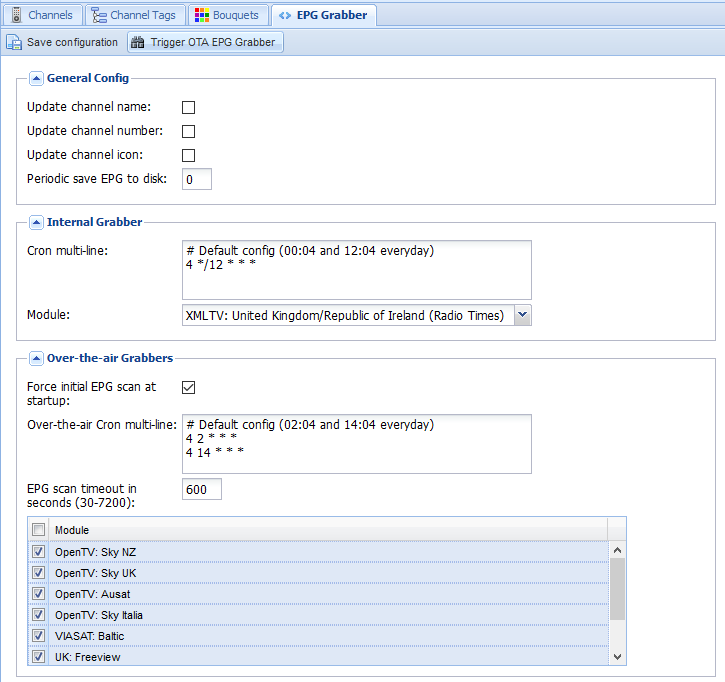
    6. Last step on the backend side is to enable the EPG. I have both the OTA grabber and the Radio Times for UK/Ireland enabled and we are doneEPG-grabber-DVB-T
      EPG-DVB-T

On the OpenELEC frontend, much simpler.

Install the add-on from under PVR, configure it with the hostname, username, and password, and under Settings -> TV, Enable live TV. Sorted!

Using RPi-Monitor with your own webserver (Nginx)

As I recently moved this site to a RPI for hosting purposes, I though it would be a good idea to have a nice web page to monitor the current status of the box. Some googling later and I found the excellent RPi-Monitor.

By default it has it’s own webserver, and it is not recommended to use anything other then that, but running a second webserver seemed a little bit untidy to my thinking so I set it to run on Nginx instead.

The actual changes were quite simple, with one or two gotcha’s.

RPi-Monitor stores the webpage in /usr/share/rpimonitor/web by default. Rather then play with that I just created a symbolic link between the root of the webserver and that point:

ln -s /usr/share/rpimonitor/web /var/www/rpimonitor

and that is sorted.

Next up is the configuration change to the rpimonitor daemon – config file located in /etc/rpimonitor/daemon.conf. We need to set it into no-server mode and also change the user, as I’ve disabled the default ‘pi’ account on this box.

# daemon.noserver=1
# Define that rpimonitor shouldn't start web server (default:0)
# Note: A symbolic link from /var/lib/rpimonitor/stat to
# /usr/share/rpimonitor/stat may be required
daemon.noserver=1

# Define user used to run the server process (default:pi)
# Note: If user is not existing, process will run with uid=1000
daemon.user=rpi-monitor
#
# daemon.group=pi
# Define group used to run the server process (default:pi)
# Note: If group is not existing, process will run with gid=1000
daemon.group=rpi-monitor
#

Restart the service, and you should be able to access it from http://my-website.com/rpi-monitor

$ sudo service rpimonitor restart

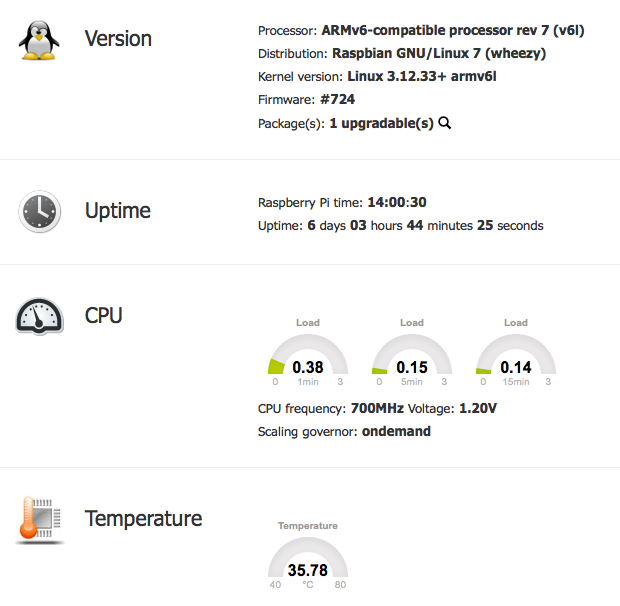
RPI-Monitor StatusHowever there is a slight issue in that the datastore is inaccessible to the webserver, so statistics are unavailable with error “File stat/uptime.rrd is not a valid RRD archive”. To resolve this we need to go back to the daemon.conf file and move the datastore to somewhere under the root directory of the website

# daemon.datastore=/var/lib/rpimonitor
# Define the data storage directory (Default:/var/lib/rpimonitor)
daemon.datastore=/var/www/rpimonitor

Restart the service again and all is worky.

$ sudo service rpimonitor restart

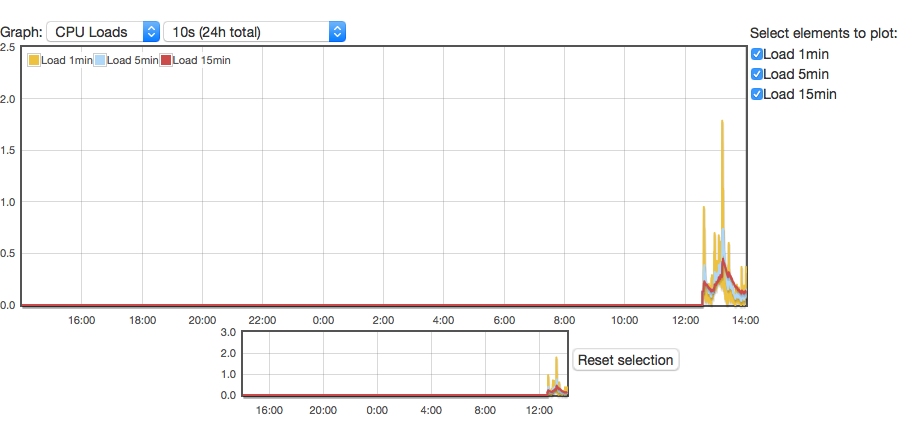
RPI-Monitor StatisticsNote: you could also just move the webroot in the same way, rather then using the symbolic link.

Raspberry Pi as a Cheap Security Camera

One thing I wanted to look into was the use of the Raspberry Pi as a low-cost, linux based security camera. Key goals were:

  • Recording of HD Video
  • Live stream via web browser

This sets out the steps I did to get it up and running – consider some of the previous posts on the Raspberry to lock it down before opening it to the big bad interweb.

Raspberry Pi Configuration

Disable the camera led – lets not make it too obvious if we are, or aren’t recording. Add the following line to /boot/config.txt

disable_camera_led=1

There is a free, open-source motion detection/surveillance software package that we can use, called motion. Unfortunately it doesn’t yet support the Raspberry Pi Camera Module natively yet, so a special build is required.

sudo apt-get install motion
sudo apt-get remove motion

This is a little odd, but the main goal is that the APT package manager will install all the dependencies, add the service account, etc.

Then we get the customised motion package and install it:

wget https://www.dropbox.com/s/xdfcxm5hu71s97d/motion-mmal.tar.gz
tar zxvf motion-mmal.tar.gz
sudo mv motion /usr/bin/motion
sudo mv motion-mmalcam.conf /etc/motion.conf

We then need to enable motion to run as a daemon by editing /etc/default/motion to include

start_motion_daemon=yes

The main motion configuration file is /etc/motion.conf, but lets make sure that the permissions are sufficient for the motion user to modify them

sudo chmod 664 /etc/motion.conf
sudo chmod 755 /usr/bin/motion
sudo touch /tmp/motion.log
sudo chmod 775 /tmp/motion.log

At this point I tried to run it from the CLI, but was missing a library:

pi@watcher ~ $ motion
motion: error while loading shared libraries: libjpeg.so.62: cannot open shared object file: No such file or directory

Easily solved:

sudo apt-get install libjpeg62

motion.conf – some key changes

daemon on
process_id_file /tmp/motion.pid

logfile /home/pi/motion.log

width 1280
height 720

framerate 2

pre_capture 2
post_capture 2

max_movie_time 600

ffmpeg_video_codec msmpeg4

stream_localhost off

stream_auth_method 2
stream_authentication USERNAME:PASSWORD

There are many configuration options, all of which are detailed in the motion config documentation

If we are running it as a daemon on boot we also need to update /etc/init.d/motion with the log and PID variables e.g.

PIDFILE=/tmp/$NAME.pid

So far the streaming works fine is Firefox and Safari, but not Chrome.

Internet of Things – Potential Architectures & Drawbacks

The Internet-of-Things or IoT (terrible name since everyone knows that IoT stands for Inter-operability Testing) seems to be quite the buzzword around lately – replacing the previous version which of course was Machine-to-Machine [M2M]. Nest and other home telemetry/automation tools seem to be quite the cliche-du-jour for the digirati.

Consider what Nest actually does – local (in house) temperature compared with external (nearest location/airport) temperature and a few interesting algorithms to handle temperature differentials, learn preferences, awareness of presence and away type scenarios. Of course  given that it seems to automatically download updates, I’m sure it’s logging and submitting lots of information ‘to improve the product’

Likewise, we have hubs finally coming onstream to try and manage all the possible combinations of hardware and software for home sensors and everything else (or so they promise).

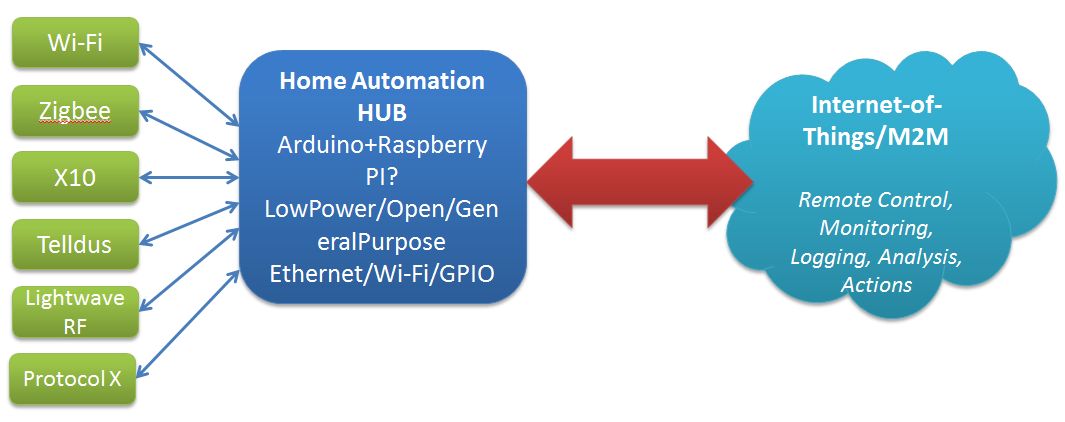
Think home sensors/lightbulbs/whatever – currently we have a plethora of specs to choose from for household comms and telemetry: X10, Zigbee, Z-Wave, Lightwave RF. Telldus, etc. Currently each manufacturer has their own choice of spec, controller software, etc.

Fortunately the Open Source/Open Hardware groups are are already experimenting with options to handle this – a good example is the Home Automation Hub (HAH) project which sets out to turn an Orange Livebox router into a home automation server, with an extra bit of hardware that – like the TellStick – allows it to control a range of gadgetry, and even keep an eye on energy consumption too. Likewise the dovado routers I’ve raved about before have the beginnings of some interesting Home Automation features with integration with Telldus sticks and the use of GPS to determine sunrise and sunset times for the location.

Open Source Open Hardware Hub

Home Hub - Internet of ThingsKey features as I see them are:

  • Compact
  • Reliable
  • Minimum Downtime
  • Low power
  • Open

Publish & Subscribe

So, assuming that we can get all these sensors talking to our hub, and that data recording (and potentially taking local actions based on that – heating, lighting, etc.) what do we do with it.

The hobbiest answer is to put it up on a website for your own entertainment. The more interesting options are open to the hub provider, and I see a few possible approaches here:

  1. Act as a relationship broker: making partnerships with different consumers of the telemetry e.g. allow the hub to submit information of the users choice to projects of their interest e.g. SmartCities, utility providers, etc.
  2. Act as a centralised clearing house: store all users data, sell it in bulk (users are the product) and plan to be bought at some point by Google/IBM/whoever
  3. Act as a centralised broker – grouping your users according to, for example, energy usage patterns and negotiating (optional) bulk deals from utility providers. For example, contacting the Power company and saying here is aggregate usage data for 30k ‘night owls’ – can we get a special deal, since they are offsetting the base load cost, but not adding to peak loads.


Providers/Website subscribing to the date

Raspberry Pi – Getting SMB to work

I just got a new Raspberry Pi Model B and am planning on playing with it as a Media Center system. Getting the basics up and running took a little more work then I expected as I didn’t have neither HDMI/DVI converter nor USB Keyboard (PS/2 rules).

I had a pre-formatted SDCard ready to roll but when I attached the network cable and power unfortunately the device didn’t connect to the network – plugging it into the TV I saw that the it was stopping at the NOOBS loader. This allows you to get the Pi up and running easily, without network access, and to select and install from a menu of Operating Systems. Kind of conflicted about how good an idea this is to the typical linux/electronics hobbiest. Effectively this acts like a recovery partition after the first install.

Plug in a mouse, select Raspbian (as I usually work on Debian) and a few mins later the install is complete. Reboot and complete the setup and it was networked. Once I found the IP I updated and upgraded all the packages and installed XRDP for remote desktop access.

At this point I wanted to check that SMB would work – it wouldn’t 🙁

pi@raspberrypi ~ $ sudo mkdir /mnt/Media
pi@raspberrypi ~ $ sudo vi /etc/fstab
pi@raspberrypi ~ $ mount /mnt/Media
mount: only root can mount //192.168.1.8/samba on /mnt/Media
pi@raspberrypi ~ $ sudo !!
sudo mount /mnt/Media
mount error: cifs filesystem not supported by the system
mount error(19): No such device
Refer to the mount.cifs(8) manual page (e.g. man mount.cifs)
pi@raspberrypi ~ $ cd /mnt
pi@raspberrypi /mnt $ ls
Media
pi@raspberrypi /mnt $ mount -t cifs -o user=xxxx //192.168.1.8/samba /mnt/Media
mount: only root can do that
pi@raspberrypi /mnt $ sudo !!
sudo mount -t cifs -o user=xxxx//192.168.1.8/samba /mnt/Media
Password:
mount error: cifs filesystem not supported by the system
mount error(19): No such device
Refer to the mount.cifs(8) manual page (e.g. man mount.cifs)
pi@raspberrypi /mnt $ sudo modprobe cifs
libkmod: ERROR ../libkmod/libkmod.c:554 kmod_search_moddep: could not open moddep file '/lib/modules/3.6.11+/modules.dep.bin'

This was something of a puzzle as both cifs-utils and libsmbclient are installed. Turns out that the firmware was out of date – a quick rpi-update and reboot and problem solved!

pi@raspberrypi /mnt $ sudo rpi-update
*** Raspberry Pi firmware updater by Hexxeh, enhanced by AndrewS
*** Performing self-update
% Total    % Received % Xferd  Average Speed   Time    Time     Time  Current
Dload  Upload   Total   Spent    Left  Speed
100   135  100   135    0     0    240      0 --:--:-- --:--:-- --:--:--   323
100  7177  100  7177    0     0   7315      0 --:--:-- --:--:-- --:--:--  7315
*** Relaunching after update
*** Raspberry Pi firmware updater by Hexxeh, enhanced by AndrewS
*** ARM/GPU split is now defined in /boot/config.txt using the gpu_mem option!
*** We're running for the first time
*** Setting up firmware (this may take a few minutes)
Cloning into '//root/.rpi-firmware'...
remote: Counting objects: 3378, done.
remote: Compressing objects: 100% (2610/2610), done.
Receiving objects: 100% (3378/3378), 25.96 MiB | 1.20 MiB/s, done.
remote: Total 3378 (delta 1608), reused 1117 (delta 504)
Resolving deltas: 100% (1608/1608), done.
...

Internet Access in Awkward Places

Finally got around to putting up a description of a project I’ve been poking along for a while to put Internet access and a remotely accessible security camera in the parents holiday home (ld building, thick walls and no wireline connectivity) – all the hardware used and details on the build are available here.

Sensitive Sensors

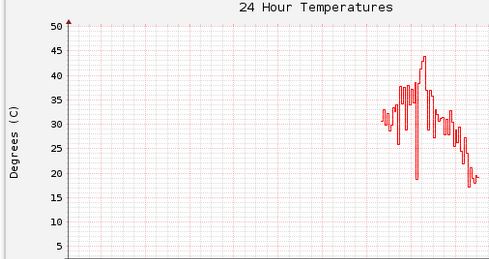
As I finally got my Arduino reading the temperature sensor, and sending the values to this page consistently I noticed that the values were quite ‘jittery’ – the issue being that I was basically grabbing a single read from the sensor every 60 seconds, and then firing it on. Since this was a single read any issues affecting the sensor at the instant of the read could throw off the value significantly.

temperature_jitterAs you can see in the above chart we can have massive changes in the read temperature without any major changes (that I could tell) in the the actual physical environment – anything between 5 and 20 degrees between samples.

I decided that a better approach would be to average the sensor values over a time and use that as the value sent to the server. The code below shows how I’ve done that:

float readTempAvg(){
  static float buff[12];
  static int index = 0;
  static float sum = 0;
  static int count = 0;

  sum -= buff[index];
  buff[index] = (analogRead(A0) / 9.31);
  sum += buff[index];

  index = ( (index + 1) % 12 );

  if( count < 12 ){
    count++;
  }

  return( sum / count);
}

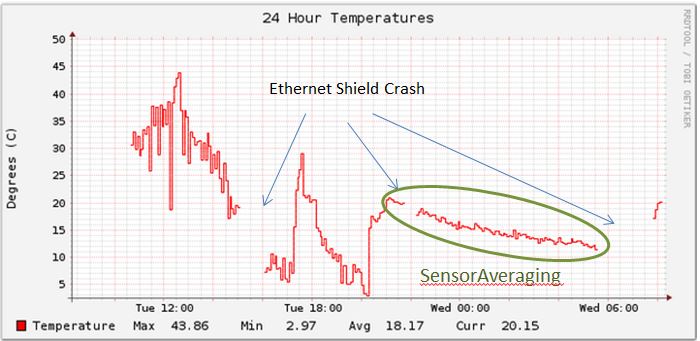
The sum-=buff[index] has the value that is about to be overwritten in the buffer removed from the sum. This means that sum is always kept up to date. Small improvement to this code would be to define a buffer size at the start and replace all the ‘magic’ const 12 that is in the code.

Following this change I’m getting much smoother temperature readings – generally +/-1 degree or less every 60 seconds.

temperature_newAlgorithmNext step is to try and sort out the Ethernet Shield crashes.