Tag Archives: tips

Setting up Awesome Miner for XMRPool

While playing around with Monero mining I decided to give Awesome Miner a try.

While trying to provision the XMRPool.net pool, I had a bit of trouble getting it working.

[2018-01-22 17:02:25] Using JSON-RPC 2.0
[2018-01-22 17:02:26] NVML GPU monitoring enabled.
[2018-01-22 17:02:26] NVAPI GPU monitoring enabled.
[2018-01-22 17:02:26] 1 miner thread started, using 'cryptonight' algorithm.
[2018-01-22 17:02:26] HTTP request failed: Empty reply from server


The issue is that you need to instruct it to use the stratum protocol, so the server URL should be constructed as follows:

stratum+tcp://<Server URL>:<Port>

So the pool config will look like this:


And with that we are up and running:

[2018-01-22 17:06:25] Using JSON-RPC 2.0
[2018-01-22 17:06:25] Starting on stratum+tcp://mine.xmrpool.net:5557
[2018-01-22 17:06:26] NVML GPU monitoring enabled.
[2018-01-22 17:06:26] NVAPI GPU monitoring enabled.
[2018-01-22 17:06:26] 1 miner thread started, using 'cryptonight' algorithm.
[2018-01-22 17:06:26] Stratum difficulty set to 5000 (5)
[2018-01-22 17:06:26] GPU #0: Gigabyte GTX 1070, 7454 MB available, 15 SMX
[2018-01-22 17:06:26] GPU #0: 960 threads (9.875) with 60 blocks
[2018-01-22 17:06:27] API open to the network in read-only mode on port 4028
[2018-01-22 17:06:54] accepted: 1/1 (diff 5.108), 34.67 H/s yes!

iperf Testing on Arista EOS

One of the many useful tools included with Arista EOS is iperf(2.0.5) which allows the switch to generate test TCP or UDP traffic. Something to note is that the total generated traffic is limited by the both the CPU capacity and the link between the CPU and the forwarding hardware, so do not expect this to be capable of linerate testing. This is useful for functional testing only.

For the client side, just drop to the bash shell, and point it towards the iperf server

L1#bash
Arista Networks EOS shell
[admin@L1 ~]$ iperf
Usage: iperf [-s|-c host] [options]
Try `iperf --help' for more information.
[admin@L1 ~]$ iperf  -c 172.16.0.4
------------------------------------------------------------
Client connecting to 172.16.0.4, TCP port 5001
TCP window size: 22.5 KByte (default)
------------------------------------------------------------
[  3] local 172.16.12.1 port 51455 connected with 172.16.0.4 port 5001
[ ID] Interval       Transfer     Bandwidth
[  3]  0.0-28.6 sec   384 KBytes   110 Kbits/sec

Running the IPerf server (traffic is from client to server) on the switch requires a little more work. By default iperf uses the port TCP/5001 in server mode for inbound connections. But Arista blocks this port by default as part of the Control Plane Policer. Therefore you have to temporarily add an iptables rule in the EOS shell to allow access to port TCP/5001.

[admin@L1 ~]$ sudo iptables -I INPUT -p tcp -m tcp --dport 5001 -j ACCEPT

This can later be undone by

[admin@L1 ~]$ sudo iptables -D INPUT -p tcp -m tcp --dport 5001 -j ACCEPT

Once you have the port open, start iperf in server mode and you will see reports of the incoming connections.

[admin@L2 ~]$ iperf -s -i 5
------------------------------------------------------------
Server listening on TCP port 5001
TCP window size: 85.3 KByte (default)
------------------------------------------------------------
[  4] local 172.16.0.4 port 5001 connected with 172.16.12.1 port 51455
[ ID] Interval       Transfer     Bandwidth
[  4]  0.0- 5.0 sec  55.1 KBytes  90.4 Kbits/sec
[  4]  5.0-10.0 sec  59.4 KBytes  97.3 Kbits/sec
[  4] 10.0-15.0 sec  58.0 KBytes  95.0 Kbits/sec
[  4] 15.0-20.0 sec  67.9 KBytes   111 Kbits/sec
[  4] 20.0-25.0 sec  65.0 KBytes   107 Kbits/sec
[  4] 25.0-30.0 sec  18.4 KBytes  30.1 Kbits/sec
[  4]  0.0-31.7 sec   384 KBytes  99.3 Kbits/sec

Note that these results are in a virtualized, simulated environment. The amount of traffic that a real switch can generate is much higher.

Proper lock screen behaviour on OS X

I’ve been working with a MacBook for some time now, but had a constant irritation that there didn’t seem to be a way to lock the screen out of the box. Many point to ‘Sleep’ as an option, but that takes down all my SSH sessions. Likewise having a passworded screen saver is not great simply because for it to be effective e.g. when I step away, then the timer needs to be short, which is very annoying when you are working on something without moving the keyboard or mouse.

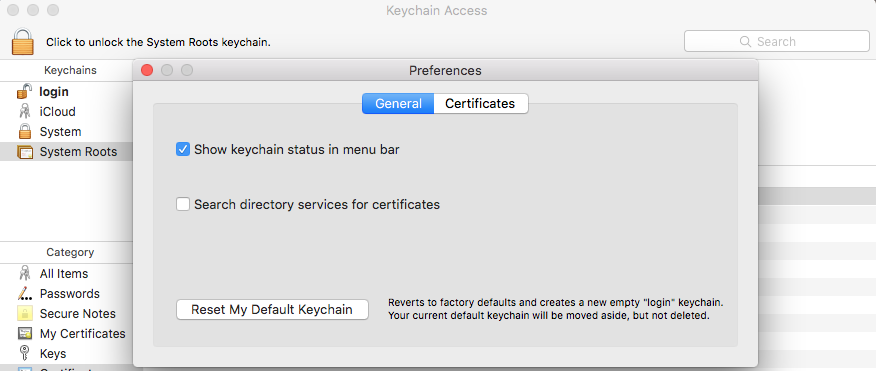
Thankfully I now found the solution, which is surprisingly well hidden. In the Keychain Access preferences, we have an interesting box we can tick:

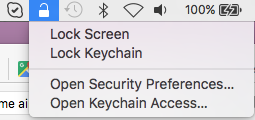
Keychain Access PreferencesTick the box ‘Show keychain status in the menu bar’. This now gives us a handy little menu with the option ‘Lock screen’.

OS X - Lock ScreenSo there you have it, the laptop is locked but the network sessions stay up. Windows + L would be even better, but you can’t have everything.