Tag Archives: firmware

Painful update of Dell R710 BIOS

As mentioned in the previous post, I recently acquired an R710 as part of a homelab buildout. I’ve now spent the best part of a day trying to figure out why the Lifecycle Controller stopped working, after it updated the BIOS. I don’t particularily need it, but I know if I ignore it something will come back to bite me when I least expect it.

The one clue (after trying multiple Repair images) was that when the BIOS was booting it had a blank rev. e.g. under the Dell logo there was “BIOS Rev. ” and a blank space. Much google-fu later and it turns out that this generally happens if you try and jump too many BIOS revisions at once.

Since the upgrade was done by the Lifecycle Controller, and was from 6.0.4 -> 6.4.0 I didn’t expect this to be an issue, but there you go. The process to recover is actually fairly straightforward when you know how, and in fairness to Dell they have a huge amount of great information in their forums.

This is just the short and quick version of how to fix.

  1. Create a DOS USB disk using the instructions here: https://www.dell.com/support/article/ie/en/iebsdt1/SLN143196/how-to-create-a-bootable-usb-flash-drive-using-dell-diagnostic-deployment-package–dddp-?lang=EN
  2. Download as many revisions of the BIOS between the original release and the target and copy them to the USB drive too from here – you want the non-packaged version.
    14/03/2017  22:24         1,631,701 R710-060007C.exe
    14/03/2017  22:23         1,633,695 R710-060100C.exe
    14/03/2017  22:23         1,650,371 R710-060203C.exe
    14/03/2017  22:24         1,650,583 R710-060300C.exe
    14/03/2017  22:22         1,653,153 R710-060400C.exe

    NOTE: You might want to rename them to fit in DOS’ 8.3 filename limitation unless you like to try and guess what the ~ are hiding

  3. Reboot the server and hit F2 to access the boot options, then choose to boot from the USB stick
  4. When it has loaded, start with the older of the BIOS versions – in my case 6.0.7. If you get a warning about the platform not being recognised add the /forcetype flag after the executable name
  5. Repeat until you are on the BIOS version you were aiming for

At this point the Lifecycle Controller should come up and you can use it for the remainder of your platform/firmware updates

Updating an old firmware on a Dell R710

I recently purchased a Dell R710 as part of a buildout for my homelab, and as part of that process, wanted to update all the software. This consists of;

  • BIOS – running 6.0.4, current is 6.4 so not too bad
  • iDRAC – running 1.10, current is 2.85, so a good leap
  • PERC6 – no idea
  • Lifecycle Controller – no idea

Given that the only OS installed is ESXi I had a bit of googling to figure this one out.

In theory the Lifecycle Controller has an Platform Update option that will just do all this for you… unfortunately this seemed to be missing on mine.

To get everything up and running, the following process worked for me;

  1. Download, and extract the firmimg.d6 file from the iDRAC updater. This will allow your iDRAC to updated to something modern enough not to give certificate/security/browser errors. Use the iDRAC firmware update option to get this installed
  2. Use the iDRAC firmware update page to load the USC/LC repair package (.usc extension)
  3. Reload and the Lifecycle Controller will now have a Platform Update option – use that to update everything else via FTP from dells website

NOTE: The Lifecycle controller uses the inbuilt NIC rather then the iDRAC ethernet interface

Storage Hardware Upgrade – Moving to a HBA

For a number of reasons, after some other upgrades, I decided to move to a HBA rather then continuing to use the 2 x Syba 4 Port SATA II PCI-Express x1 Software RAID Card that I’ve been using for some time now. They are relatively simple and cheap devices, and easy to use as they are directly supported by the linux kernel (based on the Sil3124 chipset). Since the HDDs are all in a ZFS array anyway, these cards are basically just adding SATA ports to the motherboard.

After doing some research into the different options, I decided on the LSI Internal SAS SATA 9211-8i 6Gbps 8 Ports HBA PCI-E RAID Controller Card as the most appropriate option in combination with 2 x miniSAS SFF-8087 MINI SAS TO 4 SATA Data Cable For SAS RAID Card LSI 9211-8i.

Hardware

  • Motherboard:  MSI H97 PC MATE – Socket 1150 – ATX
  • Processor: Intel i5 4460 Quad Core Processor (3.2GHz, 6MB Cache)
  • HBA: LSI Internal SAS SATA 9211-8i 6Gbps 8 Ports HBA PCI-E RAID Controller Card
  • Cables: miniSAS SFF-8087 MINI SAS TO 4 SATA Data Cable For SAS RAID Card LSI 9211-8i
  • HDDs: 8 x 2TB HDD. Mix of WD Green, Seagate, and a Toshiba

Firmware Upgrade

First step was to upgrade the firmware on the LSI card to IT mode, rather then the default IR. Basically, I want the card to just present a bunch of connected disks to Linux, and let ZFS manage everything, rather then using it as a raid controller.

The firmware upgrade was quite straightforward, with the only tricky part actually getting the MSI motherboard to give me EFI shell access. In the end I found a setting in the BIOS, under Advanced, marked Windows 8/8i Feature. This has to be set to ‘Enabled’. Apparently UEFI is only enabled when this is turned on.

With the motherboard behaving itself I could flash the card. There are lots of guides on how to do this out there, but as a quick summary, you need a small FAT32 formatted USB stick with 4 files on it.

From LSI download the latest firmware package (P20 for me) – 9211-8i_Package_P20_IR_IT_Firmware_BIOS_for_MSDOS_Windows. It doesn’t matter what OS you are using, this is bundle that you need.

From that there are two files you want:

  • 2118it.bin – located in Firmware/HBA_9211_8i_IT
  • mptsas2.rom – located in sasbios_rel

Also grab the Installer_P20_for_UEFI file from LSI – this has the:

  • sas2flash.efi located in sas2flash_efi_ebc_rel

And the 4th file you need (assuming your motherboard doesn’t have it) is the EFI Shell itself. This is also available here.

Put the 4 files onto the USB stick, and reboot. You should now get booted to the EFI shell. Assuming there is only a single LSI card present, the following commands will flash the firmware:

# Mount the usb drive
mount blk14:

# Switch to that drive
blk14

# Check that you can find your 4 files
dir

# Erase the existing firmware on the card. Note - do not reboot/lose power at this step or you have a dead card
sas2flash.efi -o -e 6

# Load the new firmware and BIOS - takes about 4 mins
sas2flash.efi -o -f 2118it.bin -b mptsas2.rom

# Check the firmware product ID in the output of the following command to verify that it is in IT mode
sas2flash.efi -list

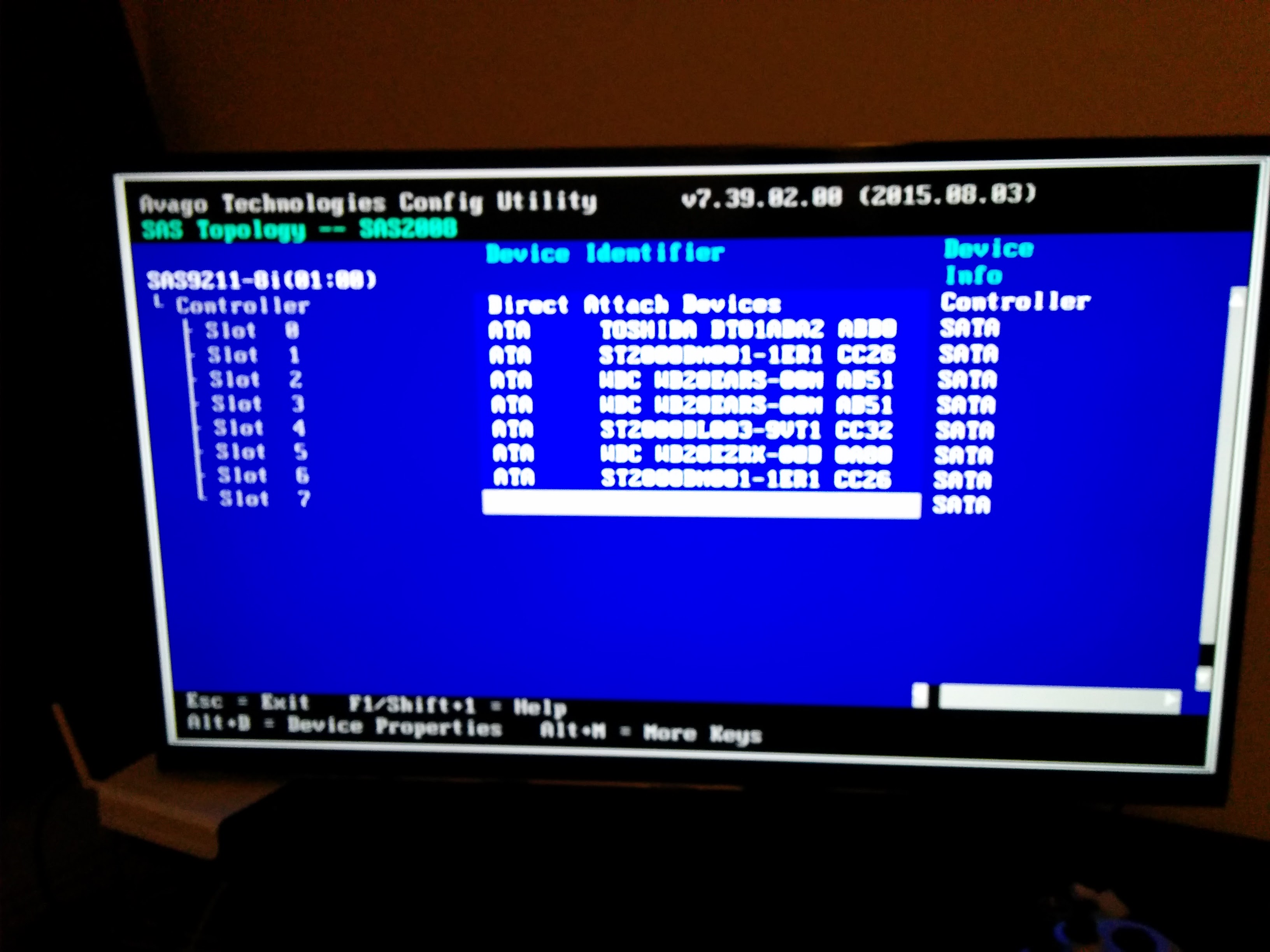
Exit the UEFI shell and reboot. Our LSI card and all the HDDs are detected by both the LSI card itself (SAS Topology) and Linux.

9211-8i BIOS TopologyTo speed up the boot process you should disable the boot support in the cards BIOS (as long as your boot drive isn’t plugged into the HBA) as this will speed up the boot process.


Update on the Belkin WeMo Switch

As I noted previously I was less then pleased with the WeMo. Basically I had to put in a few hacks to allow me to manage it via RPi and the excellent ouimeaux tool rather then the provided app and/or IFTTT.

It seemed that anything ‘cloudy’ wasn’t working at all. Possibly because my home router was in turn sitting behind a CG-NAT solution, possibly not…

Thankfully the latest set of firmware updates (now running WeMo_WW_2.00.8643.PVT-OWRT-SNS) seems to have sorted all of those issues. Android app works as expected (can turn it on and off) from both the local network and remotely, as can IFTTT, so I’m definitely happier with the product now then when I bought it.