A day of challenges and frustrations today
some as a result of my own carelessness, others because of the nature of a shared lab environment, and others still because technology hates us sometimes
A slow but steady start – sometimes the nested hypervisor matters
My aim was to get Contrail/OpenStack running for some testing today. Given that I don’t have a few baremetal servers lying around, I did what most people do, and decided to run my hosts on VMware (great tool). This can occasionally cause issues as I discovered later, but is great to get a few machines up and running in a hurry. I don’t really have issue with the idea of running Cloud Computing services on a virtualised environment, though a few did roll their eyes 🙂
I decided (having previously played with single-node installation) to go for a 3 machine setup, 2 compute nodes and 1 controller/openstack services. The reason for this was to have the compute hosts on physically separated machines to allow me to capture wire traffic between VMs and get a feel for the underlay networking and test some things there. Initial install went smoothly, as did installation of images onto Glance – word to the wise, make sure you have a large enough partition for the images! I ended up having to add a new partition to store a large image:
Filesystem Size Used Avail Use% Mounted on
/dev/mapper/VolGroup-lv_root
12G 5.5G 5.6G 50% /
tmpfs 12G 0 12G 0% /dev/shm
/dev/sda1 485M 37M 423M 9% /boot
/dev/sdb1 30G 7.2G 21G 26% /mnt/glance-storage
Stopping glance, copying the contents across to /mnt/glance-storage and editing /etc/glance/glance-api.conf to point to the new location, followed by restarting glance.
# ============ Filesystem Store Options ========================
#Directory that the Filesystem backend store
# writes image data to
filesystem_store_datadir = /mnt/glance-storage/
Large images enabled I then tried to fire up a tiny CIRROS image, to no avail. Fortunately, and surprisingly, /var/log/nova/conpute.log (on the compute node) offered a clue:
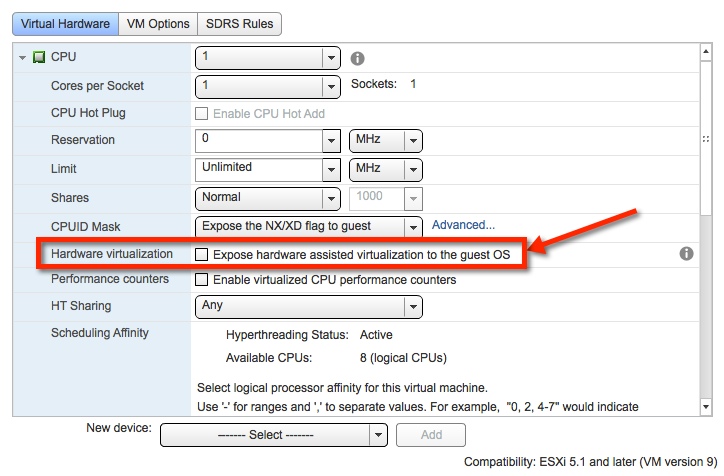
libvirtError: internal error no supported architecture for os type ‘hvm’
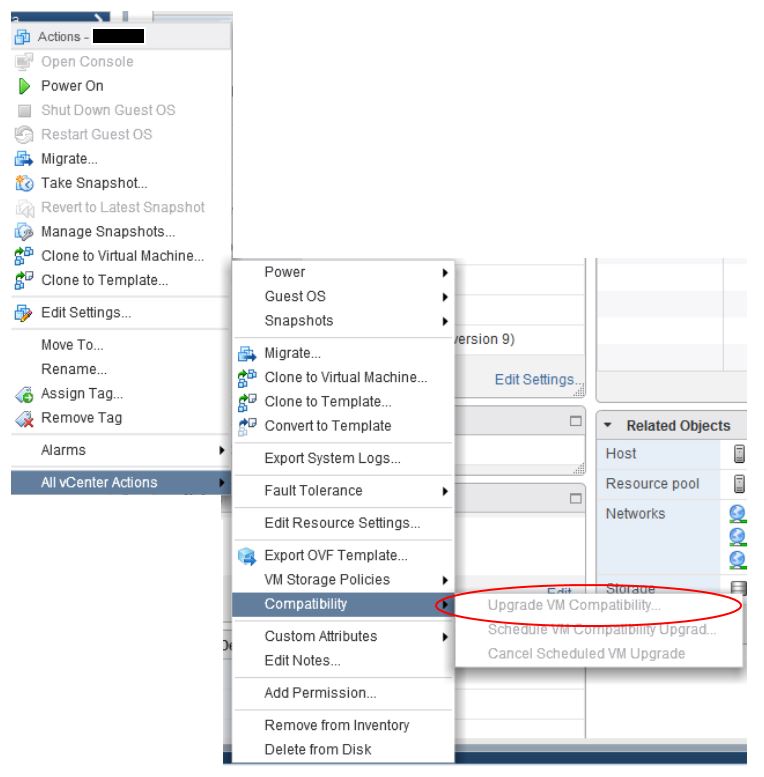
This rather helpful error indicates that the libvirt through which we control the OpenStack hypervisor is not available to run. Contrail aims to use KVM as the default hypervisor, though getting KVM to run when the base OS is hosted on ESXi requires a little more attention then I expected – next post. As a quick workaround, I simply told nova to use QEMU instead by modifying /etc/nova/nova.conf and specifying the libvirt type.
network_api_class = nova.network.quantumv2.api.API
libvirt_vif_driver = contrail_vif.contrailvif.VRouterVIFDriver
libvirt_type=qemu
A quick restart of nova services and we were in business 🙂 or so I thought
The attack of the larger then m1.tiny instance
OpenStack has the concept of virtual machine flavors – these essentially define the capacity of a VM in terms of CPU, Memory, Disk Space, etc.
The default flavors are:
- m1.tiny (1 VCPU/0 GB Disk/512 MB RAM)
- m1.small (1 VCPU/20 GB Disk/2048 MB RAM)
- m1.medium (2 VCPU/40 GB Disk/4096 MB RAM)
- m1.large (4 VCPU/80 GB Disk/8192 MB RAM)
- m1.xlarge (8 VCPU/160 GB Disk/16384 MB RAM)
Imagine my surprise when it turned out that only a tiny instance could be booted. In the end the cause was obvious, in that the flavors causing issues were those allocated disk space.
The compute hosts require sufficient local storage to hold the virtual machine disk space (root and ephemeral – this is not the VM image in glance e.g. the OS) for all their running instances. This was a problem as I just allocated initial disks of ~24Gb to my compute hosts (datastore space can be limited in a shared lab, and wars have been fought over less).
Nova (compute service) actually stashes the running disk images in /var/lib/nova/instances/<instance-id>. The parameter which I think governs this path is set in /etc/nova/nova.conf (I believe this to be state_path = /var/lib/nova though the documentation is fuzzy on that) though rumours reached me that very bad things happen to those who play with the paths in nova.conf 🙁
Apparently the preferred approach is to create a huge local disk partition (or just allocated a big disk) and mount it at /var/lib/nova – so that’s what I did
Filesystem Size Used Avail Use% Mounted on
/dev/mapper/VolGroup-lv_root
12G 3.5G 7.5G 32% /
tmpfs 12G 0 12G 0% /dev/shm
/dev/sda1 485M 37M 423M 9% /boot
/dev/sdb1 99G 4.2G 90G 5% /var/lib/nova
And added it into /etc/fstab so it survives the many reboots that a lab requires
/dev/sdb1 /var/lib/nova ext3 defaults 1 2
And with that instances of all sizes could roam freely 🙂
More on getting KVM working as the hypervisor in the next post!