Tag Archives: server

Updating an old firmware on a Dell R710

I recently purchased a Dell R710 as part of a buildout for my homelab, and as part of that process, wanted to update all the software. This consists of;

  • BIOS – running 6.0.4, current is 6.4 so not too bad
  • iDRAC – running 1.10, current is 2.85, so a good leap
  • PERC6 – no idea
  • Lifecycle Controller – no idea

Given that the only OS installed is ESXi I had a bit of googling to figure this one out.

In theory the Lifecycle Controller has an Platform Update option that will just do all this for you… unfortunately this seemed to be missing on mine.

To get everything up and running, the following process worked for me;

  1. Download, and extract the firmimg.d6 file from the iDRAC updater. This will allow your iDRAC to updated to something modern enough not to give certificate/security/browser errors. Use the iDRAC firmware update option to get this installed
  2. Use the iDRAC firmware update page to load the USC/LC repair package (.usc extension)
  3. Reload and the Lifecycle Controller will now have a Platform Update option – use that to update everything else via FTP from dells website

NOTE: The Lifecycle controller uses the inbuilt NIC rather then the iDRAC ethernet interface

Storage Hardware Upgrade – Moving to a HBA

For a number of reasons, after some other upgrades, I decided to move to a HBA rather then continuing to use the 2 x Syba 4 Port SATA II PCI-Express x1 Software RAID Card that I’ve been using for some time now. They are relatively simple and cheap devices, and easy to use as they are directly supported by the linux kernel (based on the Sil3124 chipset). Since the HDDs are all in a ZFS array anyway, these cards are basically just adding SATA ports to the motherboard.

After doing some research into the different options, I decided on the LSI Internal SAS SATA 9211-8i 6Gbps 8 Ports HBA PCI-E RAID Controller Card as the most appropriate option in combination with 2 x miniSAS SFF-8087 MINI SAS TO 4 SATA Data Cable For SAS RAID Card LSI 9211-8i.

Hardware

  • Motherboard:  MSI H97 PC MATE – Socket 1150 – ATX
  • Processor: Intel i5 4460 Quad Core Processor (3.2GHz, 6MB Cache)
  • HBA: LSI Internal SAS SATA 9211-8i 6Gbps 8 Ports HBA PCI-E RAID Controller Card
  • Cables: miniSAS SFF-8087 MINI SAS TO 4 SATA Data Cable For SAS RAID Card LSI 9211-8i
  • HDDs: 8 x 2TB HDD. Mix of WD Green, Seagate, and a Toshiba

Firmware Upgrade

First step was to upgrade the firmware on the LSI card to IT mode, rather then the default IR. Basically, I want the card to just present a bunch of connected disks to Linux, and let ZFS manage everything, rather then using it as a raid controller.

The firmware upgrade was quite straightforward, with the only tricky part actually getting the MSI motherboard to give me EFI shell access. In the end I found a setting in the BIOS, under Advanced, marked Windows 8/8i Feature. This has to be set to ‘Enabled’. Apparently UEFI is only enabled when this is turned on.

With the motherboard behaving itself I could flash the card. There are lots of guides on how to do this out there, but as a quick summary, you need a small FAT32 formatted USB stick with 4 files on it.

From LSI download the latest firmware package (P20 for me) – 9211-8i_Package_P20_IR_IT_Firmware_BIOS_for_MSDOS_Windows. It doesn’t matter what OS you are using, this is bundle that you need.

From that there are two files you want:

  • 2118it.bin – located in Firmware/HBA_9211_8i_IT
  • mptsas2.rom – located in sasbios_rel

Also grab the Installer_P20_for_UEFI file from LSI – this has the:

  • sas2flash.efi located in sas2flash_efi_ebc_rel

And the 4th file you need (assuming your motherboard doesn’t have it) is the EFI Shell itself. This is also available here.

Put the 4 files onto the USB stick, and reboot. You should now get booted to the EFI shell. Assuming there is only a single LSI card present, the following commands will flash the firmware:

# Mount the usb drive
mount blk14:

# Switch to that drive
blk14

# Check that you can find your 4 files
dir

# Erase the existing firmware on the card. Note - do not reboot/lose power at this step or you have a dead card
sas2flash.efi -o -e 6

# Load the new firmware and BIOS - takes about 4 mins
sas2flash.efi -o -f 2118it.bin -b mptsas2.rom

# Check the firmware product ID in the output of the following command to verify that it is in IT mode
sas2flash.efi -list

Exit the UEFI shell and reboot. Our LSI card and all the HDDs are detected by both the LSI card itself (SAS Topology) and Linux.
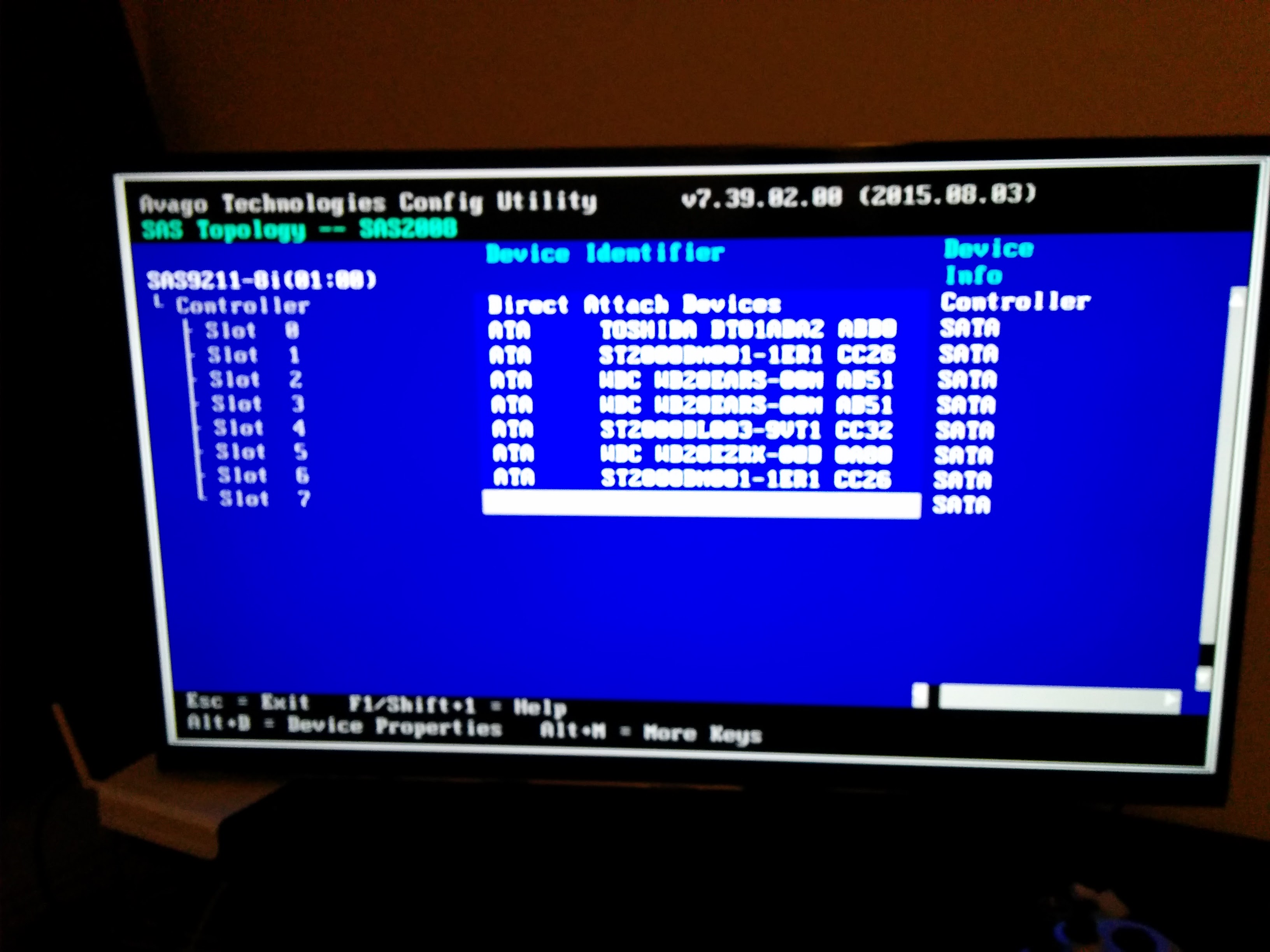
9211-8i BIOS TopologyTo speed up the boot process you should disable the boot support in the cards BIOS (as long as your boot drive isn’t plugged into the HBA) as this will speed up the boot process.

 

Raspberry Pi as a server

I’m planning on using a Raspberry Pi as a Webserver at some point, but wanted to lock it down a bit more then the default would allow, so here are a few quick notes on how to do that. I’m assuming that you have network connectivity here and can login via ssh.

Update the Pi

sudo apt-get update
sudo apt-get upgrade
sudo rpi-update
reboot

Secure SSH Acess

For starters, lets create a new account, get the privileges correctly, and then delete the default ‘pi’ account – just a little bit too easy.

sudo adduser serverpi

Fill in the information, and set a good password (long, mix of uppercase, lowercase, symbols, etc.)

Once this user exists, we should add them to all the groups as the pi account:

~ $ groups pi
pi : pi adm dialout cdrom sudo audio video plugdev games users netdev input spi gpio

serverpi@my-raspberry-pi ~ $ sudo usermod -a -G sudo serverpi
serverpi@my-raspberry-pi ~ $ sudo usermod -a -G adm serverpi
serverpi@my-raspberry-pi ~ $ sudo usermod -a -G pi serverpi
serverpi@my-raspberry-pi ~ $ sudo usermod -a -G dialout serverpi
serverpi@my-raspberry-pi ~ $ sudo usermod -a -G cdrom serverpi
serverpi@my-raspberry-pi ~ $ sudo usermod -a -G audio serverpi
serverpi@my-raspberry-pi ~ $ sudo usermod -a -G video serverpi
serverpi@my-raspberry-pi ~ $ sudo usermod -a -G plugdev serverpi
serverpi@my-raspberry-pi ~ $ sudo usermod -a -G games serverpi
serverpi@my-raspberry-pi ~ $ sudo usermod -a -G users serverpi
serverpi@my-raspberry-pi ~ $ sudo usermod -a -G netdev serverpi
serverpi@my-raspberry-pi ~ $ sudo usermod -a -G input serverpi
serverpi@my-raspberry-pi ~ $ sudo usermod -a -G spi serverpi
serverpi@my-raspberry-pi ~ $ sudo usermod -a -G gpio serverpi

Ideally, set the server to use PublicKey Authentication, and disable passwords – plenty of guides online to do this (create .ssh directory and add your public key to the authorized_keys file).

Test the login with the new account.

Delete the default user ‘pi’

sudo userdel pi
sudo rm -rf /home/pi

Improving the Performance

Run the configuration utility:

sudo raspi-config
  • Expand the filesystem
  • Set the locale and timezone
  • Set overclock to ‘modest’
  • Use the advanced options to set the hostname to something meaningful, and since we aren’t using a display set the GPU memory to something more modest e.g. 32 or 0

Finish up and reboot

Basic Intrusion Prevention

Something that any linux based box connecting to the internet should install is fail2ban. This is a python based framework that monitors log files and will block IP Addresses that are continually making login attempts. The ‘banned’ IP is locked out for a configurable length of time, and then unblocked.

Standard package can handle sshd, Apache, etc. which suits my purposes nicely.

sudo apt-get install fail2ban