Tag Archives: linux

Configuring Q-in-Q (802.1ad) on Arista

Lately I’ve been playing around with some Arista Networks switches (nice switches, not a fan of the Cisco-style CLI) and was having issues with the configuration of Q-in-Q for VLANs (802.1ad or double tagging). There is an interesting little gotcha for the port configuration on those puppies:

interface Ethernet1
switchport access vlan 500
switchport mode dot1q-tunnel

This will tag the packet with an outer VLAN tag of 500, while leaving the inner tag untouched.

UPC Ireland – Tiers of Service and NAT

The 120Mbps Tier

As a long time and very happy UPC customer (120Mb unlimited package) I was quite pleased with the service offered – to local speedtest server 10ms RTT, 118Mbps down, 10Mbps up, generous ‘fair-use’ limits and most importantly a public IP address.

Ideally, I’d like to use my own modem/router but instead I’m stuck with the Thompson TWG870, though to be fair it’s not the worst in the world. Not sure when, if ever, the firmware has ever been updated but all the important settings are at least accessible.

The 60Mbps Tier

With a new job I’m based in Limerick at least some of the time so made the decision to put in the basic package (60Mbps, 30Gb cap) and not bother with TV service. Installation was fine but no self-install so ended out having to sit at home for the scheduled installation window… 09:00 – 18:00 – they do make it easy for themselves.

Once installed and the tech out the door I had a poke at the new box. This one seems to be infamous as the Technicolor 7200 – clearly one of the cheapest cable modem/Wireless APs ever built. Prettier interface but fewer configuration options. Also issues with the WiFi connections to a Mac (not the only router to have this problem to be fair – I blame Apple).

Horizon WiFree

Interestingly the default internal IP range for the network is 192.168.1.0/24. When I tried to switch it to the more conventional 192.168.1.0/24 I was told that that address range is already in use. It seems that Horizon Wi-Free is configured to use the 192.168.1.0/24 subnet and that portion of the configuration is hidden away somewhere with the only options being to turn it on or off.

Public IPs

As I stated above something I love about the service I had was the public IP address. Making full use of the options that gives you I have a number of self-hosted ‘cloud’ services running on a Linux box I keep running – file store, VPN, Media Library, Document backup, etc. For the new gaff I have a RaspberryPi B+ that I use to run RASPBMC and a few other small services, but just by default had intended to make that internet accessible – sadly it was not to be.

It seems that the lowest tier of UPC has you running through a NAT system at some point. So while I have the port forwarding setup on the router, nothing reaches the Pi. It also seems to have some very aggressive ageing of flows running – had to set SSH keepalives to <60 seconds or the connections were constantly dropping. Poking at the IP address my connections seem to be originating from I see that there are two different pools in use (not unexpected in any case e.g. Dublin vs. rest of country).

Lowest Tier (60Mbps)


[colinmac@thor][~]=> dig +answer -x 188.141.a.b

; <<>> DiG 9.8.4-rpz2+rl005.12-P1 <<>> +answer -x 188.141.a.b
;; global options: +cmd
;; Got answer:
;; ->>HEADER<<- opcode: QUERY, status: NOERROR, a.bid: 22797
;; flags: qr rd ra; QUERY: 1, ANSWER: 1, AUTHORITY: 0, ADDITIONAL: 0

;; QUESTION SECTION:
;115.82.141.188.in-addr.arpa.   IN      PTR

;; ANSWER SECTION:
115.82.141.188.in-addr.arpa. 86389 IN   PTR     188-141-82-115.dynamic.upc.ie.

;; Query time: 15 msec
;; SERVER: 89.101.160.5#53(89.101.160.5)
;; WHEN: Tue Aug 26 09:04:24 2014
;; MSG SIZE  rcvd: 88

Notice the Pointer Record has the dynamic.upc.ie

Middle Tier (120Mbps)


[colinmac@thor][~]=> dig +answer -x 109.255.x.y

; <<>> DiG 9.8.4-rpz2+rl005.12-P1 <<>> +answer -x 109.255.x.y
;; global options: +cmd
;; Got answer:
;; ->>HEADER<<- opcode: QUERY, status: NXDOMAIN, id: 54912
;; flags: qr rd ra; QUERY: 1, ANSWER: 0, AUTHORITY: 1, ADDITIONAL: 0

;; QUESTION SECTION:
;7.123.255.109.in-addr.arpa.    IN      PTR

;; AUTHORITY SECTION:
255.109.in-addr.arpa.   600     IN      SOA     ns1.upc.biz. hostmaster.chello.at. 2010071503 86400 7200 2592000 7200

;; Query time: 33 msec
;; SERVER: 89.101.160.5#53(89.101.160.5)
;; WHEN: Tue Aug 26 09:05:04 2014
;; MSG SIZE  rcvd: 111

Whereas for the higher tier we have the Start Of Authority record pointing back towards the older chello and our nameserver is sitting within a biz domain.

Will add more to this post later 🙂

Signalware Failing to start – nrplinker failure

I did a controlled shutdown of one of my OMNI/Signalware boxes, but when  fired it back up omni was refusing to run. The message indicated was:

+------+  go.omni  /main/sw9/86
| INFO |  Wed Jun  4 09:00:10 XXX 2014
+------+  OMNI_HOME=/PATH/ulcm
SHM=<User ID>
+------+
| INFO |  Starting nrplinker process.
+------+
nrplinker: Wed Jun  4 09:00:11 2014 Service Started.
nrplinker: Wed Jun  4 09:00:11 2014 Write error in load file /PATH/ulcm/tmp/LoadPoint.nrp
+------+
| INFO |  Starting sam_daemon.
+------+

Waiting for sam_daemon start completion../PATH/ulcm/bin/go.omni: line 467: 26194 Bus error               (core dumped) $OMNI_HOM
E/bin/usam_daemon TRACE_FILE usam_trace


+-------+  Script Aborted!
| ERROR |  SAM daemon terminated unexpectedly.
+-------+

It turns out that the / partition was full.

[siguser@hostname ~]$ /PATH/ulcm/bin/nrplinker
nrplinker: Wed Jun 4 09:15:33 2014 Service Started.
nrplinker: Wed Jun 4 09:15:33 2014 Write error in load file /PATH/ulcm/tmp/LoadPoint.nrp
[siguser@hostname ~]$ echo "" > /PATH/ulcm/tmp/LoadPoint.nrp
-bash: echo: write error: No space left on device
[siguser@hostname ~]$ df -h
Filesystem Size Used Avail Use% Mounted on
/dev/mapper/vg00-lv_root
9.7G 9.7G 0 100% /

Clear up some space (delete old OMNI logs) and we were back in business.


Internet of Things – Potential Architectures & Drawbacks

The Internet-of-Things or IoT (terrible name since everyone knows that IoT stands for Inter-operability Testing) seems to be quite the buzzword around lately – replacing the previous version which of course was Machine-to-Machine [M2M]. Nest and other home telemetry/automation tools seem to be quite the cliche-du-jour for the digirati.

Consider what Nest actually does – local (in house) temperature compared with external (nearest location/airport) temperature and a few interesting algorithms to handle temperature differentials, learn preferences, awareness of presence and away type scenarios. Of course  given that it seems to automatically download updates, I’m sure it’s logging and submitting lots of information ‘to improve the product’

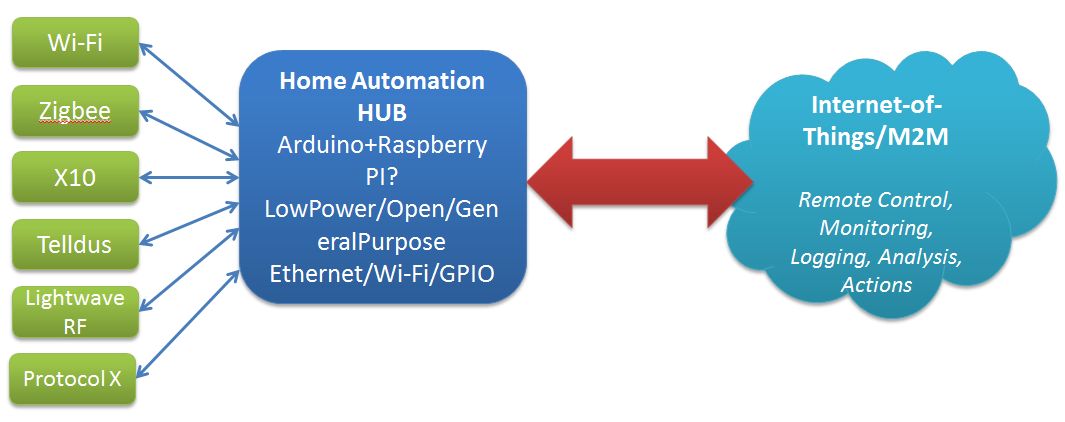
Likewise, we have hubs finally coming onstream to try and manage all the possible combinations of hardware and software for home sensors and everything else (or so they promise).

Think home sensors/lightbulbs/whatever – currently we have a plethora of specs to choose from for household comms and telemetry: X10, Zigbee, Z-Wave, Lightwave RF. Telldus, etc. Currently each manufacturer has their own choice of spec, controller software, etc.

Fortunately the Open Source/Open Hardware groups are are already experimenting with options to handle this – a good example is the Home Automation Hub (HAH) project which sets out to turn an Orange Livebox router into a home automation server, with an extra bit of hardware that – like the TellStick – allows it to control a range of gadgetry, and even keep an eye on energy consumption too. Likewise the dovado routers I’ve raved about before have the beginnings of some interesting Home Automation features with integration with Telldus sticks and the use of GPS to determine sunrise and sunset times for the location.

Open Source Open Hardware Hub

Home Hub - Internet of ThingsKey features as I see them are:

  • Compact
  • Reliable
  • Minimum Downtime
  • Low power
  • Open

Publish & Subscribe

So, assuming that we can get all these sensors talking to our hub, and that data recording (and potentially taking local actions based on that – heating, lighting, etc.) what do we do with it.

The hobbiest answer is to put it up on a website for your own entertainment. The more interesting options are open to the hub provider, and I see a few possible approaches here:

  1. Act as a relationship broker: making partnerships with different consumers of the telemetry e.g. allow the hub to submit information of the users choice to projects of their interest e.g. SmartCities, utility providers, etc.
  2. Act as a centralised clearing house: store all users data, sell it in bulk (users are the product) and plan to be bought at some point by Google/IBM/whoever
  3. Act as a centralised broker – grouping your users according to, for example, energy usage patterns and negotiating (optional) bulk deals from utility providers. For example, contacting the Power company and saying here is aggregate usage data for 30k ‘night owls’ – can we get a special deal, since they are offsetting the base load cost, but not adding to peak loads.


Providers/Website subscribing to the date

Raspberry Pi – Getting SMB to work

I just got a new Raspberry Pi Model B and am planning on playing with it as a Media Center system. Getting the basics up and running took a little more work then I expected as I didn’t have neither HDMI/DVI converter nor USB Keyboard (PS/2 rules).

I had a pre-formatted SDCard ready to roll but when I attached the network cable and power unfortunately the device didn’t connect to the network – plugging it into the TV I saw that the it was stopping at the NOOBS loader. This allows you to get the Pi up and running easily, without network access, and to select and install from a menu of Operating Systems. Kind of conflicted about how good an idea this is to the typical linux/electronics hobbiest. Effectively this acts like a recovery partition after the first install.

Plug in a mouse, select Raspbian (as I usually work on Debian) and a few mins later the install is complete. Reboot and complete the setup and it was networked. Once I found the IP I updated and upgraded all the packages and installed XRDP for remote desktop access.

At this point I wanted to check that SMB would work – it wouldn’t 🙁

pi@raspberrypi ~ $ sudo mkdir /mnt/Media
pi@raspberrypi ~ $ sudo vi /etc/fstab
pi@raspberrypi ~ $ mount /mnt/Media
mount: only root can mount //192.168.1.8/samba on /mnt/Media
pi@raspberrypi ~ $ sudo !!
sudo mount /mnt/Media
mount error: cifs filesystem not supported by the system
mount error(19): No such device
Refer to the mount.cifs(8) manual page (e.g. man mount.cifs)
pi@raspberrypi ~ $ cd /mnt
pi@raspberrypi /mnt $ ls
Media
pi@raspberrypi /mnt $ mount -t cifs -o user=xxxx //192.168.1.8/samba /mnt/Media
mount: only root can do that
pi@raspberrypi /mnt $ sudo !!
sudo mount -t cifs -o user=xxxx//192.168.1.8/samba /mnt/Media
Password:
mount error: cifs filesystem not supported by the system
mount error(19): No such device
Refer to the mount.cifs(8) manual page (e.g. man mount.cifs)
pi@raspberrypi /mnt $ sudo modprobe cifs
libkmod: ERROR ../libkmod/libkmod.c:554 kmod_search_moddep: could not open moddep file '/lib/modules/3.6.11+/modules.dep.bin'

This was something of a puzzle as both cifs-utils and libsmbclient are installed. Turns out that the firmware was out of date – a quick rpi-update and reboot and problem solved!

pi@raspberrypi /mnt $ sudo rpi-update
*** Raspberry Pi firmware updater by Hexxeh, enhanced by AndrewS
*** Performing self-update
% Total    % Received % Xferd  Average Speed   Time    Time     Time  Current
Dload  Upload   Total   Spent    Left  Speed
100   135  100   135    0     0    240      0 --:--:-- --:--:-- --:--:--   323
100  7177  100  7177    0     0   7315      0 --:--:-- --:--:-- --:--:--  7315
*** Relaunching after update
*** Raspberry Pi firmware updater by Hexxeh, enhanced by AndrewS
*** ARM/GPU split is now defined in /boot/config.txt using the gpu_mem option!
*** We're running for the first time
*** Setting up firmware (this may take a few minutes)
Cloning into '//root/.rpi-firmware'...
remote: Counting objects: 3378, done.
remote: Compressing objects: 100% (2610/2610), done.
Receiving objects: 100% (3378/3378), 25.96 MiB | 1.20 MiB/s, done.
remote: Total 3378 (delta 1608), reused 1117 (delta 504)
Resolving deltas: 100% (1608/1608), done.
...

Multiple interfaces in CentOS

I had an issue with CentOS6.4 – two network interfaces were configured eth0 - 10.x.y.z and eth1 - 192.168.x.y. eth0 is being used for SSH access, but as soon as eth1 was brought up the node became unreachable from anything except the local subnet.

Source was 10.x.y.230 and they are on the same switch:

[root@controller etc]# ping 10.x.y.234
PING 10.3.8.234 (10.x.y.234) 56(84) bytes of data.
64 bytes from 10.x.y.234: icmp_seq=1 ttl=64 time=1.33 ms
64 bytes from 10.x.y.234: icmp_seq=2 ttl=64 time=0.298 ms
64 bytes from 10.x.y.234: icmp_seq=3 ttl=64 time=0.277 ms
64 bytes from 10.x.y.234: icmp_seq=4 ttl=64 time=0.270 ms

But ping from any other subnet and nothing… Turns out that you have to be very specific when configuring the default gateway in /etc/sysconfig/network. It seems that both the default gateway and the gateway interface are required, to get the route added properly.

[root@node-2 ~]# cat /etc/sysconfig/network
NETWORKING=yes
HOSTNAME=node-2.fqdn.net
GATEWAY=10.x.y.1
GATEWAYDEV=eth0

And now our route is correctly added

[root@node-2 ~]# route
Kernel IP routing table
Destination     Gateway         Genmask         Flags Metric Ref    Use Iface
10.x.y.0        *               255.255.255.0   U     0      0        0 eth0
192.168.1.0     *               255.255.255.0   U     0      0        0 eth1
link-local      *               255.255.0.0     U     1002   0        0 eth0
link-local      *               255.255.0.0     U     1003   0        0 eth1
default         10.x.y.1        0.0.0.0         UG    0      0        0 eth0