Category Archives: Linux

Airtame – Display anything… wirelessly

Finally got my hands on my Indiegogo funded Airtame last night, so wanted to put up a few thoughts on it. First impressions – very good. Simple packaging, 3 instructions to get you started and includes;

  • The Airtame
  • AC Power Adapter
  • EU Power Adapter (plug)
  • UK Power Adapter (plug)
  • HDMI Extension Cable
  • MicroUSB cable

Getting started

This was as simple as plugging in the dongle, and installing the app. The Airtame acts as a 5GHz WiFi access point, and sets a random password – displayed on the screen. Once connected directly you can then connect it to your WiFi network. All worked without any issues.

Slow Firmware Update

As I excitedly went to try a basic stream I had my only real disappointment – a lengthy (30 mins) firmware update before I could actually use the thing. At more then one point I thought that it might have stalled out but was dissuaded from killing the power by a warning not to. An ETA or at least some guidance on how long it would take should be considered.

Cool Things

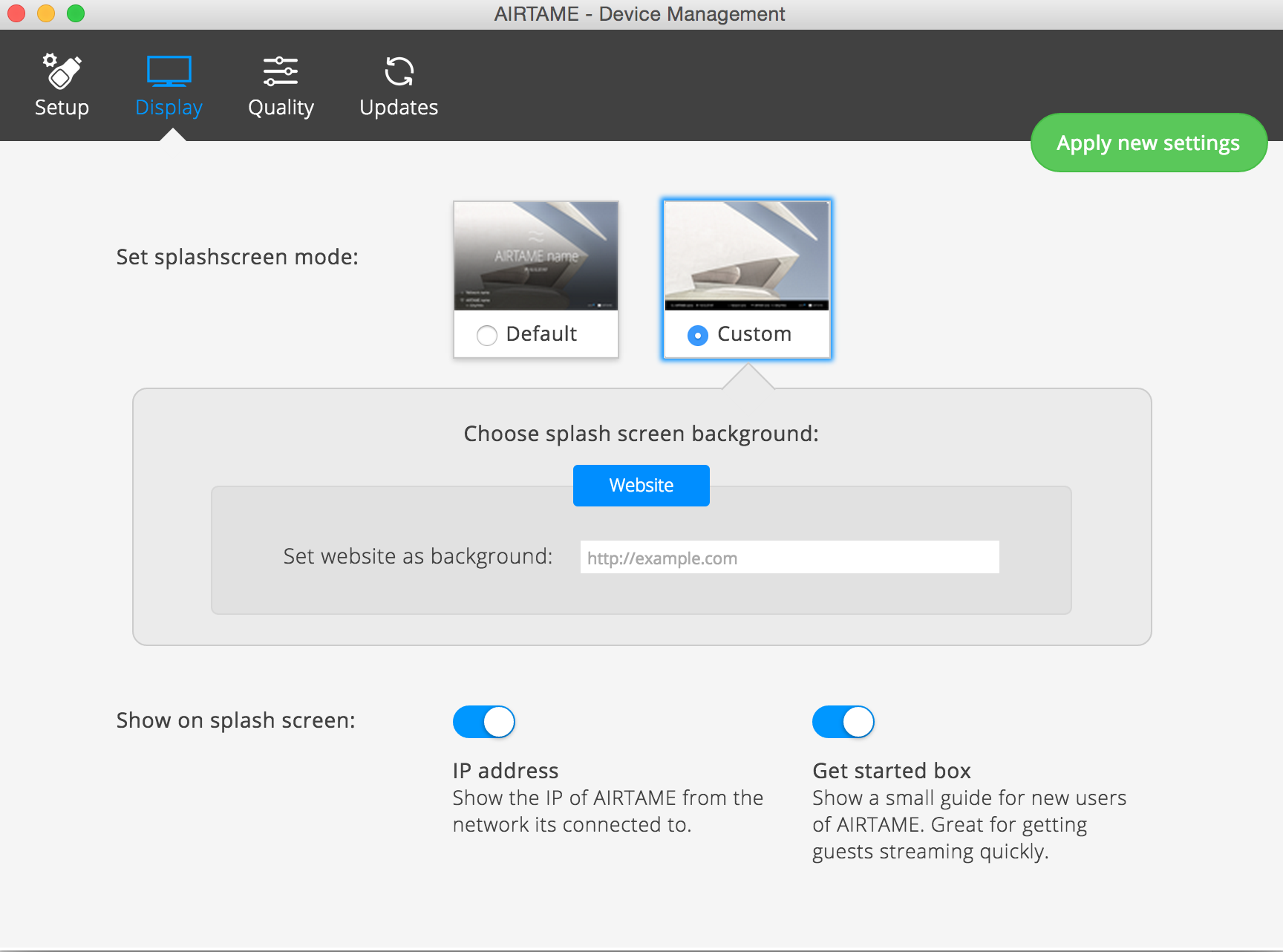
It can use a website as the background/default page – to turn this on, in the app select your Airtame. Go to Manage -> Display -> Custom -> Website

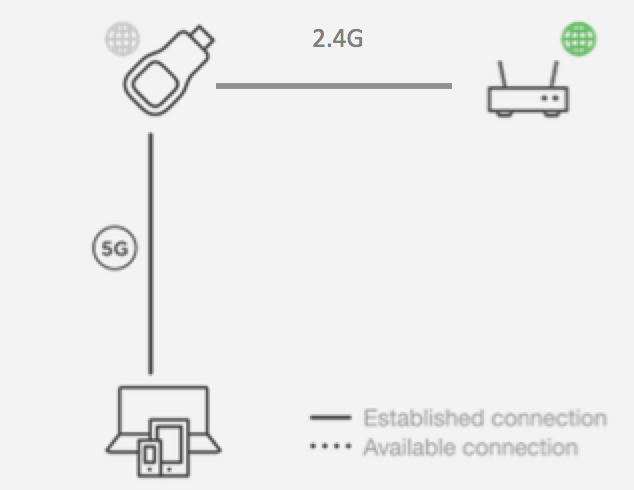
Airtame Custom WallpaperIt will route your internet traffic, so once you connect to the Airtame 5GHz network, and provide it with your WiFi details you can continue to use the interweb while managing/streaming the device.

I found that when I was connecting via the WiFi router I had frequent dropped connections. Not sure if this is the router (fairly crap one) or the Airtame, but found the 5GHz connection via the Airtame to be very stable

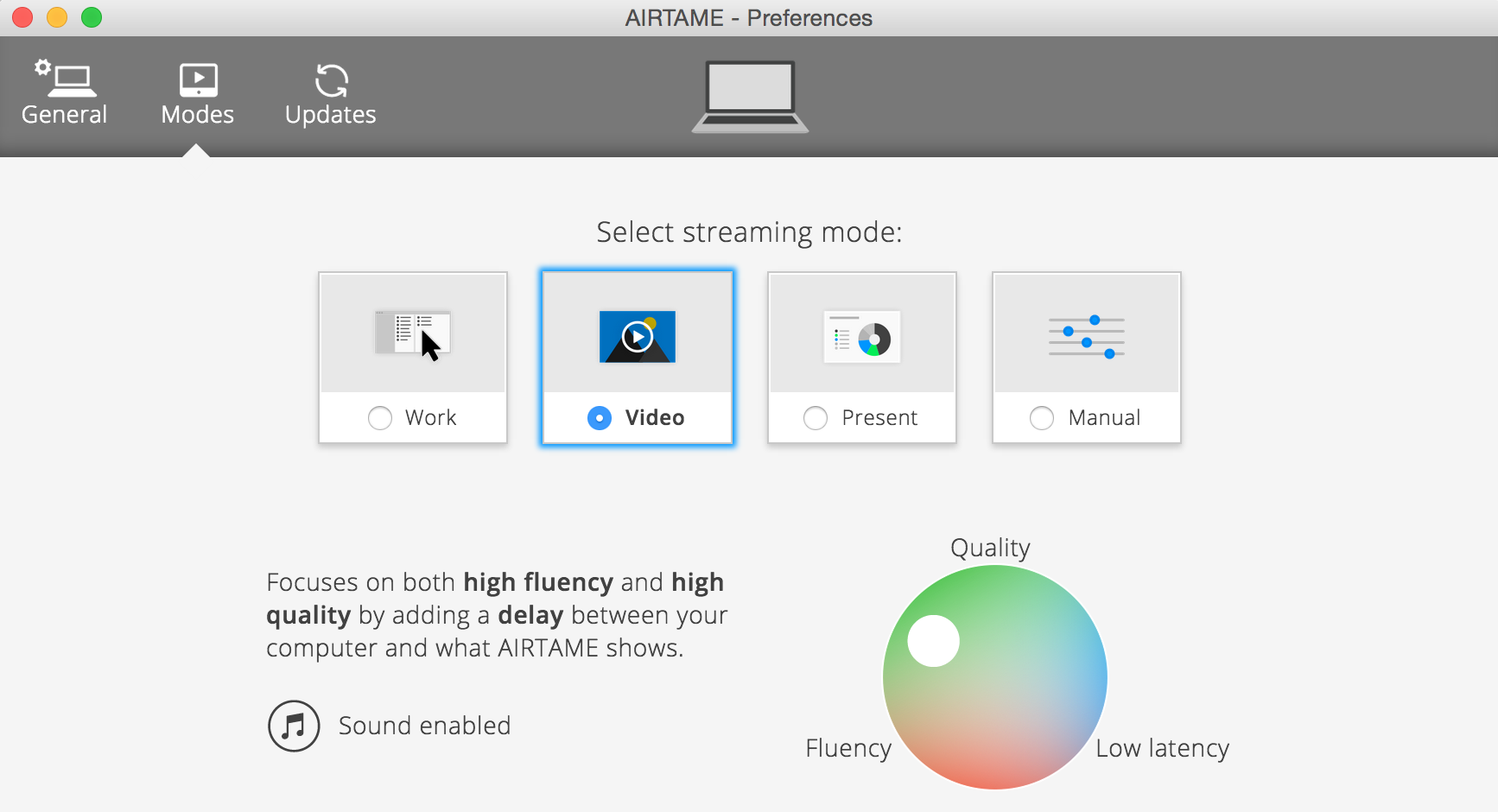
Airtame RoutingAudio streaming – requires a restart in OS X. Then in the Airtame app, under preferences, move the streaming mode to ‘Video’ rather then the default ‘Work’. Note that this will introduce 5sec buffering by default.

Airtame Preferences Mode

RAID-5 Horror Story – A tale of woe and notes on how to avoid a similar fate

As a starting point, since someone is sure to mention it, I KNOW THAT RAID IS NOT A BACKUP!!. On the other hand I’ve yet to meet someone who can tell me an affordable way to back up a 12TB array short of buying enough disks to clone it.

I’ve had a home-build linux md server for quite some time now. Brought the array online ~2011 and have grown it multiple times since then. It was at 7 x 2TB (apparently a bad idea all by itself, not that the software would warn you when you add the disk to the pool) disks and over the years had survived disk failures, power cuts while being grown, and 2 house moves.

Basic Setup

  • Linux MD disk array
  • 7 x 2TB 3.5″ SATA Disks
  • Whole disk (or array in this case) encryption (cryptsetup)
  • XFS Filesystem on top

Where it started to go wrong

It started, as these things usually do with an e-mail from my server, cheerfully informing me that one of the disks had died and that the raid array was degraded. Not really a problem as this had happened before without major drama.

  • Order a new disk
  • Figure out which one is /dev/sdf
    • hwinfo --disks helps a lot for this since it can get serial numbers
  • Shut the server down
  • Swap in the new disk
  • Add it to the array, and take things easy while it rebuilds (approx time required ~10 hours when disks are not being used)

And that was when I hit the dreaded Unrecoverable Read Error 🙁 Much has been written about this, but it was my first experience of it (and won’t forget it in a hurry).

[  772.229943] md: bind<sdh>
[  772.793789] RAID conf printout:
[  772.793794]  --- level:5 rd:7 wd:6
[  772.793798]  disk 0, o:1, dev:sdg
[  772.793802]  disk 1, o:1, dev:sdh
[  772.793805]  disk 2, o:1, dev:sdi
[  772.793809]  disk 3, o:1, dev:sdf
[  772.793812]  disk 4, o:1, dev:sdd
[  772.793816]  disk 5, o:1, dev:sdb
[  772.793819]  disk 6, o:1, dev:sda
[  772.794310] md: recovery of RAID array md0
[  772.794316] md: minimum _guaranteed_  speed: 1000 KB/sec/disk.
[  772.794368] md: using maximum available idle IO bandwidth (but not more than 200000 KB/sec) for recovery.
[  772.794378] md: using 128k window, over a total of 1953514496k.
...
[35295.808096] ata9.00: exception Emask 0x0 SAct 0x7fffffff SErr 0x0 action 0x6 frozen
[35295.808105] ata9.00: failed command: READ FPDMA QUEUED
[35295.808116] ata9.00: cmd 60/08:00:20:01:ce/00:00:ab:00:00/40 tag 0 ncq 4096 in
[35295.808118]          res 40/00:01:00:4f:c2/00:00:00:00:00/00 Emask 0x4 (timeout)
[35295.808124] ata9.00: status: { DRDY }
[35397.139031] sd 8:0:0:0: [sdf]  Add. Sense: Unrecovered read error - auto reallocate failed
[35397.139041] sd 8:0:0:0: [sdf] CDB: Read(10): 28 00 ab cd f8 58 00 03 08 00
[35397.139057] end_request: I/O error, dev sdf, sector 2882403160
[35397.139066] md/raid:md0: read error not correctable (sector 2882403160 on sdf).
[35397.139073] md/raid:md0: Disk failure on sdf, disabling device.
[35397.139075] md/raid:md0: Operation continuing on 5 devices.
[35397.139116] ata9: EH complete
[35397.708320] md: md0: recovery done.
[35397.822385] RAID conf printout:
[35397.822391]  --- level:5 rd:7 wd:5
[35397.822397]  disk 0, o:1, dev:sdg
[35397.822401]  disk 1, o:1, dev:sdh
[35397.822405]  disk 2, o:1, dev:sdi
[35397.822409]  disk 3, o:0, dev:sdf
[35397.822412]  disk 4, o:1, dev:sdd
[35397.822416]  disk 5, o:1, dev:sdb
[35397.822419]  disk 6, o:1, dev:sda
[35397.824183] RAID conf printout:
[35397.824188]  --- level:5 rd:7 wd:5
[35397.824191]  disk 0, o:1, dev:sdg
[35397.824195]  disk 2, o:1, dev:sdi
[35397.824198]  disk 3, o:0, dev:sdf
[35397.824201]  disk 4, o:1, dev:sdd
[35397.824205]  disk 5, o:1, dev:sdb
[35397.824208]  disk 6, o:1, dev:sda
[35397.824218] RAID conf printout:
[35397.824221]  --- level:5 rd:7 wd:5
[35397.824224]  disk 0, o:1, dev:sdg
[35397.824228]  disk 2, o:1, dev:sdi
[35397.824231]  disk 3, o:0, dev:sdf
[35397.824234]  disk 4, o:1, dev:sdd
[35397.824237]  disk 5, o:1, dev:sdb
[35397.824240]  disk 6, o:1, dev:sda
[35397.824380] RAID conf printout:
[35397.824386]  --- level:5 rd:7 wd:5
[35397.824390]  disk 0, o:1, dev:sdg
[35397.824394]  disk 2, o:1, dev:sdi
[35397.824398]  disk 4, o:1, dev:sdd
[35397.824401]  disk 5, o:1, dev:sdb
[35397.824404]  disk 6, o:1, dev:sda

At which point the array is basically dead. Which seems a bit insane – read error in one sector makes 12TB of data unavailable but there you go. We apparently can’t mount, rebuild or do anything – bear in mind that at this point all our data is still intact, except for that one dodgy sector. Looking at the raid array in more detail (it is a mess):

[~]=> sudo mdadm --detail /dev/md0
/dev/md0:
        Version : 0.90
  Creation Time : Mon May 16 22:34:59 2011
     Raid Level : raid5
  Used Dev Size : 1953514496 (1863.02 GiB 2000.40 GB)
   Raid Devices : 7
  Total Devices : 5
Preferred Minor : 0
    Persistence : Superblock is persistent

    Update Time : Wed Apr 29 12:28:08 2015
          State : active, FAILED, Not Started 
 Active Devices : 4
Working Devices : 5
 Failed Devices : 0
  Spare Devices : 1

         Layout : left-symmetric
     Chunk Size : 64K

           UUID : 4a3bba9b:8299bd9b:3cb2199d:f2060f75
         Events : 0.1434672

    Number   Major   Minor   RaidDevice State
       0       8       96        0      active sync   /dev/sdg
       1       0        0        1      removed
       2       8      128        2      active sync   /dev/sdi
       3       0        0        3      removed
       4       8       48        4      active sync   /dev/sdd
       5       8       16        5      active sync   /dev/sdb
       6       0        0        6      removed

       7       8      112        -      spare   /dev/sdh

Pay close attention to the metadata version – this is where I went horribly wrong (more on that later). From the list of disks we have /dev/sdf removed automatically due to the read error and /dev/sdh in as a spare since it was in the process of being synced when everything went pear shaped.

Steps to recovery

At this point I was quite annoyed and a bit desperate so I concocted a plan that would have worked, but for one mistake. My plan was simple

  1. Remove /dev/sdh from the md0 set – it’s basically useless now anyway
  2. Get /dev/sdf back in by recreating the array
  3. Run XFS checks on the file system to be sure that is ok
  4. Use gddrescue to clone the slightly dodgy /dev/sdf to /dev/sdh – with multiple retries to try and get the problem sector
  5. Reassemble the array using /dev/sdh rather then /dev/sdf
  6. Buy another new disk and slot it in and hope the rebuild works this time
  7. Low level format /dev/sdf to get the sector marked as bad. If that fails, bin it.
  8. Convert to RAID-6 so this can’t happen again

Step 1 went as expected:

[~]=> sudo mdadm --remove /dev/md0 /dev/sdh
mdadm: hot removed /dev/sdh from /dev/md0
[~]=> sudo mdadm --detail /dev/md0
/dev/md0:
        Version : 0.90
  Creation Time : Mon May 16 22:34:59 2011
     Raid Level : raid5
  Used Dev Size : 1953514496 (1863.02 GiB 2000.40 GB)
   Raid Devices : 7
  Total Devices : 5
Preferred Minor : 0
    Persistence : Superblock is persistent

    Update Time : Wed Apr 29 12:41:58 2015
          State : active, FAILED, Not Started 
 Active Devices : 5
Working Devices : 5
 Failed Devices : 0
  Spare Devices : 0

         Layout : left-symmetric
     Chunk Size : 64K

           UUID : 4a3bba9b:8299bd9b:3cb2199d:f2060f75
         Events : 0.1434673

    Number   Major   Minor   RaidDevice State
       0       8       96        0      active sync   /dev/sdg
       1       0        0        1      removed
       2       8      128        2      active sync   /dev/sdi
       3       8       80        3      removed
       4       8       48        4      active sync   /dev/sdd
       5       8       16        5      active sync   /dev/sdb
       6       8        0        6      active sync   /dev/sda

So I decided to re-create the array rather then re-assemble (with assume-clean), and here I went very wrong. I didn’t specify the metadata version.

MD RAID Metadata Versions

It used to be the default format of raid superblock during array creation on most distributions until 2009, the older version-0.90 superblock format had several limitations that limited its applicability for use on large arrays or arrays with many component devices.

The version-0.90 superblock limits the number of component devices within an array to 28, and limits each component device to a maximum size of 2TB on kernel version <3.1 and 4TB on kernel version >=3.1.

The superblock is 4K long and is written into a 64K aligned block that starts at least 64K and less than 128K from the end of the device (i.e. to get the address of the superblock round the size of the device down to a multiple of 64K and then subtract 64K). The available size of each device is the amount of space before the super block, so between 64K and 128K is lost when a device in incorporated into an MD array.

Also, and this is important – it is stored at the end of the device. If you want mdadm to use this you have to specify –metadata=0.9

The shiny new (and now the default) is version 1.2 which grabs 4K from the beginning of the device, and while doing so torches the XFS superblock.

XFS Gone

When I realised my mistake, got the drives into a sort of working order, and mounted, I was presented with

[~]=> sudo mount /dev/mapper/storage /mnt/storage
mount: /dev/mapper/storage: can't read superblock

From our message log

[ 1337.665651] SGI XFS with ACLs, security attributes, realtime, large block/inode numbers, no debug enabled
[ 1337.666154] SGI XFS Quota Management subsystem
[ 1337.666931] XFS (dm-3): Mounting Filesystem
[ 1339.452417] XFS (dm-3): Log inconsistent (didn't find previous header)
[ 1339.452441] XFS (dm-3): failed to find log head
[ 1339.452447] XFS (dm-3): log mount/recovery failed: error 5
[ 1339.452524] XFS (dm-3): log mount failed

xfs_repair, after throwing around many dots seemed to be completely unhappy with any of the secondary superblocks, and UFS Recover could only re-assemble some bits and pieces.

And that was the end of that.

Lessons learned

  • Never more the 4 devices in RAID-5
  • Always make a backup
  • Be very very careful when trying to repair
  • For tools that have been in service for longer then a few months, be very very careful. Some idiot developer has probably changed the defaults in a way that will screw you

Customising Arista EOS

Arista EOS is very customisable, but if you want to customise the image you are going to deploy it can take a little work. The SWI EOS image (the part we care about anyway) is basically a squash-fs file system wrapped up as an uncompressed zip image (store).

To get at the interesting bits:

  1. unzip EOS-4.14.6M.swi
  2. unsquashfs rootfs-i386.sqsh (as root)
  3. Make any changes you want (add files, edit the python files, whatever)
  4. Delete the original rootfs-i386.sqsh, and then make a new one mksquashfs  squashfs-root/ rootfs-i386.sqsh
  5. Zip everything back up again: zip -Z store EOS-4.14.6M_custom.swi boot0 initrd-i386 linux-i386 rootfs-i386.sqsh version

Of course it is worth noting that the this would violate the Arista license agreement:

Customer shall have no right and Customer specifically agrees not to:
…
(iii) decompile, decrypt, reverse engineer, disassemble or otherwise reduce the Software to human-readable form ..

Arista EOS, VRFs, and the CLI

A very common approach for networks is to have the management interface of the network node (switch, router, load balancer, etc.) in a separate VRF [Virtual Routing and Forwarding] instance. This has many security benefits, especially in the case of internet facing devices.

Main ones from my perspective are:

  • Separate routing table to the rest of the device
  • Isolation of management services
  • Independent virtual/physical interfaces, with tightened ACLs

Arista EOS for quite some time has supported VRFs, but something that you need to keep in mind when using them is that the VRF has it’s own routing table. So when you create a VRF e.g. MGMT-VRF all your addresses and routes for the management network are no longer in the default routing instance.

switch(config)# vrf definition MGMT-VRF
switch(config-vrf-MGMT-VRF)# rd 123:12
switch(config)# interface et1
switch(config-if-et1)# vrf forwarding MGMT-VRF

Some commands are VRF aware e.g. ping. For example you can run the following command:

ping vrf MGMT-vrf 10.10.10.1

Unfortunately not all commands are VRF aware yet – an obvious one is the copy command. The solution to this is to switch to the routing-context that you are trying to copy to/from and then run the copy command (this applies to all non-VRF-aware commands).

switch# routing-context vrf MGMT-VRF
switch# show routing-context vrf
Current VRF routing-context is MGMT-VRF
switch# copy ...

Then afterwards switch back to the default

switch# routing-context vrf default

3 Ireland SMTP Access Blocked

Having put some time and effort into getting my mail server setup, and configuring my Android phone to use IMAPS for receiving and SMTP over TLS for sending emails, and testing it, I was quite annoyed while out in the town to find that I could receive mails but not send any.

It turns out that 3 Ireland, when on the 3ireland.ie APN block all outgoing connections on TCP port 25 e.g. the SMTP port. They do have a mail relay that is permitted available, though documentation for that is hard to find. The mail relay is located at:

mail-relay.3ireland.ie

However, using their relay would defeat the purpose of having the secure SMTP service available. Simple workaround is to change the port forwarding on the router to direct TCP port 587 externally to port 25 internally – no config changes on the server required.

SSL Certificate Signing for Free with SAN/UCC

If you run your own website, email server or other services  at home then you should make use of a SSL certificate. When you install most webservers (Apache, NGINX, etc.), they generates a self-signed “snakeoil” certificate that can be used to encrypt your session. This is really only intended for testing, and has a few issues:

  1. The common name on the certificate probably doesn’t match your domain name. Scary warning from most browsers (though this can happen occasionally due to configuration error).
  2. The snakeoil certificate has not been signed by an authority that your browser trusts, so your browser will throw another error when you connect.
  3. Short of manually inspecting the certificate’s checksum, you have no guarantee that you are communicating with your own server – bit like how you usually ignore the SSH fingerprint when you are connecting to a new server, you just assume it to be correct but pay attention if it ever changes.

I’ve chosen to go the budget route and create an SSL cert request and get it signed by the community driven SSL certificate signing authority CAcert. Once you have imported the certificate into your browser or into your operating system’s root filesystem, your computer will automatically verify the identity of the server and you will enjoy error-free secure communications. Oh, and CAcert is free of charge!

The one caveat to this, is not all browsers have CAcert’s root certificate installed.

Filename Extensions

Just to note that while linux doesn’t care what you have as an extension, Windows does very much. Since this is for Debian, your milage may vary. For my own peace of mind I’m making use of 3 extensions.

  • .key – this is for the private key. This file should be kept secret and protected
  • .crt – This is the server certificate
  • .csr – This is the server certificate request, and what is signed by the Certificate Authority [CA].

Generating The Certificate

Create a private key

This command uses openssl to generate a 4096-bit RSA key

openssl genrsa -out <filename for your private key>.key 4096

Generating the Certificate Request

The key piece of information here is the common name. This is the name that the cert is bound to e.g. www.flat-planet.net. However, for example, if the common name provided is flat-planet.net then there will be an error in all browsers stating that the site name does not match the common name. There are two ways to work around this:

  1. Generate a wildcard cert that will allow you to sign all subdomains e.g. common name = *.flat-planet.net, which will cover us for all future subdomains we might want to use.
  2. Generate a SubjectAltName CSR with a list of all the subdomains we are planning on using.

The second is the more interesting, so that is what I’ll use here.

Create a SAN/UCC CSR

SAN certificates (or as Microsoft and others have taken to calling them, Unified Communications Certificates) are rapidly becoming a popular option for securing multiple domains. In fact, Exchange 2007, OCS 2007, and several other products now require UCC to function. However, this certificate type can proffer some advantages beyond that of a wildcard certificate as well. One such advantage is the ability to secure “domain.com”, “www.domain.com”, “domain.net”, and “someotherdomain.com” all within a single certificate.

The catch is that OpenSSL will not allow you to add SANs interactively, so we need a config file to make the magic happen. We create a new .conf file for OpenSSL. Most of this file is just over-riding the default prompts, the interesting piece is the [alt_names] section. Each subdomain we want to certify is listed here. To add another just add in DNS.5, DNS.6, etc.

[ req ]
default_bits        = 4096
default_keyfile     = privkey.pem
distinguished_name  = req_distinguished_name
req_extensions     = req_ext # The extentions to add to the self signed cert

[ req_distinguished_name ]
countryName           = Country Name (2 letter code)
countryName_default   = IE
stateOrProvinceName   = State or Province Name (full name)
stateOrProvinceName_default = Co. Dublin
localityName          = Locality Name (eg, city)
localityName_default  = Dublin
organizationName          = Organization Name (eg, company)
organizationName_default  = FlatPlanet Networks Ltd.
commonName            = Common Name (eg, YOUR name)
commonName_max        = 64

[ req_ext ]
subjectAltName          = @alt_names

[alt_names]
DNS.1   = www.flat-planet.net
DNS.2   = mail.flat-planet.net
DNS.3   = im.flat-planet.net
DNS.4   = comms.flat-planet.net

Once we have this file created, we use it in common with our private key to create the certificate request (CSR). In this case I used flat-planet.net as the common name.

openssl req -out CSR.csr -key flat-planet-private.key -config ./openssl_req.conf -new
You are about to be asked to enter information that will be incorporated
into your certificate request.
What you are about to enter is what is called a Distinguished Name or a DN.
There are quite a few fields but you can leave some blank
For some fields there will be a default value,
If you enter '.', the field will be left blank.
-----
Country Name (2 letter code) [IE]:
State or Province Name (full name) [Co. Dublin]:
Locality Name (eg, city) [Dublin]:
Organization Name (eg, company) [FlatPlanet Networks Ltd.]:
Common Name (eg, YOUR name) []:flat-planet.net

Don’t set a password – leave it blank when asked.

Install the CA Root Certificate (optional)

This is not really required on the server side, but since we are using CAcert to sign our cert we should accept their signing of others.

cd ~
wget http://www.cacert.org/certs/root.txt
sudo cp root.txt /etc/ssl/certs/cacert-root.crt
sudo c_rehash /etc/ssl/certs

The last command regenerates the hashes of all the certs – some applications use these for a fast lookup.

Required E-Mail Addresses

To prove that you have control over the domain that you are generating the cert for CAcert will send you confirmation mails to one of the following addresses:

NOTE: Replace flat-planet.net with the domain you are trying to get signed. If these accounts don’t exist, just add them as entries to the /etc/aliases file and regenerate the database (postfix).

vi /etc/aliases
...
postmaster: yourusername
webmaster: yourusername
root: yourusername
sudo newaliases
sudo service postfix reload

Submitting the CSR

First things first, you will need to go to the CAcert website and create an account. Once the account is created, log in and go to Server Certificates -> New, and submit the contents of CSR.csr (that you created earlier, include the BEGIN and END blocks). The cert will be displayed, and a link e-mailed to you. Simply copy the text shown, and save them in a .crt file.

Congrats – you now have a signed cert.

File locations and permissions

This is a key step, as we didn’t set a password so are relying on file permissions to enforce security.

  • The key file should be stored in /etc/ssl/private/flat-planet-private.key
  • Key should be owned by root:root with 600 permissions
  • The certificate should be stored in /etc/ssl/certs/flat-planet.crt
  • Certificate should be owned by root:root with 644 permissions

Using the Certs

The exact configuration will vary depending on the application e.g. Apache, Nginx, postfix, dovecot. See other guides for more details on these, but generally you will have to point them towards both the cert and the key.

Dual Root with different versions – JUNOS

Finally fired up my SRX210 today, and got it going (after a password recovery 🙂 ), but while it was booting I noticed the error:

WARNING: JUNOS versions running on dual partitions are not the same

What this actually means is that the current running version of JUNOS is not the same as the version in the system snapshot i.e. you forgot to create a new snapshot after you upgraded.

Checking this and fixing it is quite trivial:

root@svalinn> show system snapshot media internal
Information for snapshot on       internal (/dev/da0s1a) (backup)
Creation date: Oct 16 19:37:41 2013
JUNOS version on snapshot:
junos  : 12.1X45-D15.5-domestic
Information for snapshot on       internal (/dev/da0s2a) (primary)
Creation date: Jan 31 08:59:22 2014
JUNOS version on snapshot:
  junos  : 12.1X44-D30.4-domestic

root@svalinn> request system snapshot slice alternate
Formatting alternate root (/dev/da0s1a)…
Copying ‘/dev/da0s2a’ to ‘/dev/da0s1a’ .. (this may take a few minutes)
The following filesystems were archived: /

And problem solved 🙂

Using RPi-Monitor with your own webserver (Nginx)

As I recently moved this site to a RPI for hosting purposes, I though it would be a good idea to have a nice web page to monitor the current status of the box. Some googling later and I found the excellent RPi-Monitor.

By default it has it’s own webserver, and it is not recommended to use anything other then that, but running a second webserver seemed a little bit untidy to my thinking so I set it to run on Nginx instead.

The actual changes were quite simple, with one or two gotcha’s.

RPi-Monitor stores the webpage in /usr/share/rpimonitor/web by default. Rather then play with that I just created a symbolic link between the root of the webserver and that point:

ln -s /usr/share/rpimonitor/web /var/www/rpimonitor

and that is sorted.

Next up is the configuration change to the rpimonitor daemon – config file located in /etc/rpimonitor/daemon.conf. We need to set it into no-server mode and also change the user, as I’ve disabled the default ‘pi’ account on this box.

# daemon.noserver=1
# Define that rpimonitor shouldn't start web server (default:0)
# Note: A symbolic link from /var/lib/rpimonitor/stat to
# /usr/share/rpimonitor/stat may be required
daemon.noserver=1

# Define user used to run the server process (default:pi)
# Note: If user is not existing, process will run with uid=1000
daemon.user=rpi-monitor
#
# daemon.group=pi
# Define group used to run the server process (default:pi)
# Note: If group is not existing, process will run with gid=1000
daemon.group=rpi-monitor
#

Restart the service, and you should be able to access it from http://my-website.com/rpi-monitor

$ sudo service rpimonitor restart

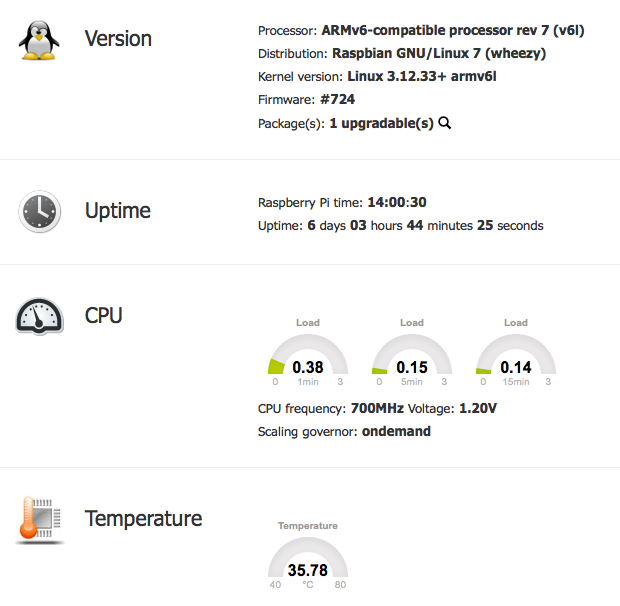
RPI-Monitor StatusHowever there is a slight issue in that the datastore is inaccessible to the webserver, so statistics are unavailable with error “File stat/uptime.rrd is not a valid RRD archive”. To resolve this we need to go back to the daemon.conf file and move the datastore to somewhere under the root directory of the website

# daemon.datastore=/var/lib/rpimonitor
# Define the data storage directory (Default:/var/lib/rpimonitor)
daemon.datastore=/var/www/rpimonitor

Restart the service again and all is worky.

$ sudo service rpimonitor restart

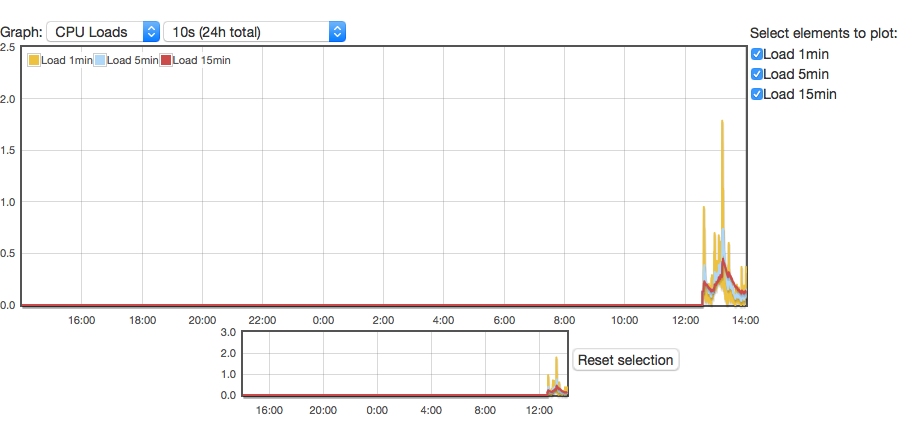
RPI-Monitor StatisticsNote: you could also just move the webroot in the same way, rather then using the symbolic link.

Migrating WordPress Tiny EC2 Instance to Raspberry Pi

Having hosted this blog on a tiny AWS EC2 instance for some time, mostly to gain exposure to EC2, I decided to migrate it to a spare Raspberry Pi and use my home network connection. For the most part this was a fairly seamless transition.

Raspberry Pi Preparation

Basic setup was updating and locking down the RPI. The next step was to install a webserver. Rather then Apache2, I decided to install nginx instead as it is supposed to be a little lighter on resources.

sudo apt-get install nginx php5-fpm
sudo service nginx restart

Try to connect to http://$SERVER_IP and you should see a “Welcome to NGINX” page. If not then something has gone wrong and you need to look at /var/log/nginx/error.log

Next up is to install MySQL and the PHP connection API

sudo apt-get install mysql-server php5-mysql

Be sure to set a strong MySQL root password

At this point I suggest switching your MySQL config with the my-small.cnf as we are working on a relatively low memory device

sudo cp /usr/share/doc/mysql-server-5.5/examples/my-small.cnf /etc/mysql/my.cnf
sudo service mysql restart

Prepare the WordPress MySQL Account

mysql -u root -p
CREATE DATABASE `wordpressdb`;
GRANT ALL PRIVILEGES ON `wordpressdb`.* TO 'wordpress'@'localhost' IDENTIFIED BY 'long_complicated_wordpress_password';
FLUSH PRIVILEGES;
EXIT

At this point I configured nginx to allow PHP to be executed by editing /etc/nginx/sites-enabled/default in two areas:

server {
listen 80; ## listen for ipv4; this line is default and implied
#listen [::]:80 default_server ipv6only=on; ## listen for ipv6

root /var/www;
index index.html index.htm index.php;

...

# pass the PHP scripts to FastCGI server listening on 127.0.0.1:9000
#
location ~ \.php$ {
fastcgi_split_path_info ^(.+\.php)(/.+)$;
# # NOTE: You should have "cgi.fix_pathinfo = 0;" in php.ini
#
# # With php5-cgi alone:
# fastcgi_pass 127.0.0.1:9000;
# # With php5-fpm:
fastcgi_pass unix:/var/run/php5-fpm.sock;
fastcgi_index index.php;
include fastcgi_params;
}

WordPress Migration

For this I made use of the excellent XCloner Plugin to backup my existing server, then used the manual method to restore the entire wordpress installation on the new server. No issues…

Some Performance Improvements

First some caching helpers:

sudo apt-get install memcached php5-memcache php-apc
sudo /etc/init.d/php5-fpm restart

To take advantage in WordPress install the following plugins:

  • nginx Compatibility
  • W3 Total Cache

From the W3 Total Cache settings page

  • enable Page Cache with memcached
  • enable Object Cache with APC

Moving the RRD

First up, install rrdtool on the RPI:

sudo apt-get install rrdtool

Then dump the old RRD from the original server. This is required as the database itself is very platform specific, and cannot be just copied between architectures.

rrdtool dump ./database.rrd &gt; database.xml

On the new server, import it into a shiny new RRD:

rrdtool restore ./database.xml ./database.rrd

DNS Changes

Since this is hosted on a home connection, which has a public IP, we cannot guarantee that the IP address will stay the same. Like most tech-savy people I use Dynamic DNS to ensure I can access my home network.

In this case, I make a CNAME record for flat-planet.net, pointing towards my dynamic DNS record, and we are done.

Raspberry Pi as a Cheap Security Camera

One thing I wanted to look into was the use of the Raspberry Pi as a low-cost, linux based security camera. Key goals were:

  • Recording of HD Video
  • Live stream via web browser

This sets out the steps I did to get it up and running – consider some of the previous posts on the Raspberry to lock it down before opening it to the big bad interweb.

Raspberry Pi Configuration

Disable the camera led – lets not make it too obvious if we are, or aren’t recording. Add the following line to /boot/config.txt

disable_camera_led=1

There is a free, open-source motion detection/surveillance software package that we can use, called motion. Unfortunately it doesn’t yet support the Raspberry Pi Camera Module natively yet, so a special build is required.

sudo apt-get install motion
sudo apt-get remove motion

This is a little odd, but the main goal is that the APT package manager will install all the dependencies, add the service account, etc.

Then we get the customised motion package and install it:

wget https://www.dropbox.com/s/xdfcxm5hu71s97d/motion-mmal.tar.gz
tar zxvf motion-mmal.tar.gz
sudo mv motion /usr/bin/motion
sudo mv motion-mmalcam.conf /etc/motion.conf

We then need to enable motion to run as a daemon by editing /etc/default/motion to include

start_motion_daemon=yes

The main motion configuration file is /etc/motion.conf, but lets make sure that the permissions are sufficient for the motion user to modify them

sudo chmod 664 /etc/motion.conf
sudo chmod 755 /usr/bin/motion
sudo touch /tmp/motion.log
sudo chmod 775 /tmp/motion.log

At this point I tried to run it from the CLI, but was missing a library:

pi@watcher ~ $ motion
motion: error while loading shared libraries: libjpeg.so.62: cannot open shared object file: No such file or directory

Easily solved:

sudo apt-get install libjpeg62

motion.conf – some key changes

daemon on
process_id_file /tmp/motion.pid

logfile /home/pi/motion.log

width 1280
height 720

framerate 2

pre_capture 2
post_capture 2

max_movie_time 600

ffmpeg_video_codec msmpeg4

stream_localhost off

stream_auth_method 2
stream_authentication USERNAME:PASSWORD

There are many configuration options, all of which are detailed in the motion config documentation

If we are running it as a daemon on boot we also need to update /etc/init.d/motion with the log and PID variables e.g.

PIDFILE=/tmp/$NAME.pid

So far the streaming works fine is Firefox and Safari, but not Chrome.